
Introduction
Thank you for choosing the MageGee Cloud98 Wireless Mechanical Keyboard. This keyboard is designed for versatility and performance, featuring triple-mode connectivity, vibrant RGB backlighting, hot-swappable switches, and durable PBT keycaps. This manual provides detailed instructions to help you set up, operate, and maintain your keyboard for an optimal user experience.
What's in the Box
- MageGee Cloud98 Wireless Mechanical Keyboard
- USB-C Cable
- 2.4GHz USB Receiver (stored in the keyboard)
- Keycap Puller
- Switch Puller
- Extra Switches
Product Overview
Familiarize yourself with the layout and key components of your MageGee Cloud98 keyboard.
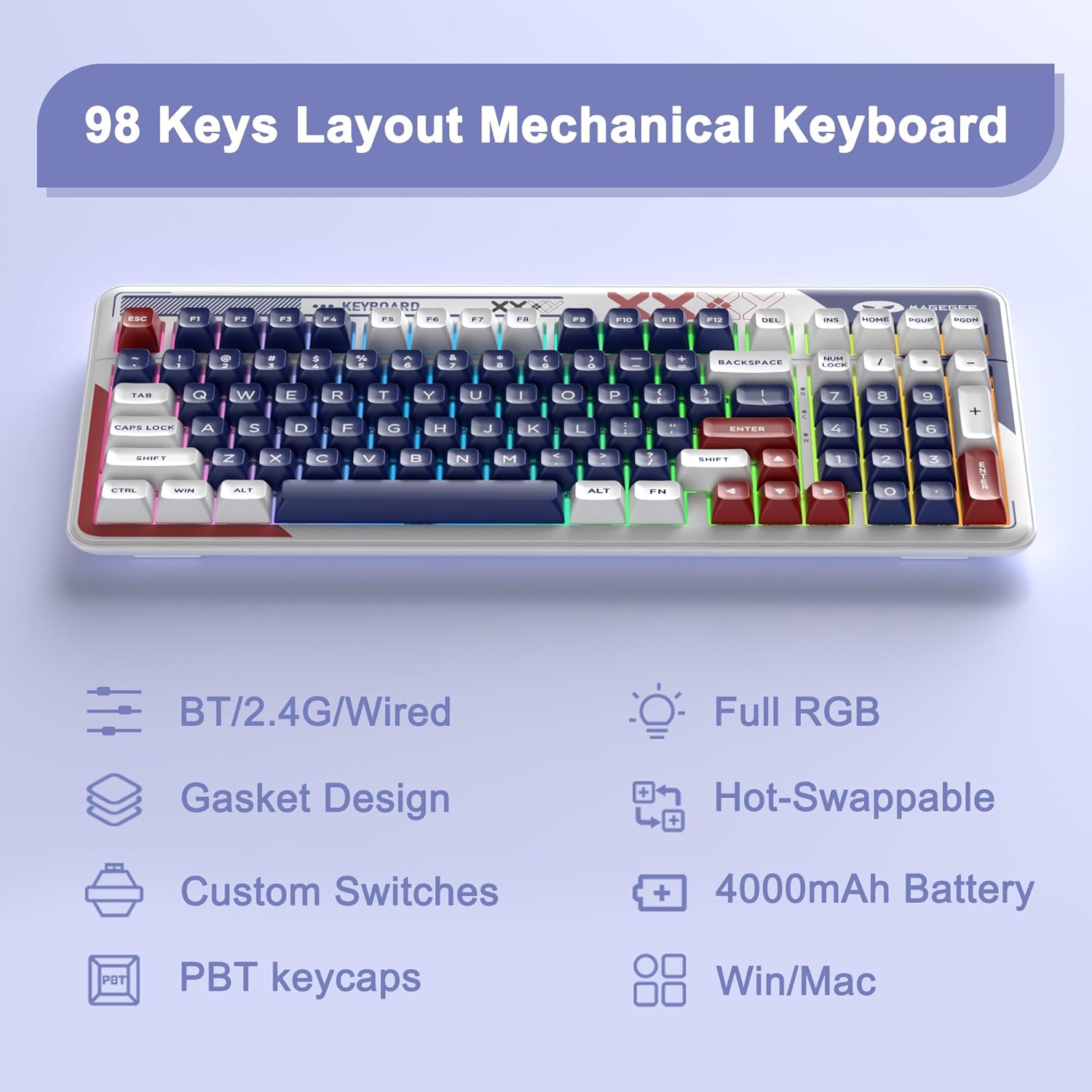
Image: Overview of the MageGee Cloud98 Wireless Mechanical Keyboard, highlighting its 98-key layout, triple-mode connectivity, full RGB backlighting, gasket design, custom switches, 4000mAh battery, and compatibility with Windows/Mac.

Image: Exploded diagram illustrating the Gasket Design of the keyboard, showing layers such as PBT Keycaps, Top Case, White Elephant Switches, Gasket Design, Shock Absorbing Cotton, PCB, Battery, and Basic Case.
Setup
1. Charging the Keyboard
Connect the provided USB-C cable to the keyboard's USB-C port and the other end to a power source (e.g., computer USB port, USB wall adapter). The keyboard features a 4000mAh battery, providing extended usage. A full charge can last up to 200 hours with the backlight off.

Image: Close-up of the USB-C charging port on the side of the keyboard, with a USB-C cable plugged in.
2. Connecting the Keyboard (Triple Mode)
The MageGee Cloud98 supports three connection modes: 2.4GHz Wireless, Bluetooth, and USB-C Wired.

Image: Diagram illustrating the three connection modes: BT Mode, 2.4G Mode, and Wired Mode, with instructions for each.
2.1. 2.4GHz Wireless Mode
- Locate the 2.4GHz USB receiver stored in the keyboard's bottom compartment.
- Plug the USB receiver into an available USB port on your computer.
- Long press the Fn + 4 buttons for 3 seconds to enter 2.4G mode pairing. The indicator light will flash slowly during reconnection.

Image: A hand removing the 2.4GHz USB receiver from its dedicated storage slot on the underside of the keyboard.
2.2. Bluetooth Mode
- Long press the Fn + 1, Fn + 2, or Fn + 3 buttons for 3 seconds to enter Bluetooth pairing mode. The indicator light will flash quickly during pairing.
- On your device, search for Bluetooth devices and select 'MageGee Cloud98' to connect.
2.3. USB-C Wired Mode
- Ensure the USB-C cable is plugged into the keyboard and your computer.
- Press the Fn + 5 buttons for 3 seconds to switch to wired mode.
3. Operating System Compatibility
The keyboard supports various operating systems. Switch between modes using the following combinations:
- For Windows: Press Fn + A
- For macOS: Press Fn + S

Image: The MageGee Cloud98 keyboard on a desk with a laptop, illustrating the Fn+A shortcut for Windows and Fn+S for macOS compatibility.
Operating Instructions
1. RGB Backlighting Control
The Cloud98 features full RGB backlighting with multiple adjustable effects.

Image: The MageGee Cloud98 keyboard displaying various RGB lighting effects and key combinations for controlling them, including switching modes, direction, color, speed, and brightness.
- Switch backlight modes: Fn + INS (19 RGB modes, 9 monochrome modes, custom mode)
- Switch backlight flowing direction: Fn + ← / Fn + →
- Switch backlight color (single color): Fn + ↑ / Fn + ↓
- Adjust backlight flowing speed: Fn + - (decrease) / Fn + = (increase)
- Backlight on/off: Fn + DEL
- Adjust backlight brightness: Fn + PAGE UP (increase) / Fn + PAGE DOWN (decrease)
2. Multimedia Functions
Use the Fn key in combination with the F-keys for multimedia control:
- Fn + F1: Media Player
- Fn + F2: Volume Down
- Fn + F3: Volume Up
- Fn + F4: Mute
- Fn + F5: Stop
- Fn + F6: Previous Track
- Fn + F7: Play/Pause
- Fn + F8: Next Track
- Fn + F9: Email
- Fn + F10: Web Browser
- Fn + F11: My Computer
- Fn + F12: Calculator
3. Hot-Swappable Switches
The keyboard features a hot-swappable design, allowing you to easily change mechanical switches without soldering. It is compatible with most 3-pin and 5-pin switches on the market. Use the provided switch puller to remove switches and the keycap puller to remove keycaps for customization.

Image: A close-up view of a White Elephant Switch, showing its internal components and the hot-swappable socket on the keyboard.
4. N-Key Rollover
The N-Key Rollover feature ensures that every key press is registered accurately, even when multiple keys are pressed simultaneously. This is particularly beneficial for fast typing and gaming.
5. Lock WIN Key Function
To prevent accidental interruptions during gaming or typing, you can lock the Windows key function. Refer to the quick start guide for specific key combinations to activate/deactivate this feature.
Maintenance
To ensure the longevity and optimal performance of your MageGee Cloud98 keyboard, follow these maintenance tips:
- Cleaning Keycaps: Use the provided keycap puller to remove keycaps. Clean them with a soft, damp cloth and mild soap if necessary. Ensure they are completely dry before reattaching.
- Cleaning the Keyboard Body: Use a soft, lint-free cloth to wipe down the keyboard body. For dust and debris between keys, use compressed air.
- Avoid Liquids: Do not expose the keyboard to excessive moisture or liquids. In case of spills, immediately disconnect the keyboard and allow it to dry completely before use.
- Storage: When not in use for extended periods, store the keyboard in a dry, cool place away from direct sunlight.
Troubleshooting
- Keyboard not connecting:
1. Ensure the keyboard is charged.
2. Verify the correct connection mode (2.4GHz, BT, Wired) is selected.
3. For 2.4GHz, ensure the USB receiver is properly inserted.
4. For Bluetooth, ensure your device's Bluetooth is on and the keyboard is in pairing mode. Try re-pairing.
5. For wired, ensure the USB-C cable is securely connected to both the keyboard and the computer. - Backlight not working or unresponsive:
1. Ensure the backlight is turned on using Fn + DEL.
2. Adjust brightness using Fn + PAGE UP/DOWN.
3. Try switching different RGB modes using Fn + INS. - Keys not responding:
1. Check the connection mode.
2. If in wireless mode, ensure the battery is not critically low.
3. If specific keys are not working, try replacing the switch using the hot-swappable feature. - Lag or delay in wireless mode:
1. Ensure the keyboard is close to the receiver/device.
2. Minimize interference from other wireless devices.
3. Ensure the battery level is sufficient.
Specifications
| Feature | Detail |
|---|---|
| Model | Cloud98 |
| Connectivity | 2.4GHz Wireless, Bluetooth, USB-C Wired |
| Key Type | Mechanical (Ivory White Switch) |
| Keycaps | PBT Material Dual Injection Molding, ASA height |
| Backlight | Full RGB (19 modes, 9 monochrome, custom) |
| Battery Capacity | 4000mAh |
| Dimensions | 16.54 x 7.87 x 1.57 inches |
| Weight | 2.66 pounds |
| Compatibility | Win2000, Win XP, Win ME, Vista, Win7, Win8, Win10, Android, Linux, Mac |
Warranty and Support
MageGee products come with a standard manufacturer's warranty. For detailed warranty information, technical support, or any inquiries regarding your Cloud98 keyboard, please refer to the contact information provided with your purchase or visit the official MageGee website. Our customer service team is dedicated to assisting you.


