
FASTWD L361
FASTWD L361 Android 13 Tablet User Manual
Model: L361 | Brand: FASTWD
1. Introduction
Welcome to the user manual for your new FASTWD L361 Android 13 Tablet. This guide provides essential information to help you set up, operate, and maintain your device. The FASTWD L361 features a vibrant 14-inch 2K Incell FHD display, powered by Android 13, with robust 5G WiFi connectivity, an 11580mAh battery, 19GB RAM, and 256GB of internal storage.
2. Package Contents
Please check the box for the following items:
- FASTWD L361 Android 13 Tablet
- Protective Case
- USB Charging Cable
- Power Adapter
- User Manual (this document)
3. Device Overview
Familiarize yourself with the physical components of your tablet.

Image 3.1: Front and back view of the FASTWD L361 Tablet, showcasing its sleek design and camera placement.
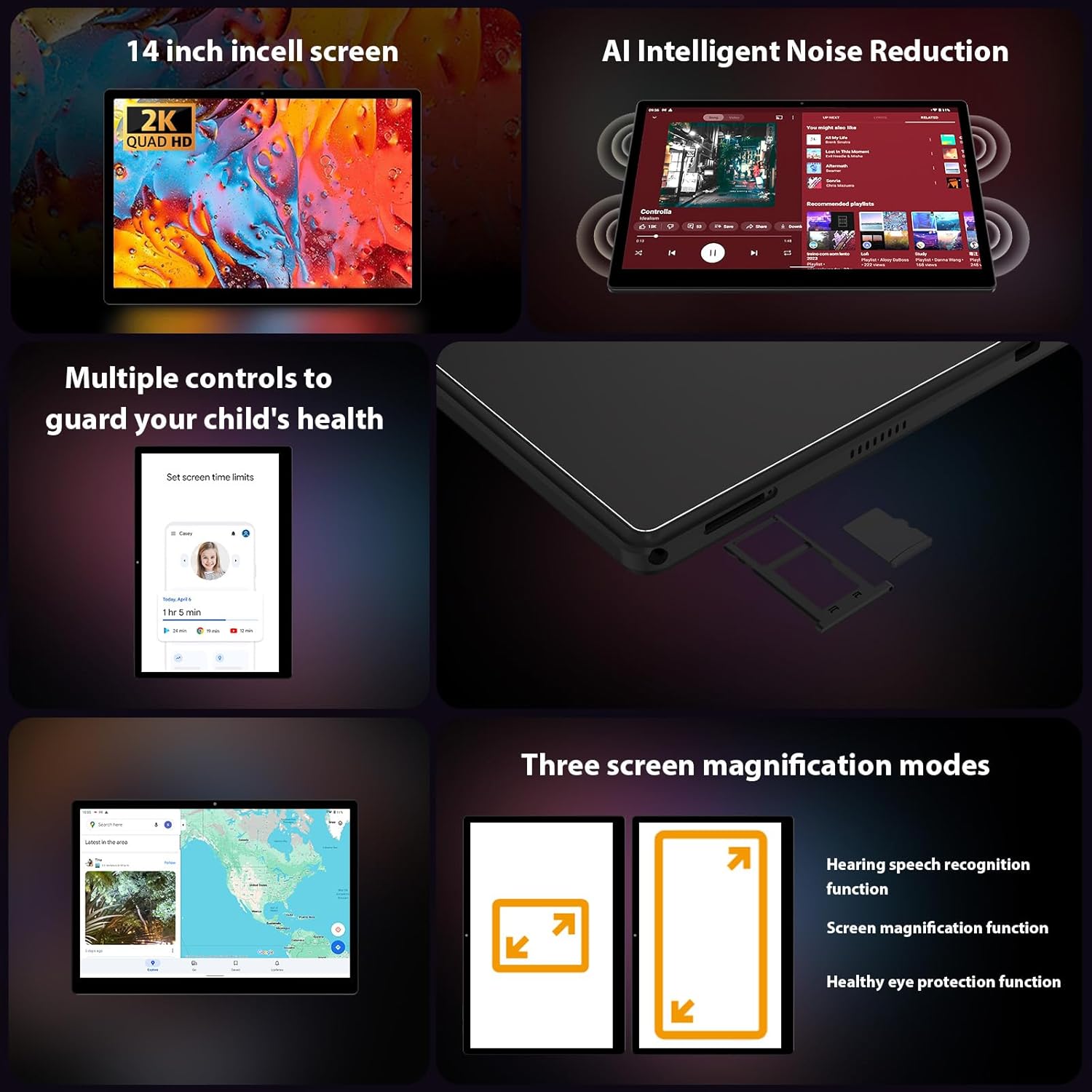
Image 3.2: Side view of the FASTWD L361 Tablet, highlighting the USB port, power button, volume controls, and the SIM/MicroSD card slot.
Key Components:
- Power Button: Press and hold to turn on/off or restart. Press briefly to wake/sleep the screen.
- Volume Buttons: Adjust the audio volume.
- USB Port: For charging and data transfer.
- Front Camera: For video calls and selfies (8MP).
- Rear Camera: For photos and videos (13MP + 2MP Macro).
- MicroSD Card Slot: Expand storage up to 1TB.
- Speakers: For audio output.
4. Initial Setup
4.1 Charging the Tablet
Before first use, fully charge your tablet. Connect the USB charging cable to the tablet's USB port and the power adapter, then plug the adapter into a power outlet. The tablet supports 12W fast charging.

Image 4.1: Illustration of the FASTWD L361 Tablet being charged, highlighting its 11580mAh battery and 12W fast charging capability.
4.2 Powering On/Off
- To Power On: Press and hold the Power button until the FASTWD logo appears.
- To Power Off: Press and hold the Power button, then select "Power off" from the options on the screen.
- To Restart: Press and hold the Power button, then select "Restart" from the options.
4.3 Initial Configuration
Upon first power-on, follow the on-screen prompts to set up your tablet:
- Select your preferred language.
- Connect to a Wi-Fi network.
- Sign in with your Google account or create a new one.
- Review and accept the terms and conditions.
- Set up screen lock (PIN, pattern, password, or Face ID).
4.4 Inserting a MicroSD Card
To expand storage, insert a MicroSD card (up to 1TB) into the designated slot on the side of the tablet. Ensure the tablet is powered off before inserting or removing the card.
5. Operating Your Tablet
5.1 Display and Eye Protection
The FASTWD L361 features a 14-inch Incell FHD display with a resolution of 2000 x 1200 pixels. It is TÜV certified for eye protection, reducing eye strain during prolonged use.
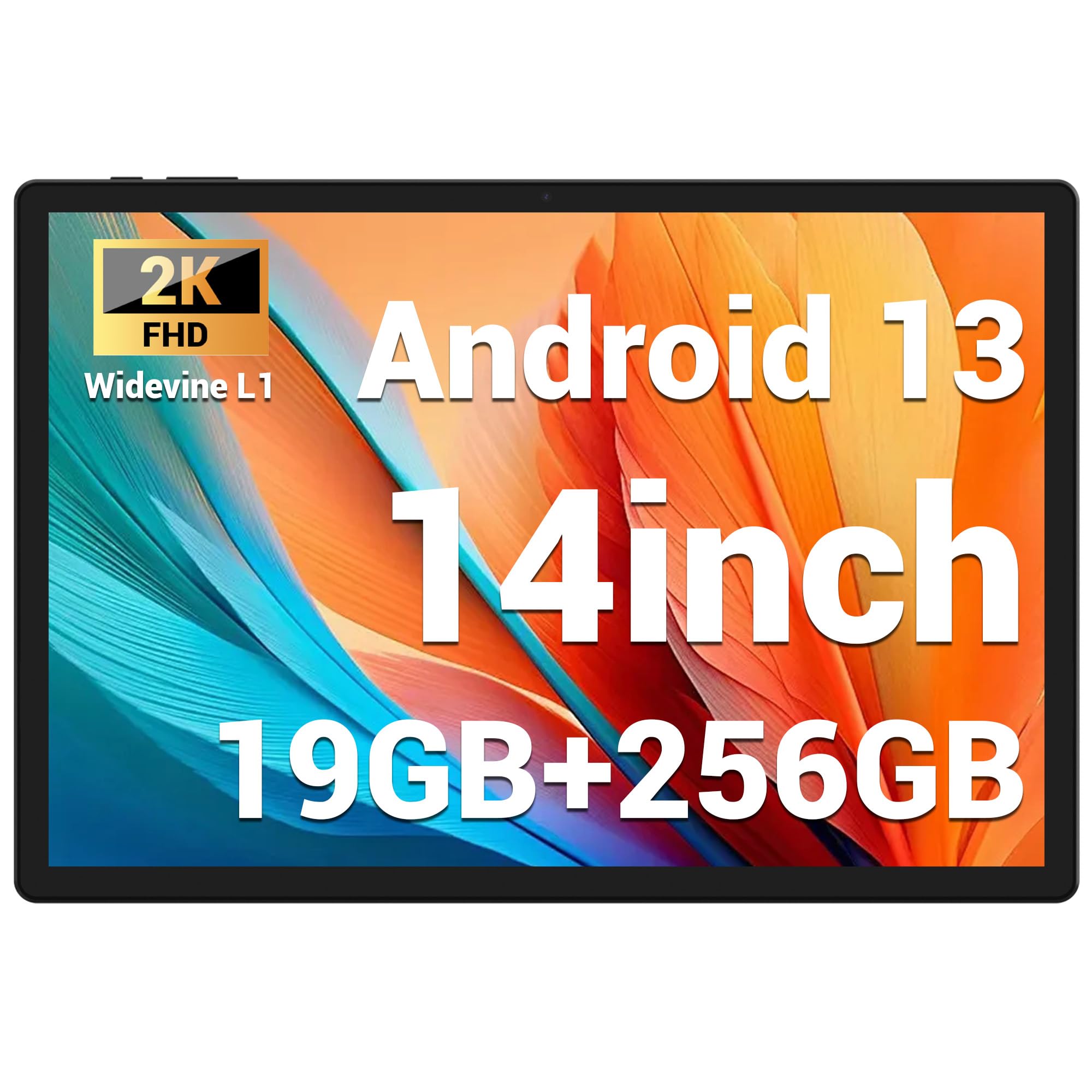
Image 5.1: Visual representation of the FASTWD L361 Tablet's 14-inch 2K Incell FHD display, highlighting its 2000x1200 resolution and TÜV eye protection certification.
5.2 Connectivity
Your tablet supports advanced wireless connectivity:
- 5G WiFi: Connect to high-speed wireless networks for fast internet access.
- Bluetooth 5.0: Pair with wireless headphones, speakers, and other Bluetooth-enabled devices.

Image 5.2: Depiction of the FASTWD L361 Tablet's 5G WiFi capabilities, 19GB RAM, 256GB ROM, and support for 1TB MicroSD expansion.
5.3 Cameras
The tablet is equipped with dual cameras:
- Front Camera: 8 Megapixels, ideal for video calls and self-portraits.
- Rear Camera: 13 Megapixels with a 2 Megapixel Macro lens, suitable for capturing detailed photos and videos.

Image 5.3: Visuals demonstrating the FASTWD L361 Tablet's 8MP front camera, 13MP rear camera, and the process for setting up Face ID for secure unlocking.
5.4 Face ID
Unlock your tablet securely using Face ID. To set up:
- Go to Settings > Security > Face Unlock.
- Follow the on-screen instructions to register your face.
5.5 AI Intelligent Noise Reduction
The tablet integrates AI Intelligent Noise Reduction technology to filter out ambient sounds, enhancing audio clarity during calls and media playback.
5.6 Multitasking with Multi-Window
Utilize the multi-window feature to run two applications simultaneously, enhancing productivity and user experience.

Image 5.4: The FASTWD L361 Tablet displaying its multi-window and split-screen capabilities, allowing users to operate multiple applications simultaneously.
6. Maintenance
6.1 Cleaning the Tablet
Use a soft, lint-free cloth to clean the screen and body of the tablet. Avoid using harsh chemicals or abrasive materials that could damage the surface.
6.2 Battery Care
The tablet is equipped with an 11580mAh battery. To prolong battery life:
- Avoid exposing the tablet to extreme temperatures.
- Do not let the battery drain completely before recharging regularly.
- Use the provided charger for optimal charging performance.
6.3 Software Updates
Ensure your tablet's software is up to date to benefit from the latest features and security enhancements. Go to Settings > System > System update to check for and install updates.
7. Troubleshooting
If you encounter issues with your tablet, refer to the following common solutions:
| Problem | Solution |
|---|---|
| Tablet does not turn on | Ensure the battery is charged. Press and hold the Power button for at least 10 seconds. |
| Wi-Fi connection issues | Restart your Wi-Fi router and the tablet. Check Wi-Fi settings on the tablet to ensure it's connected to the correct network. |
| Tablet is slow or unresponsive | Close unnecessary apps running in the background. Clear cache from apps. Restart the tablet. If issues persist, consider a factory reset (back up data first). |
| Face ID not working | Ensure your face is well-lit and not obstructed. Re-register your face in settings if necessary. |
7.1 Factory Reset
If troubleshooting steps do not resolve the issue, you may need to perform a factory reset. This will erase all data on your tablet, so ensure you back up important files before proceeding.
- Go to Settings > System > Reset options.
- Select Erase all data (factory reset).
- Confirm your decision.
8. Specifications
| Feature | Detail |
|---|---|
| Model | L361 |
| Operating System | Android 13 |
| Display | 14-inch Incell FHD, 2000 x 1200 pixels, TÜV Certified |
| Processor Speed | 2 GHz |
| RAM | 19 GB (8GB + 11GB virtual) |
| Internal Storage | 256 GB |
| Expandable Storage | Up to 1 TB MicroSD |
| Battery Capacity | 11580 mAh |
| Charging | 12W Fast Charging |
| Front Camera | 8 MP |
| Rear Camera | 13 MP + 2 MP Macro |
| Connectivity | 5G WiFi, Bluetooth 5.0 |
| Security Features | Face ID |
| Special Features | AI Noise Reduction, GMS Certified |
| Dimensions | 41.79 x 25.1 x 3.7 cm |
| Weight | 2.08 kilograms |
9. Warranty and Support
Your FASTWD L361 Tablet comes with a standard manufacturer's warranty. For specific warranty terms and conditions, please refer to the warranty card included in your package or visit the official FASTWD website.
For technical support, product inquiries, or warranty claims, please contact FASTWD customer service through the contact information provided on the official website or your purchase documentation.
Ask a question about this manual
Ask about setup, troubleshooting, compatibility, parts, safety, or missing instructions. Manuals+ will review the question and use this page’s manual context to help answer it.