1. Introduction
Thank you for choosing the OBZ Automatic QR & Barcode Scanner. This device is designed for efficient and accurate scanning of various 1D, 2D, and QR codes, making it ideal for retail, payment systems, and other commercial applications. This manual provides essential information on setup, operation, maintenance, and troubleshooting to ensure optimal performance.
2. Safety Information
- Do not expose the scanner to water or excessive moisture.
- Avoid dropping the device or subjecting it to strong impacts.
- Do not attempt to disassemble or repair the scanner yourself. Refer to qualified personnel for service.
- Keep the scanning window clean to ensure accurate readings.
- Ensure the device is connected to a stable power source via the USB cable.
3. Product Overview
The OBZ PaymentBox F3N is an advanced, omnidirectional barcode scanner featuring CMOS image technology for fast and accurate data capture.

Figure 3.1: Front view of the OBZ PaymentBox F3N scanner, showing the scanning window and the OBZ logo.
Key Features:
- Automatic Detection & CMOS Image: The scanner automatically detects barcodes and uses CMOS image technology for quick and accurate scanning, improving work efficiency.
- Wide Compatibility & Excellent Decoding Capability: Compatible with Windows XP/7/8/10/11, Mac OS, Linux, and Android. Supports various symbologies including QR Code, Code 128, Code 39, EAN-8, EAN-13, UPC-A, UPC-E0, UPC-E1, and ITF. It can read codes from Rakuten Pay, PayPay, LINE Pay, WeChat Pay, and Alipay.
- 360° Omnidirectional Scan: Easily captures 1D/2D QR codes from any direction, including deformed or damaged barcodes.
- High Decoding Accuracy: Scans 1D, 2D, and QR barcodes quickly and accurately from plastic cards or electronic screens.
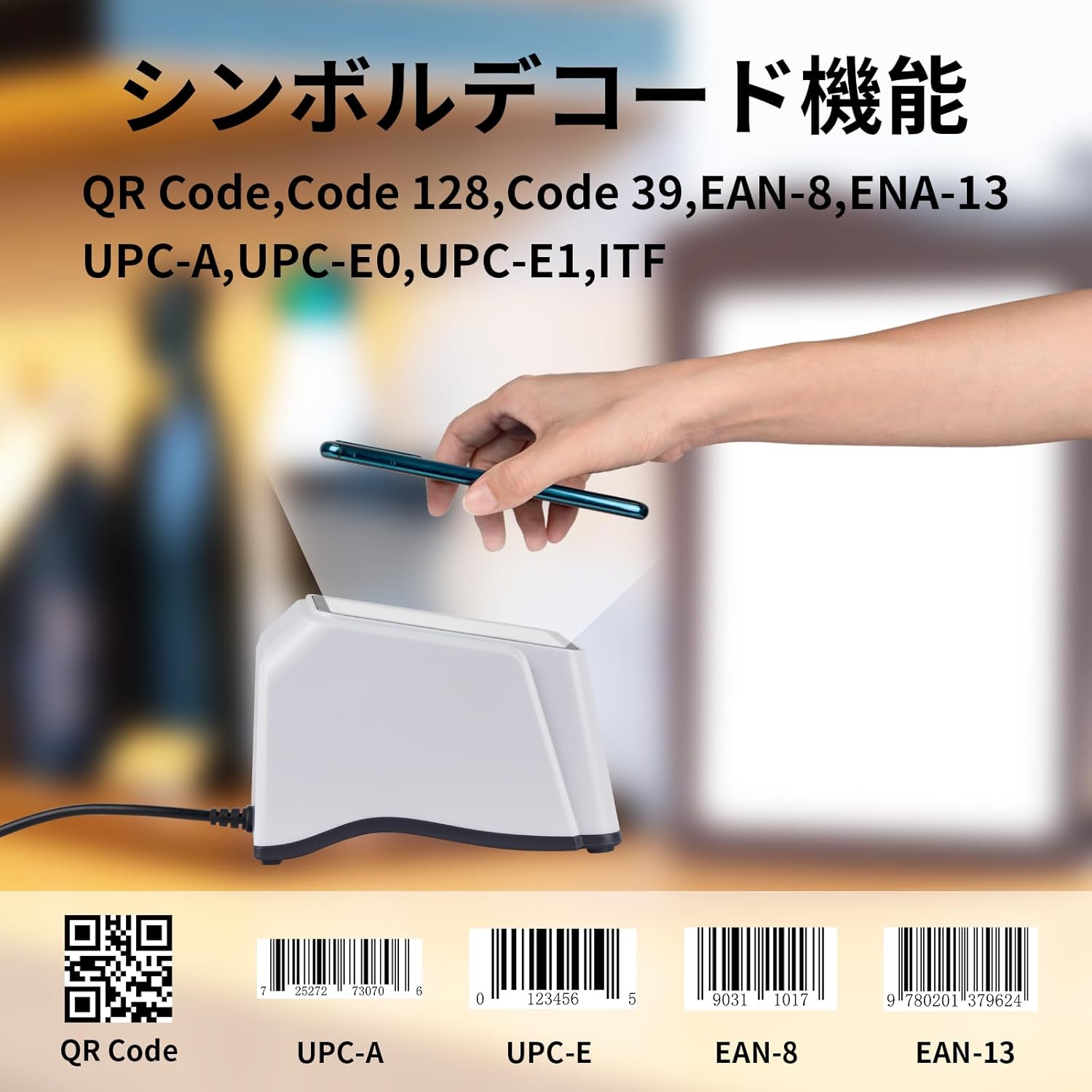
Figure 3.2: Illustration of supported barcode symbologies, including QR Code, UPC-A, UPC-E, EAN-8, and EAN-13.

Figure 3.3: Bottom view of the scanner highlighting its components: USB cable port, speaker, indicator light, and anti-slip mats.
4. Setup
The OBZ PaymentBox F3N scanner offers a simple plug-and-play setup, requiring no software or driver installation.
- Unpack the Scanner: Carefully remove the scanner from its packaging.
- Remove Protective Film: A protective film is attached to the scan window. It is recommended to remove this film before use for optimal performance.
- Connect USB Cable: Plug the USB cable from the scanner into an available USB port on your computer or POS system. The cable length is approximately 1.2 meters.
- System Recognition: Your operating system (Windows, Mac OS, Linux, Android) will automatically recognize the device as a keyboard input.
- Ready for Use: The scanner is now ready to begin scanning.

Figure 4.1: Plug & Play setup, illustrating connection via USB cable and compatibility with Windows, Linux, Android, and macOS.
5. Operating Instructions
Using the OBZ PaymentBox F3N is straightforward due to its automatic detection feature.
- Positioning: Place the scanner on a flat, stable surface near your computer or POS system.
- Scanning: Simply present the barcode or QR code to the scanning window. The scanner will automatically detect and read the code.
- Confirmation: A successful scan is typically indicated by an audible beep from the scanner's speaker and the indicator light. The scanned data will appear in the active application on your connected device.
Scanning Depth of Field:
- EAN13 (13mil 90%): 0mm-90mm
- Code128 (19): 20mm-125mm
- WeChat Pay Code: 0mm-320mm
- Alipay Code: 0mm-36.5mm

Figure 5.1: Visual representation of the scanner's depth of field for various code types, showing a phone and laptop in use.
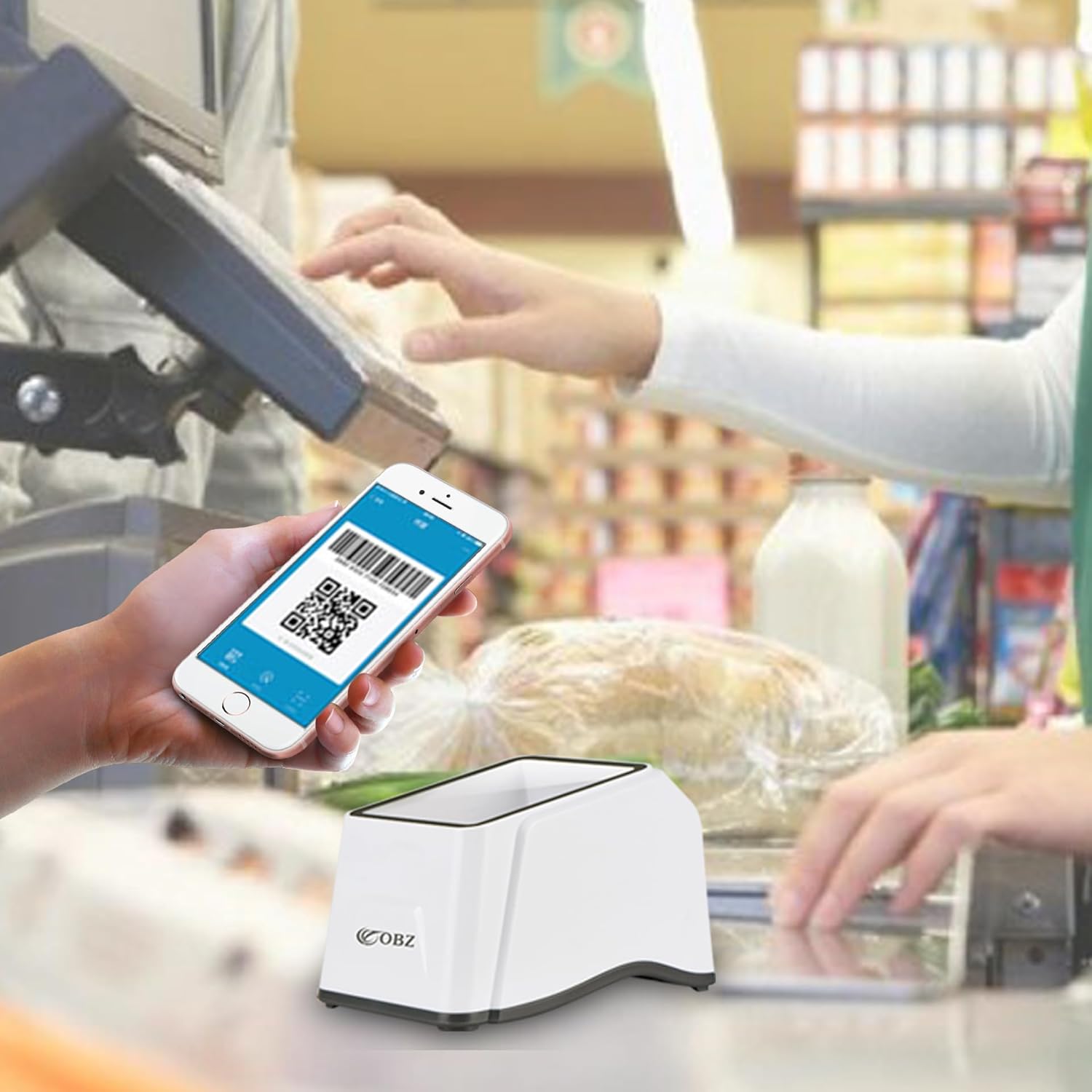
Figure 5.2: The scanner in a typical payment scenario at a checkout counter.
6. Maintenance
To ensure the longevity and optimal performance of your scanner, follow these simple maintenance guidelines:
- Cleaning: Use a soft, dry, lint-free cloth to clean the exterior of the scanner. For the scanning window, use a lens cleaning cloth or a soft cloth slightly dampened with a mild, non-abrasive cleaner. Avoid harsh chemicals or abrasive materials.
- Storage: When not in use, store the scanner in a cool, dry place away from direct sunlight and extreme temperatures.
- Cable Care: Avoid bending or twisting the USB cable excessively. Do not pull the cable to disconnect the scanner; always grasp the plug.
7. Troubleshooting
If you encounter issues with your OBZ scanner, refer to the following common problems and solutions:
| Problem | Possible Cause | Solution |
|---|---|---|
| Scanner does not read barcodes. | Cable not properly connected; dirty scan window; barcode damaged or poor quality; incorrect symbology settings. | Ensure USB cable is securely connected. Clean the scan window. Try scanning a different barcode. The scanner supports common 1D/2D/QR codes. |
| Slow response or reading. | Protective film still on scan window; environmental interference. | Remove the protective film from the scan window. Ensure adequate lighting and minimize glare. |
| Incorrect characters output (e.g., ':' becomes '+', '=' becomes '^', '@' becomes '"'). | Default language setting is English, but system keyboard layout is different (e.g., Japanese). | Switch your computer's keyboard input language to English. This typically resolves character mapping issues. |
| No sound or indicator light. | Device not powered; speaker/light malfunction. | Verify USB connection. If the issue persists, contact customer support. |
8. Specifications
| Feature | Detail |
|---|---|
| Model Number | F3N-JP |
| Brand | OBZ |
| Connectivity Technology | USB Cable |
| Scan Rate | 100 ms |
| Actual Angle | 360 degrees |
| Product Dimensions | 127mm x 89mm x 85mm |
| Cable Length | 1.2 meters |
| Material | ABS+PC |
| Item Weight | 160 g |
| Battery Usage | No |

Figure 8.1: Product specifications including size, cable length, material, and weight.
9. Warranty and Support
OBZ is committed to providing high-quality products and customer satisfaction. For any questions, technical support, or warranty inquiries, please contact OBZ customer service through the platform where you purchased the product. Please retain your proof of purchase for warranty claims.