
Energizer EIX1-1005
Energizer Smart Wi-Fi Indoor Security Camera User Manual
Model: EIX1-1005
Introduction
Thank you for choosing the Energizer Smart Wi-Fi Indoor Security Camera. This manual provides detailed instructions for setting up, operating, and maintaining your camera to ensure optimal performance and security. This camera offers 1080P Full HD resolution, two-way communication, motion alerts, and a unique foldable design for enhanced privacy.
What's in the Box
- Energizer Smart Wi-Fi Indoor Security Camera (Foldable Camera)
- USB Power Cable (6ft)
- USB Power Adapter
- Quick Start Guide
Product Overview
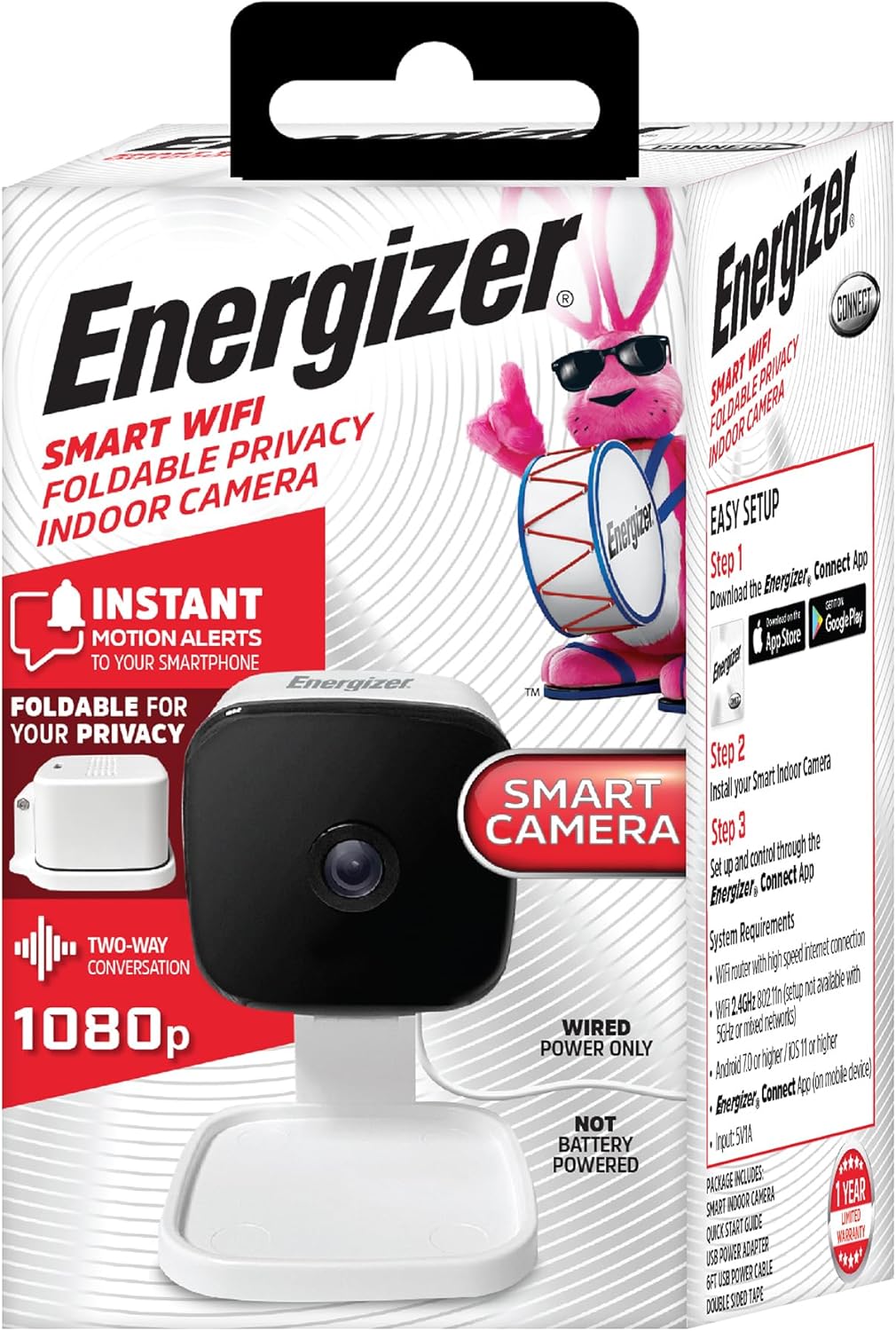
The Energizer Smart Wi-Fi Indoor Security Camera shown in its retail packaging, highlighting key features like 1080P resolution and two-way communication.

A direct front view of the Energizer Smart Wi-Fi Indoor Security Camera, showcasing its compact design and camera lens.

The camera positioned on a flat surface, illustrating its wired power connection. This model requires continuous power and is not battery operated.

The camera integrated into a typical home environment, demonstrating its discreet placement on furniture.

The camera in its folded state, emphasizing its privacy feature. Accompanying icons highlight key functionalities such as instant motion alerts, live video, two-way conversation, remote access, recording, night vision, cloud storage, and Wi-Fi connectivity.

A smartphone screen displaying a live feed from the Energizer camera, showing a dog in a living room, demonstrating remote monitoring capabilities.

A smartphone screen showing the camera's night vision capability, displaying a baby's crib in a darkened room, indicating clear visibility in low-light conditions.
Setup Guide
1. Download the Energizer Connect App
The Energizer Connect App is essential for controlling your camera. It is available for both Android and iOS devices.
- For Android devices, download from Google Play Store.
- For Apple devices, download from App Store.
2. Powering On the Camera
- Connect the provided USB power cable to the camera's power input.
- Plug the USB power adapter into a standard electrical outlet.
- The camera will power on automatically. Wait for the indicator light to show it's ready for pairing (refer to app instructions for specific light patterns).
Note: The camera is wired power only and does not operate on batteries.
3. Connecting to Wi-Fi
Your Energizer Smart Camera connects to your home's 2.4Ghz Wi-Fi network. It is not compatible with 5Ghz networks.
- Open the Energizer Connect App on your smartphone.
- Follow the in-app instructions to add a new device.
- Select your 2.4Ghz Wi-Fi network and enter the password when prompted.
- The app will guide you through the pairing process, which may involve scanning a QR code with the camera.
4. Camera Placement
Place your camera on a flat surface such as a desk, shelf, or table. Ensure it is within range of your 2.4Ghz Wi-Fi network and has access to a power outlet. The camera can also be wall-mounted if desired.
Operating Instructions
Live View & Remote Access
Once connected, you can view a live feed from your camera anytime, anywhere, using the Energizer Connect App. Simply open the app and select your camera from the device list.
Instant Motion Alerts
The camera is equipped with motion detection. When movement is detected, instant alerts will be sent to your connected smartphone. You can adjust the sensitivity of these alerts within the app settings.
Two-Way Communication
Utilize the built-in microphone and speaker for two-way audio communication. This allows you to speak to anyone in front of the camera directly from your smartphone via the app.
Activity Zone Selection
Within the Energizer Connect App, you can define specific activity zones. This feature allows you to highlight particular areas in the camera's view for motion detection, ensuring you only receive alerts for relevant activity.
Privacy Mode (Foldable Design)
The camera features a unique foldable design. When you wish to ensure personal privacy, simply fold the camera down to shield its view. This physically blocks the lens, providing peace of mind.
Night Vision
The camera provides clear video monitoring even in low-light conditions or complete darkness, thanks to its night vision capabilities.
Storage Options
Your recordings can be saved using one of two methods:
- Micro-SD Card: The camera supports local storage via a Micro-SD card (up to 128GB, not included). Insert the card into the designated slot on the camera.
- Cloud Storage: Recordings can be uploaded to the cloud. A free 30-day trial of cloud storage is included with your purchase. Optional subscription plans are available after the trial period.
Specifications
| Feature | Detail |
|---|---|
| Model Number | EIX1-1005 |
| Video Resolution | 1080P Full HD |
| Indoor/Outdoor Usage | Indoor |
| Connectivity | 2.4Ghz Wi-Fi |
| Power Source | Corded Electric (5 Volts) |
| Viewing Angle | 95 Degrees |
| Two-Way Audio | Yes |
| Motion Detection | Yes (with Activity Zone Selection) |
| Night Vision | Yes |
| Storage Options | Micro-SD Card (up to 128GB), Cloud Storage |
| Dimensions (L x W x H) | 2.75 x 2.75 x 4.75 inches |
| Item Weight | 5.9 ounces |
| Control Method | Energizer Connect App |
Troubleshooting
- Camera Offline: Ensure the camera is powered on and within range of your 2.4Ghz Wi-Fi network. Check your Wi-Fi router for internet connectivity. Restarting both the camera and your router may resolve the issue.
- Cannot Connect to Wi-Fi: Verify you are connecting to a 2.4Ghz network. Ensure your Wi-Fi password is entered correctly. If your router broadcasts both 2.4Ghz and 5Ghz networks with the same name, try temporarily disabling the 5Ghz band during setup or renaming them.
- Motion Alerts Not Received: Check the notification settings within the Energizer Connect App and your smartphone's system settings. Ensure motion detection is enabled and activity zones are correctly configured.
- Poor Video Quality: Ensure the camera lens is clean. Check your Wi-Fi signal strength; a weak signal can affect video streaming quality.
- Two-Way Audio Issues: Verify that microphone and speaker permissions are granted to the Energizer Connect App on your smartphone. Ensure the camera's microphone and speaker are not obstructed.
Warranty and Support
For product support, please contact Energizer Connect customer service. You can also refer to the official user manual PDF for more detailed information:
Related documentsEIX1-1005


Ask a question about this manual
Ask about setup, troubleshooting, compatibility, parts, safety, or missing instructions. Manuals+ will review the question and use this page’s manual context to help answer it.