1. Introduction
This manual provides comprehensive instructions for the setup, operation, and maintenance of your Macally BTBLERGO2A Backlit Bluetooth Ergonomic Keyboard. Designed for Mac and iOS users, this keyboard combines ergonomic comfort with versatile connectivity and practical features.
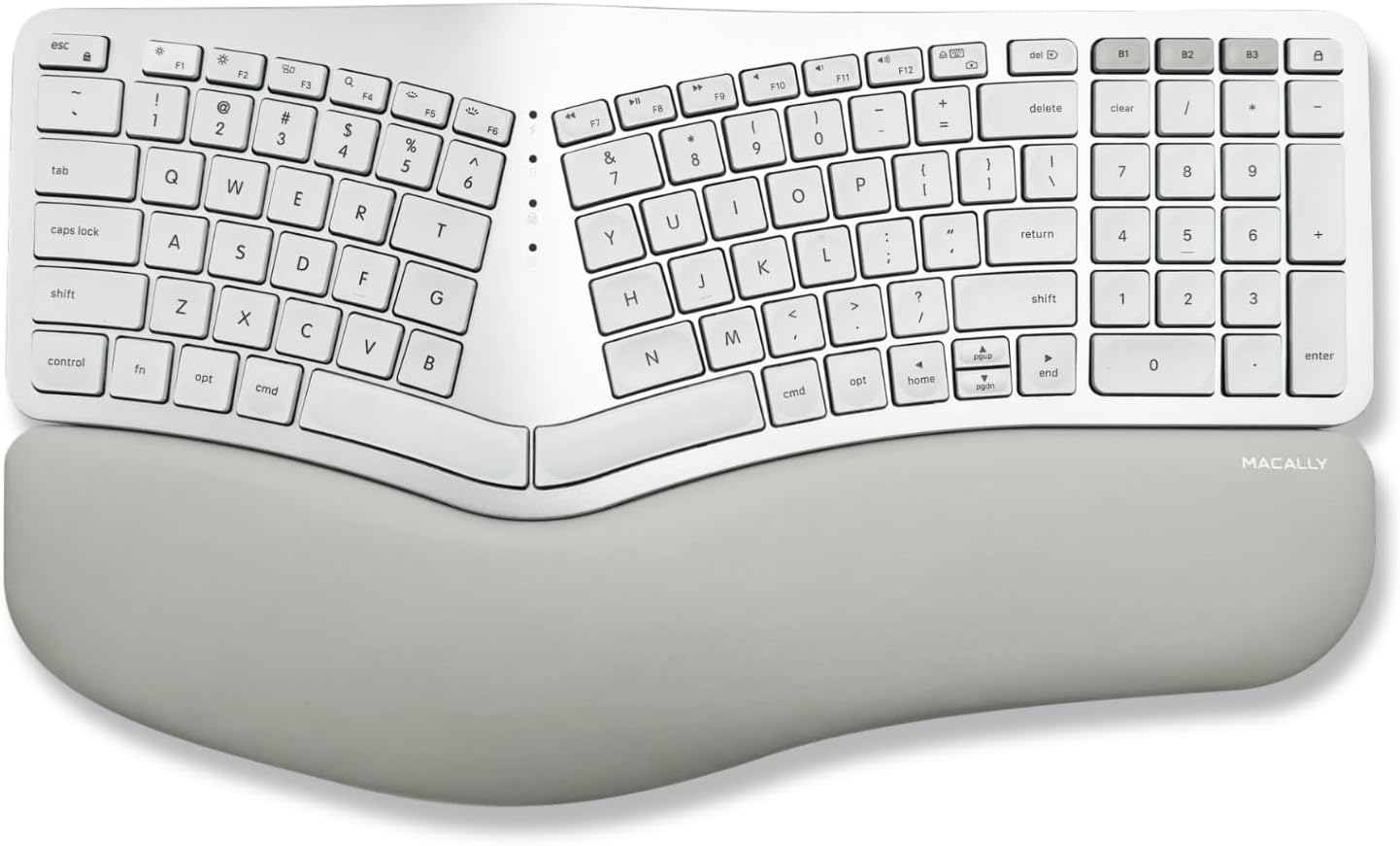
Image: The Macally BTBLERGO2A Backlit Bluetooth Ergonomic Keyboard, featuring a split design and integrated wrist rest.
2. Key Features
- Ergonomic Split Design: Features a posture-friendly shape, split key layout, and padded wrist support to promote natural typing posture and reduce strain.
- Adjustable Kickstands: Equipped with 4 adjustable kickstands to customize the keyboard angle for optimal comfort.
- Clear Backlit Keys: White LED backlighting with 3 brightness settings (Off, Low, Mid, High) for visibility in various lighting conditions.
- Multi-Sync Bluetooth Connectivity: Seamlessly pair and switch between up to 3 Apple Bluetooth devices, including MacBook, iPad, iMac, and iPhone.
- Mac-Specific Layout: 100-key MacOS layout with 13 dedicated shortcuts for enhanced productivity.
- Rechargeable Battery: Built-in 2000 mAh rechargeable battery for extended use, with a USB-C charging cable included.
- Scissor Switch Keys: Provides a tactile and responsive typing experience similar to a MacBook.
Video: An overview of the Macally BTBLERGO2A keyboard, highlighting its ergonomic design, multi-device connectivity, and backlit keys. This video demonstrates the keyboard's features and how it integrates into a Mac ecosystem.

Image: The keyboard's design is centered around user comfort, promoting proper typing posture.

Image: Illustration of the sloped 2-zone configuration, designed to allow arms to type in a more natural position.

Image: Close-up of the integrated padded wrist cushion, designed to help alleviate wrist strain and pressure during typing.
3. Setup Guide
3.1 Charging the Keyboard
Before initial use, fully charge your keyboard. Connect the included USB-C charging cable to the keyboard's charging port and to a USB power source (e.g., computer USB port, USB wall adapter). The charging indicator light will show charging status.

Image: The USB-C charging port located on the side of the keyboard, with a charging cable connected.

Image: Illustration indicating the keyboard's rechargeable battery and USB-C charging capability.
3.2 Bluetooth Pairing
- Ensure the keyboard is charged and powered on. The power switch is typically located on the side or back of the keyboard.
- On your Mac or iOS device, go to System Settings (or System Preferences) > Bluetooth and ensure Bluetooth is enabled.
- Press and hold one of the Bluetooth channel keys (B1, B2, or B3) on the keyboard for 3-5 seconds until its indicator light starts blinking rapidly. This indicates pairing mode.
- On your device, select "Macally BTBLERGO2A" from the list of available Bluetooth devices.
- Follow any on-screen prompts to complete the pairing process. The indicator light on the keyboard will become solid when successfully paired.
- Repeat for up to two additional devices using the other Bluetooth channel keys (B2, B3).

Image: Visual representation of the keyboard connecting via Bluetooth to a MacBook, iPad, and iPhone, demonstrating its multi-device capability.
3.3 Adjusting Keyboard Angle
The keyboard features 4 adjustable kickstands on its underside. Gently pull out the desired kickstands to raise the keyboard to your preferred typing angle. Ensure all four kickstands are extended for stability if you choose to use them.

Image: The underside of the keyboard showing the four adjustable kickstands that allow users to customize the typing angle.
4. Operating Instructions
4.1 Switching Between Devices
To switch between paired Bluetooth devices, simply press the corresponding Bluetooth channel key (B1, B2, or B3). The keyboard will automatically connect to the selected device within a few seconds.
4.2 Adjusting Backlight Brightness
The keyboard features adjustable backlighting. Use the dedicated backlight control keys (usually F5 and F6 or similar icons) to cycle through the brightness levels: Off, Low, Mid, and High. Refer to the keyboard's function row for specific key assignments.

Image: The keyboard with its clear white backlighting illuminated in a dark environment, showcasing visibility.

Image: Close-up of the clear white backlit keys, illustrating the three brightness settings for various lighting conditions.
4.3 MacOS Shortcut Keys
The keyboard includes 13 dedicated MacOS shortcut keys for quick access to common functions such as brightness control, volume control, media playback, and Mission Control. These keys are designed to integrate seamlessly with your Apple ecosystem.

Image: The keyboard layout highlighting its Mac-specific keys and 13 Apple shortcuts for improved workflow.
5. Maintenance
- Cleaning: Use a soft, lint-free cloth to wipe the keyboard surface. For stubborn dirt, slightly dampen the cloth with water or a mild, non-abrasive cleaner. Avoid excessive moisture.
- Storage: Store the keyboard in a cool, dry place away from direct sunlight and extreme temperatures.
- Battery Care: To prolong battery life, avoid fully discharging the keyboard frequently. Charge it regularly, especially if not used for extended periods.
- Avoid Spills: Keep liquids away from the keyboard to prevent damage to internal components.
6. Troubleshooting
| Problem | Possible Cause | Solution |
|---|---|---|
| Keyboard not connecting/pairing. | Bluetooth is off on device; keyboard battery low; keyboard not in pairing mode; interference. | Ensure Bluetooth is on. Charge keyboard. Put keyboard into pairing mode (hold B1/B2/B3). Move closer to device. Turn off other Bluetooth devices. |
| Keys not responding or delayed input. | Low battery; out of range; software issue; physical obstruction. | Charge keyboard. Move closer to device. Restart device and keyboard. Check for debris under keys. |
| Backlight not working. | Backlight turned off; low battery. | Press backlight control keys (F5/F6) to increase brightness. Charge keyboard. |
| Cannot switch between devices. | Devices not properly paired to respective channels. | Re-pair devices to the correct B1, B2, B3 channels. Ensure devices' Bluetooth is active. |
7. Specifications
- Model: BTBLERGO2A
- Connectivity: Bluetooth
- Compatible Devices: 3 Mac and iOS/iPadOS devices
- Key Layout: 100-key MacOS Layout with 13 shortcuts
- Key Type: Scissor Switch
- Backlight: White LED, 3 brightness levels
- Battery: 2000 mAh Rechargeable Lithium-ion
- Charging Port: USB-C
- Dimensions: 17.95 x 12.17 x 1.97 inches (Package)
- Weight: 3.14 pounds (Item)
- Manufacturer: Mace Group Inc / Macally Peripherals
8. Warranty and Support
Macally products are designed for reliability and performance. For warranty information and technical support, please refer to the official Macally website or contact their customer service directly. Keep your purchase receipt for warranty claims.
Online Support: www.macally.com/support


