
1. Introduction
This manual provides essential information for the safe and efficient use of your GOODTEL G10 10-inch Android 13 Tablet. Please read this manual thoroughly before operating the device and retain it for future reference. The GOODTEL G10 tablet features a 10-inch display, 14GB RAM, 128GB ROM (expandable up to 1TB), Android 13 operating system, dual-band WiFi (2.4G/5G), Bluetooth 5.0, and an 8000 mAh battery.
2. Package Contents
Verify that all items listed below are present in your product package:
- GOODTEL G10 Tablet
- Bluetooth Keyboard
- Mouse
- Protective Case
- Charging Device (Adapter and Cable)
- OTG Adapter
- Screen Protector (pre-applied or separate)
If any items are missing or damaged, please contact customer support.
3. Device Overview
Familiarize yourself with the key features and components of your GOODTEL G10 tablet.

Image: Overview of the GOODTEL G10 tablet's main features, including processor, screen size, RAM, ROM, battery, connectivity, and cameras.
3.1 Key Components
- Display: 10.1-inch IPS screen with 1280x800 pixel resolution.
- Cameras: 5MP front camera and 8MP rear camera with flash.
- Ports: Type-C USB port for charging and data transfer.
- Card Slot: Supports MicroSD/TF card expansion up to 1TB.
- Buttons: Power button, Volume up/down buttons.

Image: The 10.1-inch IPS display of the GOODTEL G10 tablet, highlighting its size and visual quality.
3.2 Performance Features
- Operating System: Android 13, offering enhanced privacy and customization options.
- Processor: 2.0GHz Octa-Core Unisoc T310 processor for smooth performance.
- Memory: 14GB RAM (6GB physical + 8GB virtual expansion) for efficient multitasking.
- Storage: 128GB internal storage, expandable with a MicroSD/TF card up to 1TB.
- Battery: 8000 mAh battery for extended usage.
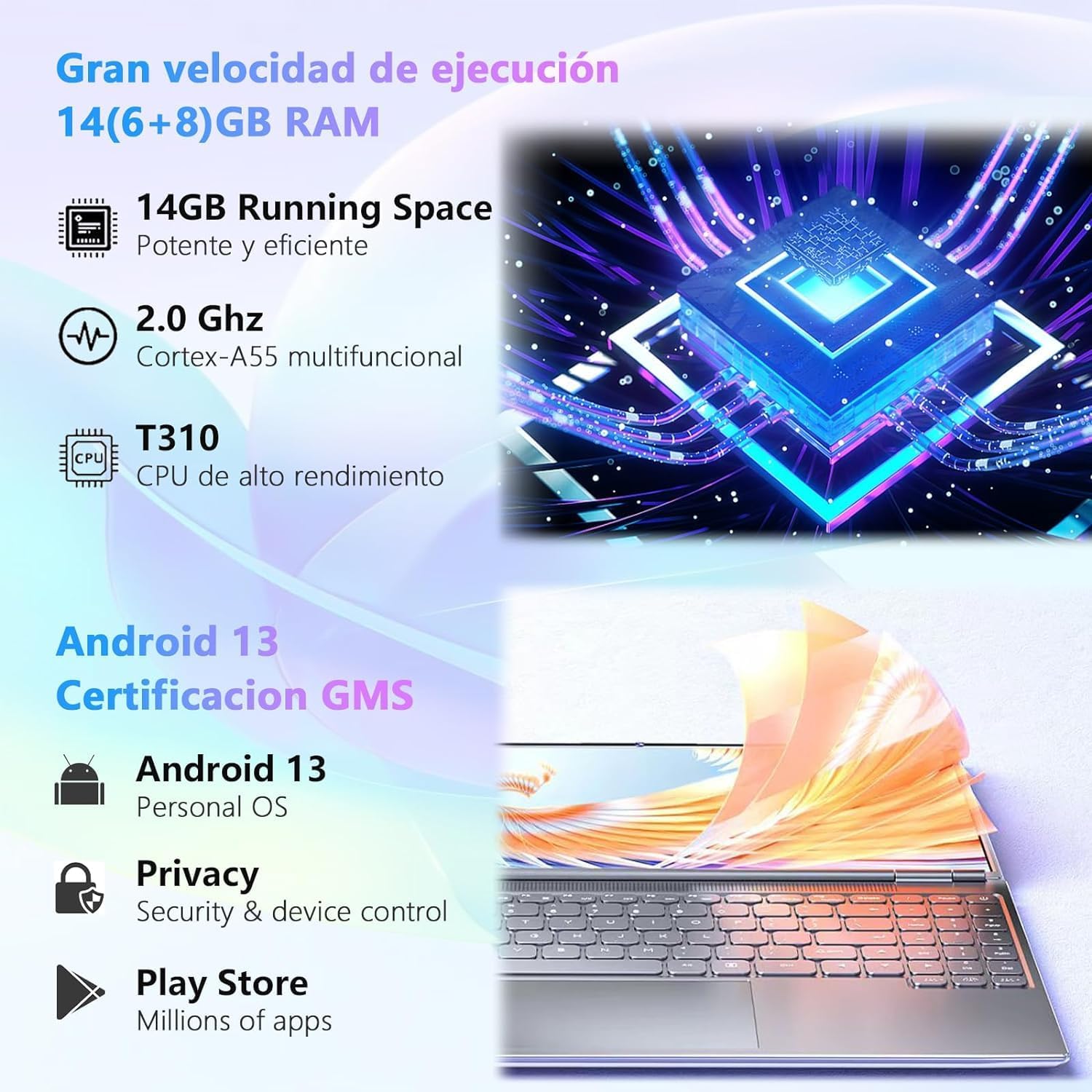
Image: Visual representation of the tablet's powerful processor and the Android 13 operating system with GMS certification.

Image: Illustrates the 128GB ROM and 1TB MicroSD/TF card expansion, showing the tablet's capability for gaming and media storage.

Image: Depiction of the 8000 mAh large capacity, long-lasting battery of the GOODTEL G10 tablet.
3.3 Connectivity
- Wi-Fi: Dual-band 2.4GHz and 5GHz Wi-Fi for stable and fast internet access.
- Bluetooth: Bluetooth 5.0 for connecting wireless accessories like keyboards, mice, and headphones.

Image: Illustration of the tablet's 2.4G/5G dual-band WiFi capability for faster internet access.
4. Setup
4.1 Initial Charging
Before first use, fully charge your tablet using the provided charging device. Connect the Type-C cable to the tablet's charging port and the adapter to a power outlet. The battery indicator on the screen will show charging progress.
4.2 Powering On/Off
- To Power On: Press and hold the Power button until the GOODTEL logo appears.
- To Power Off: Press and hold the Power button until the power options appear on the screen, then select "Power Off".
- To Restart: Press and hold the Power button until the power options appear, then select "Restart".
4.3 Initial Setup Wizard
Upon first power-on, the tablet will guide you through an initial setup wizard. Follow the on-screen prompts to:
- Select your language.
- Connect to a Wi-Fi network.
- Set up your Google account (optional, but recommended for app downloads).
- Set date and time.
- Configure screen lock (PIN, pattern, password).
4.4 Connecting Accessories
Your tablet comes with a Bluetooth keyboard and mouse. To connect them:
- Ensure the keyboard and mouse are charged and in pairing mode (refer to their individual manuals if needed).
- On your tablet, go to Settings > Connected devices > Bluetooth.
- Turn Bluetooth on.
- Scan for available devices.
- Select the keyboard and mouse from the list to pair them. Follow any on-screen prompts for confirmation.
The OTG adapter allows you to connect USB devices like flash drives to your tablet.
5. Operating Instructions
5.1 Navigating Android 13
- Home Screen: Swipe left or right to access different home screens. Tap and hold an empty space to customize widgets, wallpaper, and settings.
- Notifications & Quick Settings: Swipe down from the top of the screen to view notifications and access quick settings like Wi-Fi, Bluetooth, and brightness.
- App Drawer: Swipe up from the bottom of the screen to access all installed applications.
- Multitasking: Swipe up from the bottom and hold to view recent apps. Tap an app icon to access options like split-screen or app info.
5.2 Installing Applications
The Google Play Store is pre-installed on your tablet. To download and install apps:
- Ensure you are connected to a Wi-Fi network.
- Open the Play Store app.
- Search for the desired app.
- Tap Install and follow the on-screen instructions.
5.3 Using the Cameras
The tablet features a 5MP front camera and an 8MP rear camera. Open the Camera app to take photos or record videos. Tap the screen to focus, and use the on-screen buttons to switch between front/rear cameras, modes, and settings.
5.4 Storage Management
Your tablet has 128GB of internal storage. To expand storage, insert a MicroSD/TF card (up to 1TB) into the designated slot. You can manage files using the pre-installed Files app or by connecting the tablet to a computer via the Type-C USB cable.
6. Maintenance
6.1 Cleaning the Tablet
- Use a soft, lint-free cloth to clean the screen and body of the tablet.
- Do not use liquid cleaners, aerosols, or abrasive materials.
- Ensure the tablet is powered off and unplugged before cleaning.
6.2 Battery Care
- Avoid exposing the tablet to extreme temperatures.
- Do not allow the battery to fully discharge frequently.
- Use only the provided charging device or a certified compatible charger.
6.3 Software Updates
Regularly check for and install software updates to ensure optimal performance and security. Go to Settings > System > System update to check for available updates.
7. Troubleshooting
| Problem | Possible Solution |
|---|---|
| Tablet does not power on. | Ensure the battery is charged. Connect the charger and wait a few minutes before attempting to power on again. |
| Screen is unresponsive. | Restart the tablet. If the issue persists, perform a factory reset (data will be lost). |
| Wi-Fi connection issues. | Check if Wi-Fi is enabled in settings. Restart your router and the tablet. Ensure you are within range of the Wi-Fi signal. |
| Bluetooth device not pairing. | Ensure the Bluetooth device is in pairing mode and within range. Turn Bluetooth off and on again on the tablet. |
| Apps are crashing or running slowly. | Close background apps. Clear app cache (Settings > Apps > [App Name] > Storage > Clear cache). Ensure sufficient storage space is available. |
| Battery drains quickly. | Reduce screen brightness. Close unused apps. Disable Wi-Fi/Bluetooth when not in use. Check battery usage in settings to identify power-hungry apps. |
8. Specifications
| Feature | Detail |
|---|---|
| Brand | GOODTEL |
| Model Number | G10 |
| Operating System | Android 13 |
| Processor | Unisoc T310 Octa-Core, 2.0 GHz |
| RAM | 14 GB (6GB physical + 8GB virtual) |
| Internal Storage (ROM) | 128 GB |
| Expandable Storage | MicroSD/TF card up to 1 TB |
| Screen Size | 10.1 Inches |
| Screen Resolution | 1280 x 800 Pixels (IPS) |
| Front Camera | 5 MP |
| Rear Camera | 8 MP with Flash |
| Battery Capacity | 8000 mAh |
| Connectivity | Wi-Fi (2.4GHz & 5GHz, 802.11ac), Bluetooth 5.0 |
| Ports | Type-C USB |
| Product Weight | 450 Grams |
9. Warranty and Support
GOODTEL products are designed for reliability and performance. For warranty information, please refer to the warranty card included in your package or visit the official GOODTEL website. If you encounter any issues or require technical assistance, please contact GOODTEL customer support through the contact information provided with your product or on the official website. Please have your model number (G10) and purchase details ready when contacting support.
Note: Spare parts availability and software update guarantees are not explicitly provided in the product specifications. Please check the official GOODTEL website for the most current information.


