
1. Introduction
The KBEAR BT15 PRO is an advanced IEM Bluetooth 5.4 adapter designed to transform your wired in-ear monitors into wireless earbuds. Featuring a 2-pin connector, it offers broad compatibility with various mainstream earphones. This adapter provides enhanced connection stability, low-latency audio, and pure sound performance for an immersive listening experience.

Image 1.1: KBEAR BT15 PRO IEM Bluetooth 5.4 Adapter and its charging case.
Key Features:
- Bluetooth 5.4 TWS Module: Significantly enhanced connection stability, minimizing audio interruptions.
- 2-Pin Connector: Plug-in design with gold-plated pins for quick conversion of wired earphones to wireless.
- Low Latency Audio: LE Isochronous channels enable end-to-end latency as low as 80ms, ideal for gaming and audio-video synchronization.
- Extended Battery Life: Approximately 6 hours of usage on a full charge, with the charging case providing an additional 4 full recharges.
- Pure Sound Performance: Flagship-level sound quality with excellent shielding, minimizing background noise. Supports AAC audio encoding.
- Tactile Controls: Buttons on each earloop for easy volume adjustment, play/pause, and track switching.
2. Setup
2.1 Attaching the Earhooks to IEMs
The KBEAR BT15 PRO earhooks feature a standard 2-pin connector for compatibility with a wide range of in-ear monitors (IEMs). Ensure your IEMs are compatible with 2-pin connectors (e.g., KZ ZSN PRO X, ZS10 PRO X, ZS12 PRO X, EDX PRO, AS24, C10, CRA).
- Identify the left (L) and right (R) earhooks and your IEMs. The earhooks are marked with 'L' and 'R'.
- Carefully align the 2-pin connector on the earhook with the corresponding port on your IEM.
- Gently push the earhook connector into the IEM port until it is securely seated. Do not force the connection.
- Repeat for the other earhook and IEM.

Image 2.1: KBEAR BT15 PRO earhooks connected to in-ear monitors, ready for use.
2.2 Powering On and Bluetooth Pairing
To use your KBEAR BT15 PRO, follow these steps for initial pairing:
- Power On: Press and hold the button on each earhook for approximately 3 seconds until the indicator light illuminates. You will hear an audible "Power On" prompt.
- Pairing Mode: The earhooks will automatically enter pairing mode. The indicator light will flash, indicating it's ready to connect.
- Connect to Device: On your smartphone or audio device, navigate to the Bluetooth settings.
- Locate and select "BT15 PRO" from the list of available devices.
- Once connected, the indicator light will typically turn solid blue or green, and you will hear a "Connected" prompt.

Image 2.2: Bluetooth pairing process on a smartphone, showing the BT15 PRO as connected.
After initial pairing, the earhooks will automatically connect to the last paired device when powered on.
3. Operating Instructions
The KBEAR BT15 PRO earhooks feature tactile buttons for convenient control of your audio playback and calls.
3.1 Button Functions

Image 3.1: Illustration of button controls for power, play/pause, and track navigation.
- Power On/Off: Press and hold the button for 3 seconds.
- Play/Pause: Single click the button.
- Next Track: Double click the button on the right earhook.
- Previous Track: Double click the button on the left earhook.
- Answer/End Call: Single click the button during an incoming call or active call.
- Reject Call: Press and hold the button during an incoming call.
- Activate Voice Assistant: Triple click the button (functionality may vary by device).
3.2 Low Latency Mode
The BT15 PRO supports LE Isochronous channels, providing a low-latency experience (as low as 80ms) for gaming and video synchronization. This mode is automatically engaged or can be activated through your connected device's settings, if supported.

Image 3.2: Demonstrating the low-latency audio feature for gaming with the KBEAR BT15 PRO.
4. Maintenance
4.1 Charging the Earhooks and Case
The KBEAR BT15 PRO earhooks are charged within their dedicated charging case. The case itself is charged via a USB-C cable.
- Charging Earhooks: Place the earhooks into their respective slots in the charging case. Ensure they are properly seated. The indicator lights on the earhooks (if present) or case will show charging status.
- Charging Case: Connect the USB-C charging cable to the charging port on the case and to a power source (e.g., USB wall adapter, computer USB port).
4.2 Battery Life and Indicators
The Bluetooth module offers approximately 6 hours of usage on a full charge. The charging case provides an additional 4 full recharges, extending total listening time significantly.
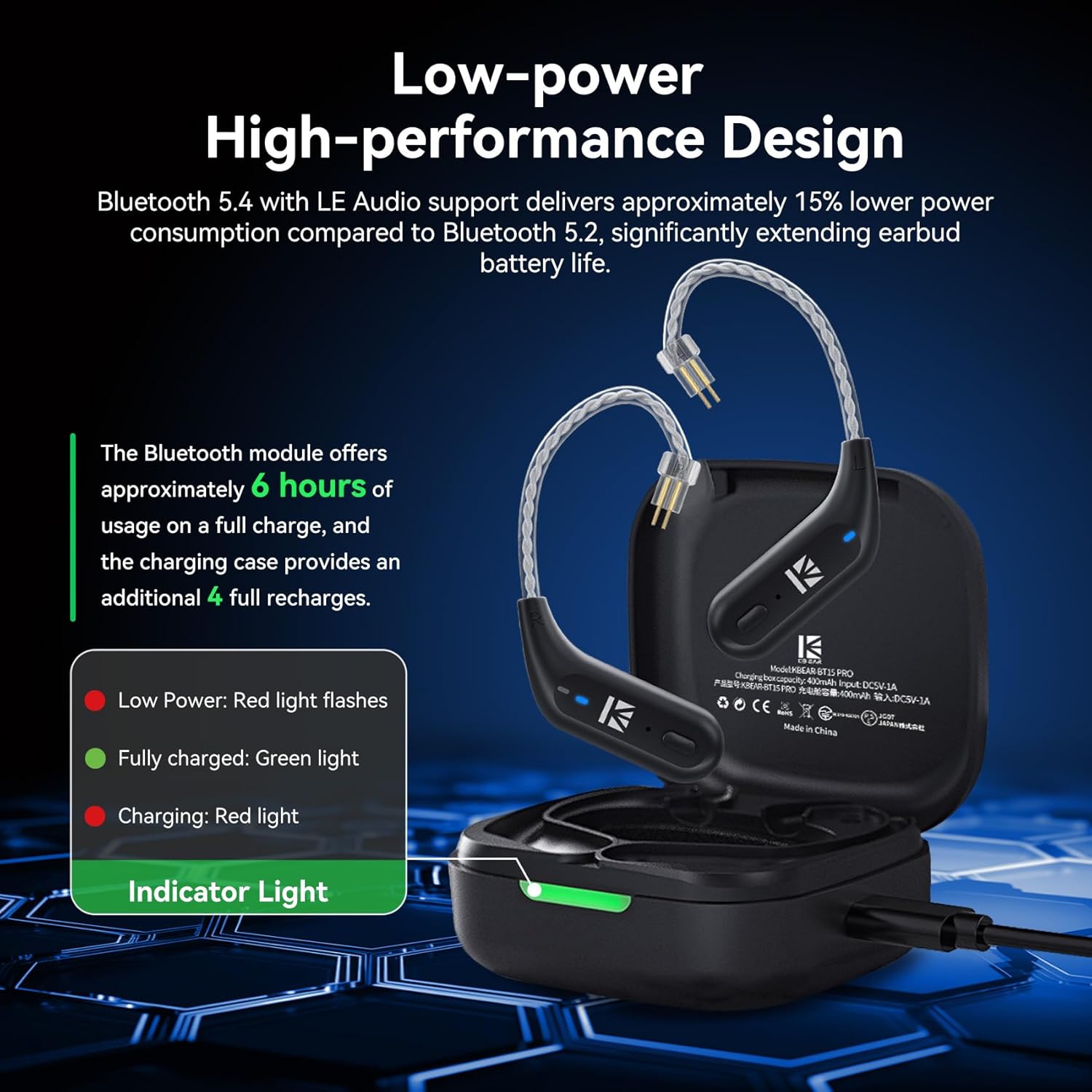
Image 4.1: Charging indicators on the KBEAR BT15 PRO case. Red light flashes for low power, solid red for charging, and green for fully charged.
- Low Power: Red light flashes.
- Charging: Red light is solid.
- Fully Charged: Green light is solid.
4.3 Cleaning and Storage
- Regularly clean the earhooks and charging case with a soft, dry cloth.
- Avoid using harsh chemicals or abrasive materials.
- Store the device in a cool, dry place away from direct sunlight and extreme temperatures.
- Ensure the 2-pin connectors are clean and free of debris to maintain optimal connection.
5. Troubleshooting
If you encounter issues with your KBEAR BT15 PRO, please refer to the following common troubleshooting steps:
| Problem | Possible Cause | Solution |
|---|---|---|
| Cannot power on | Low battery | Charge the earhooks in the charging case and ensure the case is charged. |
| Cannot pair with device | Not in pairing mode; device Bluetooth off; previously paired device interference | Ensure earhooks are in pairing mode (flashing indicator). Turn off and on Bluetooth on your device. Forget "BT15 PRO" from your device's Bluetooth list and re-pair. |
| Intermittent connection/audio stuttering | Distance from device; interference; low battery | Reduce distance between earhooks and device. Avoid strong Wi-Fi or other Bluetooth signals. Charge the earhooks. |
| No sound | Volume too low; incorrect audio output selected; IEMs not properly connected | Increase volume on both device and earhooks. Check device's audio output settings. Ensure IEMs are securely connected to the 2-pin connectors. |
| Charging case not charging | Faulty cable/adapter; dirty charging port | Try a different USB-C cable and power adapter. Clean the charging port gently. |
6. Specifications
- Model Name: BT15PRO
- Item Model Number: 4407
- Brand: YINYOO (KBEAR)
- Connectivity Technology: Wireless (Bluetooth 5.4)
- Ear Placement: In Ear
- Form Factor: In Ear
- Style: 2pins
- Battery Life (Earhooks): Approximately 6 hours
- Charging Case Capacity: Provides 4 additional full recharges
- Low Latency: As low as 80ms (LE Isochronous channels)
- Audio Encoding: Supports AAC
- Item Weight: 3.83 ounces
- Package Dimensions: 3.39 x 3.03 x 1.57 inches
- Included Components: Cable (referring to the earhooks themselves as a cable replacement)
7. Official Product Videos
Watch these official videos for visual guides and further information on the KBEAR BT15 PRO.
KBEAR BT15 PRO Bluetooth Earhook Overview
Video 7.1: An overview of the KBEAR BT15 PRO Bluetooth earhook, showcasing its features and design.
KBEAR BT15 PRO Product Showcase
Video 7.2: A brief product showcase of the KBEAR BT15 PRO, highlighting its key functionalities.
8. Warranty and Support
For warranty information and customer support, please refer to the product packaging or contact the manufacturer, Yinyoo, directly. Keep your purchase receipt for any warranty claims.
For additional assistance, visit the Yinyoo Store on Amazon.