
Product Overview
The RisoPhy Gaming Mouse PC257A is a high-performance wired gaming mouse designed for precision and customization. It features a 32-bit ARM processor, 11 programmable buttons, adjustable RGB backlighting, and a tunable weight system to enhance your gaming experience. Its ergonomic design ensures comfort during extended use, and its durable construction provides a long lifespan.

Image: The RisoPhy Gaming Mouse PC257A, showcasing its ergonomic shape and the included tunable weights for personalized feel.
Setup Guide
Follow these steps to set up your RisoPhy Gaming Mouse PC257A:
- Unboxing: Carefully remove the mouse and any accessories from the packaging. Ensure all components are present, including the mouse and the tunable weights.
- Connect to PC: Plug the USB connector of the RisoPhy Gaming Mouse into an available USB port on your computer. The mouse is plug-and-play compatible with Windows and Linux operating systems.
- Driver Installation (Optional but Recommended): For full customization, including programmable buttons, RGB lighting modes, and DPI settings, install the dedicated driver software. The product images indicate a "Drive Disk Included". If a physical disk is not provided, check the RisoPhy official website for software downloads.
- Weight Adjustment: The mouse features a tunable weight system. To adjust, locate the weight compartment on the underside of the mouse. Open the compartment and insert or remove the 2.4g weights as desired to achieve your preferred mouse feel and balance.

Image: The underside of the RisoPhy Gaming Mouse showing the compartment for the 8x 2.4g tunable weights.
Operating Instructions
Understanding the features and functions of your RisoPhy Gaming Mouse PC257A:
Ergonomic Design
The RisoPhy PC257A is designed for comfort during long gaming sessions, featuring a thumb rest paddle, non-slip sides, and soft rubber rollers for the scroll wheel. This ergonomic shape helps reduce hand fatigue.
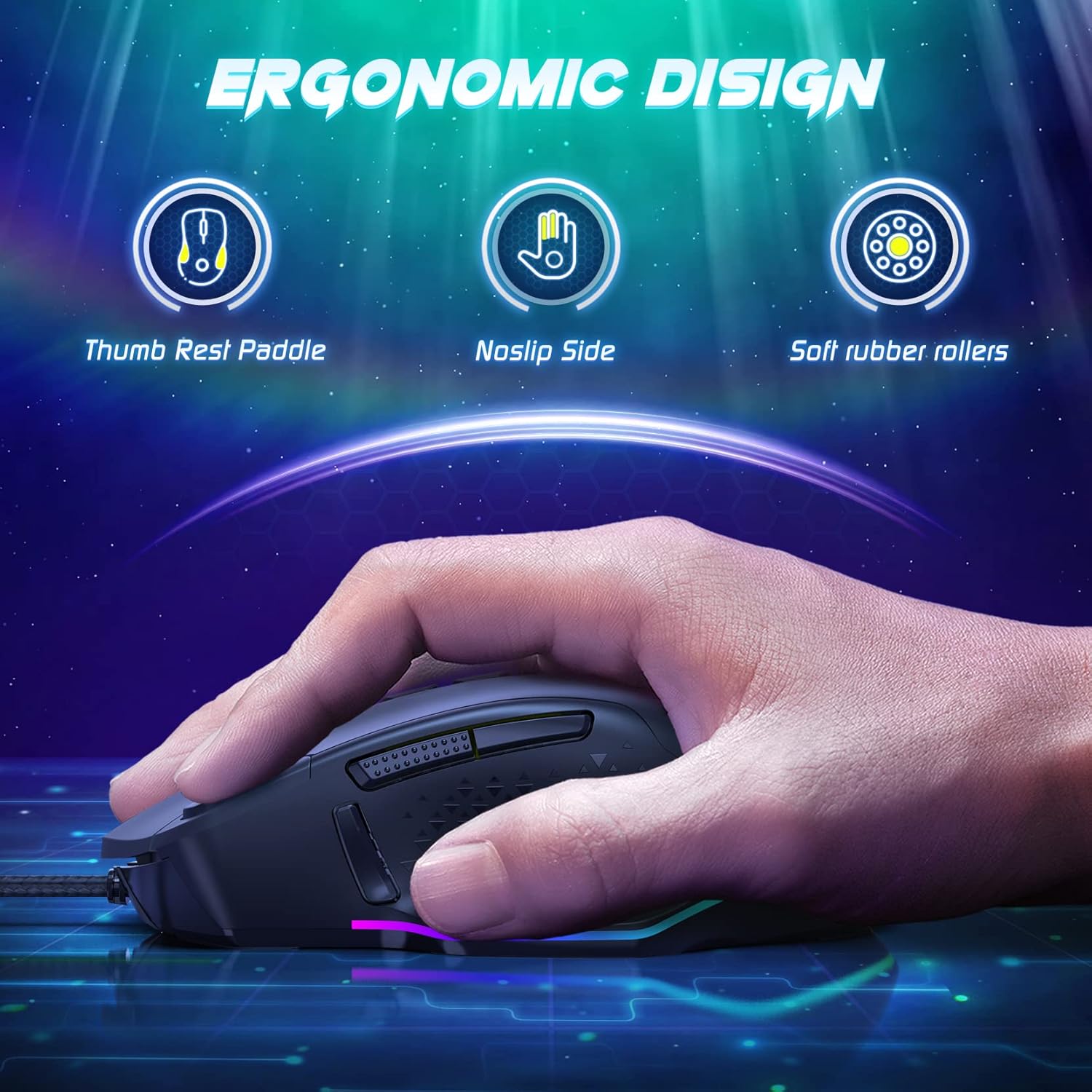
Image: A hand holding the RisoPhy Gaming Mouse, illustrating its ergonomic features including a thumb rest paddle, non-slip side, and soft rubber rollers.
DPI Settings and Adjustment
The mouse supports multiple DPI levels for precise control, up to 12000 DPI. Use the dedicated DPI adjustment buttons (usually located near the scroll wheel) to cycle through preset DPI stages. The software allows for custom DPI configuration and fine-tuning.
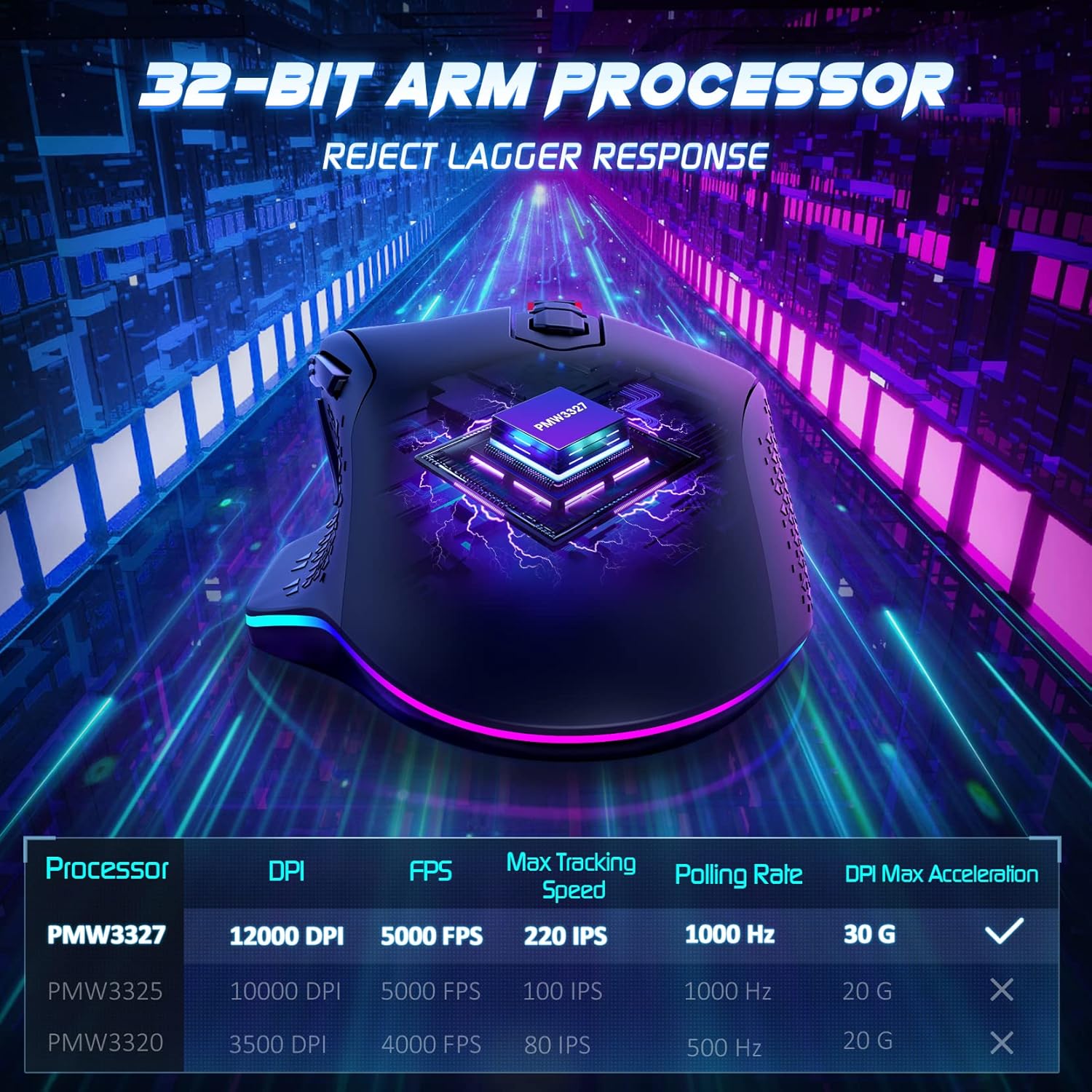
Image: Diagram illustrating the 32-bit ARM processor and a table detailing performance metrics like DPI, FPS, Max Tracking Speed, and Polling Rate.
Programmable Buttons
The RisoPhy PC257A features 11 programmable buttons. These buttons can be assigned various functions, macros, or key combinations using the mouse's software. This allows for personalized control in gaming and productivity tasks.

Image: Screenshot of the RisoPhy mouse software interface, demonstrating options for lighting, DPI, macro settings, and button assignments.
RGB Backlighting
The mouse is equipped with brilliant RGB backlights offering 7 adjustable light modes and 16.8 million customizable colors. Use the software or dedicated buttons on the mouse to switch between lighting effects, adjust brightness, or turn the lights on/off.

Image: The RisoPhy Gaming Mouse highlighting its RGB backlighting, with icons indicating 16.8 million colors, 7 RGB lighting modes, and a light switch function.
Advanced Features
- On-Board Memory: Save your custom profiles directly to the mouse's on-board memory. This allows you to use your personalized settings on any computer without needing to reinstall the software.

Image: The RisoPhy mouse software displaying options to save and manage custom profiles, indicating the presence of on-board memory.
- Triple Click Function: A dedicated button provides a triple-click function, useful in FPS games for rapid firing.

Image: The RisoPhy Gaming Mouse in a gaming context, highlighting a button labeled "Click=Triple Click" for enhanced gameplay.
- Durability: The mouse is built for longevity, featuring switches rated for 30 million clicks, ensuring reliable performance over time.

Image: The RisoPhy Gaming Mouse with text indicating "Strong Durability" and "30 Million Times Wheel & Switch Life".
Maintenance
To ensure the longevity and optimal performance of your RisoPhy Gaming Mouse PC257A, follow these maintenance guidelines:
- Cleaning: Use a soft, dry cloth to wipe the surface of the mouse. For stubborn dirt, slightly dampen the cloth with water. Avoid using harsh chemicals or abrasive materials.
- Sensor Cleaning: Periodically clean the optical sensor on the underside of the mouse with a cotton swab to prevent tracking issues.
- Cable Care: Avoid sharp bends or excessive pulling on the mouse cable to prevent damage.
- Storage: When not in use, store the mouse in a clean, dry environment away from extreme temperatures.
Troubleshooting
Common issues and their solutions for the RisoPhy Gaming Mouse PC257A:
| Problem | Possible Cause | Solution |
|---|---|---|
| Mouse not responding | Loose USB connection, faulty USB port, driver issue. |
|
| Inaccurate tracking or cursor jumpiness | Dirty optical sensor, unsuitable mouse pad surface. |
|
| Buttons not working or programmable features not active | Software not installed or configured correctly, corrupted profile. |
|
| RGB lighting not working or stuck | Software glitch, lighting mode selection. |
|
Specifications
Key technical specifications for the RisoPhy Gaming Mouse PC257A:
- Brand: RisoPhy
- Model: PC257A
- Connectivity Technology: Wired
- Movement Detection Technology: Optical
- Number of Buttons: 11
- Hand Orientation: Right
- Special Features: Ergonomic Design, Programmable Buttons, RGB Backlighting, Tunable Weights, On-board Memory
- Recommended Uses: Gaming
- Compatible Devices: Personal Computer
- Operating Systems: Linux, Windows 7, Windows XP (and likely newer Windows versions)
- Item Weight: 4 grams (Note: This value from the source data seems to be for a component, not the full mouse. The mouse includes 8x 2.4g weights for customization.)
- Shipping Dimensions: 14 x 10.3 x 5.1 cm
Warranty and Support
For warranty information, technical support, or further assistance with your RisoPhy Gaming Mouse PC257A, please refer to the official RisoPhy website or contact their customer service. Keep your purchase receipt as proof of purchase for warranty claims.
For general inquiries, you may visit the RisoPhy brand page on Amazon.


