
Introduction
The Rapoo VT9PRO 4K Wireless Gaming Mouse is designed for high-performance gaming, offering advanced features and customizable options. This manual provides instructions for setup, operation, maintenance, and troubleshooting to ensure optimal use of your device.
What's in the Box
- 1 x Wireless Gaming Mouse
- 1 x Type-C Cable
- 1 x Manual
- 1 x USB-A to Type-C converter
- 1 x Set of foot pad & Anti-slip Stickers
Setup
1. Connecting the Mouse
The VT9PRO 4K mouse supports both 2.4GHz wireless and wired USB connections.
Wireless Connection (2.4GHz)
- Locate the USB receiver (dongle) stored magnetically under the mouse. Gently pull the magnetic cover to access it.
- Insert the USB receiver into an available USB-A port on your computer.
- Turn on the mouse using the power switch located on the bottom of the mouse. The mouse will automatically connect to the receiver.
- For optimal signal, use the provided USB-A to Type-C converter with the Type-C cable to extend the receiver closer to the mouse. Plug the USB receiver into the converter, and the Type-C end of the cable into your computer.

Image: Bottom view of the Rapoo VT9PRO 4K mouse with the magnetic cover removed, revealing the USB receiver (dongle) storage compartment.

Image: Close-up of the Rapoo VT9PRO 4K mouse's underside, showing the USB dongle removed from its magnetic storage slot.
Wired Connection
Connect the provided Type-C cable to the front port of the mouse and the USB-A end to your computer. The mouse will function in wired mode and charge simultaneously.

Image: The Rapoo VT9PRO 4K mouse connected to a computer via its braided USB-C cable, illustrating wired usage and charging.
Operating the Mouse
Key Features and Controls
- PAW 3398 Sensor: Equipped with a high-performance optical sensor offering up to 26000 DPI sensitivity, 650 IPS precision, and 50G acceleration for accurate tracking.
- 4KHz Polling Rate: Provides ultra-fast response times (0.25ms) for competitive gaming, minimizing latency in wireless mode.
- Lightweight Design: Weighs approximately 68 grams, reducing hand fatigue during extended use.
- 10 Programmable Buttons: Customize button functions using the Rapoo software for personalized control.
- C+ Click Technology: Ensures tactile feedback and quick registration for main clicks.

Image: Diagram highlighting the PixArt PAW 3398 Sensor specifications, including 26K DPI, 650 IPS, and 50G acceleration.

Image: Detailed diagram labeling the 10 programmable buttons on the Rapoo VT9PRO 4K mouse, including left, right, forward, back, DPI+, DPI-, roller forward, middle, roller back, and DIY button.

Image: The Rapoo VT9PRO 4K mouse resting on feathers, visually representing its lightweight design of less than 68 grams.
Software & Customization
The Rapoo VT9PRO 4K mouse features on-board memory to save your customized settings. Download the official Rapoo software from the Rapoo website to access advanced customization options:
- DPI Adjustment: Fine-tune DPI sensitivity levels.
- Key Setting: Remap the 10 programmable buttons to suit your gameplay.
- Parameter Setting: Adjust polling rate (up to 4KHz wireless, 8KHz wired), lift-off distance (LOD), motion sync, ripple correction, and glass tracking technology.
- Macro Editing: Create and assign complex macros.
- Profile Management: Save multiple profiles for different games or applications.
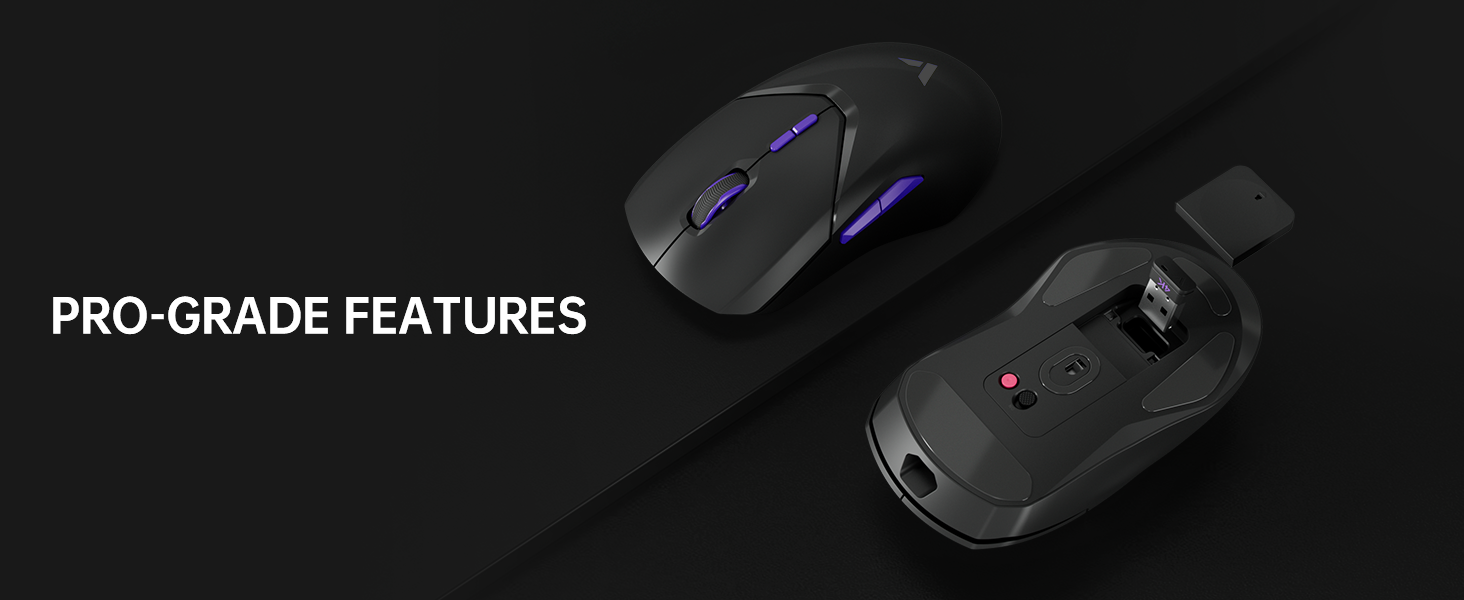
Image: Screenshot of the Rapoo VT9PRO 4K mouse's customization software, showing various settings for DPI, polling rate, and button assignments.
Battery & Charging
The VT9PRO 4K Wireless Gaming Mouse is equipped with an 800mAh Li-Po battery, providing up to 180 hours of continuous use on a single charge.
- USB-C Charging: Connect the provided 6ft USB-C cable to the mouse and your computer for charging. The mouse can be used in wired mode while charging.
- Wireless Charging: The mouse is compatible with wireless charging mouse pads. A P3 Wireless Charging Module (sold separately) is required for this feature.

Image: Illustration showing the Omron 50M switches and highlighting the 180-hour battery life of the Rapoo VT9PRO 4K mouse.

Image: The Rapoo VT9PRO 4K mouse positioned on a Qi wireless charging pad, demonstrating its wireless charging capability (P3 module sold separately).
Specifications
| Feature | Detail |
|---|---|
| Product Dimensions | 4.91 x 2.64 x 0.04 inches |
| Item Weight | 2.4 ounces (68 grams) |
| Item Model Number | VT9PRO 4K |
| Sensor | PAW 3398 Optical Sensor |
| DPI Sensitivity | Up to 26000 DPI |
| Polling Rate | 4KHz Wireless, 8KHz Wired |
| Response Time | 0.25ms |
| Battery Life | 180 hours (800mAh Li-Po) |
| Programmable Buttons | 10 |
| Connectivity | 2.4GHz Radio Frequency, USB-C Wired |
Maintenance
- Cleaning: Use a soft, dry cloth to clean the mouse. Avoid using harsh chemicals or abrasive materials.
- Storage: Store the mouse in a cool, dry place when not in use. Ensure the USB receiver is stored in its magnetic compartment to prevent loss.
- Battery Care: To prolong battery life, avoid fully discharging the mouse frequently. Charge it when the battery indicator is low.
Troubleshooting
Connection Issues
- No Connection: Ensure the mouse is turned on and the USB receiver is securely plugged into your computer. Try a different USB port.
- Interference: If experiencing signal drops in wireless mode, try moving the USB receiver closer to the mouse using the extender cable. Avoid placing the receiver near other wireless devices that may cause interference.
Performance Issues
- Inaccurate Tracking: Ensure the mouse sensor is clean and free from dust. Use the Rapoo software to calibrate the mouse for your mouse mat surface.
- Lag/Delay: Verify that the polling rate is set to your desired level in the software. Ensure the mouse is fully charged.
Software Issues
- Software Not Recognizing Mouse: Reinstall the Rapoo software. Ensure the mouse firmware and dongle firmware are up to date via the support section in the software.
Warranty & Support
Rapoo provides a 2-year warranty for this product. If you encounter any problems or require assistance, please contact Rapoo customer support. They aim to provide a satisfactory answer within 24 hours.
For further support, visit the official Rapoo website or refer to the contact information provided in the product packaging.


