
GreenForest Noir
GreenForest Computer Desk User Manual
Model: Noir
Product Overview
The GreenForest Computer Desk is designed for both office and gaming environments, offering a blend of functionality and modern aesthetics. It features a built-in full monitor stand, reversible storage shelves, and convenient headphone and cup hooks to optimize your workspace.
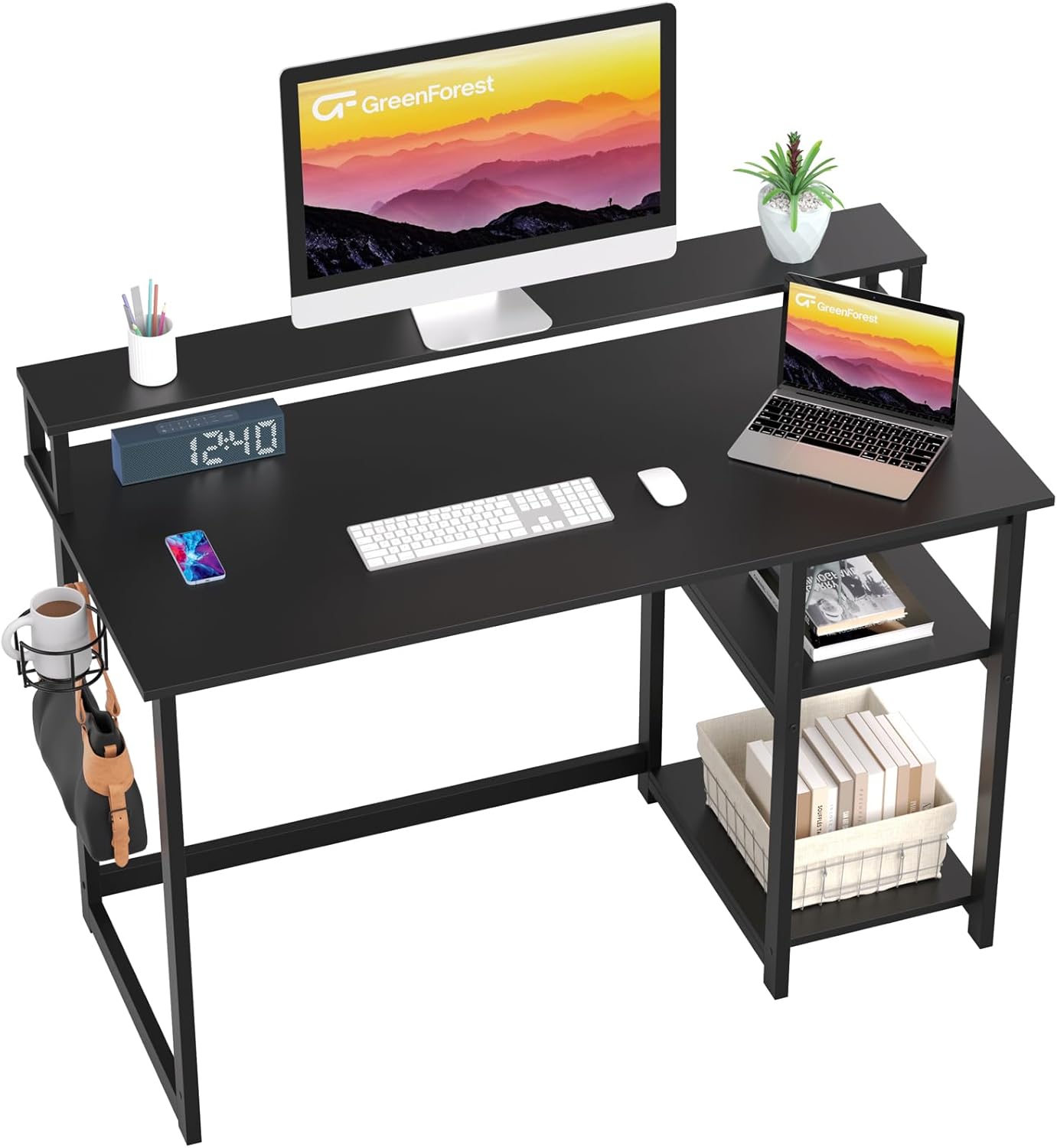
Image: The GreenForest Computer Desk, showcasing its spacious desktop, monitor stand, and side storage.
Setup and Assembly
Assembly of the GreenForest Computer Desk is straightforward and typically takes about 20 minutes. All necessary tools and instructions are included, with parts clearly labeled for easy identification.
Before You Begin:
- Unpack all components and verify against the parts list provided in the instruction manual.
- Ensure you have adequate space for assembly.
- Keep small parts out of reach of children.
Assembly Steps:
- Attach the main desk frame components using the provided screws and tools.
- Secure the desktop panel to the assembled frame.
- Install the built-in monitor stand onto the desktop.
- Assemble the 2-tier storage shelves. These shelves can be installed on either the left or right side of the desk, based on your preference.
- Optionally, adjust the height of the middle shelf in the storage unit to accommodate larger items like a computer tower.
- Attach the headphone hook and cup holder to your desired position on the desk frame.

Image: Detailed dimensions of the desk components, crucial for planning your space.

Image: Illustration of the adjustable shelf positions, allowing customization for PC towers or other items.
Operating and Usage
The GreenForest Computer Desk is designed for versatile use, providing features that enhance productivity and comfort.
Built-in Full Monitor Stand:
The integrated monitor stand extends across the full length of the desktop, providing ample space for multiple monitors. This feature elevates your screen to an ergonomic viewing height, reducing neck and eye strain, and frees up valuable desktop space below for keyboards, notebooks, or other essentials.

Image: Visual guide on how the monitor stand improves posture and saves workspace.
Reversible Storage Shelves:
The two-tier storage shelves can be positioned on either the left or right side of the desk during assembly, adapting to your room layout and personal preference. These open shelves are ideal for storing books, storage boxes, or other office supplies. The middle shelf is removable, allowing you to create a larger compartment for a computer tower or taller items.
Headphone Hook and Cup Holder:
The desk includes a detachable headphone hook and a cup holder. These accessories can be affixed to any convenient part of the desk frame, helping to keep your desktop clear and organized. The cup holder is designed to securely hold standard-sized beverage containers.

Image: Close-up view of the cup holder and headphone hook, demonstrating their utility.
Maintenance
To ensure the longevity and appearance of your GreenForest Computer Desk, follow these simple maintenance guidelines:
- Cleaning: Wipe the desk surfaces with a soft, damp cloth. For stubborn marks, a mild soap solution can be used, followed by drying with a clean cloth. Avoid abrasive cleaners or harsh chemicals, as these can damage the finish.
- Spills: Immediately wipe up any spills to prevent liquid absorption or staining.
- Heat and Moisture: Avoid placing hot items directly on the desk surface. Use coasters for beverages to prevent water rings.
- Weight Distribution: Distribute weight evenly across the desktop and shelves. Do not exceed the maximum weight recommendation.
- Fasteners: Periodically check all screws and fasteners to ensure they are tight. Retighten if necessary to maintain stability.
Troubleshooting
This section addresses common issues you might encounter with your GreenForest Computer Desk.
Desk Wobbles or is Unstable:
- Solution: Ensure all screws and bolts are securely tightened. Check that the desk is placed on a flat, even surface. If the floor is uneven, consider using furniture pads or shims under the legs to level the desk.
Missing Parts or Damaged Components:
- Solution: Before assembly, carefully check all contents against the parts list in the included instruction manual. If any parts are missing or damaged, do not proceed with assembly. Contact GreenForest customer support immediately for assistance.
Difficulty Assembling:
- Solution: Review the assembly instructions carefully, paying close attention to the diagrams and labeled parts. Ensure components are oriented correctly. If you continue to experience difficulty, refer to the contact information for customer support.
Specifications
| Feature | Detail |
|---|---|
| Brand | GreenForest |
| Model Number | Noir |
| Color | Black |
| Style | Modern |
| Item Weight | 15.44 Kilograms |
| Size (L x W) | 100 x 50 cm (39.37 x 19.68 inches) |
| Maximum Height | 75 Centimeters (29.52 inches) |
| Maximum Weight Recommendation | 100 Kilograms (220 lbs) |
| Assembly Required | Yes |
| Storage | 2-tier reversible shelves |
| Additional Features | Built-in full monitor stand, Headphone hook, Cup holder |
Warranty and Support
GreenForest stands behind the quality of its products. For specific warranty information regarding your GreenForest Computer Desk, please refer to the warranty card included with your purchase or visit the official GreenForest website.
If you require technical assistance, have questions about assembly, or need to report missing/damaged parts, please contact GreenForest customer support. Contact details can typically be found on the product packaging, the included manual, or the brand's official website.
For more information, visit the GreenForest Store on Amazon.
Related documentsNoir


Ask a question about this manual
Ask about setup, troubleshooting, compatibility, parts, safety, or missing instructions. Manuals+ will review the question and use this page’s manual context to help answer it.