Introduction
This document provides detailed instructions for the setup, operation, and maintenance of your OOSSXX 32-Channel 5.0 Megapixel NVR Network Video Recorder. Please read this manual thoroughly before installation and use to ensure proper functionality and safety.
Packing List
Verify that all items listed below are included in your package:
- 1 x 5.0MP 32-Channel Hybrid DVR
- 1 x Power Supply for DVR
- 1 x Remote
- 1 x USB Mouse
- 1 x HDMI Cable
Product Overview
Familiarize yourself with the NVR unit and its various ports and indicators.


Setup
1. Initial Connections
- Connect the included power supply to the NVR's DC12V2A Power Input Port.
- Connect a monitor or TV to the NVR using either the HDMI or VGA port.
- Plug the USB mouse into one of the NVR's USB ports.
- Connect the NVR to your network router using an Ethernet cable plugged into the Network Port.
2. NVR Setup Wizard
Upon first boot, the NVR will guide you through a setup wizard:
- Time Zone: Select your local time zone.
- Password: Create a strong password for the 'admin' user. It is recommended to use a password with at least 6 digits, including numbers and letters.
- Security Questions: Set up security questions for password recovery.
- Network Settings: Configure network access. DHCP is usually enabled by default for automatic IP assignment.
3. Connecting IP Cameras
The NVR supports up to 32 x 5MP IP cameras. To connect an IP camera:
- Connect the IP camera to one of the NVR's PoE ports using an Ethernet cable. The NVR will provide power and data via this single cable.
- On the NVR's monitor interface, right-click to access the main menu.
- Navigate to 'Channel Set' or 'IP Channel' settings.
- Click 'Search' to find available IP cameras on the network.
- Select the detected camera and click 'Add' to assign it to an NVR channel.
- Enter the camera's login password if prompted.
Operating Instructions
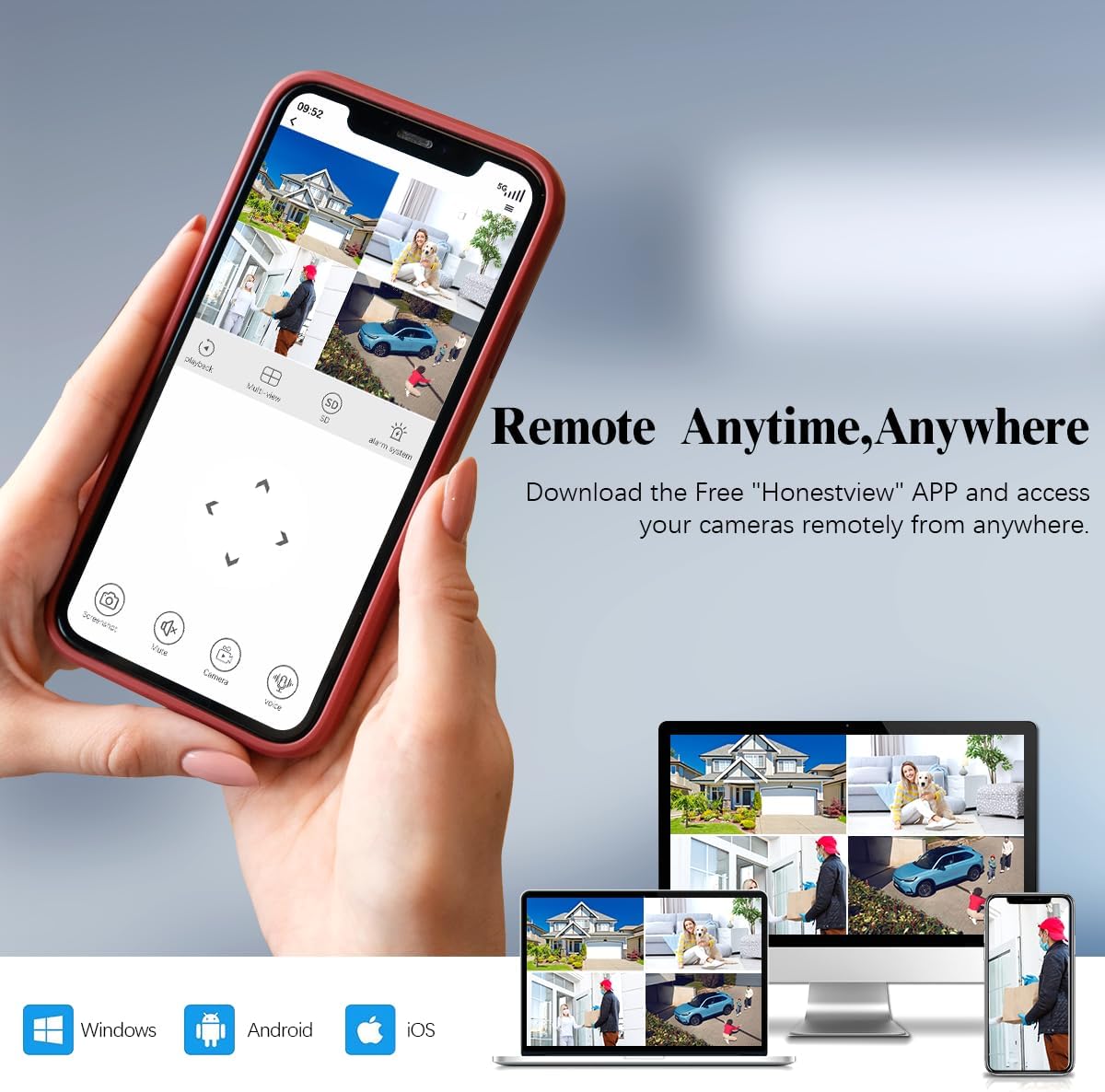
1. Remote Access (Honestview App)
Access your cameras remotely anytime, anywhere using the free 'Honestview' app, compatible with Windows, Android, and iOS devices.
2. Recording Modes
The NVR supports multiple recording modes to suit your surveillance needs:
- Manual Recording: Start and stop recording manually.
- Scheduled Recording: Set specific times for continuous recording.
- Motion Detection Recording: Recording is triggered automatically when motion is detected.

3. Motion Detection Area Setting
You can customize the motion detection range and sensitivity (levels 1-5) to minimize false alarms. Areas outside the defined motion detection zone will not trigger an alarm message.

4. Video Compression (H.265+)
The NVR utilizes H.265+ video compression technology, which offers enhanced viewing experience, increased download speed, and significantly reduces hard drive storage space usage compared to traditional H.264.

5. 24/7 Recording and Playback
The NVR supports continuous 24/7 recording and 32-channel synchronous playback. It supports up to 8TB hard drive (HDD not included).

6. Alarm Notifications
Receive instant alarm messages via the Honestview app when motion is detected in monitored areas.

Maintenance
Regular maintenance ensures optimal performance of your NVR system.
- Firmware Updates: Periodically check for and install firmware updates to enhance system stability and features.
- Hard Drive Management: Ensure the hard drive is functioning correctly. Format the hard drive as needed to maintain recording efficiency.
- System Log: Review system logs for any errors or unusual activity.
Specifications
| Feature | Detail |
|---|---|
| Model Number | OSX-32CHNOHDD |
| Brand | OOSSXX |
| Channels | 32-Channel |
| Max IP Camera Resolution | 5.0 Megapixel |
| Max Hard Drive Support | 8 TB (HDD not included) |
| Connectivity Technology | HD-Analog, IP Wired System, Wired |
| Compatible Devices | Camera, Personal Computers, Smartphone, Tablet |
| Product Dimensions | 13 x 11 x 15 inches |
| Item Weight | 3.3 pounds |
Troubleshooting
If you encounter any issues, please refer to the following general troubleshooting steps:
- No Video Output: Check all cable connections (HDMI/VGA, power). Ensure the monitor is set to the correct input source.
- Cameras Not Displaying: Verify that IP cameras are properly connected to PoE ports and powered. Check network settings and ensure cameras are added to NVR channels.
- Remote Access Issues: Ensure the NVR is connected to the internet and network settings are correct. Verify app login credentials and device status in the Honestview app.
- Recording Problems: Check hard drive status (formatted, sufficient space). Verify recording schedules and motion detection settings.
Warranty and Support
OOSSXX provides a 1-Year Warranty and Lifetime Technical Support for this product. For technical assistance, please contact OOSSXX customer support.


