
1. Introduction
This manual provides detailed instructions for the proper installation, operation, and maintenance of your Eiszuso Bluetooth 5.3 USB Adapter, Model 06H. Please read this manual thoroughly before using the device to ensure optimal performance and to prevent any potential issues.

Image 1.1: The Eiszuso Bluetooth 5.3 USB Adapter. This compact device enables Bluetooth connectivity for compatible computers.
2. Product Overview
The Eiszuso Bluetooth 5.3 USB Adapter is designed to provide wireless Bluetooth connectivity to desktop PCs and laptops that lack built-in Bluetooth functionality. It supports the latest Bluetooth 5.3 standard, offering enhanced performance and compatibility.
Key Features:
- Advanced Bluetooth 5.3 Technology: Equipped with Bluetooth 5.3 + EDR, supporting Dual Mode (BR/EDR + Low Energy Controller) for quick responses and improved anti-interference capabilities.
- Effortless Plug & Play: Designed for immediate use without the need for driver installations on supported operating systems.
- Robust and Rapid Connection: Enhances connection stability and minimizes signal interruptions. Achieves a maximum transmission rate of 3 Mbps and a range of up to 20 meters (66 feet) in open spaces.
- Compact and Portable Design: Its mini size allows it to remain inserted in a USB port without obstructing other ports, making it ideal for travel.
- Wide Device Compatibility: Supports various Bluetooth-enabled devices such as speakers, headphones, keyboards, mice, and printers.

Image 2.1: The adapter facilitates wireless connections to earphones, mice, gamepads, and other Bluetooth-enabled devices, reducing latency.
3. Setup Instructions
System Requirements:
- Operating Systems: Windows 8.1, Windows 10, Windows 11, Linux.
- Available USB Port.
- Note: This adapter is not compatible with Mac OS, car stereo systems, XBOX, PS4, or TVs.
Installation Steps:
- Insert the Adapter: Locate an available USB port on your desktop PC or laptop. Gently insert the Eiszuso Bluetooth 5.3 USB Adapter into the USB port.
- Automatic Recognition: The adapter is designed for plug-and-play functionality. Your operating system (Windows 8.1/10/11 or Linux) should automatically detect and install the necessary drivers. This process may take a few moments.
- Verification: Once installed, a Bluetooth icon should appear in your system tray (Windows) or notification area (Linux), indicating that Bluetooth is active and ready for use.
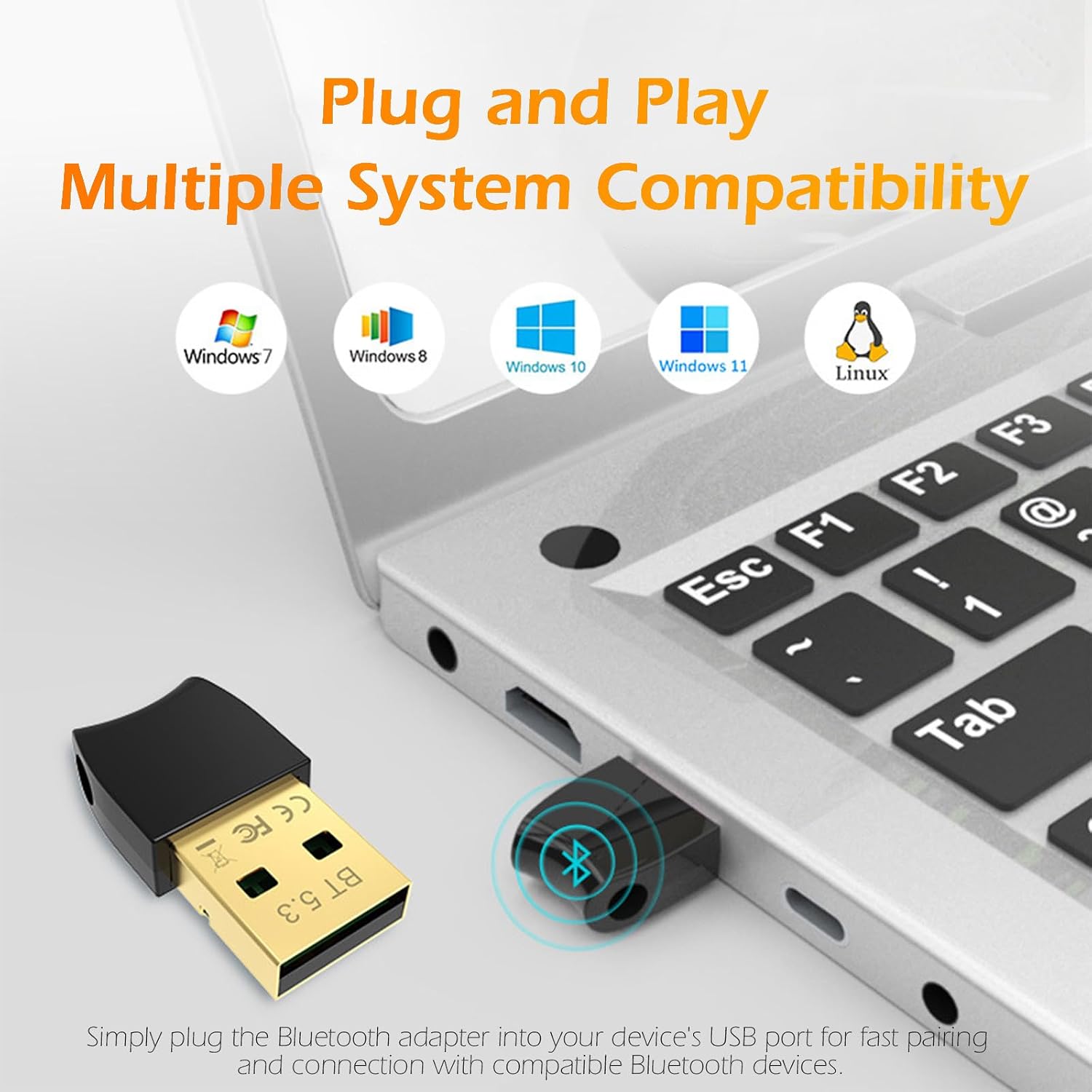
Image 3.1: The adapter is plug-and-play compatible with Windows 7, 8, 10, 11, and Linux operating systems.
4. Operating Instructions
Pairing Bluetooth Devices:
After successful installation, you can connect your Bluetooth-enabled devices to your computer.
- Enable Bluetooth on your Computer: Ensure Bluetooth is turned on in your computer's settings. On Windows, go to Settings > Devices > Bluetooth & other devices and toggle Bluetooth to 'On'.
- Put your Device in Pairing Mode: Refer to your Bluetooth device's instruction manual to put it into pairing mode. This usually involves holding a button until an indicator light flashes.
- Add a Device: On your computer, click 'Add Bluetooth or other device' (Windows) or navigate to the Bluetooth settings (Linux). Select 'Bluetooth' from the options.
- Select and Connect: Your computer will scan for nearby Bluetooth devices. Select your device from the list and follow any on-screen prompts to complete the pairing process.
Multi-device Connectivity:
The adapter supports simultaneous connections with multiple Bluetooth devices, allowing you to connect headphones, a mouse, and a keyboard concurrently.

Image 4.1: The adapter enables simultaneous connectivity with various devices including computers, phones, mice, earphones, gamepads, and printers.
5. Maintenance
The Eiszuso Bluetooth 5.3 USB Adapter requires minimal maintenance. To ensure its longevity and optimal performance:
- Keep the adapter clean and free from dust. Use a soft, dry cloth for cleaning.
- Avoid exposing the adapter to extreme temperatures, humidity, or direct sunlight.
- Do not attempt to disassemble or repair the adapter yourself. This will void any potential warranty and may damage the device.
- When not in use for extended periods, you may remove the adapter from the USB port and store it in a safe, dry place.
6. Troubleshooting
If you encounter issues with your Eiszuso Bluetooth 5.3 USB Adapter, refer to the following troubleshooting steps:
| Problem | Possible Solution |
|---|---|
| Adapter not recognized / No Bluetooth icon |
|
| Cannot pair devices |
|
| Unstable connection / Frequent disconnections |
|
| "Ghost" Bluetooth devices appearing / Pairing issues after re-pairing |
|
7. Specifications
| Feature | Detail |
|---|---|
| Model Number | 06H |
| Bluetooth Version | 5.3 + EDR (Dual Mode) |
| Hardware Interface | USB |
| Data Link Protocol | Bluetooth |
| Data Transfer Rate | Up to 3 Mbps |
| Maximum Range | Up to 20 meters (66 feet) in open space |
| Compatible Operating Systems | Windows 8.1 / 10 / 11, Linux |
| Compatible Devices | Speakers, Headphones, Keyboards, Mice, Printers |
| Package Dimensions | 4.17 x 2.64 x 0.35 inches |
| Item Weight | 0.634 ounces (0.02 Kilograms) |
8. Contact and Support
For further assistance, technical support, or warranty inquiries, please contact Eiszuso customer service through the retailer's platform or the official Eiszuso website. Please have your product model number (06H) and purchase information ready when contacting support.