
VAVOFO KM-6779A
VAVOFO KM-6779A Foldable & Portable LED Desk Lamp User Manual
Welcome
Thank you for choosing the VAVOFO KM-6779A Foldable & Portable LED Desk Lamp. This manual provides detailed instructions for safe and efficient use of your new lamp. Please read it thoroughly before operation and retain it for future reference.
Product Overview
Key Features
- Foldable & Portable Design: Compact and lightweight for easy storage and transport.
- Eye-Caring LED Lighting: Features 48 flicker-free LED beads with 3 color modes (warm, natural, cool) and 9 stepless brightness levels.
- 6000mAh Rechargeable Battery: Provides extended cordless operation, ideal for various settings.
- USB-C Charging & Emergency Output: Convenient USB-C input for charging the lamp and a USB-A output port to charge other devices.
- Integrated Phone Holder: A pull-out bracket for holding smartphones or small tablets.
- Wall Mountable: Designed with screw positions for optional wall installation.
- Rabbit-shaped Night Light: A soft, touch-adjustable night light feature.
Package Contents
- VAVOFO KM-6779A LED Desk Lamp
- USB-C Charging Cable
- User Manual (this document)
- Mounting Screws (for optional wall installation)
Component Identification
Familiarize yourself with the different parts of your VAVOFO desk lamp:

Image: Component identification of the VAVOFO KM-6779A LED Desk Lamp.
- Folding Stand: Allows adjustment of the lamp's angle and height.
- Night Light: Rabbit-shaped light for soft illumination.
- Switch Push Button: Main power control.
- USB Interface: USB-A output port for charging external devices.
- Touch Keys: Controls for light modes and brightness.
- Type-C Port: USB-C input for charging the lamp.
- Base Bracket: Provides stability and includes a pull-out phone holder and screw holes for mounting.
Setup
Unfolding the Lamp
- Gently hold the base of the lamp.
- Carefully unfold the lamp arm and lampshade to your desired angle. The hinges allow for flexible positioning.

Image: The VAVOFO desk lamp in folded and unfolded positions.
Positioning the Lamp
The lamp can be used on a flat surface or mounted on a wall.
- Desktop Use: Place the lamp on a stable, flat surface. Ensure the base bracket is fully extended for optimal stability.
- Phone Holder: Pull out the 'OPEN' tab at the front of the base to reveal the integrated phone holder. This allows you to prop up your smartphone or small tablet while using the lamp.

Image: The lamp's pull-out phone holder in use.
- Wall Mounting: The base of the lamp features screw holes. To mount the lamp, use the provided screws to fix the base securely to a wall. This is suitable for areas like corridors or study rooms where a fixed light source is desired.
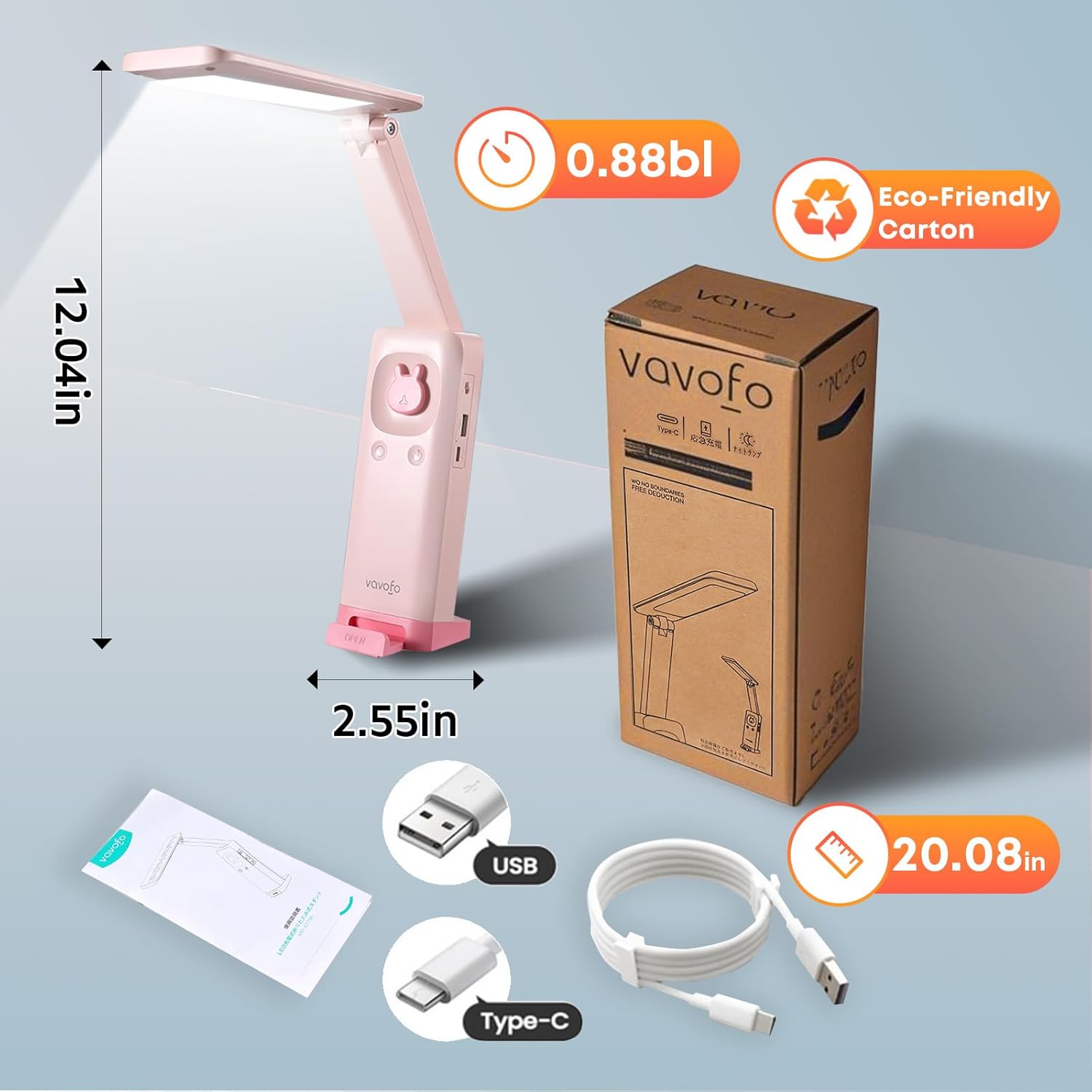
Image: The lamp mounted on a wall.
Operating Instructions
Power On/Off
- Locate the main switch push button on the lamp's body.
- Press the button once to turn the lamp ON.
- Press the button again to turn the lamp OFF.
Adjusting Light Modes and Brightness
The lamp offers three color modes and adjustable brightness:
- Change Color Mode: Short press the 'Touch Key' (usually indicated by a sun or light bulb icon) to cycle through the three color modes: Warm Light, Natural White, and Cool White.
- Adjust Brightness: Long press the 'Touch Key' to steplessly adjust the brightness within the selected color mode. Release the button when the desired brightness is reached.
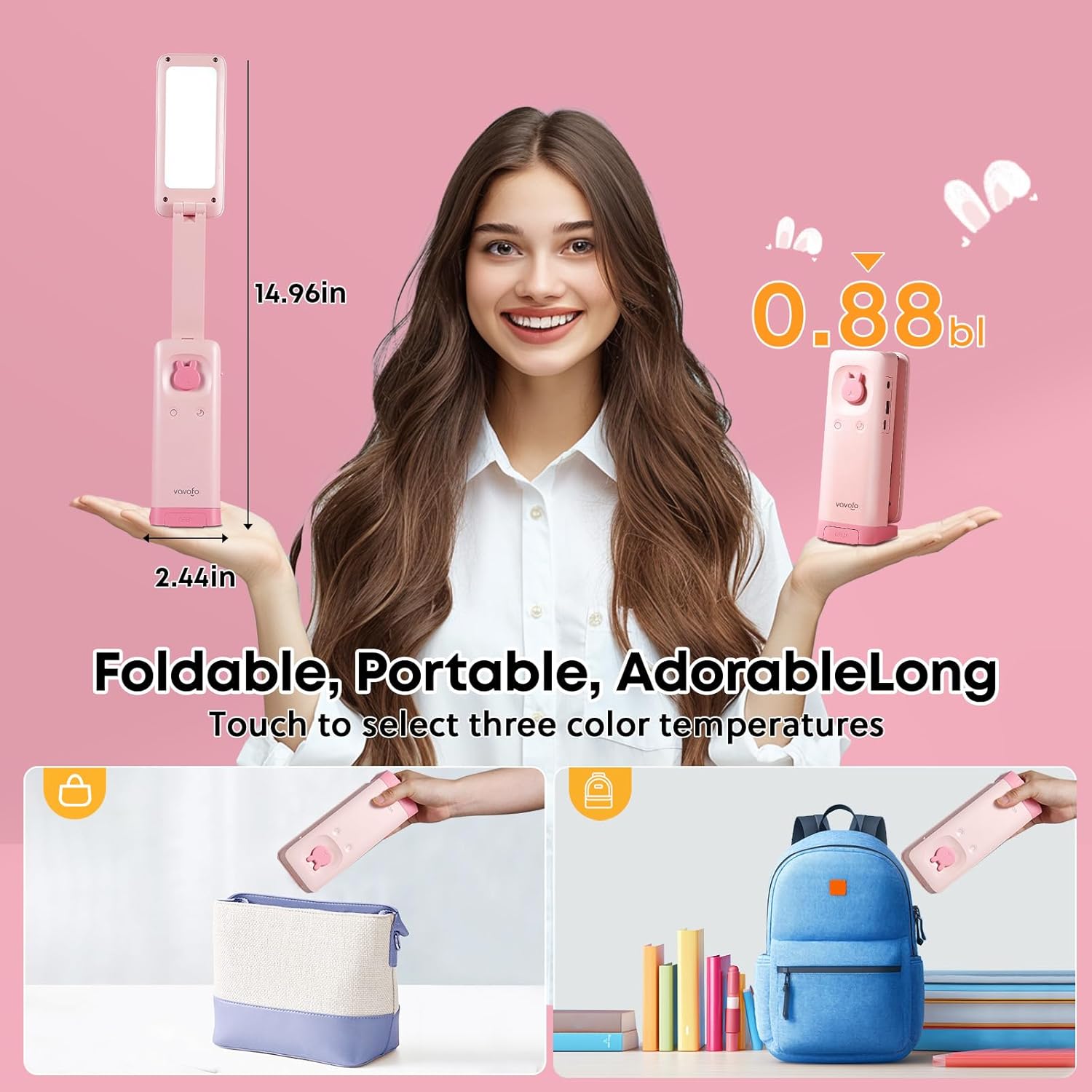
Image: Demonstrating adjustable brightness levels of the lamp.
Night Light Function
The lamp includes a charming rabbit-shaped night light:
- Activate Night Light: Short press the 'Night Light Touch Key' (usually indicated by a moon icon) to turn the night light ON.
- Adjust Night Light Brightness: Long press the 'Night Light Touch Key' to adjust the brightness of the night light.
- Turn Off Night Light: Short press the 'Night Light Touch Key' again to turn the night light OFF.
Video: Detailed introduction of the VAVOFO desk lamp, demonstrating its features including light modes, brightness adjustment, and the night light function.
Charging
Battery Information
The VAVOFO desk lamp is equipped with a built-in 6000mAh Lithium Ion battery, providing approximately 8-9 hours of cordless use on a full charge, depending on brightness settings.
Charging Procedure
- Connect the provided USB-C charging cable to the Type-C port on the lamp.
- Connect the other end of the cable to a compatible USB power adapter (not included) or a computer's USB port.
- The charging indicator light will illuminate to show that the lamp is charging.
- Once fully charged, the indicator light may change color or turn off (refer to specific lamp behavior).
Emergency Power Bank Function
The lamp can also serve as an emergency power bank for your mobile devices:
- Connect your device's charging cable to the USB-A output port on the lamp.
- The lamp's battery will begin to charge your connected device. Note that using this feature will reduce the lamp's operating time.

Image: The lamp providing emergency charge to a smartphone.
Maintenance
Cleaning
- Ensure the lamp is turned off and unplugged before cleaning.
- Wipe the lamp's surface with a soft, dry cloth.
- Do not use abrasive cleaners, solvents, or harsh chemicals, as these may damage the finish.
Storage
- When not in use for an extended period, fold the lamp into its compact form.
- Store the lamp in a cool, dry place away from direct sunlight and extreme temperatures.
- Charge the battery at least once every three months to maintain battery health.
Troubleshooting
| Issue | Possible Cause | Solution |
|---|---|---|
| Lamp does not turn on. | Battery is depleted. | Charge the lamp using the provided USB-C cable. |
| Lamp light is dim or flickers. | Low battery or incorrect brightness setting. | Charge the lamp. Long press the touch key to increase brightness. |
| Night light does not work. | Battery is depleted or night light is off. | Charge the lamp. Short press the night light touch key to activate. |
| Cannot charge external device. | Lamp battery is too low or cable is incompatible. | Ensure the lamp is sufficiently charged. Use a compatible USB-A cable for your device. |
Technical Specifications
| Feature | Specification |
|---|---|
| Model Number | KM-6779A |
| Dimensions (Folded) | 1.57"D x 2.56"W x 7.09"H |
| Item Weight | 14.08 ounces |
| Battery Capacity | 6000mAh Lithium Ion |
| Light Source | 48 LED beads |
| Color Modes | 3 (Warm, Natural, Cool) |
| Brightness Levels | 9 (Stepless adjustment) |
| Control Method | Touch |
| Charging Port | USB-C |
| Output Port | USB-A (Emergency charging) |
| Material | Plastic, Metal Base |
| Special Features | Foldable, Portable, Cordless, Phone Holder, Wall Mountable, Eye-Caring, Night Light |
Warranty and Customer Support
VAVOFO stands behind the quality of its products. The KM-6779A LED Desk Lamp comes with a 12-month warranty from the date of purchase.
This warranty covers manufacturing defects and workmanship under normal use. It does not cover damage caused by misuse, accidents, unauthorized modifications, or normal wear and tear.
For warranty claims, technical assistance, or any questions regarding your product, please contact VAVOFO customer service through the retailer where you purchased the item or visit the official VAVOFO website for support information.
Ask a question about this manual
Ask about setup, troubleshooting, compatibility, parts, safety, or missing instructions. Manuals+ will review the question and use this page’s manual context to help answer it.