
Lenovo XT62 branco
Lenovo Thinkplus Bluetooth Live Pods XT62 User Manual
Model: XT62 branco
Introduction
Thank you for choosing the Lenovo Thinkplus Bluetooth Live Pods XT62. These lightweight wireless earbuds are designed to provide a high-quality audio experience with stable Bluetooth 5.3 connectivity and passive noise cancellation. This manual provides essential information on setting up, operating, maintaining, and troubleshooting your new earbuds.
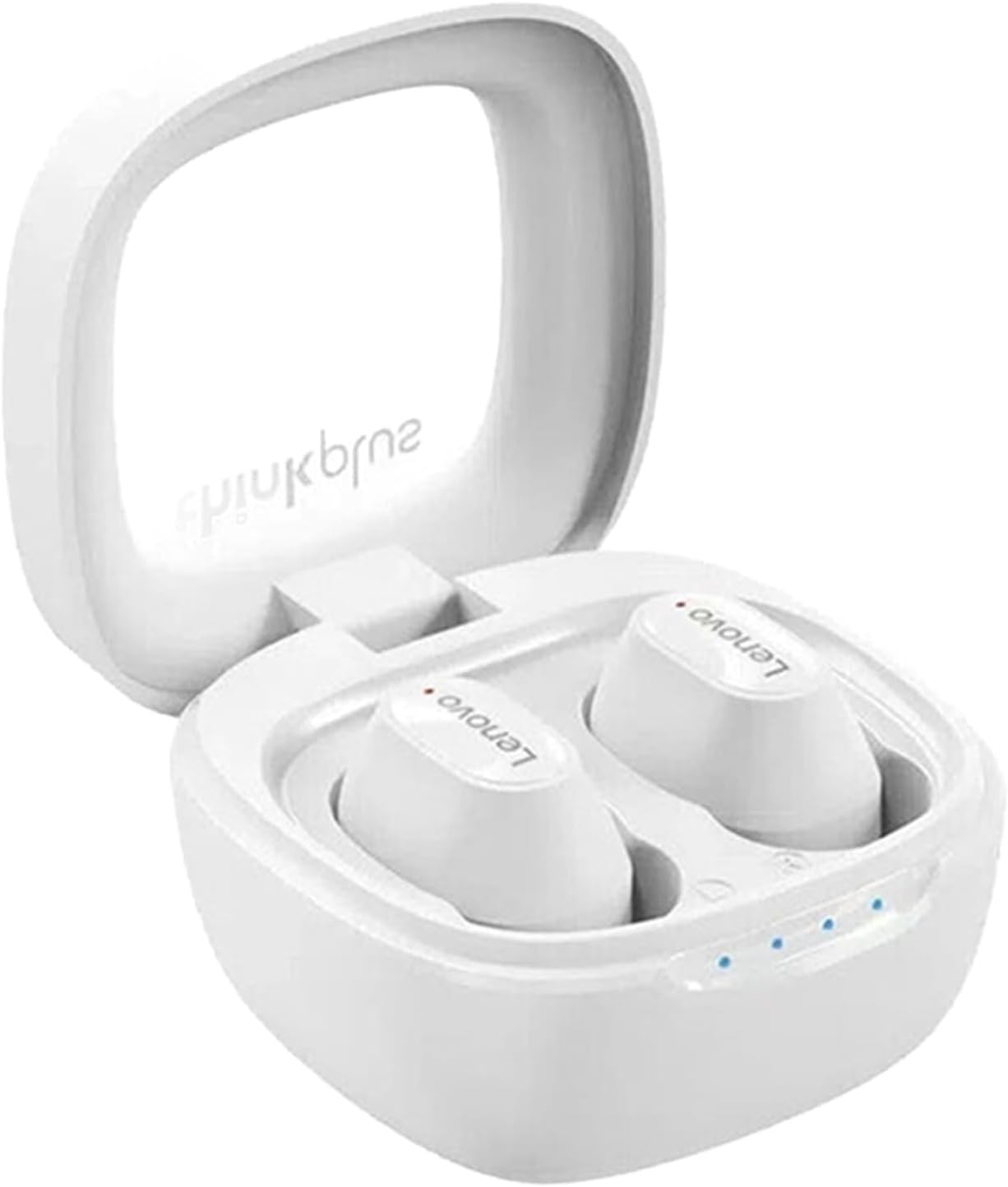
Image: The Lenovo Thinkplus Bluetooth Live Pods XT62, presented in their open white charging case. The two earbuds are visible within their respective slots, and small indicator lights are present on the front of the case.
Setup
Charging the Earbuds and Case
- Before first use, fully charge the charging case and earbuds.
- Place the earbuds into the charging case, ensuring they are correctly seated.
- Connect the charging case to a USB power source using a compatible charging cable.
- The indicator lights on the case will show charging status. Refer to the product packaging or quick start guide for specific light behaviors.
Pairing with a Device
The Lenovo Thinkplus Bluetooth Live Pods XT62 utilize Bluetooth 5.3 for fast and stable connections.

Image: A visual representation highlighting the Bluetooth 5.3 feature, emphasizing its fast and stable connection capabilities for the earbuds.
- Ensure the earbuds are charged and inside the charging case.
- Open the charging case lid. The earbuds will automatically enter pairing mode (or press and hold a button on the case/earbuds if specified in a quick start guide).
- On your device (smartphone, tablet, computer), go to the Bluetooth settings.
- Search for available devices and select "Lenovo XT62" or a similar name from the list.
- Once connected, a confirmation sound or message may be heard.
Compatibility
These earbuds are designed to be compatible with a wide range of Bluetooth-enabled devices, including:

Image: Icons for Android, iOS, and Windows operating systems, illustrating that the earbuds are compatible with devices running these platforms.
- Android smartphones and tablets
- iOS (Apple) iPhones and iPads
- Windows laptops and desktops
- Other Bluetooth-enabled audio devices
Operating Instructions
Wearing the Earbuds
- Gently insert each earbud into the corresponding ear canal (L for left, R for right).
- Adjust the earbud for a comfortable and secure fit to optimize sound quality and passive noise cancellation.
Basic Controls (Touch/Button)
The XT62 earbuds typically feature touch controls for various functions. Specific gestures may vary, but common controls include:
- Play/Pause: Single tap on either earbud.
- Next Track: Double tap on the right earbud.
- Previous Track: Double tap on the left earbud.
- Answer/End Call: Single tap on either earbud during an incoming call.
- Reject Call: Press and hold either earbud for 2 seconds during an incoming call.
- Activate Voice Assistant: Triple tap on either earbud (e.g., Siri, Google Assistant).
Passive Noise Cancellation
The earbuds are designed with passive noise cancellation, which physically blocks out ambient sound. Ensure a proper fit to maximize this feature.
Maintenance
Cleaning
- Regularly clean the earbuds and charging case with a soft, dry, lint-free cloth.
- Do not use abrasive cleaners, alcohol, or chemical solvents.
- Gently remove any earwax or debris from the earbud tips and speaker mesh using a small, soft brush or cotton swab.
Storage
- When not in use, store the earbuds in their charging case to protect them and keep them charged.
- Store in a cool, dry place away from direct sunlight and extreme temperatures.
Battery Care
- Avoid fully discharging the battery frequently.
- Charge the earbuds and case regularly, even if not used for extended periods, to maintain battery health.
Troubleshooting
No Sound or Disconnection
- Ensure earbuds are charged.
- Check Bluetooth connection on your device; try turning Bluetooth off and on again.
- Move closer to your device to avoid interference.
- Try re-pairing the earbuds with your device.
- If only one earbud has sound, try placing both back in the case, closing the lid, waiting a few seconds, and then reopening.
Charging Issues
- Ensure the charging cable is securely connected to both the case and the power source.
- Try a different charging cable or power adapter.
- Clean the charging contacts on the earbuds and inside the case.
Poor Audio Quality
- Ensure the earbuds are properly seated in your ears for optimal fit and passive noise cancellation.
- Clean any debris from the earbud speaker mesh.
- Check the audio source quality.
- Move away from sources of strong electromagnetic interference.
Specifications

Image: An exploded diagram of an earbud, revealing its internal components such as the large 13mm driver unit, circuit board, and other elements, highlighting the audio quality design.
| Feature | Detail |
|---|---|
| Model Number | XT62 branco |
| Brand | Lenovo |
| Connectivity | Bluetooth 5.3 |
| Noise Control | Passive Noise Cancellation |
| Color | White |
| Special Feature | Lightweight design |
| Package Dimensions | 10.8 x 8.2 x 3.8 cm |
| Item Weight | 70 g |
| Manufacturer | Lenovo |
Warranty and Support
For warranty information and customer support, please refer to the documentation included with your product or visit the official Lenovo support website. Keep your proof of purchase for warranty claims.
- Official Lenovo Support: www.lenovo.com/support (Example link, actual link may vary by region)
- Product Registration: Register your product online to receive updates and support.
Related documentsXT62 branco


Ask a question about this manual
Ask about setup, troubleshooting, compatibility, parts, safety, or missing instructions. Manuals+ will review the question and use this page’s manual context to help answer it.