
1. Introduction
Thank you for choosing the Baseus AeQur G10 TWS Earphones. This manual provides detailed instructions on how to set up, operate, maintain, and troubleshoot your new earphones. Please read this manual thoroughly before using the product to ensure optimal performance and longevity.
2. Package Contents
Carefully unpack the box and ensure all items listed below are present and in good condition. If any items are missing or damaged, please contact your retailer.
- Baseus AeQur G10 TWS Earphones (Left and Right)
- Charging Case
- USB-A/USB-C Wireless Dongle
- USB-C Charging Cable
- Multiple Sizes of Ear Tips
- User Manual (this document)

Image 2.1: Complete package contents of the Baseus AeQur G10 TWS Earphones.
3. Product Overview
Familiarize yourself with the components of your Baseus AeQur G10 TWS Earphones.
3.1 Earphones
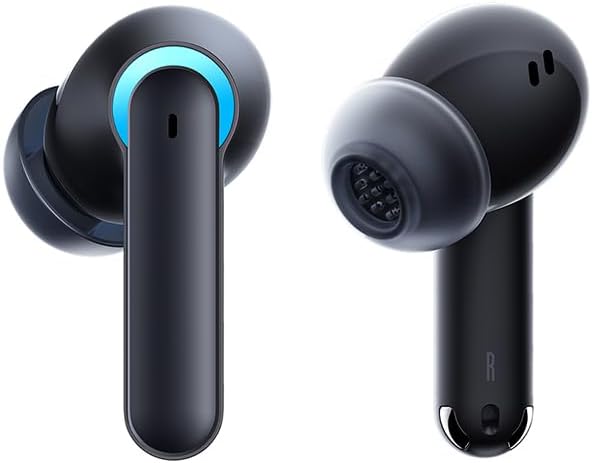
Image 3.1: Left and Right Baseus AeQur G10 Earphones. Each earphone features a touch control area, microphone, and charging contacts.
3.2 Charging Case

Image 3.2: Baseus AeQur G10 Earphones in their charging case with the lid open. The case has charging slots for each earphone and an LED indicator for battery status.
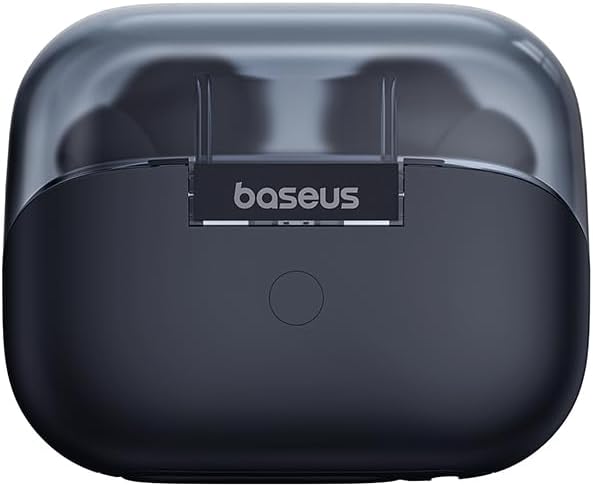
Image 3.3: Rear view of the Baseus AeQur G10 charging case, displaying the Baseus brand logo and a USB-C charging port (not explicitly visible but implied by common design).
3.3 USB-A/USB-C Wireless Dongle
The included wireless dongle allows for low-latency connection to various devices, including PCs, laptops, gaming consoles, and mobile devices.

Image 3.4: Compatibility diagram for the Baseus AeQur G10, illustrating connections to Type-C Androids & Tablets, Type-C/USB-A PCs & Laptops, PS5/PS4/Switch, Steam Deck, and VR devices.
4. Setup
4.1 Initial Charging
- Place both earphones into the charging case.
- Connect the USB-C charging cable to the charging port on the case and the other end to a USB power source (e.g., computer USB port, wall adapter).
- The LED indicator on the case will show charging status. A full charge typically takes approximately 1.5 hours for the earphones and 2 hours for the case.
4.2 Pairing with Bluetooth Devices
- Ensure the earphones are in the charging case and the case has sufficient charge.
- Open the charging case lid. The earphones will automatically enter pairing mode (indicated by a flashing LED on the earphones or case).
- On your device (smartphone, tablet, laptop), enable Bluetooth and search for new devices.
- Select "Baseus AeQur G10" from the list of available devices.
- Once connected, the LED indicator will stop flashing, and you will hear a confirmation tone.
4.3 Connecting via USB Wireless Dongle
- Insert the USB-A or USB-C end of the wireless dongle into the corresponding port on your device (PC, laptop, gaming console).
- Ensure the earphones are in the charging case and the lid is open.
- The earphones will automatically attempt to connect to the dongle. The dongle's LED indicator will show connection status.
- Once connected, the LED on the dongle will become solid, and you will hear a confirmation tone from the earphones.
5. Operating Instructions
5.1 Power On/Off
- Power On: Open the charging case lid, or take the earphones out of the case. They will power on automatically.
- Power Off: Place the earphones back into the charging case and close the lid. They will power off automatically and begin charging.
5.2 Wearing the Earphones
- Identify the 'L' (left) and 'R' (right) markings on each earphone.
- Gently insert the earphones into your ear canals.
- Rotate them slightly to find a comfortable and secure fit. Choose the appropriate ear tip size for optimal sound quality and comfort.
5.3 Touch Controls
The Baseus AeQur G10 earphones feature touch-sensitive controls on each earbud. The specific functions may vary slightly depending on the device and application.
| Action | Function |
|---|---|
| Single Tap (L/R) | Play/Pause music, Answer/End call |
| Double Tap (L) | Previous Track |
| Double Tap (R) | Next Track |
| Triple Tap (L/R) | Activate Voice Assistant |
| Long Press (L/R, 2s) | Reject Call |
| Long Press (L/R, 3s) | Toggle Gaming/Music Mode (if applicable) |
6. Maintenance
6.1 Cleaning
- Use a soft, dry, lint-free cloth to clean the earphones and charging case.
- For earwax or debris in the ear tips, gently remove the ear tips and clean them with a cotton swab lightly dampened with rubbing alcohol. Ensure they are completely dry before reattaching.
- Do not use abrasive cleaners, solvents, or aerosol sprays.
6.2 Storage
- Always store the earphones in their charging case when not in use to protect them and keep them charged.
- Store in a cool, dry place, away from extreme temperatures and direct sunlight.
6.3 Battery Care
- Charge the earphones and case regularly, even if not used frequently, to maintain battery health.
- Avoid fully discharging the batteries for extended periods.
7. Troubleshooting
If you encounter issues with your Baseus AeQur G10 earphones, refer to the following common solutions:
7.1 No Sound or Intermittent Connection
- Ensure earphones are charged and properly connected to your device (Bluetooth or dongle).
- Check the volume level on both the earphones and your connected device.
- Move closer to your device to avoid interference or range issues.
- Try disconnecting and re-connecting the earphones.
- For Bluetooth, forget the device on your phone and re-pair.
- For dongle, unplug and re-plug the dongle.
7.2 Earphones Not Charging
- Ensure the charging cable is securely connected to both the case and the power source.
- Verify the power source is active.
- Clean the charging contacts on both the earphones and inside the case with a dry cotton swab.
- Try a different charging cable or power adapter.
7.3 Only One Earphone Working
- Place both earphones back into the charging case, close the lid, wait a few seconds, then open the lid and take them out again.
- Ensure both earphones are charged.
- Try resetting the earphones (refer to manufacturer's website for specific reset instructions if needed).
8. Specifications
Key technical specifications for the Baseus AeQur G10 TWS Earphones:
| Feature | Specification |
|---|---|
| Model Name | A00055400111-00 |
| Brand | Baseus |
| Colour | Black |
| Ear Placement | In Ear |
| Form Factor | In Ear |
| Connectivity Technology | Wireless (Bluetooth) |
| Wireless Communication Technology | Bluetooth |
| Batteries | 1 Lithium Ion batteries required (included) |
| Product Dimensions | 10 x 5 x 1.27 cm |
| Item Weight | 220 g |
| Manufacturer | Baseus |
| Specific Uses | Travel |
9. Warranty and Support
Baseus products are designed and manufactured to the highest quality standards. For information regarding warranty coverage, technical support, or service, please refer to the warranty card included with your product or visit the official Baseus website. Keep your proof of purchase for warranty claims.
For further assistance, you may contact Baseus customer support through their official channels.


