
IINE L872
IINE Switch Pro Controller Instruction Manual
Model: L872 | Brand: IINE
1. Introduction
The IINE Switch Pro Controller is a versatile wireless gamepad designed for an enhanced gaming experience across multiple platforms. Featuring advanced Hall Effect joysticks and triggers for precision and durability, this controller offers multi-platform compatibility, including Nintendo Switch, PC, iOS, Android, and Steam Deck. It integrates essential gaming features such as NFC functionality, motion sensing, customizable macro functions, adjustable rumble, and changeable lighting modes, providing a comprehensive and immersive control solution for various game genres.

Figure 1: IINE Switch Pro Controller with its themed carrying bag.
2. Package Contents
- IINE Switch Pro Controller
- Themed Carrying Bag
- USB-C Charging Cable
- User Manual (this document)
3. Product Overview
Familiarize yourself with the controller's layout and key components.

Figure 2: Top view of the IINE Switch Pro Controller, showing joysticks, D-pad, action buttons, and central function buttons.
- Left/Right Hall Effect Joysticks: Provide precise, drift-free control.
- D-Pad: Directional input.
- A/B/X/Y Buttons: Standard action buttons.
- L/R Buttons: Shoulder buttons.
- ZL/ZR Hall Effect Triggers: Adjustable analog triggers for varied input.
- HOME Button: Powers on/off, returns to home screen.
- +/- Buttons: Start/Select or equivalent.
- Screenshot Button: Captures screenshots.
- MR/ML Buttons: Programmable back buttons for macro functions.
- USB-C Port: For charging and wired connection.
- 3.5mm Headphone Jack: For audio output (wired mode with Switch only).
4. Setup
4.1 Charging the Controller
Connect the supplied USB-C cable to the controller's USB-C port and the other end to a USB power source (e.g., console, PC, USB wall adapter). The indicator lights will show charging status. A full charge takes approximately 2-3 hours and provides up to 15 hours of runtime.

Figure 3: Battery specifications and charging details.
4.2 Pairing the Controller
The controller supports multi-platform connectivity via Bluetooth 5.0.

Figure 4: The controller's wide range of compatible devices.
4.2.1 Nintendo Switch Connection
- From the Switch HOME Menu, select Controllers, then Change Grip/Order.
- On the IINE controller, press and hold the HOME button for 3 seconds until the indicator lights flash rapidly.
- Once connected, the player indicator light(s) on the controller will remain solid.
4.2.2 PC/Steam Deck/iOS/Android Connection
- Ensure the controller is in the correct mode for your device (refer to the multi-platform switch on the back).
- Enable Bluetooth on your device.
- On the IINE controller, press and hold the HOME button for 3 seconds to enter pairing mode.
- Select "IINE Controller" from the list of available Bluetooth devices on your system.
- The controller's indicator lights will become solid upon successful connection.
4.3 Multi-platform Switching
The controller features a switch on the back to select between different platform modes (e.g., Switch, PC, iOS). Ensure the correct mode is selected before attempting to connect to your device.
Video 1: An overview of the IINE Starfield Controller, demonstrating its multi-platform switching capabilities and various features.
5. Operating Instructions
5.1 Hall Effect Joysticks and Triggers
The Hall Effect technology in the joysticks and triggers provides precise, drift-free input and extended longevity. The analog triggers are adjustable, allowing you to switch between short-throw (for shooting games) and long-throw (for racing games) modes via a physical switch on the back of the controller.

Figure 5: Adjustable Hall Effect analog triggers for optimized gameplay.
5.2 Macro/Turbo/Key Remapping
The controller supports customizable macro functions and turbo capabilities. The MR/ML back buttons can be programmed for complex sequences or single-button remapping. Refer to the detailed instructions in the full manual for specific programming steps. The Keylinker mobile app can also be used to customize button mapping, dead zone adjustment, auto-fire rate, and sensitivity settings.

Figure 6: Programmable back buttons for enhanced gameplay.
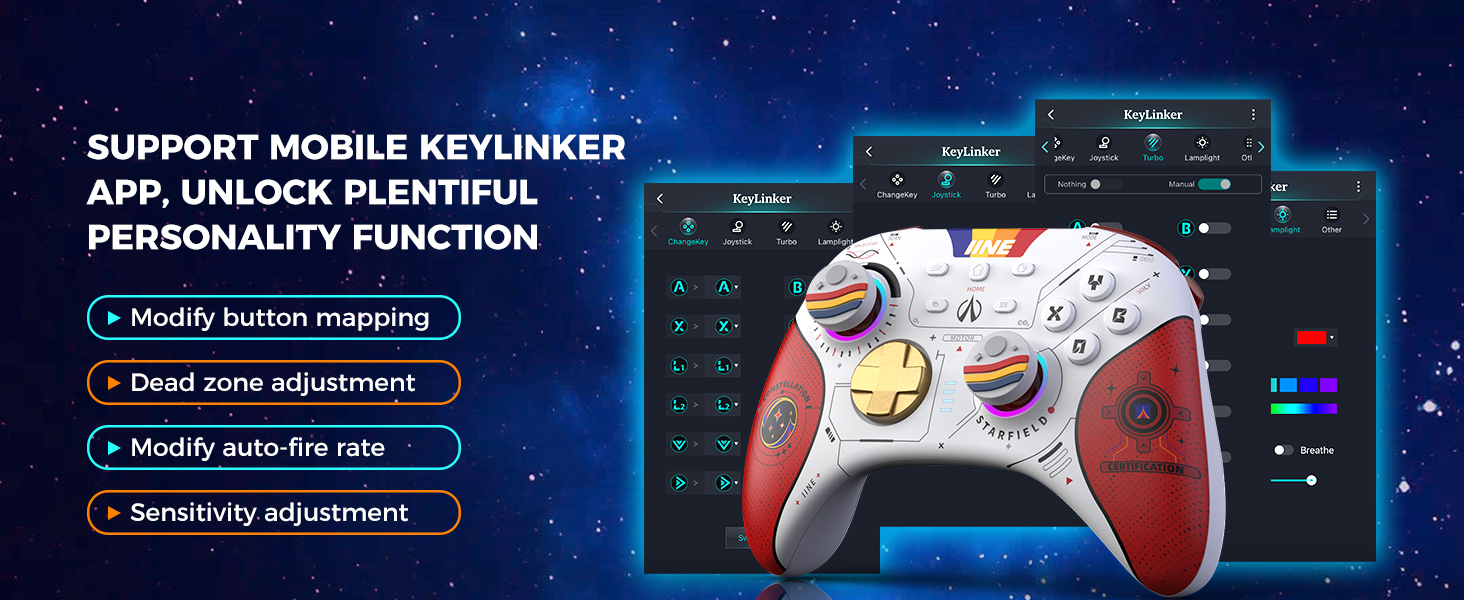
Figure 7: Keylinker mobile app for advanced customization.
5.3 D-Pad and Left Joystick Toggle
In PC mode, you can double-click the Screenshot button to swap the functions of the D-pad and the left joystick. This allows for flexible control based on game requirements, such as joystick control for 3D games or D-pad control for horizontal games.

Figure 8: D-pad and Left Joystick function swapping.
5.4 NFC Functionality
The integrated NFC technology allows for interaction with compatible devices, such as scanning Amiibo figures on the Nintendo Switch.

Figure 9: NFC functionality for Amiibo and other interactions.
5.5 Six-Axis and Adjustable Vibration
The controller features a six-axis gyro sensor for enhanced motion control in compatible games. The vibration intensity is adjustable, providing immersive feedback for various in-game events like collisions, explosions, and fighting.

Figure 10: Six-axis gyroscope for motion control.

Figure 11: Adjustable rumble feedback levels.
5.6 Adjustable Lighting Modes
The controller features changeable lighting modes for its joysticks, allowing for personalization of the visual appearance.
5.7 Headphone Jack
A built-in 3.5mm headphone jack provides immersive gaming audio. Note that the headphone jack can only be used when the controller is wired connected to a Nintendo Switch.
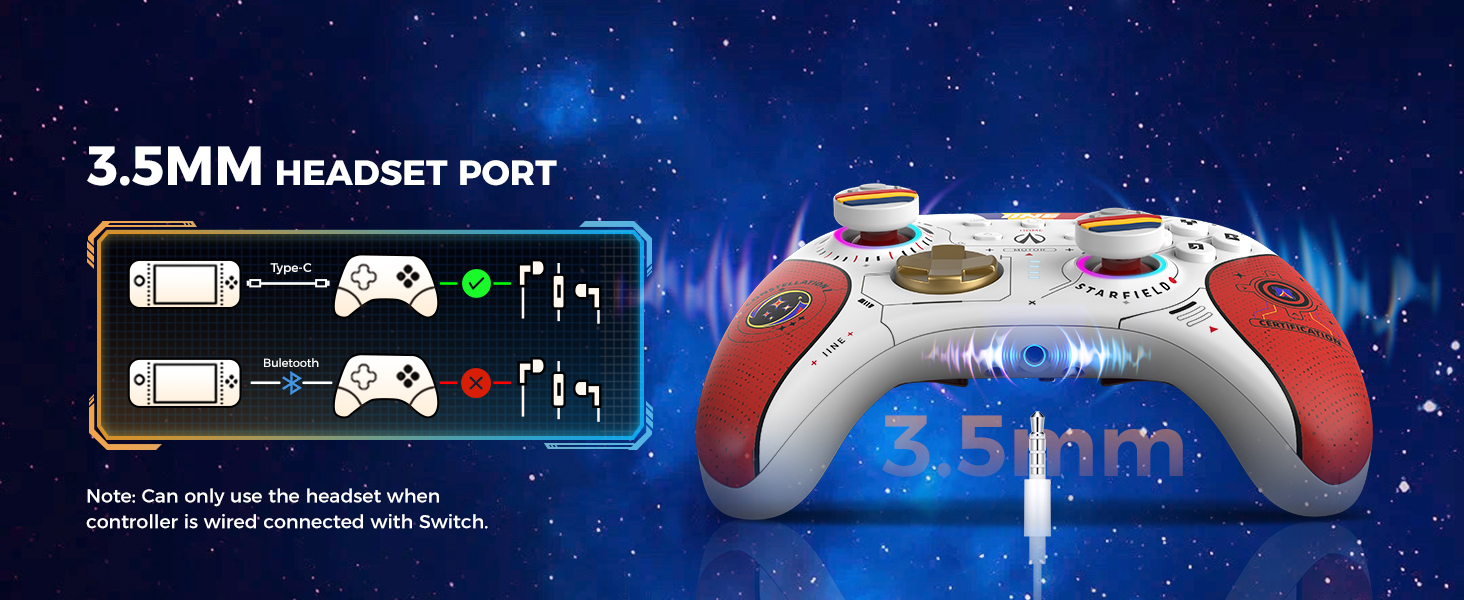
Figure 12: Headphone jack usage details.
5.8 Wake-Up Function
Press the HOME button on the controller to wake up a connected Nintendo Switch console (including Switch OLED, Switch Lite, and original Switch models).

Figure 13: Wake-up function for Nintendo Switch consoles.
6. Maintenance
- Cleaning: Use a soft, dry cloth to clean the controller. Avoid using harsh chemicals or abrasive materials.
- Storage: Store the controller in a cool, dry place, away from direct sunlight and extreme temperatures. Use the provided carrying bag for protection during transport or storage.
- Battery Care: To prolong battery life, avoid fully discharging the controller frequently. Charge it regularly, even if not in use for extended periods.

Figure 14: The protective carrying bag helps maintain the controller's condition.
7. Troubleshooting
| Problem | Possible Cause | Solution |
|---|---|---|
| Controller does not connect. | Incorrect pairing mode, low battery, out of range. | Ensure correct platform mode is selected. Charge the controller. Move closer to the device. Re-attempt pairing. |
| Input lag or disconnection. | Interference, distance, multiple Bluetooth devices. | Reduce distance to device. Turn off other Bluetooth devices. Try wired connection if available. |
| Joysticks drifting. | Calibration issue (unlikely with Hall Effect), software glitch. | Recalibrate joysticks via console/PC settings. Update controller firmware if available. |
| Headphone jack not working. | Not wired to Switch, incorrect settings. | Ensure controller is wired to Nintendo Switch. Check audio settings on Switch. |
8. Specifications
- Model Number: L872
- Connectivity: Bluetooth 5.0, USB-C (wired)
- Compatibility: Nintendo Switch, PC, iOS, Android, Steam Deck
- Battery Capacity: 1000mAh Lithium Ion
- Battery Life: Up to 15 hours (approx.)
- Charging Time: 2-3 hours (approx.)
- Joysticks/Triggers: Hall Effect
- Sensors: 6-axis Gyro, Motion Sensor
- Additional Features: NFC, Macro/Turbo, Key Remapping, Adjustable Rumble, Adjustable Lighting, 3.5mm Headphone Jack
- Dimensions: 8.07 x 5.98 x 3.19 inches (Package)
- Weight: 1.26 pounds (Item)
- Manufacturer: WEUTOP
- Country of Origin: China
9. Warranty and Support
For warranty information, technical support, or further assistance, please contact IINE customer service through the retailer where the product was purchased or visit the official IINE website. Please retain your proof of purchase for warranty claims.
Official IINE Store: IINE Brand Store on Amazon
Ask a question about this manual
Ask about setup, troubleshooting, compatibility, parts, safety, or missing instructions. Manuals+ will review the question and use this page’s manual context to help answer it.