
Introduction
The SMISEACOW Kwumsy S2 is an ultra-thin 14-inch triple portable monitor designed to extend your laptop's display, enhancing productivity and multitasking capabilities. It features Full HD 1080p IPS panels, offering wide viewing angles and vibrant colors. Compatible with a variety of operating systems and devices, the S2 provides a versatile solution for mobile workstations.
Product Overview and Features
The Kwumsy S2 is engineered for convenience and performance, offering a seamless multi-screen experience on the go.

Image: Powerful Screen Display Function. This image highlights the 14-inch screen size and key display specifications such as Full HD 1920x1080 resolution, IPS wide perspective panel, 16:9 aspect ratio, and 60Hz refresh rate, ensuring a clear and smooth visual experience.

Image: Different Usage, Different Devices. This image illustrates the broad compatibility of the Kwumsy S2, showing it in use with Windows laptops, MacBooks, smartphones, and Nintendo Switch consoles, demonstrating its versatility across various platforms.

Image: Type-C Interfaces, Powerful Functions. This image details the various Type-C ports available on the Kwumsy S2, including full-featured Type-C1 and Type-C2 ports, and a Type-C port specifically for display signal. It also highlights the 180-degree rotatable screens for flexible viewing angles and integrated speakers.

Image: Triple Screens - Multi Display Modes. This image demonstrates the three primary display modes supported by the Kwumsy S2: Mirror mode (duplicating the main screen), Extend mode (extending the desktop across all screens), and Mirror & Extend mode (a combination of both), providing flexible workspace configurations.

Image: Convenient Mobile Workstation. This image provides a visual comparison, showing a "Before" scenario with a single laptop screen and an "After" scenario demonstrating the enhanced productivity and expanded workspace achieved by integrating the Kwumsy S2 triple screen extender.
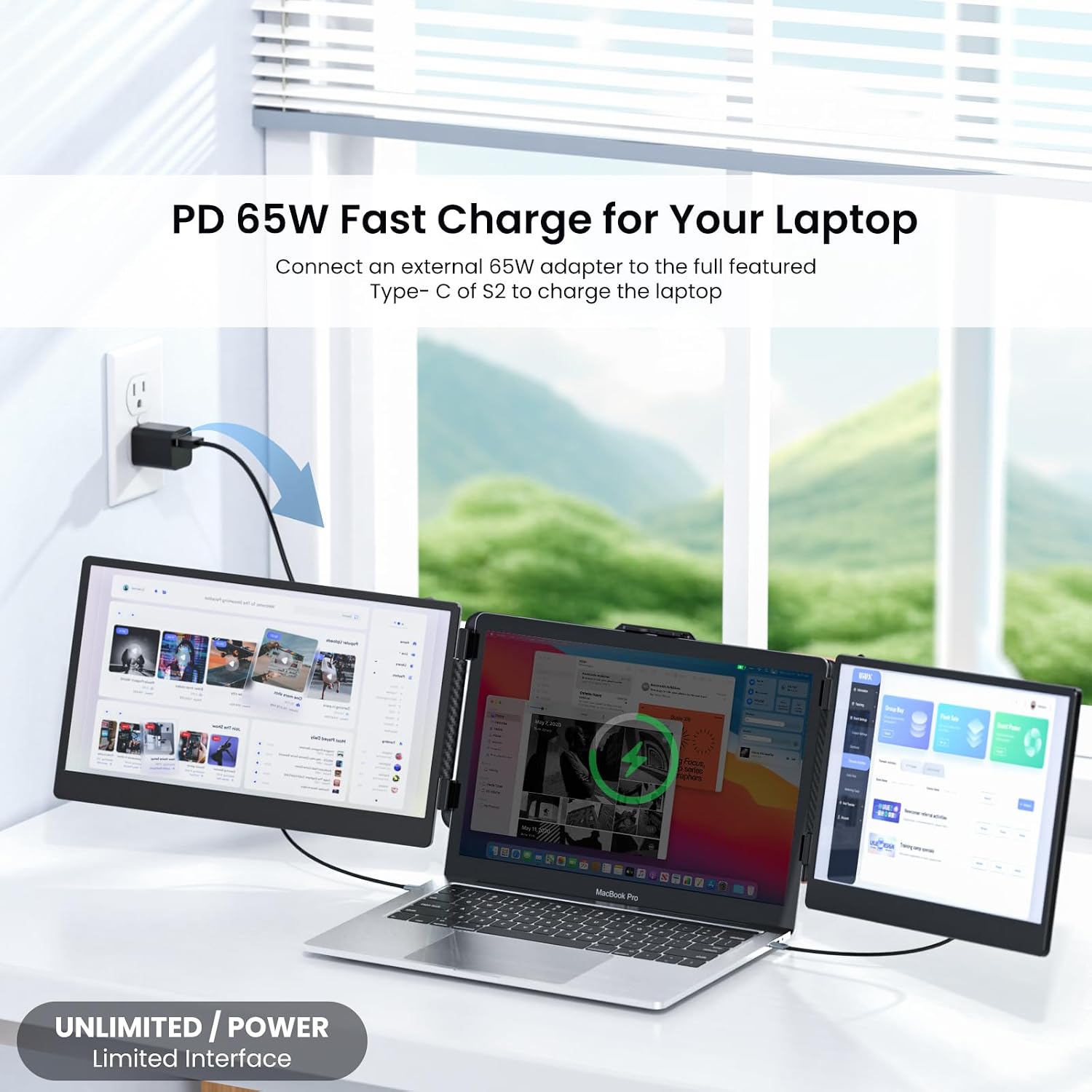
Image: PD 65W Fast Charge for Your Laptop. This image illustrates the Power Delivery (PD) 65W fast charging capability of the Kwumsy S2. It shows how an external 65W adapter can be connected to a full-featured Type-C port on the S2 to charge the connected laptop, providing power while extending the display.
Key Features:
- Triple Screen Extension: Two 14-inch 1080p FHD IPS monitors for expanded workspace.
- Wide Compatibility: Supports Mac, Windows, Android, Chrome, and Linux operating systems, as well as Nintendo Switch.
- Multiple Connectivity Options: Features full-featured USB-C and HDMI ports for versatile connections.
- Integrated Speakers: Built-in speakers for audio output.
- Portable Design: Ultra-thin and lightweight (1.6 kg) for easy transport.
- Power Delivery (PD) Charging: Supports 65W fast charging for your laptop via a full-featured Type-C port.
- Rotatable Screens: Screens can rotate up to 180 degrees for optimal viewing angles and sharing.
Setup Guide
Follow these steps to set up your Kwumsy S2 triple screen extender:
- Unpack the Device: Carefully remove the Kwumsy S2 from its packaging.
- Position the Extender: Place the Kwumsy S2 on a stable surface. The central bracket is designed to attach to the top of your laptop screen.
- Connect to Laptop:
- For USB-C (Full-Featured): If your laptop has full-featured USB-C ports (supporting video, data, and power), connect one or two USB-C to USB-C cables from the Kwumsy S2 to your laptop. This single connection can provide both video signal and power.
- For HDMI + USB-A: If your laptop uses HDMI, connect an HDMI cable from the Kwumsy S2 to your laptop. You will also need to connect a USB-A to USB-C cable for power and touch functionality (if applicable, though touch is not specified for this model).
- For Power Delivery: To charge your laptop via the S2, connect an external 65W (or higher) power adapter to one of the full-featured Type-C ports on the S2.
- Power On: The Kwumsy S2 should power on automatically once connected to a powered device. If not, press and hold the power button (usually integrated with the menu button) for 3 seconds.
- Configure Display Settings:
- Windows: Right-click on your desktop, select "Display settings." You can arrange the displays, choose "Extend these displays," "Duplicate these displays," or "Show only on 1/2/3."
- macOS: Go to "System Settings" > "Displays." You can arrange displays, select "Use as Extended Display" or "Mirror Display."
- Other OS: Refer to your operating system's display settings for configuration.
Operating Instructions
The Kwumsy S2 offers various display modes and controls for optimal use.
Display Modes:
- Extend Mode: This is the most common mode for multitasking. Your desktop is extended across all three screens, allowing you to have multiple applications open simultaneously on different displays.
- Mirror Mode: All three screens display the exact same content. This is useful for presentations or sharing your screen with others.
- Mirror & Extend Mode: A combination where one or more external screens mirror the main display, while others extend it. This offers flexibility for specific workflows.
Menu and Control Button:
The Kwumsy S2 features a multi-function button for menu navigation and power control.
- Press and Hold for 2 Seconds: To return to the previous menu or exit the current menu.
- Press and Hold for 3 Seconds: To power off the device.
- Short Press: To navigate through menu options or confirm selections.
Use the on-screen display (OSD) menu to adjust brightness, contrast, color settings, and other display parameters for each screen independently.
Maintenance
Proper care will ensure the longevity and optimal performance of your Kwumsy S2.
- Cleaning the Screens: Use a soft, lint-free cloth specifically designed for electronics. For stubborn smudges, slightly dampen the cloth with water or a screen-cleaning solution. Avoid harsh chemicals, alcohol, or abrasive materials.
- Cleaning the Body: Wipe the exterior with a soft, dry cloth.
- Storage: When not in use, store the Kwumsy S2 in its protective case (if included) or a safe, dry place away from extreme temperatures and direct sunlight.
- Handling: Always handle the device carefully. Avoid dropping it or applying excessive pressure to the screens.
- Cable Management: Ensure cables are not kinked or strained to prevent damage to the ports or cables themselves.
Troubleshooting
If you encounter issues with your Kwumsy S2, try the following solutions:
- No Display/Black Screen:
- Ensure all cables (USB-C, HDMI) are securely connected to both the Kwumsy S2 and your laptop.
- Verify that your laptop's display output is active and configured to extend or duplicate to external monitors.
- Check if the Kwumsy S2 is receiving sufficient power. If using a single USB-C cable, ensure it's a full-featured cable and your laptop port supports power delivery.
- Try restarting your laptop.
- Flickering Screen:
- Check cable connections for looseness.
- Ensure your laptop's graphics drivers are up to date.
- Reduce the refresh rate in your display settings if it's set too high for the cable or system.
- Incorrect Resolution/Scaling:
- Adjust the display resolution in your operating system's display settings to 1920x1080 for optimal clarity.
- Check scaling settings; sometimes, the OS might automatically scale the display, making text or icons too large or small.
- Audio Issues (No Sound from Speakers):
- Ensure the Kwumsy S2 is selected as the audio output device in your operating system's sound settings.
- Check the volume levels on both the Kwumsy S2 (via OSD menu) and your laptop.
- Device Not Powering On:
- Confirm the power source is active and the cable is properly connected.
- Try a different USB-C port on your laptop or a different power adapter if available.
- Ensure you are holding the power button for the correct duration (3 seconds).
If these steps do not resolve the issue, please refer to the support section for further assistance.
Specifications
| Feature | Detail |
|---|---|
| Brand | SMISEACOW |
| Model Number | S2 |
| Screen Size | 14 Inches (each screen) |
| Resolution | 1920 x 1080 Pixels (FHD 1080p) |
| Panel Type | IPS Full View |
| Aspect Ratio | 16:9 |
| Refresh Rate | 60 Hz |
| Contrast Ratio | 1000:1 |
| Brightness | 300 cd/㎡ |
| Response Time | 2.5 milliseconds |
| Connectivity | Full-featured USB-C, HDMI (Total 6 Type-C ports, 2 for video signal) |
| Input (Type-C) | 5V-20V/5A max |
| Output (Type-C) | 5V-20V/4.5A max (for PD charging) |
| Speakers | 2 pieces (integrated) |
| Product Weight | 1.6 kg |
| Product Dimensions | 35 x 21 x 3.8 cm |
| Compatible Systems | Mac, Windows, Android, Chrome, Linux, Nintendo Switch |
Warranty and Support
For warranty information and technical support, please refer to the documentation included with your product or visit the official SMISEACOW website. Keep your purchase receipt as proof of purchase for any warranty claims.
If you require further assistance or have questions not covered in this manual, please contact SMISEACOW customer service through their official channels.