1. Introduction
This manual provides detailed instructions for the installation, setup, operation, and maintenance of your Hutehoute Smart Door Knob Lock F-F199. This advanced door lock offers multiple unlocking methods for enhanced security and convenience without requiring a mobile application.

Image: The Hutehoute Smart Door Knob Lock F-F199, shown with included IC cards and physical keys, highlighting its comprehensive access options.
Key Features:
- 4-in-1 Unlocking Methods: Access via IC card, fingerprint, password, or physical key.
- No App Required: All personal data (passwords and fingerprints) are stored locally on the lock, ensuring data privacy.
- Enlarged Fingerprint Scanner: High-precision sensor for 99% recognition rate and 0.5-second unlocking.
- High Capacity: Supports up to 100 fingerprints and 100 passwords.
- Emergency Power Interface: Micro USB port for temporary power in case of battery depletion.
- Physical Backup Keys: Two mechanical keys are provided for emergency access.
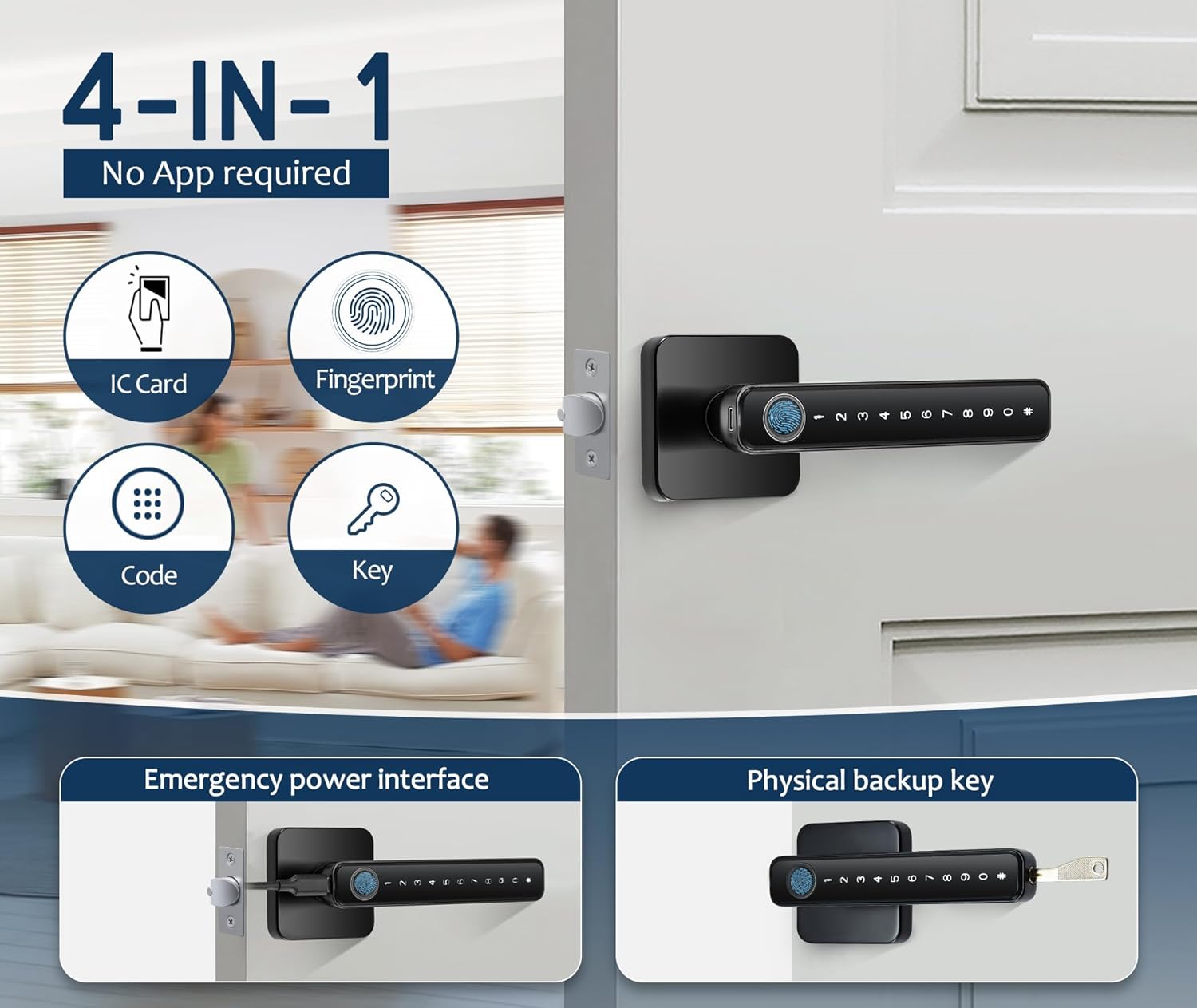
Image: Visual representation of the four unlocking methods: IC Card, Fingerprint, Code (keypad), and Physical Key, emphasizing the 'No App Required' feature.
2. Product Overview and Components
Familiarize yourself with the various parts of your smart door knob lock.

Image: A detailed diagram illustrating the key components of the smart door knob lock, including the mechanical keyhole, fingerprint sensor, status indicator, Micro USB interface, passage mode setting button, and reset button.
- Mechanical Keyhole: For emergency physical key access.
- Fingerprint Sensor: For biometric unlocking.
- Status Indicator: Provides visual feedback on lock status (e.g., locked, unlocked, programming mode).
- Micro USB Interface: For emergency power supply.
- Passage Mode Setting Button: To enable or disable passage mode.
- Reset Button: To restore factory settings.
3. Package Contents
Please verify that all items are present in your package:
- Front Handle Assembly (with keypad and fingerprint sensor)
- Rear Handle Assembly
- Latch Mechanism
- Mounting Screws and Hardware
- 2 x Physical Keys
- 2 x IC Cards
- User Manual (this document)
4. Installation Guide
The Hutehoute Smart Door Knob Lock is designed for easy installation and is universal for both left and right-handed doors. Ensure your door thickness is between 1.38 to 2.16 inches and the latch is adjustable from 2.36 to 2.7 inches.
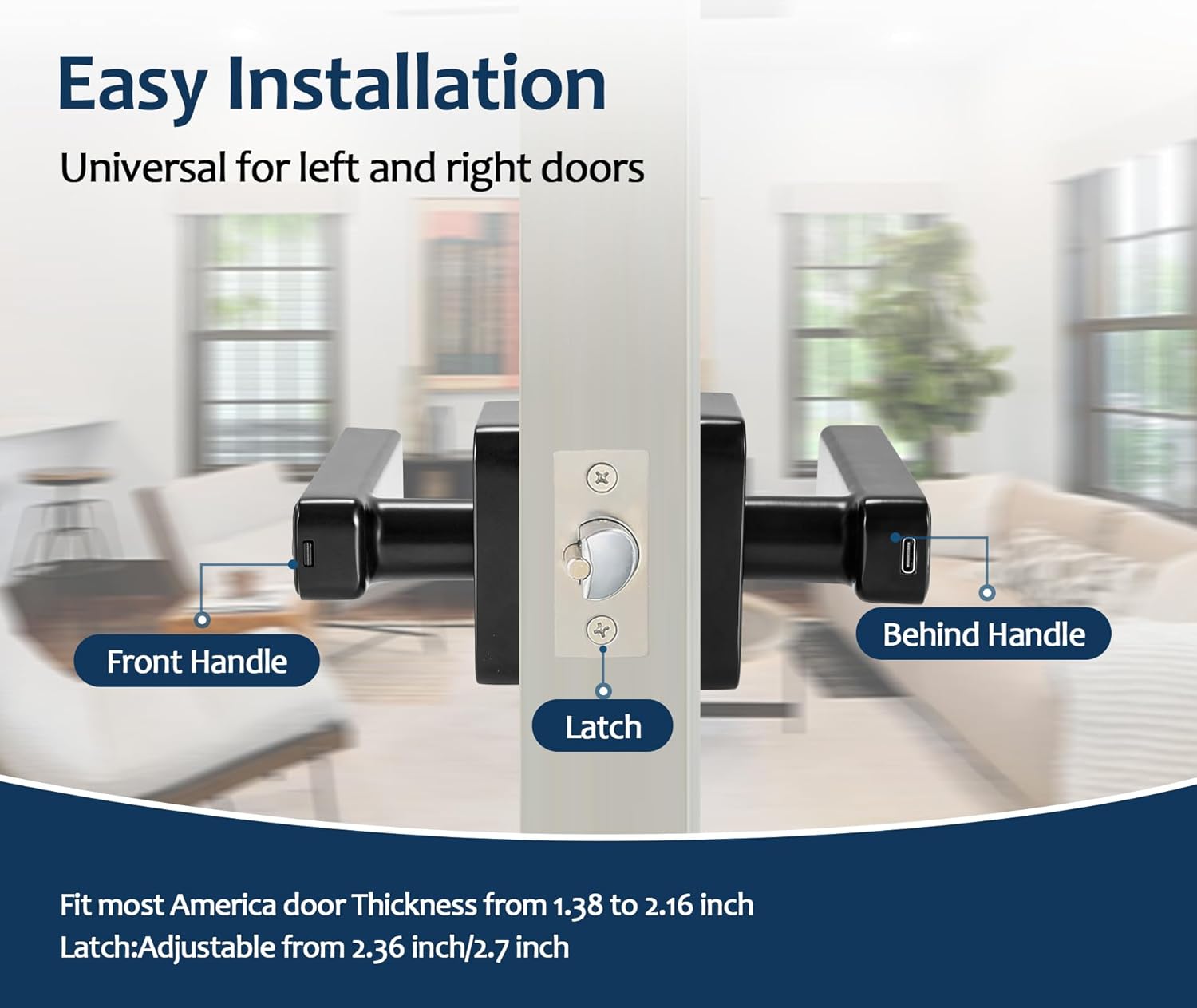
Image: An illustration demonstrating the easy installation process, showing the front handle, latch, and rear handle components, and confirming compatibility with standard door dimensions.
Installation Steps:
- Prepare the Door: Ensure your door has the standard bore holes for a knob lock. If replacing an existing lock, remove the old hardware.
- Install the Latch: Insert the latch mechanism into the door edge. Ensure the bevel of the latch bolt faces the door frame. Secure with screws.
- Install the Exterior Assembly: Place the front handle assembly through the door, aligning the spindle with the latch mechanism.
- Install the Interior Assembly: Connect the interior handle assembly to the exterior assembly, ensuring all cables are properly routed and not pinched. Secure with mounting screws.
- Insert Batteries: Open the battery cover on the interior assembly and insert 4 AAA batteries (not included). Ensure correct polarity.
- Test Operation: Close the door and test the mechanical operation of the knob. Ensure the latch retracts smoothly.
5. Setup and Programming
Before initial use, you must program user fingerprints, passwords, or IC cards.
Initial Setup:
- Wake Up the Lock: Touch the keypad or fingerprint sensor to wake the lock.
- Enter Programming Mode: Press the '*' key, then '#' key. The status indicator will flash.
- Set Administrator: The first fingerprint or password registered will be the administrator.
Adding Fingerprints:
- Enter Programming Mode (Admin fingerprint/password required if already set).
- Press '1' to add a fingerprint.
- Place your finger on the sensor, lift, and repeat several times until successful registration is confirmed by the indicator light.
Adding Passwords:
- Enter Programming Mode.
- Press '2' to add a password.
- Enter your desired 6-10 digit password, then press '#'. Re-enter the password and press '#' again to confirm.
Adding IC Cards:
- Enter Programming Mode.
- Press '3' to add an IC card.
- Present the IC card to the sensor area until successful registration is confirmed.
Deleting Users:
Refer to the detailed programming instructions in the included quick start guide for specific codes to delete individual fingerprints, passwords, or IC cards, or to perform a factory reset.
6. Operating Instructions
Unlocking the Door:
- Fingerprint: Place a registered finger on the sensor. The lock will unlock if recognized.
- Password: Touch the keypad to activate, enter your registered password, then press '#'.
- IC Card: Present a registered IC card to the sensor area.
- Physical Key: Insert the mechanical key into the keyhole and turn to unlock.

Image: A hand demonstrating the 'One Touch Unlock' feature by placing a finger on the enlarged fingerprint sensor, indicating quick and efficient access.
Passage Mode:
Passage mode allows the door to remain unlocked for continuous access without requiring credentials. This is useful for high-traffic periods.
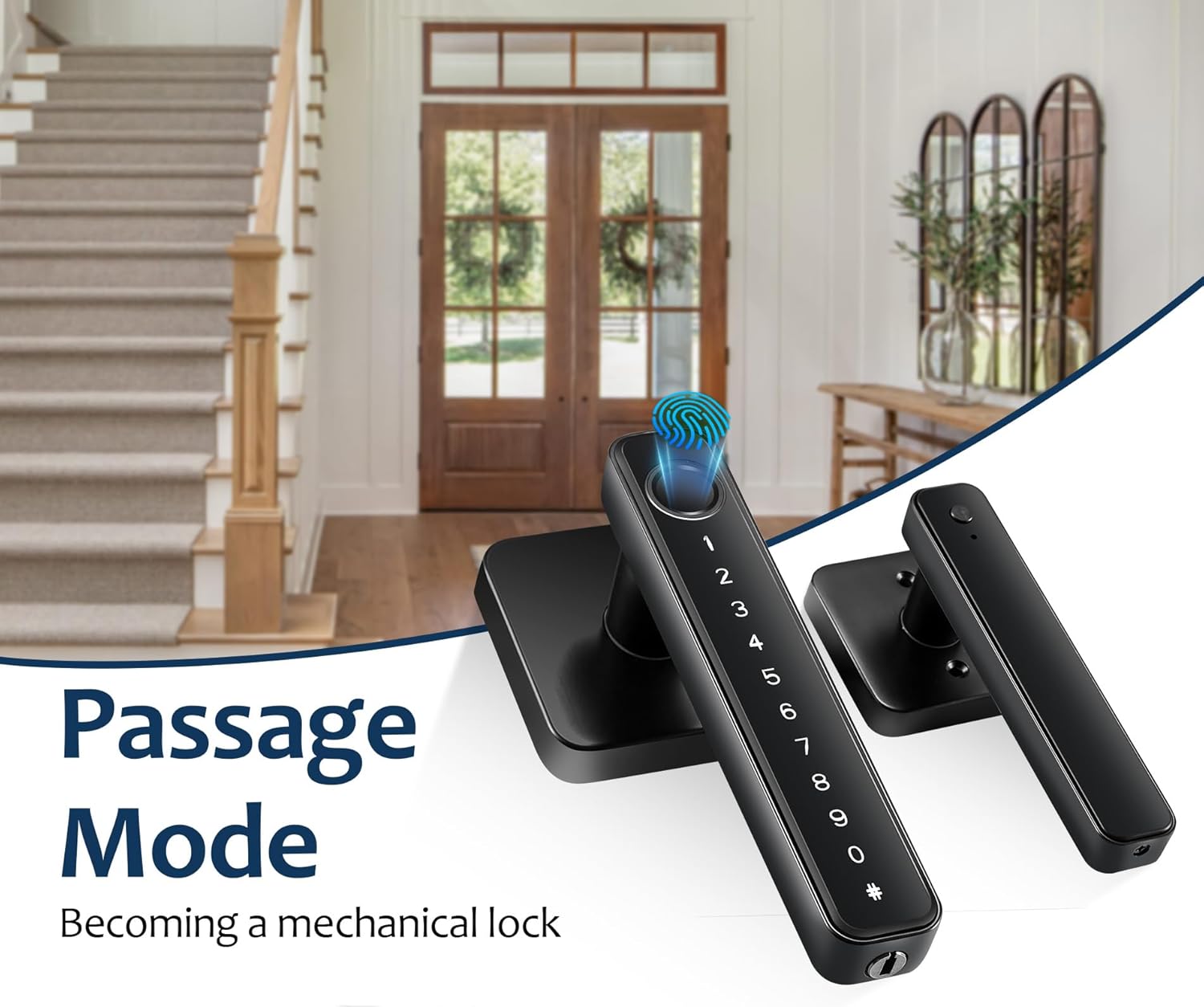
Image: The smart door knob lock shown in 'Passage Mode', indicating it functions as a traditional mechanical lock, allowing free entry and exit without authentication.
- Activate Passage Mode: Press the Passage Mode Setting Button (05 in the Product Overview diagram). The indicator light will confirm activation.
- Deactivate Passage Mode: Press the Passage Mode Setting Button again. The lock will return to secure mode.
Emergency Power:
If the batteries are completely depleted, the lock can be temporarily powered using a Micro USB cable connected to a power bank.
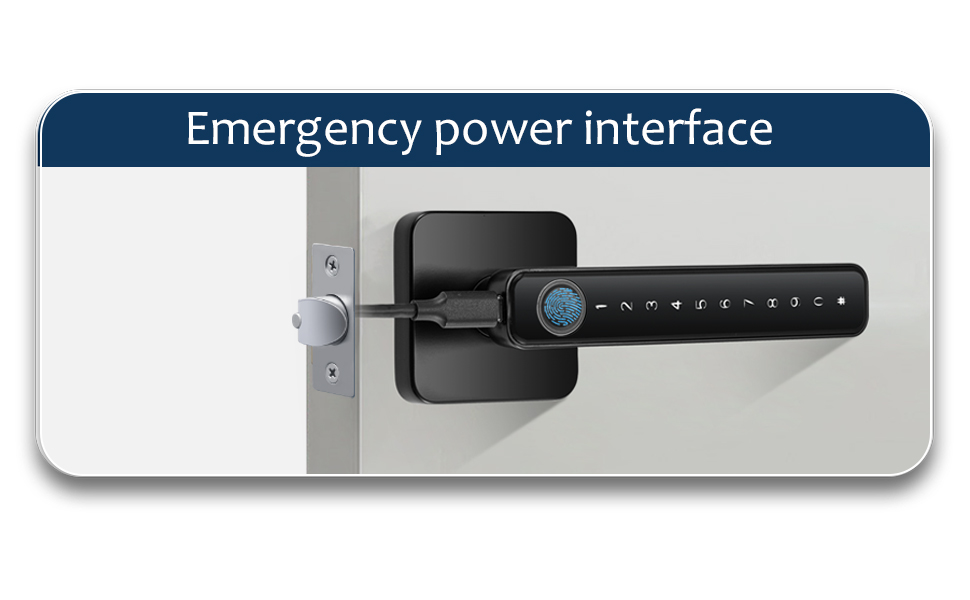
Image: The smart door knob lock with a Micro USB cable inserted into its emergency power interface, demonstrating how to provide temporary power for access when batteries are dead.
Alternatively, use the provided physical backup keys for access.

Image: The smart door knob lock with a physical key inserted into the mechanical keyhole, illustrating the use of the backup key for emergency access.
7. Maintenance
Battery Replacement:
The lock requires 4 AAA batteries. When the battery level is low, the lock will provide an audible or visual warning. Replace all four batteries promptly to ensure continuous operation.
- Locate the battery compartment on the interior handle assembly.
- Remove the battery cover (may require a small screwdriver).
- Remove old batteries and insert new AAA batteries, ensuring correct polarity (+/-).
- Replace the battery cover.
General Care:
- Clean the lock surface with a soft, dry cloth. Avoid abrasive cleaners or solvents.
- Keep the fingerprint sensor clean and dry for optimal performance.
- Do not expose the lock to excessive moisture or direct water spray.
8. Troubleshooting
- Lock not responding: Check battery level. Replace batteries if low. Use emergency power or physical key.
- Fingerprint not recognized: Ensure your finger is clean and dry. Try different angles or re-register your fingerprint.
- Password not working: Ensure you are entering the correct password and pressing '#' at the end. Check for sticky keys.
- IC Card not working: Ensure the card is correctly presented to the sensor area. Verify the card is registered.
- Lock is jammed: Do not force the handle. Use the physical key. If the issue persists, contact customer support.
- Accidental factory reset: If the lock is accidentally reset, all user data will be erased. You will need to re-register all fingerprints, passwords, and IC cards.
9. Specifications
| Feature | Detail |
|---|---|
| Brand | Hutehoute |
| Model Name | smart door knob series F-F199 |
| Lock Type | Keypad |
| Unlocking Methods | Fingerprint, Password, IC Card, Physical Key |
| Material | Aluminum |
| Item Dimensions (L x W x H) | 5.7 x 2.7 x 2.7 inches |
| Item Weight | 1.59 pounds |
| Door Thickness Compatibility | 1.38 to 2.16 inches |
| Latch Adjustment | 2.36 to 2.7 inches |
| Power Source | 4 x AAA Batteries (not included) |
| Emergency Power | Micro USB Interface |
| Fingerprint Recognition Rate | Up to 99% |
| Unlocking Speed | 0.5 seconds |
| User Capacity | 100 Fingerprints, 100 Passwords |
10. Warranty and Support
Warranty Information:
This product comes with a one-year replacement service for non-human damage, based on the order date. Please retain your proof of purchase for warranty claims.
Customer Support:
Should you have any questions, require assistance with installation, programming, or troubleshooting, please do not hesitate to contact our customer service team. We are committed to providing support and will reply within 8-12 hours.
For support, please refer to the contact information provided with your purchase or visit the official Hutehoute website.

Image: An illustration depicting a figure with tools and a shield, symbolizing product reliability and customer support, reinforcing the 'Buy with confidence' message.