
MINIEYE C2M
MINIEYE 2 Pro C2M Dash Cam User Manual
Model: C2M
1. Introduction
This manual provides detailed instructions for the installation, operation, and maintenance of your MINIEYE 2 Pro C2M Dash Cam. This device is designed to enhance driving safety through advanced recording capabilities and an integrated Advanced Driver-Assistance System (ADAS).
The MINIEYE 2 Pro C2M features high-resolution front and rear cameras, AI-powered detection, and real-time alerts to assist drivers. Please read this manual thoroughly before using the product to ensure proper functionality and safety.
2. Product Overview
The MINIEYE 2 Pro C2M is a dual-camera dash cam system equipped with a 2.4-inch display and AI-driven ADAS features. It records both front and rear views of your vehicle.

Image 2.1: Main unit of the MINIEYE 2 Pro C2M Dash Cam, showing the front camera module and the separate display unit.
Key Features:
- Dual Camera Recording: Front camera records in 4K (2160p) with a 150° field of view, and the rear camera records in 1080p with a 130° field of view.
- AI-Powered ADAS: Utilizes AI for real-time detection of vehicles, pedestrians, motorcycles, and lane markings.
- Safety Driving Support: Provides alerts for vehicle distance, collision, lane departure, pedestrian distance, and front vehicle departure.
- SONY IMX415 Sensor: Ensures clear recording even in low-light conditions.
- Wi-Fi Connectivity: Connects to your smartphone for video viewing, settings adjustment, and data transfer via a dedicated app.
- 2.4-inch Display: For real-time monitoring and alert display.
- 24-Hour Monitoring: Provides continuous surveillance (requires constant power supply, not included).
- Japanese Voice Guidance: Offers audio alerts and instructions in Japanese.
- Firmware Updates: Supports over-the-air firmware updates via the smartphone app.

Image 2.2: Icons illustrating key features such as collision warning, lane departure warning, pedestrian warning, front vehicle departure alert, 24-hour monitoring, 3D mapping, 4K recording, voice guidance, and night mode.
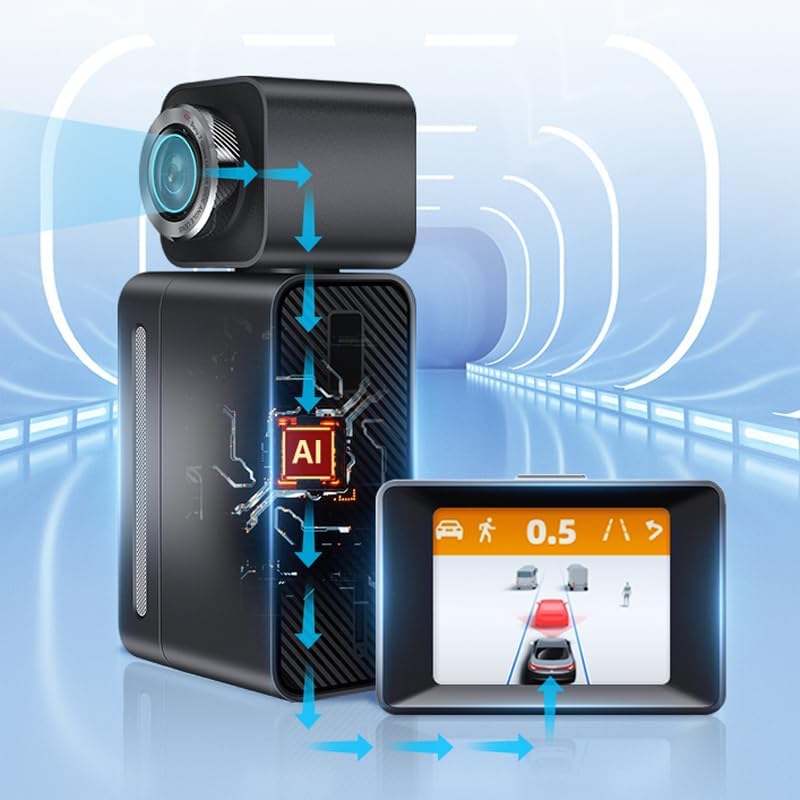
Image 2.3: Diagram showing the AI processing within the MINIEYE 2 Pro C2M, where the camera captures data, the AI unit processes it, and the display shows real-time driving assistance information.
3. Setup and Installation
3.1 Package Contents
Before installation, ensure all components are present:
- MINIEYE 2 Pro C2M Main Unit (Front Camera)
- Rear Camera
- Display Unit
- Power Cable (Cigarette Lighter Adapter)
- Rear Camera Connection Cable
- Mounting Adhesive
- User Manual (Warranty Card included)
3.2 Mounting the Dash Cam
The dash cam uses an adhesive mounting method. Choose a location on your windshield that does not obstruct your view and allows for optimal camera angles.
- Clean the chosen area on the windshield thoroughly.
- Attach the main unit to the front windshield using the provided adhesive mount. Ensure the front camera has a clear view of the road ahead.
- Mount the rear camera on the rear windshield, ensuring a clear view of the road behind.
- Connect the rear camera to the main unit using the provided cable.
- Mount the display unit on the dashboard in a position that is easily visible but does not obstruct driving.
Note on Wiring: The cables for this device are relatively thick. Exercise caution and plan your cable routing carefully to avoid interference with vehicle operations. Specialized tools like a cable routing needle may be helpful for a clean installation, especially when routing the rear camera cable through rubber grommets.
3.3 Power Connection
Connect the power cable to the main unit and plug the cigarette lighter adapter into your vehicle's 12V power outlet. The device will power on automatically when the vehicle starts.
Important: The included power adapter is designed to convert voltage for the dash cam. Using a different power source directly without proper voltage conversion may damage the device. If you prefer a hardwired installation, consider purchasing a compatible hardwire kit with voltage regulation.
3.4 GPS Functionality
This model does not feature an internal GPS module. For GPS functionality, the display unit must be placed on the dashboard where it has a clear view of the sky to receive satellite signals.
4. Operating Instructions
4.1 Basic Recording
Once powered on, the dash cam will automatically begin recording. The front camera records in 4K, and the rear camera records in 1080p. Recordings are saved to a microSD card (not included, sold separately).
The device supports loop recording, meaning older files will be overwritten when the memory card is full, ensuring continuous recording.
4.2 Display Modes
The 2.4-inch display unit can switch between different views:
- Center Screen: Displays real-time ADAS information, such as vehicle distance and warnings.
- Dash Cam Screen: Shows the live feed from the front or rear camera.
To switch between display modes, quickly double-click the button located on the top of the display unit.

Image 4.1: Illustration of switching between the ADAS center screen view and the dash cam recording view by double-clicking the top button.
4.3 Night Vision
Equipped with a SONY IMX415 sensor, the MINIEYE 2 Pro C2M provides clear video recording even in low-light conditions, enhancing visibility during nighttime driving.
5. App Connectivity
The MINIEYE 2 Pro C2M can connect to your smartphone via Wi-Fi, allowing you to manage the device and access recordings.
- Download the official MINIEYE app from your smartphone's app store.
- Turn on the dash cam.
- Enable Wi-Fi on your smartphone and connect to the dash cam's Wi-Fi network (SSID and password can be found in the device settings or initial setup guide).
- Open the MINIEYE app. You can now:
- View live video feeds from both cameras.
- Access and download recorded videos to your smartphone.
- Adjust various settings of the dash cam, including recording resolution, ADAS sensitivity, and time zone.
6. Advanced Driver-Assistance System (ADAS) Features
The integrated ADAS provides real-time driving assistance to help prevent accidents.
6.1 AI Detection and 3D Mapping
The system uses AI analysis to detect various objects on the road, including cars, SUVs, minivans, trucks, motorcycles, pedestrians, and bicycles. It also recognizes lane markings. The real-time 3D mapping feature displays these detected objects on the screen, adapting the display based on the type of vehicle ahead.

Image 6.1: Illustration showing the dash cam's ability to detect vehicles up to 120 meters ahead, displaying the distance on the screen.

Image 6.2: Illustration showing the dash cam's ability to detect pedestrians up to 60 meters ahead, displaying the distance on the screen.
6.2 Safety Driving Support Functions
- Forward Collision Warning (FCW): Alerts you if you are approaching a vehicle too quickly, indicating a potential collision risk.
- Lane Departure Warning (LDW): Notifies you if your vehicle drifts out of its lane without signaling.
- Pedestrian Collision Warning (PCW): Warns you of potential collisions with pedestrians in your path.
- Front Vehicle Departure Alert (FVDA): Informs you when the vehicle in front of you starts moving after a stop (e.g., at a traffic light).
- Sudden Braking/Acceleration Warning: Alerts for abrupt changes in driving behavior.
Important Note: The ADAS functions are for warning purposes only and do not control the vehicle's brakes or steering. Always maintain awareness of your surroundings and drive safely. The effectiveness of these functions may vary depending on road conditions, weather, and lighting.
7. Maintenance
7.1 Firmware Updates
The device supports firmware updates via the smartphone app. Regularly check for and install updates to ensure optimal performance and access to new features.
- Connect your dash cam to the smartphone app via Wi-Fi.
- Navigate to the firmware update section within the app.
- Follow the on-screen instructions to download and install the latest firmware.
7.2 General Care
- Keep the camera lenses clean to ensure clear recordings. Use a soft, lint-free cloth.
- Avoid exposing the device to extreme temperatures or direct sunlight for prolonged periods when not in use.
- Ensure the microSD card is properly inserted and formatted periodically to maintain recording stability.
8. Troubleshooting
8.1 Common Issues and Solutions
- Device not powering on:
- Check the power cable connection to the dash cam and the cigarette lighter socket.
- Ensure the vehicle's 12V power outlet is functioning.
- Recording issues (e.g., blurry video, no recording):
- Clean the camera lenses.
- Ensure a compatible microSD card is inserted and formatted correctly.
- Check if the microSD card is full or corrupted. Replace if necessary.
- ADAS warnings not functioning correctly:
- Ensure the camera's view is unobstructed and clean.
- Verify that the dash cam is properly calibrated (refer to app settings).
- Note that ADAS functionality can be affected by vehicle conditions, driving style, and environmental factors.
- Device generates heat during operation:
- It is normal for electronic devices to generate some heat during operation. If the heat is excessive or causes the device to malfunction, contact support.
- Wi-Fi connection issues:
- Ensure the dash cam's Wi-Fi is enabled.
- Restart both the dash cam and your smartphone.
- Verify the Wi-Fi password.
9. Specifications
| Model | MINIEYE C2M |
| Display Size | 2.4 inches (LCD) |
| Front Camera Resolution | 4K (2160p) |
| Rear Camera Resolution | 1080p |
| Front Camera Field of View (FOV) | 150° |
| Rear Camera Field of View (FOV) | 130° |
| Image Sensor | SONY IMX415 |
| Mounting Type | Adhesive |
| Control Method | App (via Wi-Fi) |
| Main Unit Dimensions (Approx.) | 110mm (L) x 50mm (H) x 35mm (D) |
| Display Unit Dimensions (Approx.) | 74mm (L) x 49.7mm (H) x 40.7mm (D) |

Image 9.1: Detailed dimensions of the main unit, front camera module, and display unit.

Image 9.2: Diagram illustrating the 150-degree field of view for the front camera and 130-degree field of view for the rear camera, showing comprehensive coverage.
10. Warranty and Important Information
10.1 Warranty Period
The warranty period for this product is one year from the date of purchase.
Important: The manufacturer's warranty for this product is only valid for items purchased from "MINIEYE Store". Please verify the seller when making your purchase.
10.2 Important Safety Information
- This product is an aftermarket collision prevention "warning" system only. It does not control the vehicle's brakes or steering.
- Some functions may not operate normally depending on vehicle conditions, driving style, and environmental factors.
- The manufacturer assumes no responsibility for any accidents, property damage, personal injury, or any other incidents that may occur due to the misuse of this product or reliance on its warnings.
- This product is a parallel import.
Ask a question about this manual
Ask about setup, troubleshooting, compatibility, parts, safety, or missing instructions. Manuals+ will review the question and use this page’s manual context to help answer it.