
1. Introduction
This manual provides detailed instructions for the installation, operation, and maintenance of your ASHATA H110 MATX Motherboard. Please read this manual thoroughly before proceeding with installation to ensure proper setup and functionality.
2. Product Overview
The ASHATA H110 MATX Motherboard is designed to support LGA 1151 processors (6th, 7th, 8th, and 9th generation) and features dual-channel DDR4 memory support up to 64GB. It includes a PCIe 3.0 X16 slot, an M.2 interface, VGA, USB 3.0, and USB 2.0 ports, making it suitable for various computing needs.
- DDR4 SO DIMM: Supports dual-channel DDR4 SO DIMM memory, with a maximum capacity of 64GB.
- High-Speed M.2 Interface: Equipped with an M.2 disk interface supporting a transmission speed of 32GB/s, compatible with NGFF and NVME protocols.
- SATA3.0 Interface: Features SATA3.0 interfaces for strong compatibility and fast data reading speeds.
- Solid-State Capacitors: Utilizes all solid-state capacitors for stable performance and extended motherboard lifespan.
- Expansion Options: Includes HD Multimedia Interface and VGA for display output.
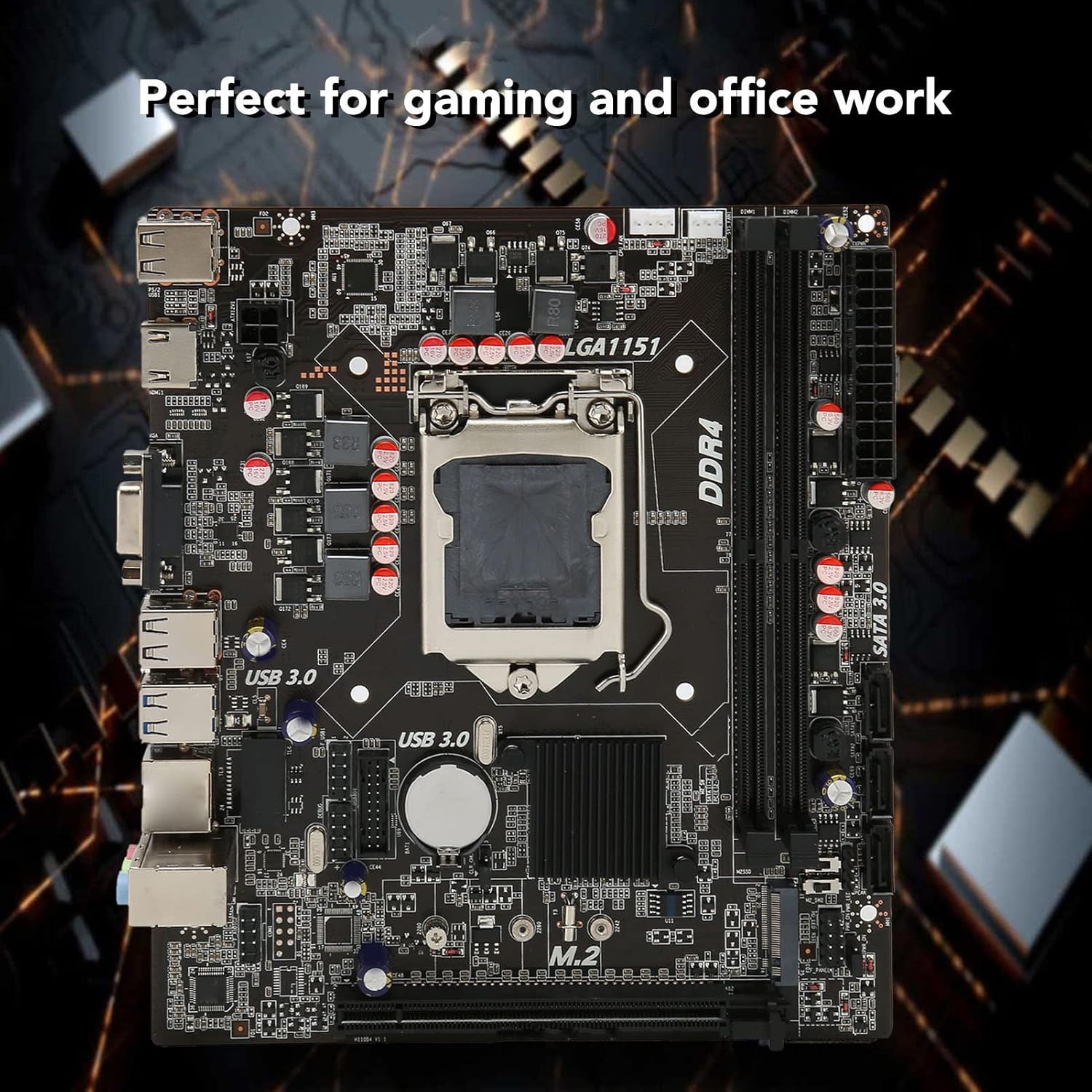
Image: The ASHATA H110 MATX Motherboard, showcasing its layout and components. This motherboard is suitable for both gaming and office work.
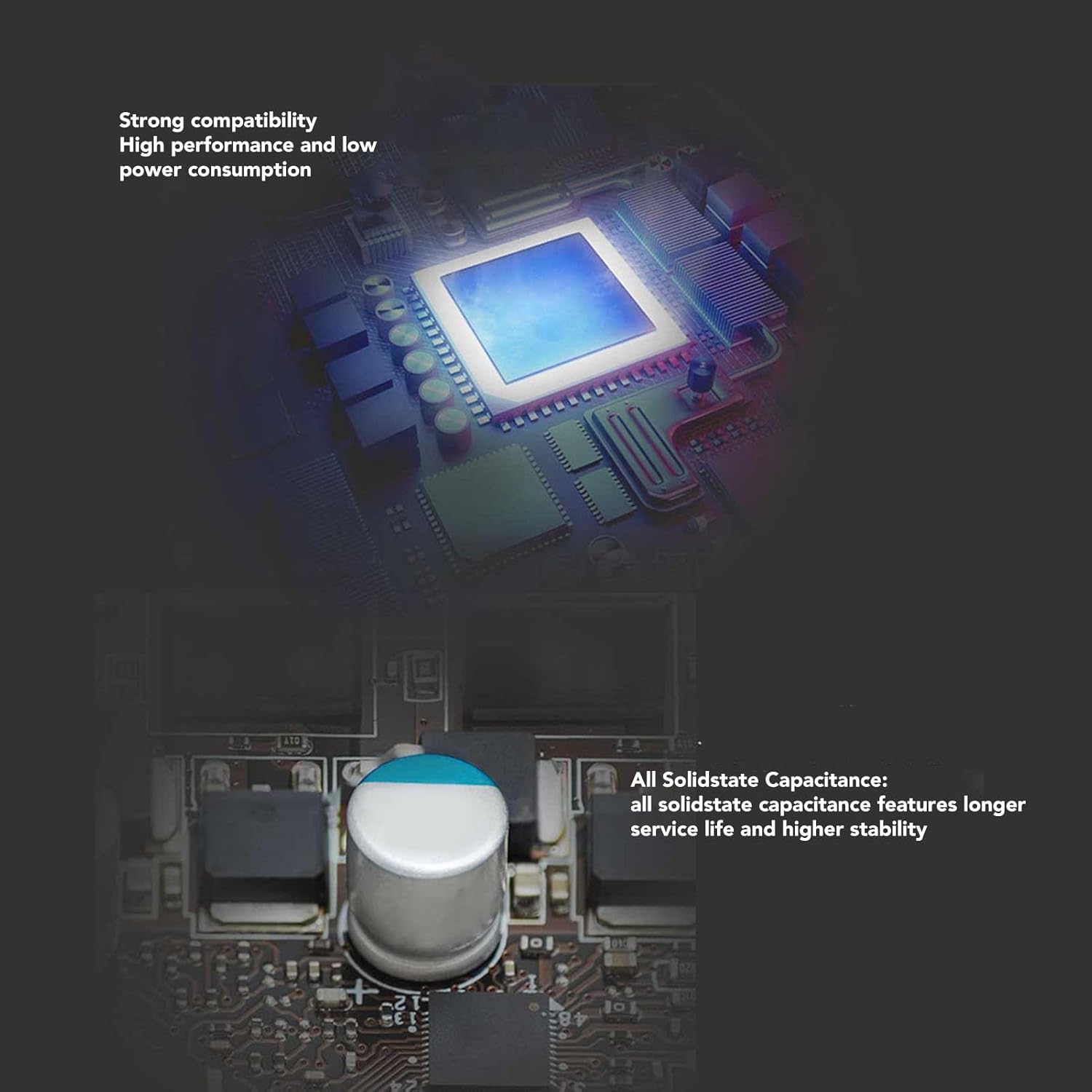
Image: Close-up view of the motherboard highlighting solid-state capacitors, which contribute to stable performance and a longer service life.
3. Specifications
| Feature | Detail |
|---|---|
| Brand | ASHATA |
| Model Number | ASHATAbdfoh2evgm |
| Chipset | H110 |
| Motherboard Form Factor | M ATX |
| Dimensions (L x W) | Approx. 190 x 170 mm (7.5 x 6.7 inches) |
| CPU Socket | LGA 1151 |
| Compatible Processors | Intel Core i3/i5/i7 (6th/7th/8th/9th Gen), Intel Core i9 (8th/9th Gen) |
| Memory Type | 2 x DDR4 SO DIMM |
| Max Memory Capacity | 64 GB (2 x 32 GB) |
| Storage Interface | 3 x SATA3.0, 1 x M.2 (NGFF, NVME protocol supported) |
| Expansion Slots | 1 x PCIe 3.0 X16 |
| Video Output | 1 x HD Multimedia Interface, 1 x VGA |
| USB Ports | 2 x USB 3.0, 4 x USB 2.0 |
| Audio | ALC897 |
| Power Connectors | 1 x 24-pin, 1 x 4-pin |
| Battery Type | CR2032 Button Cell (integrated) |
| Battery Capacity | 240 mAh |
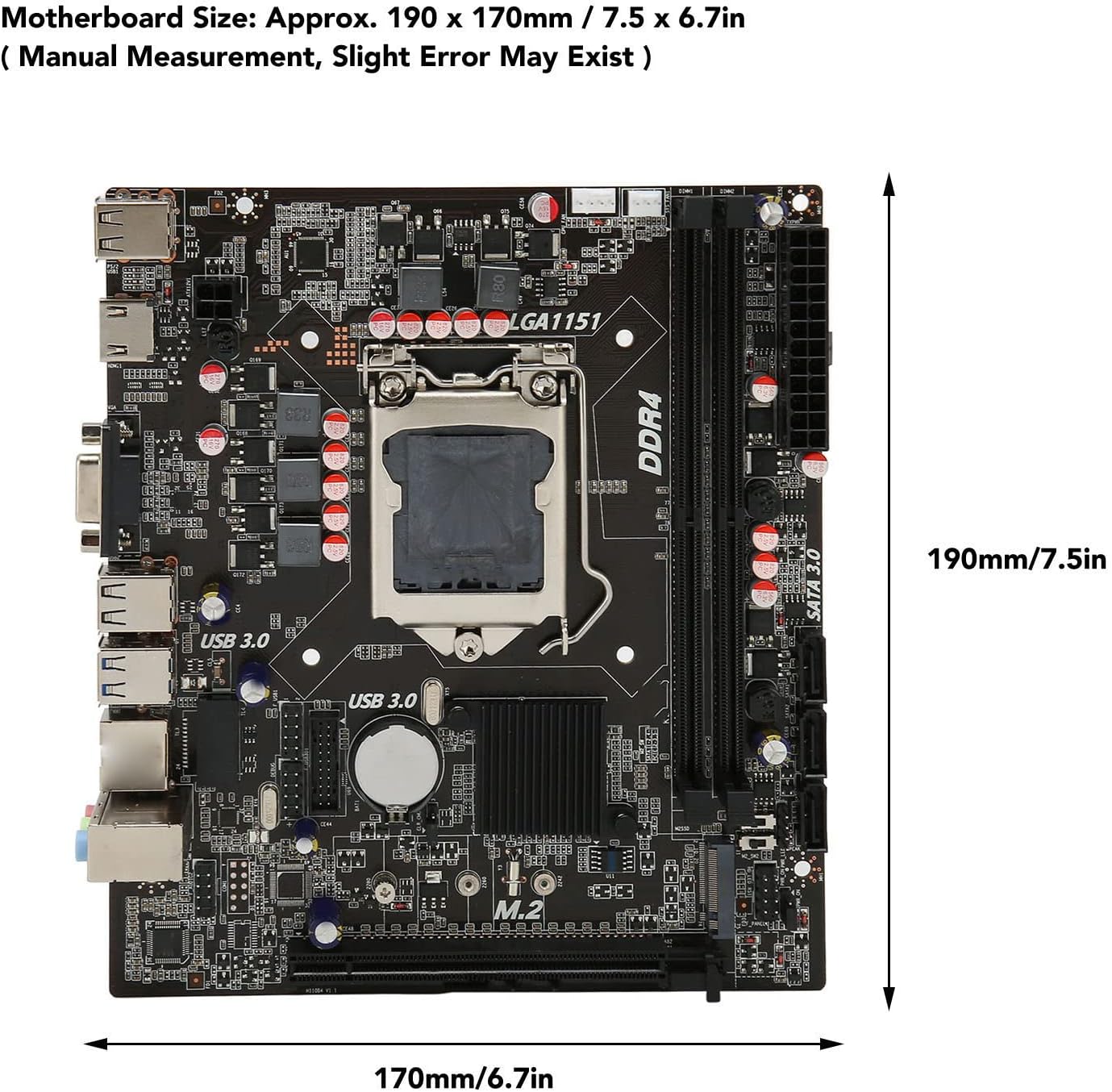
Image: Diagram illustrating the approximate dimensions of the ASHATA H110 MATX Motherboard (190 x 170 mm).
4. Setup and Installation
Follow these steps carefully to install your ASHATA H110 MATX Motherboard and its components.
4.1 Motherboard Placement
Secure the motherboard within your computer case. Ensure all standoffs are correctly aligned and fastened to prevent short circuits.
4.2 CPU Installation
Install the CPU into the LGA 1151 socket by following these instructions:

Image: Step-by-step guide for CPU installation on the LGA 1151 socket. This image shows how to open the socket, align the CPU, and secure it.
- Press down the wire buckle on the CPU socket and lift it upward. Do not remove the black cover before installing the CPU.
- Observe the three bayonets (alignment notches) in the base of the motherboard socket and the three corresponding bayonets on the CPU itself (indicated by red circles in the figure). Carefully align the left side of the CPU with the socket's alignment points, then gently place the CPU into the socket.
- Once the CPU is seated, it should look as shown in the figure after installation.
- Put the wire buckle back down. At this point, the black cover will automatically eject. Remember not to remove the black cover before installing the CPU, as it protects the pins.
4.3 Component Connections
Connect all other components to their respective ports on the motherboard. Refer to the motherboard interface diagram for port identification.

Image: Detailed diagram of the ASHATA H110 MATX Motherboard interfaces, including CPU_FAN, DDR4 slots, USB ports, VGA, HD Multimedia Interface, LAN, Audio, M.2 interface, PCIe 3.0 X16, SATA 3.0, and front panel connectors.
- Power Supply: Connect the 24-pin main power connector and the 4-pin CPU power connector from your power supply unit (PSU) to the corresponding ports on the motherboard.
- Memory (RAM): Insert DDR4 SO DIMM modules into the memory slots until they click into place.
- Storage Devices: Connect SATA drives to the SATA3.0 ports. Install M.2 SSDs into the M.2 slot.
- Graphics Card: If using a dedicated graphics card, install it into the PCIe 3.0 X16 slot.
- Front Panel Connectors: Connect the power LED, power switch, reset switch, and USB/audio headers from your case to the F-PANEL and other corresponding pins on the motherboard.
- Peripherals: Connect USB devices, display cables (VGA or HD Multimedia Interface), and audio devices to the rear I/O panel.
5. Operating Instructions
After completing the hardware installation, ensure all connections are secure before powering on your system.
- Initial Power On: Press the power button on your computer case. The system should initiate the boot process.
- BIOS/UEFI Setup: During startup, press the designated key (usually Del, F2, or F10) to enter the BIOS/UEFI setup utility. Here you can configure boot order, system time, and other advanced settings.
- Operating System Installation: Install your preferred operating system from a bootable USB drive or DVD.
- Driver Installation: After OS installation, install all necessary drivers for the motherboard chipset, graphics, audio, and network to ensure optimal performance.
6. Maintenance
Regular maintenance helps ensure the longevity and stable operation of your motherboard.
- Dust Removal: Periodically clean dust from the motherboard and components using compressed air. Ensure the system is powered off and unplugged before cleaning.
- BIOS/UEFI Updates: Check the manufacturer's website for BIOS/UEFI updates. Update only if necessary and follow the instructions carefully.
- Driver Updates: Keep your system drivers updated to ensure compatibility and performance.
- Environmental Conditions: Operate the motherboard in a well-ventilated environment with stable temperature and humidity to prevent overheating and component degradation.
7. Troubleshooting
This section addresses common issues you might encounter during setup or operation.
7.1 No Power / System Does Not Turn On
If the device cannot be turned on and the power indicator light is off:
- Check Power Connections: Ensure that the power supply unit (PSU) is connected to a working power outlet and that the 24-pin and 4-pin power connectors are securely attached to the motherboard.
- Verify PSU Functionality: Confirm that your power supply is functioning correctly. You can often tell if the CPU fan is spinning when the system attempts to power on. If the CPU fan does not spin, the PSU might be faulty or not properly connected.
- Front Panel Connections: Double-check that the power switch cable from your case is correctly connected to the F-PANEL header on the motherboard.
- CMOS Battery: A dead CMOS battery can sometimes prevent boot-up. Consider replacing the CR2032 button cell battery if other troubleshooting steps fail.
7.2 No Display Output
- Monitor Connection: Ensure your monitor is correctly connected to the motherboard's VGA or HD Multimedia Interface port, or to your dedicated graphics card.
- RAM Seating: Reseat the DDR4 memory modules. Incorrectly seated RAM is a common cause of no display.
- Graphics Card: If using a dedicated graphics card, ensure it is properly seated in the PCIe slot and has adequate power connected.
7.3 System Instability / Crashes
- Overheating: Ensure CPU cooler is properly installed and fans are working. Check for adequate case airflow.
- Driver Issues: Update all motherboard and component drivers to the latest versions.
- Memory Test: Run a memory diagnostic tool to check for faulty RAM modules.
8. Warranty and Support
For warranty information and technical support, please refer to the ASHATA official website or contact your retailer.
- Spare Parts: Information regarding the availability of spare parts is currently unavailable.
- Software Updates: Information regarding guaranteed software updates is currently unavailable.
For further assistance, please visit the ASHATA Brand Store.