
JIMTAB KB001
JIMTAB Ultra-Slim Bluetooth Keyboard User Manual
Model: KB001
1. Introduction
Thank you for choosing the JIMTAB Ultra-Slim Bluetooth Keyboard. This manual provides detailed instructions for setting up, operating, and maintaining your new keyboard. Please read this manual thoroughly before use to ensure optimal performance and longevity of your device.
2. Product Overview
The JIMTAB Ultra-Slim Bluetooth Keyboard is a portable and rechargeable wireless keyboard designed for broad compatibility across iOS, Android, and Windows systems. Its compact and lightweight design makes it ideal for on-the-go use with tablets, smartphones, and other Bluetooth-enabled devices.
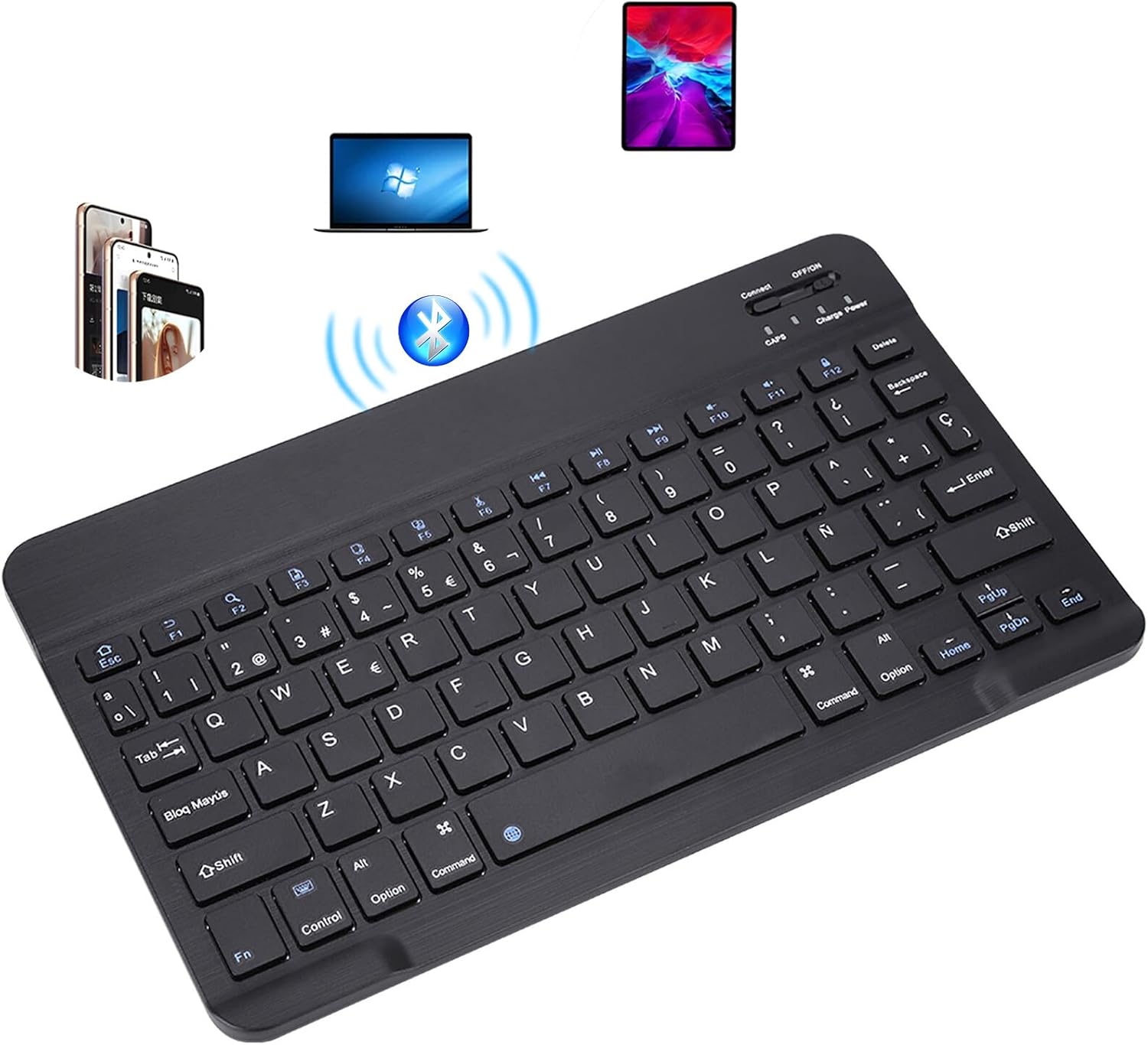
Figure 2.1: JIMTAB Ultra-Slim Bluetooth Keyboard, showcasing its sleek black design and compatibility with various devices like laptops, tablets, and smartphones.
Key Features:
- Excellent Compatibility: Compatible with iOS, Android, and Windows systems, suitable for Apple iPhone, iPad, Samsung tablets, and various smartphones.
- Light, Portable, and Compact: Much lighter and smaller than traditional keyboards, easy to carry. Dimensions: 25 x 15 x 0.6 cm (9.84 x 5.9 x 0.24 inches), Weight: 180g (6.35 ounces).
- Long-term Use: Built-in rechargeable lithium battery provides over 20 days of use (2 hours/day continuous use) on a full charge. Automatic sleep mode after 10 minutes of inactivity to save power.
- Comfortable Typing: Features scissor-structure keys and square chocolate keycap ergonomic design for quiet and pleasant typing.
- Stable Bluetooth Connection: Utilizes Bluetooth 3.0 technology with a working distance of up to 10m. US QWERTY layout with hotkeys for volume control, play/pause, etc.
- Durable Design: Brushed front and ultra-thin, smooth aluminum alloy back.

Figure 2.2: The keyboard features a built-in rechargeable Li-ion battery, offering 1-2 hours charge time, 1 month standby, and 168 hours of uninterrupted work.
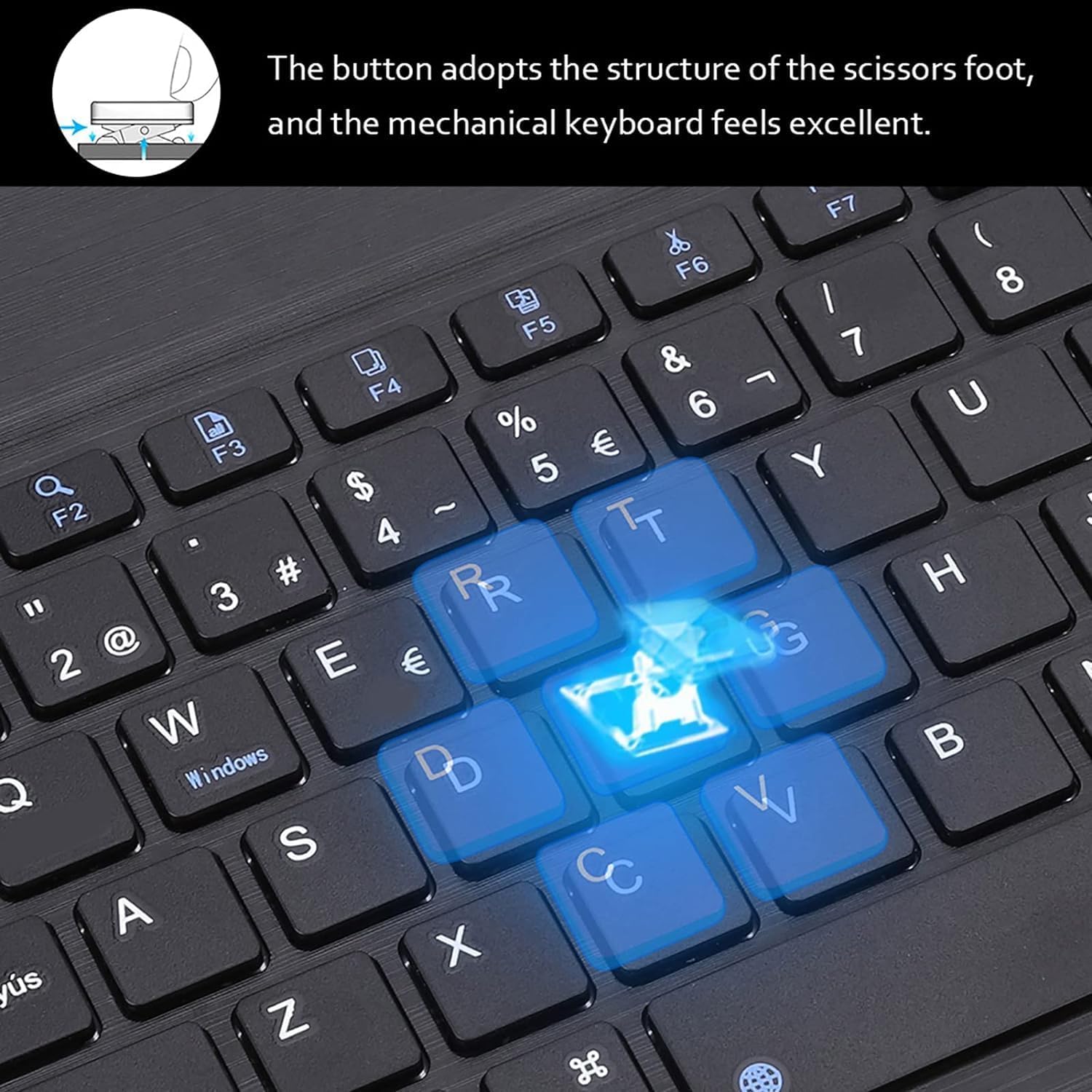
Figure 2.3: Close-up view of the keyboard's scissor switch key mechanism, designed for excellent mechanical feel and quiet operation.

Figure 2.4: The keyboard is magnetically detachable, allowing it to be removed from a case or stand when not needed for typing.

Figure 2.5: The keyboard's compact and sleek design makes it a good companion for professionals on the go.

Figure 2.6: The keyboard being used in different settings, demonstrating its versatility for various tasks and environments.
3. Setup
Follow these steps to connect your JIMTAB Bluetooth Keyboard to your device:
- Charge the Keyboard: Before first use, ensure the keyboard is fully charged. Connect the USB-C charging cable to the keyboard's charging port and a power source. The Charge LED will light up when charging and turn off when fully charged.
- Power On: Slide the power switch (OFF/ON) located on the top right of the keyboard to the 'ON' position. The Power LED will light up briefly.
- Activate Bluetooth Pairing Mode: Press the "Connect" button (usually located near the power switch) for 3 seconds. The blue Bluetooth LED will blink, indicating the keyboard is in pairing mode.
- Enable Bluetooth on Your Device: On your tablet, phone, or computer, go to the Settings menu and enable Bluetooth.
- Select the Keyboard: In the list of available Bluetooth devices, locate and select "Bluetooth 3.0 Keyboard" (or similar name). Your device may prompt you to enter a pairing code. If so, type the code on the JIMTAB keyboard and press Enter.
- Confirm Connection: Once successfully paired, the Bluetooth LED on the keyboard will stop blinking and remain solid or turn off, and your device will show the keyboard as "Connected".

Figure 3.1: Visual guide for the 4-step Bluetooth connection process: Power ON, press Connect, activate Bluetooth on device, and select "Bluetooth 3.0 Keyboard".

Figure 3.2: Detailed steps for connecting the keyboard, showing the power switch, connect button, and device Bluetooth settings.

Figure 3.3: The keyboard features a USB-C port for super fast charging, allowing for quick power-ups.
Video 3.1: This video demonstrates the power-on, Bluetooth connection, and basic typing functions of the JIMTAB Bluetooth Keyboard with various devices.
4. Operating Instructions
System Switching:
The keyboard supports multiple operating systems. Use the following key combinations to switch between modes for optimal performance:
- Android: Press Fn + W
- Windows: Press Fn + E
- iOS (Apple): Press Fn + Q

Figure 4.1: The keyboard is compatible with Android, Windows, and iOS, with specific Fn key combinations for quick switching.
Multimedia and Hotkeys:
The keyboard includes dedicated multimedia and hotkeys for quick access to common functions. These keys are typically activated by pressing the Fn key in combination with the corresponding function key (F1-F12).
- Fn + F1: Home
- Fn + F2: Search
- Fn + F3: Select All
- Fn + F4: Copy
- Fn + F5: Paste
- Fn + F6: Cut
- Fn + F7: Previous Track
- Fn + F8: Play/Pause
- Fn + F9: Next Track
- Fn + F10: Mute
- Fn + F11: Volume Down
- Fn + F12: Volume Up
- Fn + Delete: Lock Screen
Power Saving Mode:
To conserve battery life, the keyboard automatically enters sleep mode after 10 minutes of inactivity. To wake it up, simply press any key. The keyboard will reconnect to the last paired device.

Figure 4.2: The power switch allows you to turn off the keyboard when not in use, further saving energy.
5. Maintenance
- Cleaning: Use a soft, dry cloth to clean the keyboard surface. For stubborn dirt, slightly dampen the cloth with water or a mild cleaning solution. Avoid excessive moisture.
- Storage: When not in use for extended periods, turn off the keyboard using the power switch to preserve battery life. Store in a cool, dry place away from direct sunlight and extreme temperatures.
- Charging: Charge the keyboard regularly to maintain battery health. Avoid completely draining the battery frequently.
- Handling: Avoid dropping the keyboard or exposing it to strong impacts, which can damage internal components.
6. Troubleshooting
| Problem | Possible Cause | Solution |
|---|---|---|
| Keyboard not connecting/pairing. | Keyboard is off; battery low; not in pairing mode; device Bluetooth off; interference. | Ensure keyboard is ON and charged. Press "Connect" button to enter pairing mode. Turn device Bluetooth OFF and ON. Move closer to the device. Remove other Bluetooth devices. |
| Keys not responding or delayed input. | Low battery; out of range; interference; incorrect system mode. | Charge the keyboard. Move closer to the device (within 10m). Ensure correct system mode (Fn+Q/W/E). Restart both keyboard and device. |
| Keyboard frequently disconnects. | Low battery; too far from device; strong interference. | Charge the keyboard. Keep the keyboard within the optimal operating range. Avoid placing near other wireless devices. |
| Some function keys not working. | Incorrect system mode selected. | Ensure you have selected the correct operating system mode (Fn+Q for iOS, Fn+W for Android, Fn+E for Windows). |
7. Specifications
- Model Number: KB001
- Product Dimensions: 9.84 x 5.4 x 0.24 inches (25 x 15 x 0.6 cm)
- Item Weight: 8.1 ounces (180g)
- Connectivity Technology: Bluetooth 3.0
- Operating Distance: Up to 10 meters (33 feet)
- Battery Type: 1 Lithium Polymer battery (included)
- Charging Port: USB-C
- Working Time: Approximately 168 hours (continuous use)
- Standby Time: Approximately 1 month
- Compatible Devices: Laptop, Personal Computer, Tablet, Smartphone, Television (with Bluetooth capability)
- Special Feature: Hotkeys and Media Keys
8. Warranty and Support
JIMTAB products are designed and manufactured to the highest quality standards. For any issues or questions regarding your product, please contact our customer support team.
Customer Support:
- For assistance, please refer to the contact information provided with your purchase or visit the official JIMTAB website.
- You can also find helpful resources and FAQs on the JIMTAB Store on Amazon.

Ask a question about this manual
Ask about setup, troubleshooting, compatibility, parts, safety, or missing instructions. Manuals+ will review the question and use this page’s manual context to help answer it.