
VENTION TGESB
VENTION 5-in-1 USB C Hub Instruction Manual
Model: TGESB
1. Product Overview
The VENTION 5-in-1 USB C Hub is a versatile multiport adapter designed to expand the connectivity of your USB-C enabled devices. It integrates essential ports for charging, video output, and data transfer, making it an ideal solution for laptops, tablets, and smartphones with limited port options.

Image: The VENTION 5-in-1 USB C Hub, showcasing its compact design and the various types of cables and devices it can connect to, including USB-A devices and an HDMI cable.
2. Key Features
- 5-in-1 Connectivity: Combines a 4K HDMI port, 100W USB-C Power Delivery (PD) charging port, and three high-speed USB-A 3.0 data ports.
- Rapid Charging: The 100W USB-C PD charging port supports fast charging for compatible laptops and devices.
- Immersive 4K Visuals: HDMI port supports resolutions up to 4K@30Hz for external displays.
- Speedy Data Transfers: USB-A 3.0 ports offer data transfer speeds up to 5 Gbps.
- Durable Design: Crafted with an aluminum shell for enhanced durability and heat dissipation.
- Wide Compatibility: Compatible with most USB-C enabled devices and various operating systems.

Image: A detailed diagram illustrating the VENTION 5-in-1 USB C Hub connected to a laptop, highlighting its ports: 100W PD, three USB 3.0 (5Gbps) ports, and an HDMI (4K@30Hz) port.
Video: An official product video from Vention showcasing the features and functionality of the USB C Hub, including its various ports, 4K HDMI output, and fast data transfer capabilities.
3. Setup
3.1 Connecting the Hub to Your Device
- Locate the USB-C male connector on the VENTION Hub.
- Insert the USB-C connector firmly into an available USB-C port on your laptop, tablet, or smartphone.
- Ensure the connection is secure. The hub is plug-and-play and typically requires no driver installation.
3.2 Connecting Peripherals
- HDMI Display: Connect an HDMI cable from your monitor or TV to the HDMI port on the hub.
- USB-A Devices: Plug your USB flash drives, external hard drives, keyboards, mice, or other USB-A peripherals into the three USB 3.0 ports.
- Power Delivery (PD): To charge your host device while using the hub, connect your USB-C power adapter to the 100W PD port on the hub.

Image: The VENTION USB C Hub connected to a MacBook Pro, demonstrating its 100W Power Delivery fast charging capability, with a charging progress bar indicating rapid power delivery.
4. Operating Instructions
4.1 HDMI Display Output
Once connected, your device should automatically detect the external display. You can configure display settings (e.g., mirror mode, extend mode) through your operating system's display settings.
- Mirror Mode: Duplicates your primary screen onto the external display.
- Extend Mode: Extends your desktop across multiple screens, allowing for more workspace.
Note: The 100W PD port on the hub is for power input only and does not support video output.

Image: A visual representation of the VENTION USB C Hub's ability to support multiple display modes (Mirror Mode and Extend Mode) at 4K@30Hz, illustrating how a laptop screen can be duplicated or extended to an external monitor.
4.2 USB Data Transfer
The three USB 3.0 ports enable high-speed data transfer. Simply plug in your USB devices, and they will be recognized by your host system.
- Transfer large files, photos, and videos at speeds up to 5 Gbps.
- Connect multiple USB peripherals simultaneously.

Image: A close-up of the VENTION USB C Hub's USB 3.0 ports, with an overlay indicating data transfer speeds of 5Gbps, illustrating how files can be transferred in seconds.
4.3 Power Delivery (PD)
The 100W PD port allows you to power your laptop or other compatible USB-C device through the hub. This ensures your device remains charged even when multiple peripherals are connected.
5. Compatibility
The VENTION 5-in-1 USB C Hub is designed for broad compatibility with various USB-C enabled devices and operating systems.
- Compatible Devices: MacBook Pro, MacBook Air, iPad Pro, iPhone 15 Pro/Pro Max, XPS, Thinkpad, Surface Go, Chromebook, and other USB-C enabled laptops, tablets, and smartphones.
- Compatible Operating Systems: macOS, Windows (7, 10), Chrome OS, Linux.
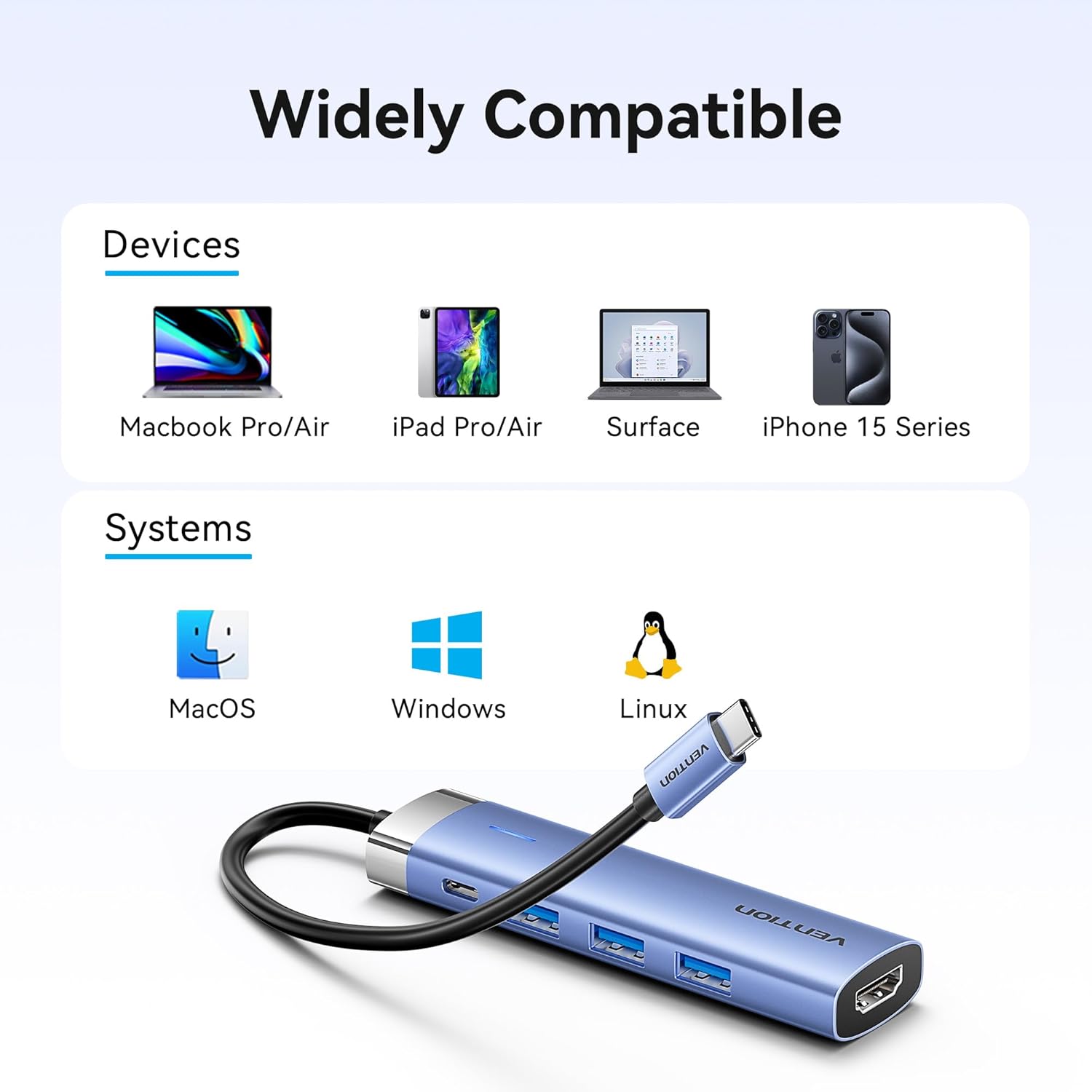
Image: A graphic illustrating the wide compatibility of the VENTION USB C Hub with various devices such as MacBook Pro/Air, iPad Pro/Air, Surface, and iPhone 15 Series, as well as operating systems like macOS, Windows, and Linux.
6. Maintenance
- Cleaning: Use a soft, dry cloth to clean the hub. Avoid liquid cleaners or abrasive materials.
- Storage: Store the hub in a cool, dry place away from direct sunlight and extreme temperatures.
- Handling: Avoid dropping the hub or subjecting it to strong impacts. Do not attempt to disassemble the device.
7. Troubleshooting
- No Display Output via HDMI:
- Ensure the HDMI cable is securely connected to both the hub and the display.
- Verify your host device's USB-C port supports video output (DisplayPort Alternate Mode).
- Check your display settings on your computer to ensure the external monitor is detected and configured correctly.
- Try a different HDMI cable or monitor to rule out cable/monitor issues.
- No Power Delivery (PD) Charging:
- Ensure your USB-C power adapter is connected to the PD port on the hub and is functioning correctly.
- Verify your power adapter provides sufficient wattage for your device (e.g., 100W for a MacBook Pro).
- Check if the host device's USB-C port supports Power Delivery.
- USB Devices Not Recognized or Slow Data Transfer:
- Ensure USB devices are fully inserted into the hub's USB-A ports.
- Try connecting the USB device directly to your computer to confirm it functions independently.
- For optimal speed, ensure your USB devices are USB 3.0 compatible.
- Avoid connecting high-power consumption devices (e.g., multiple external hard drives) without external power if your host device's USB-C port has limited power output.
- Hub Overheating:
- It is normal for the hub to become warm during extended use, especially when charging or using multiple ports.
- Ensure adequate ventilation around the hub.
- If the hub becomes excessively hot, disconnect it and allow it to cool down before resuming use.
8. Specifications
| Model Number | TGESB |
| Ports | 1x HDMI (4K@30Hz), 1x USB-C PD (100W), 3x USB 3.0 (5Gbps) |
| Power Delivery | Up to 100W (input) |
| Data Transfer Speed | Up to 5 Gbps (USB 3.0) |
| Material | Aluminum Alloy |
| Color | Grey |
| Dimensions (LxWxH) | 2.95 x 0.69 x 4.92 inches |
| Item Weight | 1.76 ounces |
9. Warranty Information
This VENTION product is covered by a manufacturer's warranty. Please refer to the product packaging or the official VENTION website for specific warranty terms and conditions. Retain your proof of purchase for warranty claims.
10. Support
For technical support, troubleshooting assistance, or further inquiries, please contact VENTION customer service through the following channels:
- Online Support: Visit the official VENTION website for FAQs and support resources.
- Email Support: Refer to your product packaging or the VENTION website for contact email.
- Amazon Store: You can also visit the Vention Official Store on Amazon for product information and seller contact options.
Related documentsTGESB


Ask a question about this manual
Ask about setup, troubleshooting, compatibility, parts, safety, or missing instructions. Manuals+ will review the question and use this page’s manual context to help answer it.