
1. Introduction
Thank you for choosing the cimetech M01-Plata Rechargeable Wireless Mouse. This manual provides detailed instructions for setting up, operating, and maintaining your new mouse. Please read this manual carefully before use to ensure optimal performance and longevity of your device.

Image: The cimetech M01-Plata Rechargeable Wireless Mouse, showcasing its sleek design and RGB lighting.
2. Package Contents
Please verify that all items are present in your package:
- 1 x cimetech M01-Plata Rechargeable Wireless Mouse
- 1 x USB Receiver (stored in the mouse's battery compartment)
- 1 x Type-C Charging Cable
- 1 x User Manual (this document)
3. Key Features
- Dual Mode Connectivity: Supports both 2.4Ghz wireless via USB receiver and Bluetooth 5.1 for versatile connection to various devices.
- Rechargeable Battery: Built-in 450mAh lithium battery provides extended use on a single charge, easily rechargeable via Type-C cable.
- Silent Click Design: Reduces click noise, ideal for quiet environments like offices or libraries.
- Adjustable DPI: Three adjustable DPI levels (1000-1200-1600) for precise cursor control.
- Cool RGB Neon Lights: Features dynamic RGB lighting that changes colors, adding a visual element.
- Ergonomic & Slim Design: Comfortable palm fit and lightweight, ultra-portable for travel.
- Auto Power-Saving: Automatically enters smart sleep mode after 10 minutes of inactivity to conserve battery.
4. Setup and Connection
Your cimetech M01-Plata mouse offers two connection modes: 2.4Ghz Wireless and Bluetooth 5.1. Choose the mode that best suits your device.
4.1. 2.4Ghz Wireless Mode
- Locate the USB receiver, typically stored in the battery compartment at the bottom of the mouse.
- Plug the USB receiver into an available USB port on your computer or laptop.
- Turn on the mouse using the power switch located on the bottom. The mouse should automatically connect.
- The mouse is now ready for use.
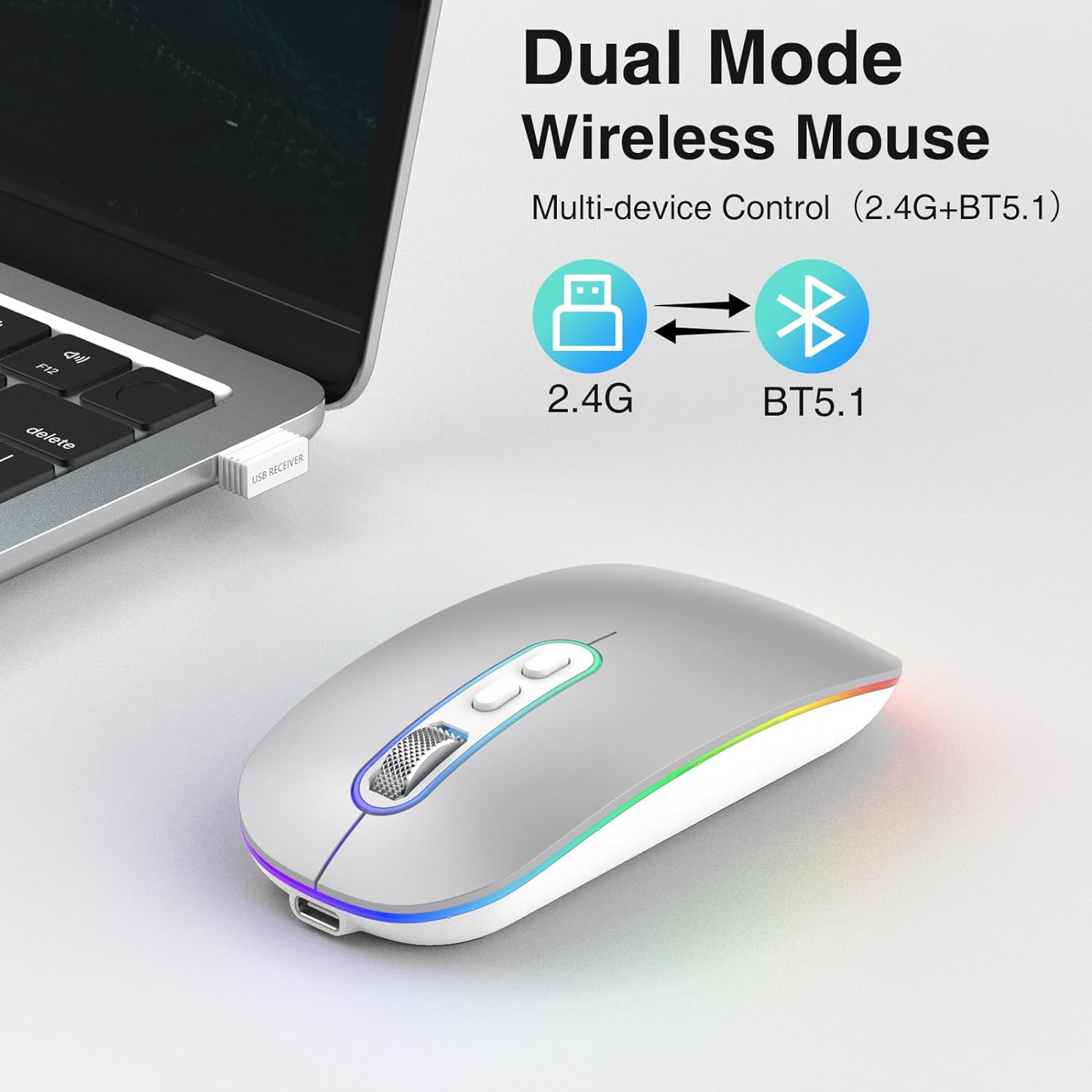
Image: Illustration showing the dual mode capability of the mouse, with icons for 2.4G and BT5.1 connectivity.
4.2. Bluetooth 5.1 Mode
- Ensure your device has Bluetooth enabled.
- Turn on the mouse using the power switch on the bottom.
- Press and hold the Bluetooth pairing button (if available, otherwise the mode switch button) on the mouse until the indicator light starts blinking, indicating it's in pairing mode.
- On your device, go to Bluetooth settings and search for new devices.
- Select "cimetech Mouse" or a similar name from the list of available devices to pair.
- Once paired, the indicator light on the mouse will become solid or turn off, and the mouse will be ready for use.

Image: The mouse positioned between a laptop and a smartphone, illustrating its ability to connect to multiple devices using its dual mode functionality.
5. Operating Instructions
5.1. DPI Adjustment
The mouse features a DPI button located on the top surface, usually near the scroll wheel. Press this button to cycle through the three available DPI settings: 1000, 1200, and 1600. Each press will change the cursor sensitivity, allowing you to select the speed that best suits your task.

Image: A visual representation of the three adjustable DPI levels (1000, 1200, 1600) and how they affect cursor control.
5.2. Charging the Mouse
When the mouse battery is low, the indicator light may flash or the mouse performance may degrade. To charge the mouse:
- Connect the provided Type-C charging cable to the charging port on the front of the mouse.
- Plug the other end of the cable into a USB power source (e.g., computer USB port, USB wall adapter).
- The indicator light will illuminate during charging and turn off when fully charged. A full charge typically takes 2-3 hours.
- Avoid using fast chargers as they may damage the battery.
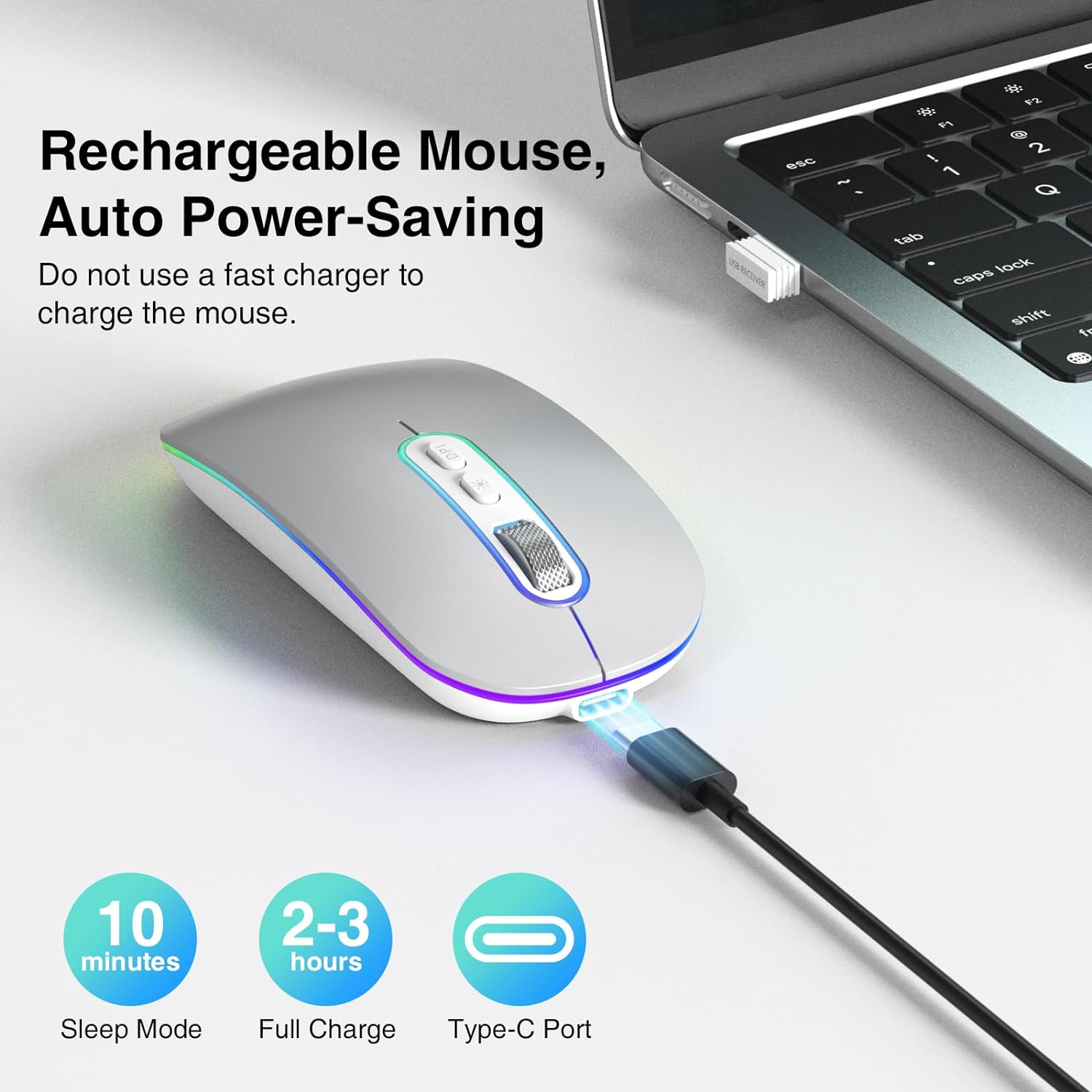
Image: The mouse connected via its Type-C charging cable, highlighting its rechargeable nature and auto power-saving features like sleep mode and full charge time.
5.3. Power Saving Mode
To conserve battery life, the mouse will automatically enter a smart sleep mode after 10 minutes of inactivity. To wake the mouse, simply click any button or move it.
5.4. RGB Lighting
The mouse features cool rainbow RGB neon lights that randomly change colors during use. This provides a dynamic visual effect. The lighting is integrated into the mouse's operation and does not have separate controls for color or pattern selection.
6. Maintenance
- Cleaning: Use a soft, dry cloth to clean the surface of the mouse. For stubborn dirt, a slightly damp cloth can be used, but ensure no moisture enters the device.
- Storage: When not in use for extended periods, turn off the mouse to conserve battery. Store it in a cool, dry place away from direct sunlight and extreme temperatures.
- Battery Care: To prolong battery life, avoid fully discharging the mouse frequently. Charge it when the low battery indicator appears.
7. Troubleshooting
If you encounter issues with your cimetech M01-Plata mouse, please refer to the following common solutions:
| Problem | Possible Cause | Solution |
|---|---|---|
| Mouse not responding | Low battery; Mouse turned off; Incorrect connection mode; USB receiver not detected (2.4Ghz); Bluetooth not paired (BT5.1) | Charge the mouse; Turn on the mouse; Ensure correct mode is selected (2.4Ghz or BT); Re-insert USB receiver or try another USB port; Re-pair Bluetooth. |
| Cursor movement is erratic or slow | Low DPI setting; Unsuitable surface; Obstruction of optical sensor | Increase DPI using the DPI button; Use the mouse on a smooth, non-reflective surface; Clean the optical sensor at the bottom of the mouse. |
| RGB lights turn off when moving mouse | Normal operation | This is an intended feature to conserve power and is not a defect. The lights are designed to be active when the mouse is idle. |
| Mouse not charging | Faulty cable; Faulty USB port; Using fast charger | Try a different Type-C cable; Try a different USB port; Ensure you are not using a fast charger. |
8. Product Specifications
- Model: M01-Plata
- Connectivity: 2.4Ghz Wireless, Bluetooth 5.1
- DPI Levels: 1000 / 1200 / 1600
- Battery Type: Rechargeable Lithium Polymer (450mAh)
- Charging Port: Type-C
- Dimensions: 3.2 x 4.6 x 1.2 inches (approx. 8.1 x 11.7 x 3.0 cm)
- Weight: 3.52 ounces (approx. 100 grams)
- Special Features: LED Lights, Portable, Rechargeable, Slim, Silent Click
- Movement Detection Technology: Optical
- Compatibility: Windows 7/8/10/11/XP, iPadOS, macOS, Chrome OS, Android, Smart TV, Vista 7/8, Linux.
9. Safety Information
- Do not expose the mouse to extreme temperatures, humidity, or direct sunlight.
- Avoid dropping or subjecting the mouse to strong impacts.
- Do not attempt to disassemble or modify the mouse. This will void the warranty and may cause damage.
- Keep the mouse away from children and pets.
- Dispose of the mouse and its battery responsibly according to local regulations.
10. Warranty and Support
Specific warranty details for the cimetech M01-Plata mouse are not provided in this manual. For warranty claims, technical support, or further assistance, please refer to the product packaging or contact cimetech customer service through the retailer where the product was purchased.