
1. Introduction
This manual provides instructions for the innomaker 720P USB 2.0 UVC Camera, Model U20CAM-720P. This camera module is designed for various embedded hardware applications, including Raspberry Pi and Jetson Nano, offering a wide-angle lens and plug-and-play compatibility across multiple operating systems.

Figure 1: innomaker 720P USB 2.0 UVC Camera Module (Model U20CAM-720P).
2. Setup
2.1 Package Contents
Verify that your package contains the following items:
- 1 x innomaker 720P USB 2.0 UVC Camera Module
- 1 x USB Cable

Figure 2: Camera Module and included USB Cable.
2.2 Connecting the Camera
- Connect the small end of the provided USB cable to the camera module's USB port.
- Connect the standard USB-A end of the cable to an available USB 2.0 port on your host device (e.g., Raspberry Pi, Jetson Nano, PC, laptop, tablet).
2.3 Driver Installation
The innomaker 720P USB 2.0 UVC Camera is a Plug & Play device, utilizing the USB Video Class (UVC) standard. This means it typically does not require manual driver installation on compatible operating systems. Native drivers are supported on:
- Windows (11/10/7)
- Mac OS
- Linux (including Ubuntu)
- Android

Figure 3: The camera supports various operating systems including Windows, Mac OS, Linux, Ubuntu, and Android.
3. Operation
3.1 Initializing the Camera
Once connected, the camera should be automatically detected by your operating system. You can use standard camera applications or development frameworks (e.g., OpenCV for Python) to access the video stream.
3.2 Video Streaming
The camera supports up to 720P resolution at 30 frames per second (fps). It provides video streaming in both YUY2 and MJPEG formats over the USB 2.0 interface. MJPEG format typically offers higher frame rates or resolutions by compressing video on the camera itself, while YUY2 provides uncompressed data, which may require more bandwidth.
3.3 Wide Angle Lens
The camera features a wide-angle lens with a diagonal field of view (DFOV) of 120 degrees and a horizontal field of view (HFOV) of 102 degrees. The lens uses an industry-standard M12 thread, allowing for optical customization if required.

Figure 4: The camera module features a wide-angle lens with an M12 thread.
3.4 Focus Adjustment
The lens may require manual focus adjustment. Gently rotate the lens barrel to achieve the desired focus for your application. Ensure the camera is connected and displaying video while adjusting focus for real-time feedback.
4. Maintenance
4.1 Cleaning
- To clean the lens, use a soft, lint-free cloth specifically designed for optical surfaces. Avoid abrasive materials or harsh chemicals.
- For the camera module body, use a dry, soft cloth to wipe away dust.
4.2 Storage
Store the camera module in a dry, dust-free environment when not in use. Avoid extreme temperatures and direct sunlight.
4.3 Handling
Handle the camera module by its edges to avoid touching the lens or the electronic components on the board. Static electricity can damage electronic components, so take appropriate precautions.
5. Troubleshooting
5.1 Camera Not Detected
- Check USB Connection: Ensure the USB cable is securely connected to both the camera module and the host device. Try a different USB port.
- Verify Cable Integrity: Test with a different USB cable if available.
- Restart Host Device: Sometimes a simple restart of your Raspberry Pi, Jetson Nano, or computer can resolve detection issues.
- Check Device Manager (Windows) / `lsusb` (Linux): Confirm if the device is listed. On Linux, open a terminal and type `lsusb`. Look for a device related to a camera or 'innomaker'.
- Operating System Compatibility: Ensure your operating system is one of the supported versions (Windows 11/10/7, Mac OS, Linux, Android).
5.2 No Video Output / Black Screen
- Application Settings: Ensure your camera application is correctly configured to select the innomaker UVC camera as the input source.
- Permissions: On some operating systems, applications may require explicit permission to access the camera. Check your system's privacy settings.
- Lighting Conditions: Ensure there is adequate lighting in the environment.
5.3 Poor Image Quality / Blurry Video
- Adjust Focus: Manually rotate the lens barrel to adjust the focus.
- Clean Lens: Ensure the lens is clean and free from smudges or dust.
- Lighting: Insufficient or uneven lighting can affect image quality.
- Resolution/Frame Rate: Check if the application is set to the desired resolution and frame rate. Higher resolutions or frame rates may require more processing power from the host device.
6. Specifications
| Feature | Detail |
|---|---|
| Model Number | U20CAM-720P |
| Video Capture Resolution | 720p |
| Interface | USB 2.0 (High-Speed) |
| Field of View (DFOV) | 120 degrees |
| Field of View (HFOV) | 102 degrees |
| Lens Thread | M12 |
| Supported Formats | YUY2, MJPEG |
| Exposure Control Type | Automatic |
| Color | Black |
| Dimensions | 32 x 32 mm (compact size) |
| Item Weight | 2.11 ounces |
| Package Dimensions | 8.27 x 3.54 x 1.81 inches |
| Compliance | FCC/CE/UKCA certified, RoHS & REACH-SVHC compliant |
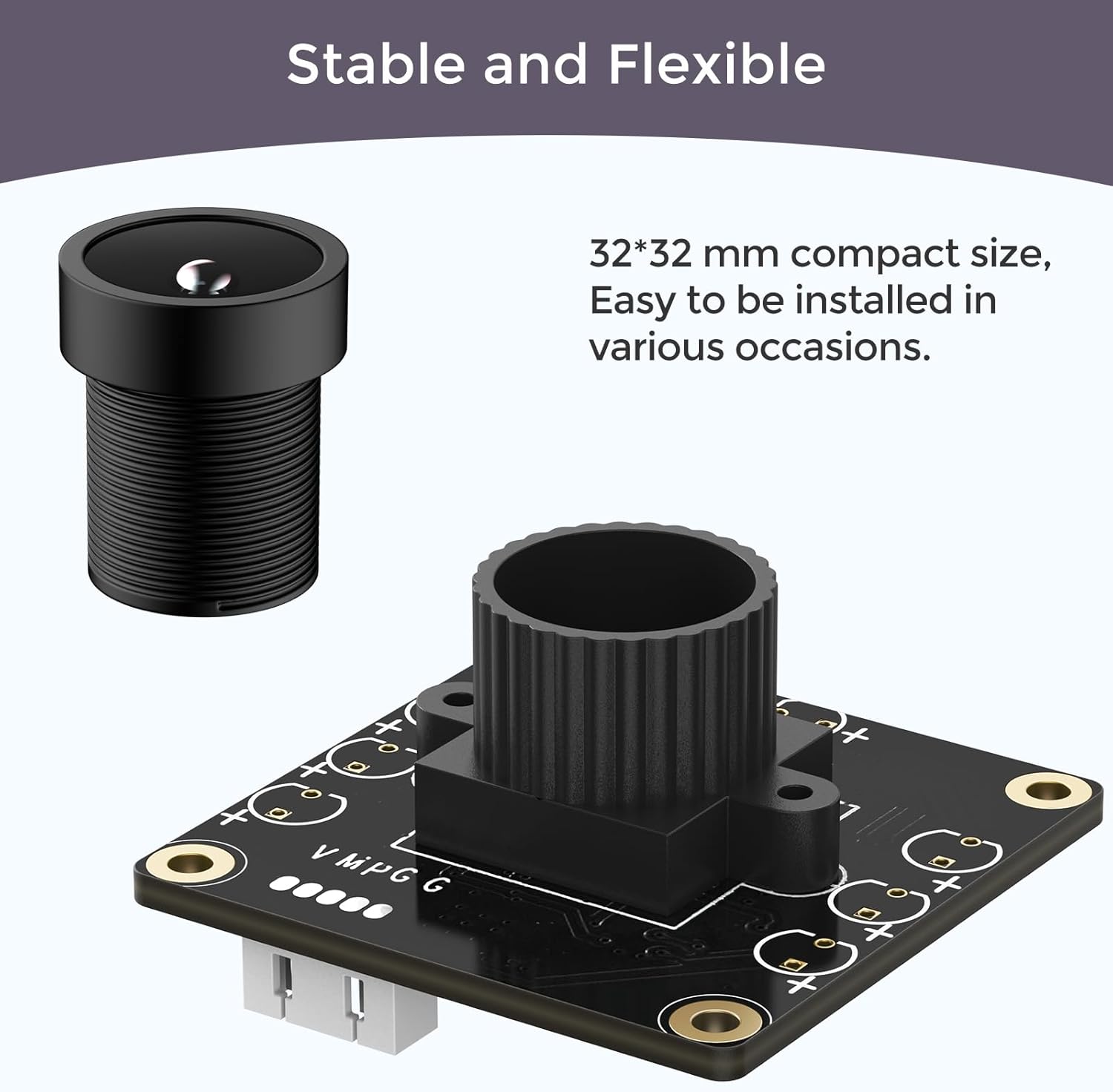
Figure 5: The camera module features a compact 32x32mm design for flexible installation.
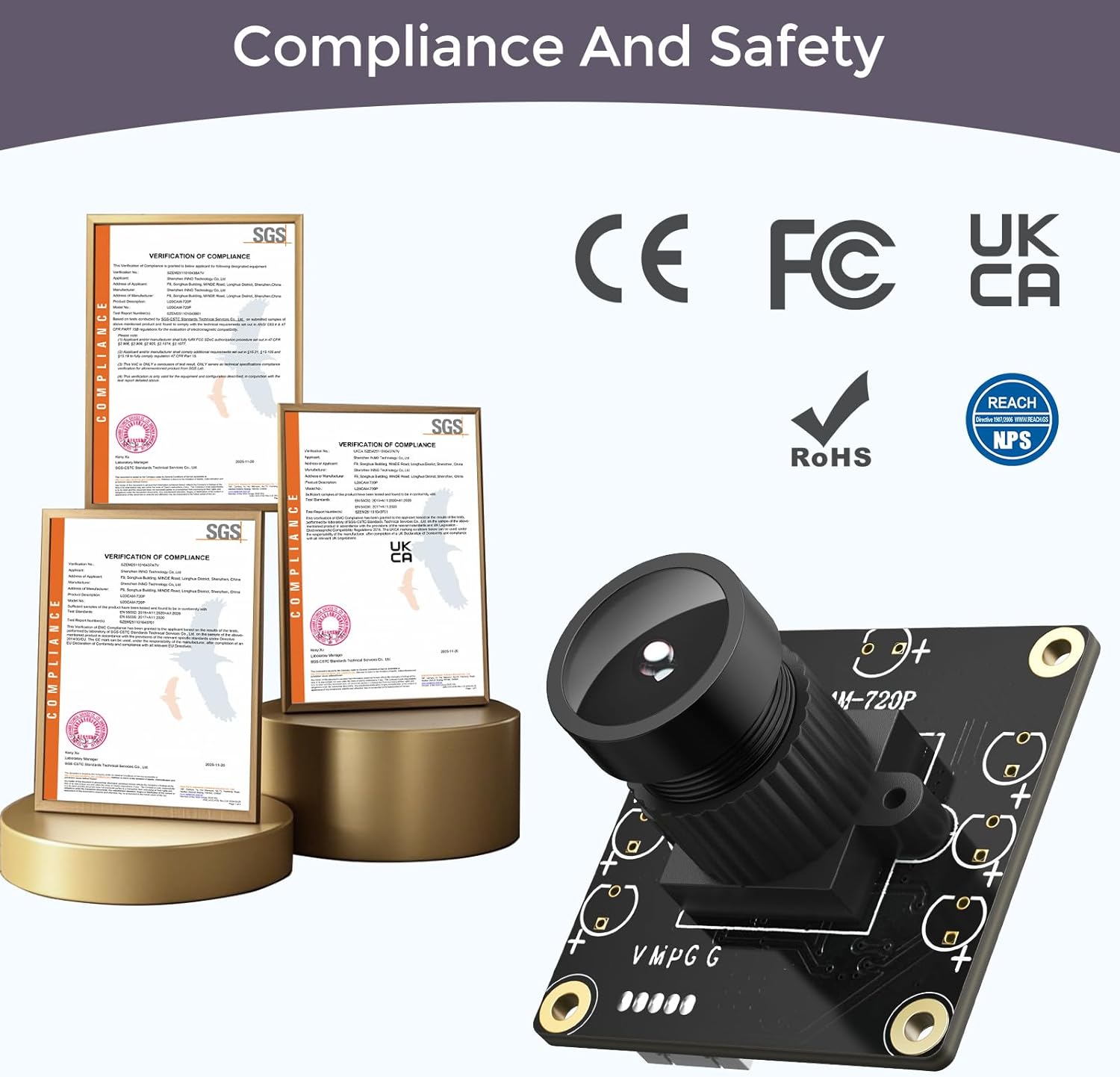
Figure 6: The camera module adheres to FCC, CE, UKCA, RoHS, and REACH-SVHC standards.
7. Warranty & Support
7.1 Warranty Information
Please refer to the product packaging or the official innomaker website for the most current warranty information. Typically, electronic components come with a limited manufacturer's warranty against defects in materials and workmanship.
7.2 Technical Support
For technical assistance, troubleshooting beyond this manual, or inquiries regarding your innomaker 720P USB 2.0 UVC Camera, please contact innomaker customer support through their official website or the platform where the product was purchased.


