
TP-Link 4895252503494
TP-Link EAP113 Outdoor Access Point User Manual
Model: EAP113-OUTDOOR (4895252503494)
1. Product Overview
The TP-Link EAP113 Outdoor Access Point is designed for outdoor Wi-Fi coverage, offering robust performance and durability. It functions as a WLAN repeater and supports 802.11ac wireless type, operating at 2.4 GHz. Its IP65 rating ensures protection against dust and water, making it suitable for various outdoor environments.

Figure 1: Front view of the TP-Link EAP113 Outdoor Access Point, showing its white casing and two external antennas.
Key features include:
- Outdoor Durability: IP65 weather-resistant enclosure for harsh outdoor conditions.
- Flexible Connectivity: Equipped with RJ45 and PoE (Power over Ethernet) ports for simplified installation.
- High Performance: Supports 802.11ac wireless standard for reliable 2.4 GHz Wi-Fi.
- Wide Operating Temperature: Functions effectively in temperatures ranging from -40 °C to 70 °C.
2. Package Contents
Before installation, verify that all items are present in your package:
- TP-Link EAP113 Outdoor Access Point
- Mounting Kit
- Quick Installation Guide (not included in this manual, but typically provided)
- Power over Ethernet (PoE) Adapter (Note: Some packages may not include a PoE adapter, which must be purchased separately if needed.)
3. Hardware Description
Familiarize yourself with the physical components of the EAP113.

Figure 2: Bottom view of the EAP113, highlighting the Ethernet port and the recessed reset button.
- Ethernet Port (RJ45): Used for network connection and Power over Ethernet (PoE) input.
- Reset Button: A small, recessed button used to restore the device to factory default settings. To reset, press and hold the button for approximately 8 seconds while the device is powered on.
- LED Indicator: (Located on the side, visible in some images) Indicates device status, such as power, system activity, and network connection.
- Mounting Brackets: Integrated on the back for secure outdoor installation.

Figure 3: Side view of the EAP113, showing the integrated mounting brackets and product information labels.
4. Setup and Installation
The EAP113 is designed for outdoor deployment. Proper installation ensures optimal performance and longevity.
4.1 Mounting the Device
The device can be mounted on a pole or wall using the provided mounting kit.
- Choose a Location: Select a location that provides optimal Wi-Fi coverage and is within range of your network infrastructure. Ensure the location is clear of obstructions.
- Secure Mounting: Use the mounting straps or screws to firmly attach the EAP113 to a pole or wall. Refer to the mounting kit instructions for detailed steps.
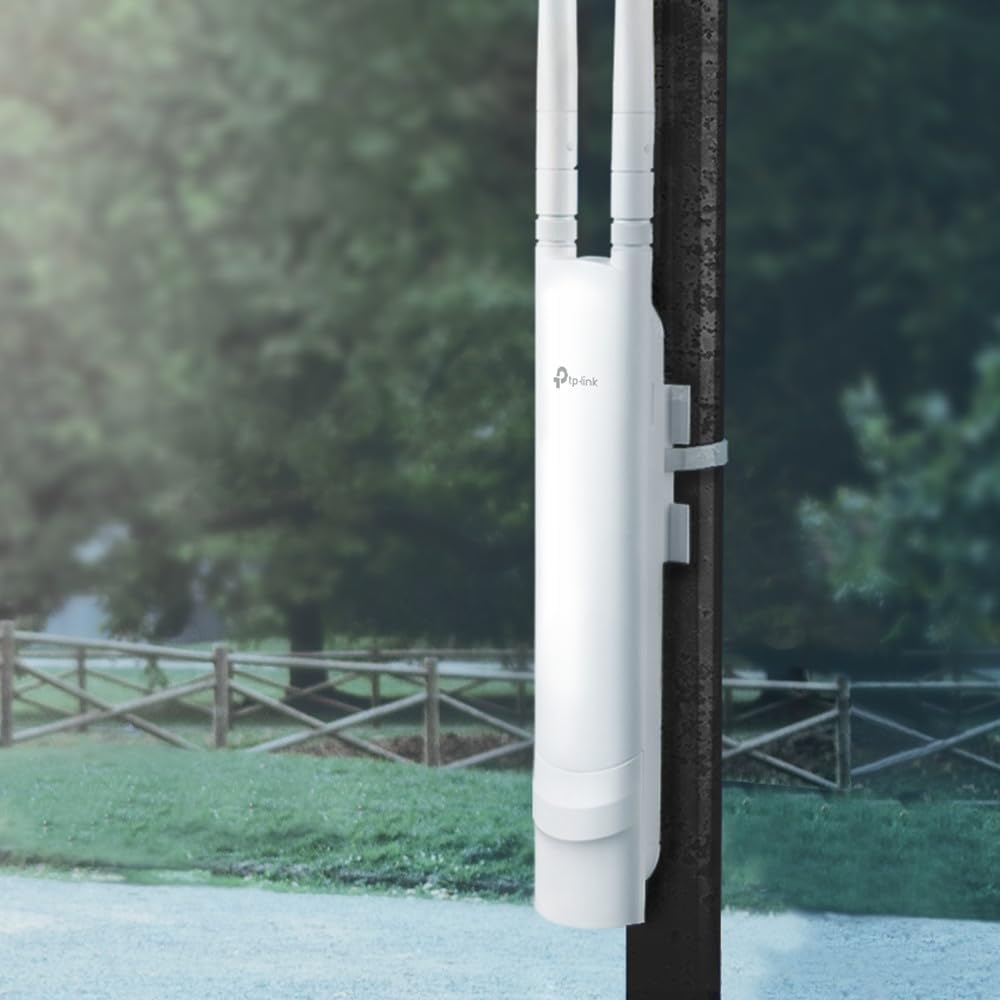
Figure 4: The EAP113 mounted on an outdoor pole, demonstrating a typical installation scenario.
4.2 Powering the Device
The EAP113 supports Power over Ethernet (PoE).
- Connect an Ethernet cable from a PoE injector or PoE-enabled switch to the Ethernet port on the EAP113.
- Ensure the PoE source provides adequate power (1 x PoE).
4.3 Initial Configuration
After physical installation and power-up, configure the access point via a web browser.
- Connect your computer to the same network as the EAP113.
- Open a web browser and enter the default IP address (refer to the Quick Installation Guide or TP-Link's official website for the default IP).
- Log in using the default username and password.
- Follow the on-screen wizard to set up your Wi-Fi network (SSID, password, security type).
5. Operating the Device
Once configured, the EAP113 will broadcast your Wi-Fi network. Clients can connect to it like any other wireless network.
5.1 Network Coverage
The EAP113 is designed for extended outdoor coverage, with high transmission power and high-gain antennas to achieve a range of approximately 200 meters.

Figure 5: An illustration depicting the EAP113's effective range of 200 meters, supported by its high transmission power and high-gain antennas.
5.2 Management Interface
Access the web-based management interface for advanced settings, monitoring, and firmware updates. This interface allows you to:
- Change Wi-Fi settings (SSID, password, security).
- Monitor connected clients and network traffic.
- Update firmware for improved performance and security.
- Configure advanced network settings (VLANs, QoS).
6. Maintenance
Regular maintenance ensures the longevity and optimal performance of your EAP113.
- Physical Inspection: Periodically check the device and its mounting for any signs of damage, loose connections, or wear.
- Cleaning: Gently wipe the exterior with a soft, damp cloth. Do not use harsh chemicals or abrasive cleaners.
- Firmware Updates: Regularly check the TP-Link official website for the latest firmware updates. Updating firmware can improve stability, add new features, and address security vulnerabilities.
- Environmental Check: Ensure the operating environment remains within the specified temperature and humidity ranges (-40 °C to 70 °C, 10% - 90% humidity).
7. Troubleshooting
If you encounter issues with your EAP113, try the following troubleshooting steps:
- No Power:
- Ensure the PoE injector or switch is powered on and functioning correctly.
- Check the Ethernet cable connection between the PoE source and the EAP113.
- No Wi-Fi Signal:
- Verify the EAP113 is powered on and its LED indicator is active.
- Log into the management interface to ensure the Wi-Fi function is enabled and configured correctly.
- Check for any physical obstructions that might be blocking the signal.
- Cannot Access Management Interface:
- Ensure your computer is on the same network segment as the EAP113.
- Verify the IP address of the EAP113. If unsure, try resetting the device to factory defaults (see Hardware Description).
- Clear your browser's cache or try a different browser.
- Poor Performance/Slow Speed:
- Check for potential interference from other wireless devices.
- Ensure the device is mounted in an optimal location with minimal obstructions.
- Update the firmware to the latest version.
- Factory Reset: If all else fails, perform a factory reset by pressing and holding the reset button for approximately 8 seconds while the device is powered on. This will revert all settings to their default values.
8. Specifications
| Feature | Detail |
|---|---|
| Brand | TP-Link |
| Model Number | 4895252503494 (EAP113-OUTDOOR) |
| Product Dimensions | 21 x 5 x 4 cm |
| Weight | 420 g |
| Connectivity | WLAN, RJ45, PoE |
| Wireless Type | 802.11ac |
| Frequency | 2.4 GHz |
| Max Speed | 1 Gbit/s |
| IP Rating | IP65 |
| Operating Temperature | -40 °C to 70 °C |
| Operating Humidity | 10% - 90% non-condensing |
| Certifications | CE, FCC, RoHS |
| Country of Origin | Hongkong |
9. Warranty and Support
For warranty information and technical support, please refer to the official TP-Link website or contact their customer service directly. Keep your purchase receipt for warranty claims.
TP-Link Support: https://www.tp-link.com/support/
Ask a question about this manual
Ask about setup, troubleshooting, compatibility, parts, safety, or missing instructions. Manuals+ will review the question and use this page’s manual context to help answer it.