1. Product Overview
The Zyxel USGFLEX100HP ZyWALL Firewall is a high-performance network security appliance designed for small to medium-sized businesses. It offers robust cyber security features, flexible port configurations, and integrated Power over Ethernet (PoE+) capabilities. This device supports up to 50 users and internet speeds of up to 500 Mbps, providing comprehensive protection and efficient network management.
Video 1: Overview of the Zyxel USG FLEX H Firewall Series. This video highlights the key features and benefits of the firewall series, including network protection, integrated PoE+ ports, and Nebula App management.
2. Package Contents
Verify that all items are present in the package. If any item is missing or damaged, contact your vendor immediately.
- Zyxel USGFLEX100HP ZyWALL Firewall Unit
- Power Adapter and Power Cord
- Ethernet Cable
- Console Cable (RJ45 to DB9)
- Mounting Brackets (for rack or wall mounting)
- Rubber Feet
- Quick Start Guide

Image 1: Contents of the Zyxel USGFLEX100HP package. This image displays the firewall unit, power supply, console cable, and other accessories included in the box.
Video 2: Unboxing of a Zyxel USGFLEX H Series Firewall. This video demonstrates the unboxing process and shows the various components included in the product package.
3. Physical Description
3.1 Front Panel
The front panel of the USGFLEX100HP features status LEDs and a USB 3.0 port.
- Status LEDs: Indicate power, system status, PoE activity, and individual port activity (P1-P8).
- USB 3.0 Port: For connecting external storage or other compatible USB devices.
- REBOOT/RESET Buttons: Used for restarting the device or performing a factory reset.

Image 2: Front view of the Zyxel USGFLEX100HP, highlighting the status LEDs and the USB 3.0 port.
3.2 Rear Panel
The rear panel provides various connectivity options, including Gigabit Ethernet ports, a console port, and the power input.
- 7 x 1G Ethernet Ports: Configurable Gigabit Ethernet ports for flexible WAN/LAN connectivity.
- 1 x 1G PoE+ Port: A Gigabit Ethernet port with Power over Ethernet Plus (30W) capability, ideal for powering access points, IP cameras, or IP phones.
- 1 x Console Port (RJ45): For direct command-line interface (CLI) access and initial configuration.
- Power Supply Input: Connects to the provided power adapter.

Image 3: Rear view of the Zyxel USGFLEX100HP, detailing the Ethernet ports, PoE+ port, console port, and power input.
4. Setup
Follow these general steps for initial setup:
- Physical Placement: Place the firewall on a stable, flat surface or mount it using the provided brackets. Ensure adequate ventilation.
- Connect Network Cables: Connect your internet modem to a designated WAN port (refer to the Quick Start Guide for specific port assignments). Connect your internal network devices (switches, computers) to the LAN ports.
- Connect Power: Connect the power adapter to the firewall's power input and then to a power outlet. The device will power on automatically.
- Initial Configuration: Access the device's web-based management interface via a connected computer or use the Zyxel Nebula Cloud Management solution for simplified setup.
5. Operating Instructions
The Zyxel USGFLEX100HP operates as a central security gateway for your network. Once configured, it will automatically enforce security policies and manage network traffic. Key operational aspects include:
- Traffic Management: The firewall inspects incoming and outgoing network traffic based on configured rules.
- VPN Connectivity: Supports Virtual Private Network (VPN) connections for secure remote access.
- PoE+ Functionality: The dedicated PoE+ port provides power and data to compatible devices, simplifying deployment.
- Monitoring: Monitor network status, traffic logs, and security events through the web interface or Nebula Cloud.
6. Nebula Cloud Management
The Zyxel USGFLEX100HP can be managed through Zyxel's Nebula Cloud Management platform, offering a centralized and simplified approach to network operations.
- Unified Security: Synchronizes security policies across multiple devices.
- Real-time Monitoring: Provides live insights into network performance and security events.
- Cloud-based Control: Configure and manage your firewall remotely from anywhere.
- Mobile App: Get up and running in minutes via the Nebula mobile app for quick setup and monitoring.
Video 3: Zyxel USGFLEX H Series Firewalls. This video showcases the Nebula Cloud integration for easy management and monitoring of the firewall.

Image 4: Illustration of Cloud & On-Premise Sync with Zyxel Nebula, simplifying network operations.
7. Security Features
The USGFLEX100HP provides robust security to protect your network from various cyber threats. Many advanced features require a security license.
- Network Address Translation (NAT): Hides internal IP addresses from the internet.
- Stateful Packet Inspection (SPI): Checks packets against active connections and blocks non-matching traffic.
- Distributed Denial of Service (DDoS) Protection: Blocks malicious traffic aimed at overwhelming the network.
- VPN: Securely encrypts data sent between locations.
- Anti-Malware/Anti-Virus (Licensed): Scans files at the gateway for viruses and other threats.
- Web Filtering/Content Filtering (Licensed): Blocks access to malicious or inappropriate websites.
- Sandboxing/Zero Day Threats (Licensed): Cloud-based sandbox technology for unknown threats.
- Intrusion Prevention System/Intrusion Detection System (IPS/IDP) (Licensed): Deep-packet inspection for known attacks.
- Application Patrol (Licensed): Categorizes and manages network application usage.
- Reputation Filter (Licensed): Blocks botnet infection and drive-by downloads.
- Email Security/Anti-Spam (Licensed): Fast detection to block spam and phishing mail.
- SecuReporter (Licensed): Cloud-based security analytics and reporting.
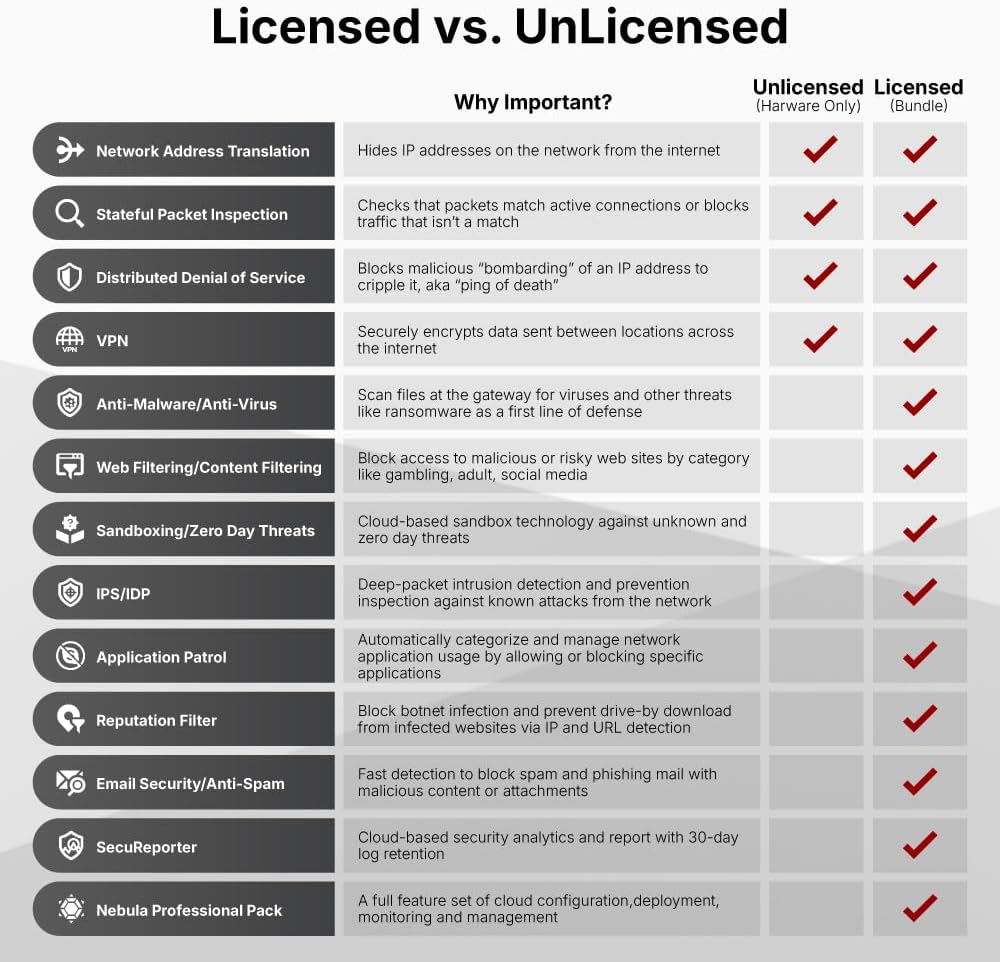
Image 5: Detailed comparison of security features available with and without a license for Zyxel firewalls.
Video 4: "Work smarter, not harder" - This video illustrates the importance of robust network security and how Zyxel solutions protect businesses from cyber threats.
8. Performance Specifications
The Zyxel USGFLEX100HP is engineered for high performance in business environments.
| Feature | Specification |
|---|---|
| SPI Firewall Throughput | 3000 Mbps |
| UTM Throughput (AV+IDP) | 750 Mbps |
| VPN Throughput | 750 Mbps |
| Concurrent Sessions | 300,000 |
| VPN Tunnels | 50 |
| VLANs Supported | 16 |
| Suggested Users | Up to 50 |
| Suggested Internet Speed | Up to 500 Mbps |
| Physical Ports | 7x GbE, 1x GbE PoE+ |
| Item Weight | 4.31 pounds |
| Product Dimensions | 1 x 11.7 x 8 inches |
| Upper Temperature Rating | 40 Degrees Celsius |
Note: Throughput speeds are based on industry-standard max testing with large packet sizes and multiple sessions. Actual speed test results may vary based on application and network conditions.

Image 6: USG FLEX H Product Matrix, providing a detailed comparison of specifications across various models in the series.

Image 7: Comparison between the prior generation USG FLEX 100 and the new generation USG FLEX 100 H/HP, highlighting performance improvements and new features.
9. Troubleshooting
If you encounter issues with your Zyxel USGFLEX100HP, consider the following troubleshooting steps:
- No Power: Ensure the power adapter is securely connected to both the device and a working power outlet. Check the power LED on the front panel.
- No Internet Access: Verify that your modem is working correctly and connected to the designated WAN port. Check the WAN port's LED indicator. Confirm your internet service provider (ISP) connection is active.
- Network Connectivity Issues: Check Ethernet cable connections to LAN ports. Ensure devices are receiving IP addresses from the firewall (if acting as a DHCP server).
- Slow Performance: Review your security policy configurations. High-level security features can impact throughput. Check for excessive network traffic or potential malware.
- Accessing Web Interface: Ensure your computer is on the same network segment as the firewall and that you are using the correct IP address for the management interface.
- Factory Reset: If all else fails, a factory reset can restore the device to its default settings. Refer to the Quick Start Guide for instructions on performing a reset.
10. Maintenance
Regular maintenance ensures optimal performance and security for your Zyxel USGFLEX100HP firewall:
- Firmware Updates: Regularly check for and apply the latest firmware updates from the Zyxel website or through Nebula Cloud. Firmware updates often include security patches and performance enhancements.
- Configuration Backups: Periodically back up your device configuration. This allows for quick restoration in case of unexpected issues or misconfigurations.
- Security Policy Review: Regularly review and update your security policies to adapt to evolving threat landscapes and changing network requirements.
- Physical Inspection: Ensure the device is free from dust and debris, especially around ventilation areas, to prevent overheating.
- Log Monitoring: Monitor system and security logs for unusual activity or potential threats.
11. Warranty and Support
Your Zyxel USGFLEX100HP ZyWALL Firewall comes with a standard manufacturer's warranty. For detailed warranty information, please refer to the warranty card included in your package or visit the official Zyxel website.
For technical support, product documentation, and software downloads, please visit the Zyxel support portal:
- Zyxel Support Portal: www.zyxel.com/support
- Zyxel Nebula Cloud: nebula.zyxel.com
Additional protection plans may be available for extended coverage. Contact your reseller for more information.


