1. Introduction
The Irfora Cube Turner PRO is a versatile wireless intelligent MIDI control pedal designed to enhance your interaction with digital content across various devices. It functions as a page turner, image viewer, and a controller for computer/phone software, effectively replacing certain keyboard functions. This manual provides comprehensive instructions for setup, operation, and maintenance of your device.

Figure 1.1: Irfora Cube Turner PRO Wireless MIDI Control Pedal. This image shows the compact black pedal with two large foot switches and a row of indicator lights at the top, along with the "M-VAVE" branding.
2. Package Contents
Please check the package contents upon unboxing to ensure all items are present:
- 1 x Cube Turner PRO Page Turner Pedal
- 1 x Type-C Charging Cable
- 1 x User Manual (English)
3. Key Features
- Powered by a built-in rechargeable lithium battery, offering up to 48 hours of use on a full charge.
- Equipped with foot control for hands-free operation and wireless Bluetooth (BT) connectivity.
- Suitable for tablets, mobile phones, and computers, enabling page flipping, spectrum flipping, multimedia software control, and replacement of certain keyboard function keys.
- Features 7 distinct operating modes, each indicated by a corresponding light for easy identification.
- Supports multiple intelligent spectrum flipping software, including photos, forScore, OnSong, Foxin PDF, Pak, Image Library, GoodNotes, Mobile Sheets, SongBook, UnrealBook, Paperless Music, and plaScore.

Figure 3.1: Overview of the 7 Operating Modes. This image illustrates the pedal with callouts explaining each of the seven modes and their corresponding indicator lights, detailing their functions such as replacing keyboard keys or controlling media.

Figure 3.2: Device Compatibility. This image shows the pedal compatible with iOS, Android, Mac, Windows, iPad, and iPhone devices, indicating broad support for various operating systems and form factors.

Figure 3.3: Application in Live Performances. This image depicts the Cube Turner PRO being used in an orchestra setting, highlighting its utility for musicians to control music scores hands-free during live performances.
4. Setup and Connection
4.1. Charging the Device
Connect the provided Type-C charging cable to the pedal and a compatible 5V±10% power transformer. Ensure the power transformer meets the specified voltage requirements to prevent damage to the device.
4.2. Wireless BT Connection (Mobile Phone/Tablet)
- Turn on the Cube Turner PRO pedal.
- On your mobile phone or tablet, navigate to the Bluetooth settings.
- Search for available devices and select the "music page flipper" to pair.
- Upon successful connection, one of the seven indicator lights on the left side of the pedal will remain permanently lit.
- You can then select the first mode to flip left and right, open your photo album, or other applications to view pictures or turn pages.

Figure 4.1: Connecting to a Mobile Phone. This diagram illustrates the steps for pairing the pedal with a mobile phone via Bluetooth, showing the device discovery and connection process.
4.3. Wired Connection (Windows System)
For use with a Windows computer, connect the Cube Turner PRO to your computer using the provided USB Type-C charging cable. Once connected, the pedal can send different signals to the computer based on the selected operating mode.

Figure 4.2: Connecting to a Windows System. This image shows the pedal connected to a laptop via a USB cable, demonstrating its wired connectivity for computer use.
5. Operating Instructions
5.1. Mode Selection
Tap the central button on the pedal to cycle through the 7 operating modes. Each mode has a corresponding indicator light. Refer to Figure 3.1 for a detailed explanation of each mode's function.
5.2. Continuous Sending Function
The Cube Turner PRO supports a 'Continuous Sending' function. If the far-right indicator light is illuminated, this function is enabled. When you hold down either the left or right footswitch, the product will continuously send signals until the footswitch is released. This is particularly useful for rapid scrolling or continuous input.

Figure 5.1: Continuous Sending Feature. This image highlights the indicator light for the 'Continuous Sending' function and explains how holding down a footswitch enables continuous signal transmission.
5.3. TRS Instantaneous Switch Usage
When the power switch is in the OFF position, you can connect the Cube Turner PRO to other products using a stereo or mono 1/4" (6.5mm) cable. In this configuration, the TURNER can send a "Momentary Switch" signal, allowing it to act as an external foot switch for compatible devices.
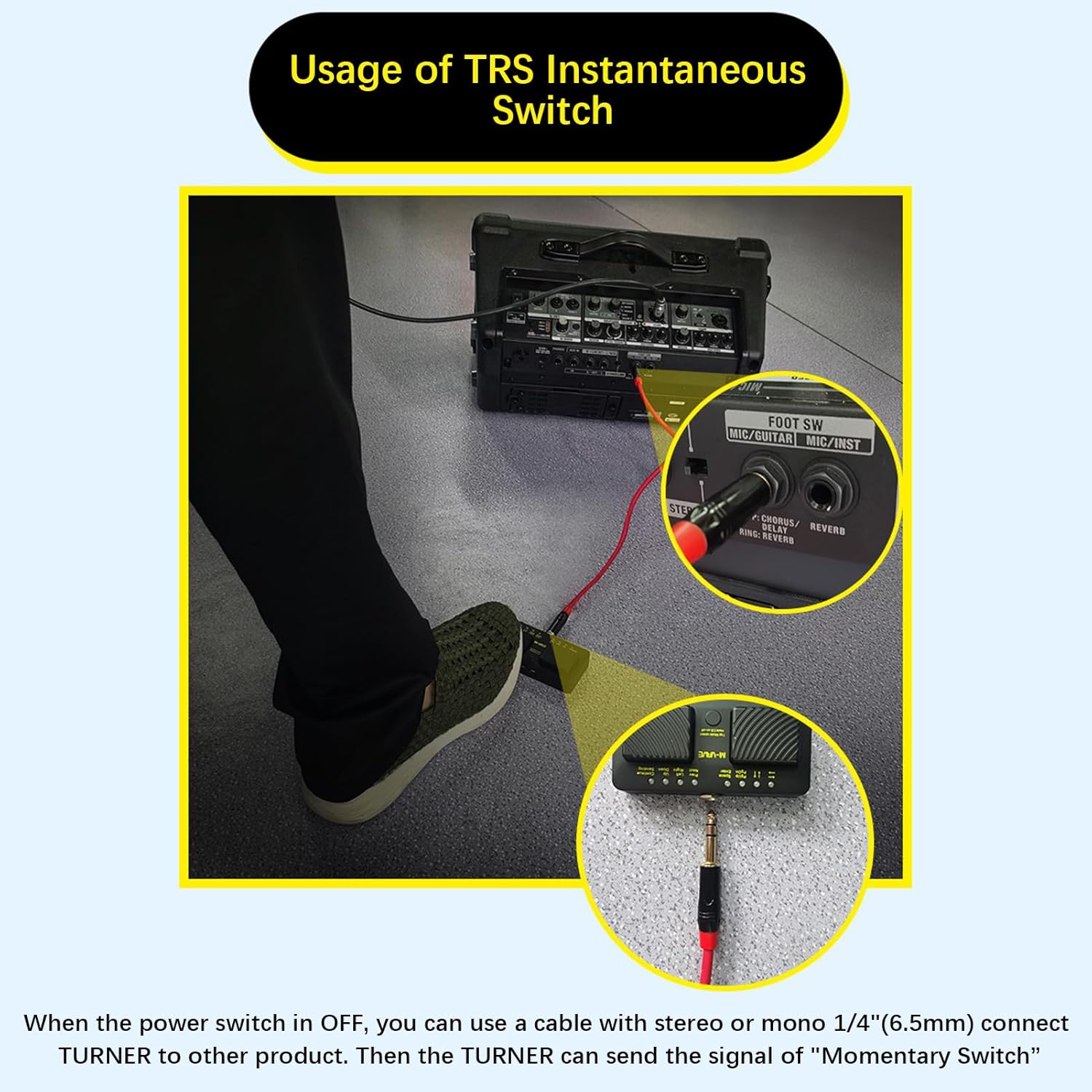
Figure 5.2: TRS Instantaneous Switch Connection. This image demonstrates connecting the pedal via a 1/4" TRS cable to another audio device, illustrating its use as a momentary switch when powered off.
5.4. Finger Sliding Simulation Algorithm (Android Systems)
Modes 6 and 7 are designed to simulate finger swiping gestures on Android systems. This allows you to swipe left and right or up and down on your Android phone using the pedal, providing a hands-free navigation experience.

Figure 5.3: Finger Sliding Simulation. This image visually explains how the pedal's modes 6 and 7 can simulate finger swipes on Android devices, enabling hands-free navigation.
6. Maintenance and Care
- Keep the device clean by wiping it with a soft, dry cloth. Avoid using harsh chemicals or abrasive cleaners.
- Store the pedal in a cool, dry place away from direct sunlight and extreme temperatures.
- Ensure the turner pedal is charged with the correct 5V±10% power transformer. Using an incorrect power supply may damage the device.
- Try to keep the device away from sources of large electromagnetic waves, such as radios and televisions, to prevent interference.
7. Troubleshooting
7.1. Device Not Powering On
- Check if the battery is charged. Connect the device to a power source using the Type-C cable.
- Ensure the power switch is in the ON position.
7.2. Unable to Connect via Bluetooth
- Ensure the pedal is turned on and in pairing mode (if applicable, though the manual implies it's always discoverable when on).
- Make sure Bluetooth is enabled on your mobile phone or tablet.
- Try restarting both the pedal and your device.
- Ensure the pedal is not already connected to another device.
- Move closer to the device you are trying to pair with.
7.3. Functions Not Responding
- Verify that the correct operating mode is selected for your intended function.
- For wired connections, ensure the USB cable is securely connected to both the pedal and the computer.
- Check the application you are using to ensure it supports external MIDI or keyboard inputs.
8. Specifications
| Parameter | Value |
|---|---|
| Material | ABS |
| Power Supply | 5V±10% power transformer charging |
| Working Voltage | <6V |
| TRS Output Interface | 2 instantaneous step pin switches |
| Battery Capacity | 300mA |
| Item Size (L*W*H) | 110 * 53 * 28mm / 4.33 * 4.92 * 1.10in |
| Item Weight | 79g / 2.81oz |
| Connectivity Technology | USB, Bluetooth |
9. Warranty and Support
For warranty information and technical support, please refer to the documentation provided at the point of purchase or contact Irfora customer service. Specific warranty terms may vary by region and retailer.


