1. Introduction
Thank you for choosing the DreamSky AM FM Shortwave Portable Radio, Model DS6226. This manual provides essential information for the safe and efficient operation of your radio. Please read it thoroughly before use and retain it for future reference.
1.1 Key Features
- Large speaker for clear, loud sound.
- Strong reception across AM, FM, and SW bands with a long transistor antenna.
- High and low tone selection for varied audio enjoyment.
- Large, smooth analog dials for easy tuning and volume control.
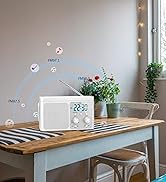
- Digital LCD display with backlight showing time and station frequency.
- 12-hour and 24-hour time format options.
- Dual power sources: AC adapter (included) or 4 AA batteries (not included).
- 3.5mm earphone jack for private listening.
1.2 What's in the Box
- DreamSky AM FM Shortwave Radio (Model DS6226)
- AC Adapter (110-120V)
- User Manual

2. Setup Instructions
2.1 Powering the Radio
Your DreamSky radio can be powered by either the included AC adapter or four AA batteries.
- AC Power: Connect the provided AC adapter to the DC IN jack on the radio and plug the adapter into a standard 110-120V wall outlet.
- Battery Power: Open the battery compartment on the back of the radio. Insert four (4) AA alkaline batteries (not included), ensuring correct polarity (+/-). Close the battery compartment securely.
When using AC power, batteries are automatically bypassed. Remove batteries if the radio will not be used for an extended period to prevent leakage.

3. Operating Instructions
3.1 Power On/Off and Volume Control
Rotate the VOLUME knob clockwise to turn the radio ON and increase the volume. Rotate counter-clockwise to decrease volume and turn OFF the radio.
3.2 Tuning to Stations
- Extend the telescopic antenna for optimal FM and SW reception. For AM reception, the internal antenna is generally sufficient, but rotating the radio may improve signal.
- Select the desired band (AM, FM, or SW) using the AM/FM/SW switch.
- Rotate the TUNING knob to scan for stations. The digital display will show the frequency.
- Adjust the TUNING knob until the desired station is clearly received.

3.3 Tone Control
Use the TONE switch to select between 'LOW' and 'HIGH' audio tones, adjusting the sound output to your preference.

3.4 Digital Time Display and Backlight
The radio features a digital LCD display that shows the current time and selected radio frequency. The screen backlight activates for clear visibility in low-light conditions.
- Setting Time: Press and hold the TIME SET button. Use the '+' and '-' buttons to adjust the hour and minute. Press TIME SET again to confirm.
- 12/24 Hour Format: Briefly press the TIME SET button to toggle between 12-hour (AM/PM) and 24-hour (military) time formats.


3.5 Using Headphones
For private listening, plug any standard 3.5mm stereo headphones (not included) into the EARPHONE jack located on the side of the radio. The internal speaker will automatically mute when headphones are connected.

4. Maintenance
- Cleaning: Wipe the radio with a soft, dry cloth. Do not use abrasive cleaners or solvents.
- Battery Care: Remove batteries if the radio is not used for extended periods to prevent corrosion.
- Storage: Store the radio in a cool, dry place away from direct sunlight and extreme temperatures.
- Antenna Care: Handle the telescopic antenna gently to avoid bending or breaking.
5. Troubleshooting
| Problem | Possible Cause | Solution |
|---|---|---|
| No power | Batteries are dead or incorrectly inserted; AC adapter not properly connected. | Replace batteries, check polarity; ensure AC adapter is securely plugged in. |
| Poor reception/Static | Antenna not extended; weak signal; interference from other electronics. | Extend antenna fully; reposition radio; move away from other electronic devices. |
| No sound | Volume too low; headphones connected; radio not tuned to a station. | Increase volume; disconnect headphones; tune to an active station. |
| Digital display not working | Power issue; internal fault. | Check power source; if problem persists, contact customer support. |
6. Specifications
- Model Number: DS6226
- Product Dimensions: 7.8 x 2.15 x 4.45 inches (L x W x H)
- Item Weight: 1.92 pounds
- Connectivity Technology: AM, FM, SW
- Power Source: AC Adapter (110-120V) or 4 x AA Batteries (not included)
- Special Features: Large speaker, strong reception, large analog dial, digital LCD display with backlight, headphone jack, 12/24Hr time display.

7. Warranty and Support
DreamSky products are designed for reliability and performance. For warranty information or technical support, please refer to the contact details provided on the product packaging or visit the official DreamSky website. Please have your model number (DS6226) and purchase information ready when contacting support.


