
1. Introduction
Thank you for purchasing the Actualia X39 PRO Handheld Game Console. This manual provides essential information for setting up, operating, and maintaining your device. Please read it thoroughly before use to ensure optimal performance and longevity of your console.
What's in the Box
- X39 PRO Game Console (1)
- USB Cable (1)
- User Manual (1)
2. Product Overview
The X39 PRO is a portable gaming device featuring a Linux operating system, designed for an immersive retro gaming experience. It comes pre-loaded with a vast library of games and supports various multimedia functions.
Key Features
- Display: 4.5-inch IPS HD full-fit screen with 854 x 480 resolution.
- Processor: ATM7051 quad-core ARM Cortex-A9 CPU clocked at 900 MHz.
- Memory: LPDDR2 128M RAM.
- Storage: 64GB TF card pre-installed with over 5600 games, expandable up to 64GB.
- Connectivity: 2 USB controller interfaces, HDMI output interface, 3.5mm stereo headphone jack.
- Battery: 3000mAh rechargeable battery.
- Multimedia: Supports lossless music (MP3 full format audio) and video (MP4 format).
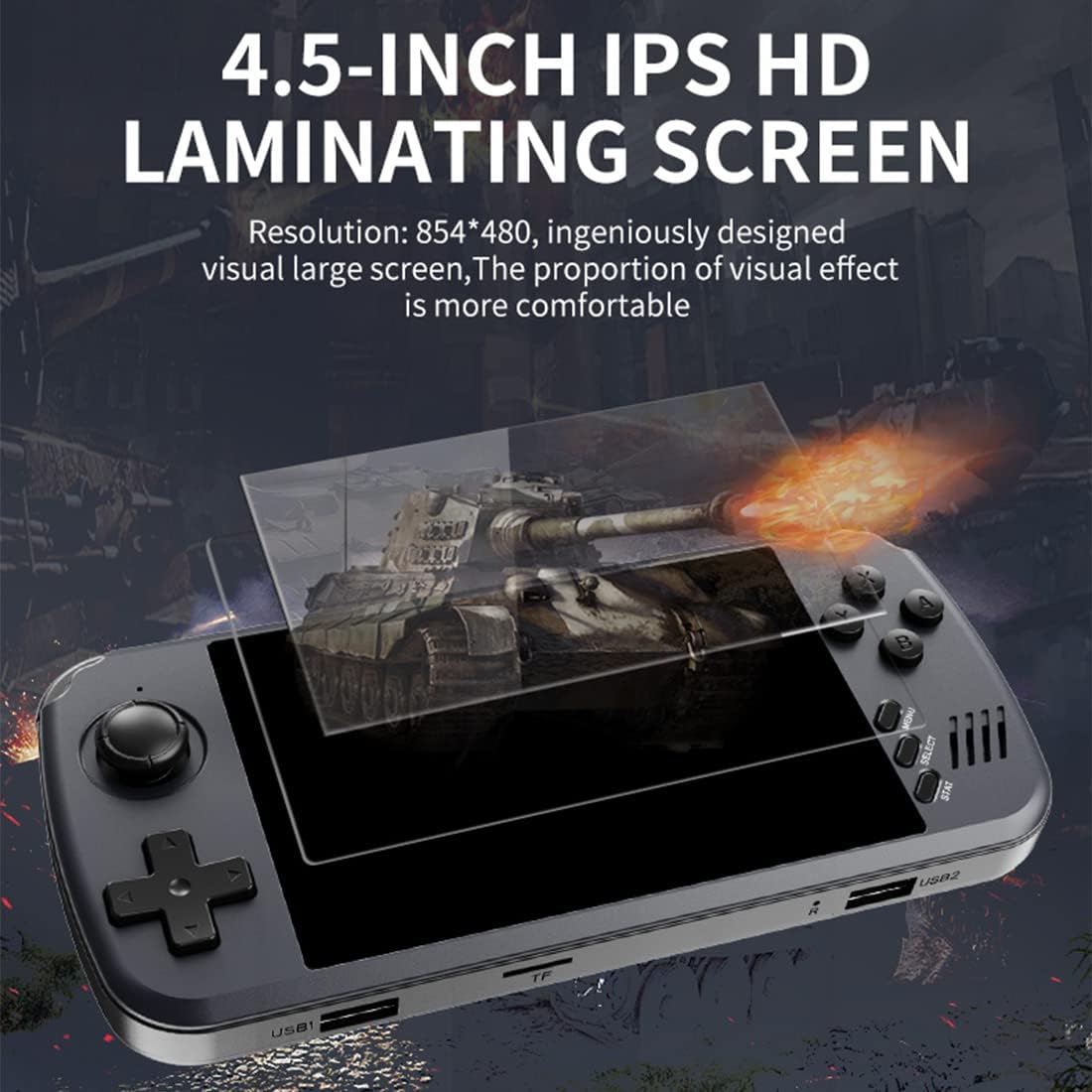
The X39 PRO features a 4.5-inch IPS HD screen, providing clear visuals for an enhanced gaming experience.
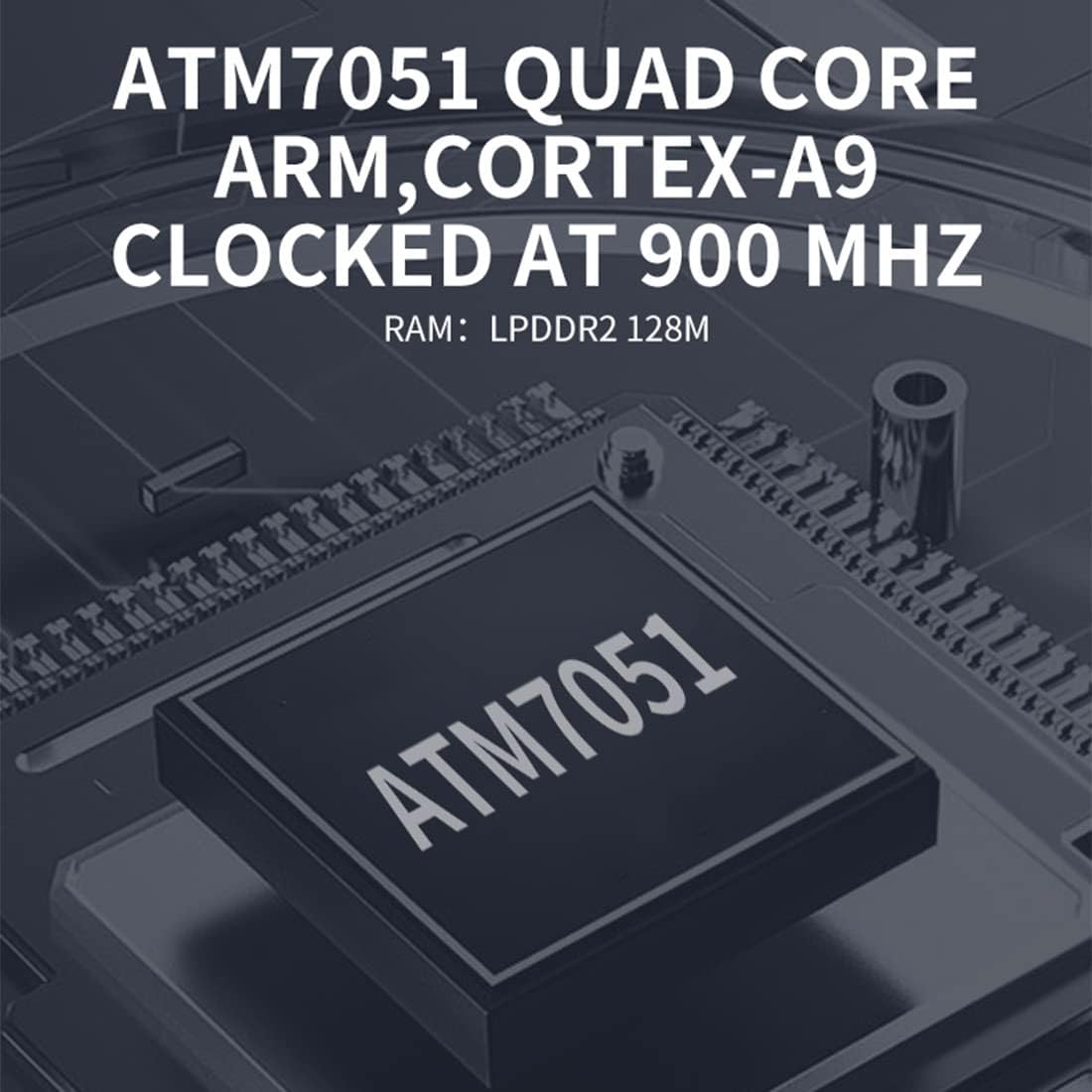
Powered by the ATM7051 quad-core ARM Cortex-A9 processor for smooth game performance.
3. Setup
3.1 Charging the Console
Before first use, fully charge the console. Connect the included USB cable to the console's charging port and to a compatible USB power adapter (not included) or a computer's USB port. The charging indicator will illuminate during charging and turn off when fully charged.
3.2 Inserting the TF Card
The console comes with a 64GB TF card pre-installed. If you need to replace or upgrade the TF card (up to 64GB), gently insert it into the TF card slot until it clicks into place. Ensure the console is powered off before inserting or removing the TF card.
3.3 Powering On/Off
- To Power On: Press and hold the Power button for a few seconds until the screen illuminates.
- To Power Off: Press and hold the Power button until a power-off option appears on the screen, then select to shut down. Alternatively, a quick press may put it into sleep mode.
4. Operating Instructions
4.1 Basic Navigation
Use the directional pad (D-pad) and analog stick for menu navigation. The A, B, X, Y buttons, along with START and SELECT, are used for game control and menu selections as indicated on-screen.

Customize button settings for optimal gameplay experience.
4.2 Playing Games
The console comes with over 5600 pre-installed games. Navigate through the game library to select your desired game. The system supports various mainstream emulators, allowing you to add compatible game ROMs to the TF card.
4.3 Saving and Loading Game Progress
The X39 PRO allows you to save and load game progress. During gameplay, access the system menu (usually by pressing a designated button like SELECT + START simultaneously or a dedicated MENU button) to find options for saving your current game state or loading a previously saved one. You can also mark games as favorites, search for specific titles, and view recently played games.

Manage your game progress with save, load, and favorite options.
4.4 Connecting External Controllers
The console supports wired connections for up to two external gamepads (not included) via its USB controller interfaces. This allows for two-player gaming on the console itself.

Connect two external gamepads for a shared gaming experience.
4.5 Connecting to a TV via HDMI
You can connect the X39 PRO to a larger display, such as a TV, monitor, or projector, using an HDMI cable (not included). Connect one end of the HDMI cable to the console's HDMI output interface and the other end to your display's HDMI input. Switch your display's input source to the corresponding HDMI port to view the console's output.

Enjoy your games on a larger screen by connecting via HDMI.
4.6 Multimedia Functions
Beyond gaming, the X39 PRO supports music and video playback. You can play MP3 audio files and MP4 video files. Connect 3.5mm stereo headphones for a private audio experience.

The console supports music and video playback, and features a 3.5mm headphone jack.
5. Maintenance
- Cleaning: Use a soft, dry cloth to clean the console's exterior. Avoid using liquid cleaners or abrasive materials.
- Battery Care: To prolong battery life, avoid fully discharging the battery frequently. Charge the console regularly, even if not in use for extended periods. Store in a cool, dry place.
- Storage: When not in use, store the console in a protective case to prevent scratches and damage.
- Environmental Conditions: Avoid exposing the console to extreme temperatures, direct sunlight, or high humidity.
6. Troubleshooting
Console Does Not Power On
- Ensure the battery is charged. Connect the console to a power source and allow it to charge for at least 30 minutes before attempting to power on again.
- Press and hold the Power button for a longer duration (5-10 seconds).
Games Are Not Loading or Running Slowly
- Check if the TF card is properly inserted.
- Ensure the game files are compatible with the console's emulators.
- Restart the console.
No Display on TV via HDMI
- Verify that the HDMI cable is securely connected to both the console and the TV.
- Ensure your TV's input source is set to the correct HDMI port.
- Try a different HDMI cable if available.
External Gamepads Not Responding
- Ensure gamepads are securely connected to the USB ports.
- Verify that the game you are playing supports external controllers.
- Try restarting the console with the gamepads connected.
7. Specifications
| CPU | ATM7051 quad-core ARM Cortex-A9 900 MHz |
| RAM | LPDDR2 128M |
| Display | 4.5-inch IPS HD full-fit screen, 854 x 480 resolution |
| Storage | 64GB TF Card (expandable up to 64GB) |
| Battery | 3000mAh Lithium Battery (approx. 5 hours life) |
| Interfaces | 2 USB controller interfaces, HDMI output, 3.5mm headphone jack |
| Material | Plastic + Electronic Components |
| Product Dimensions | 17 x 7.2 x 1.8 cm (6.69 x 2.83 x 0.7 inches) |
| Product Weight | 350g (1.1 pounds) |
| Language | English |
8. Warranty and Support
The Actualia X39 PRO Handheld Game Console comes with a standard manufacturer's warranty. Please refer to the product packaging or the retailer's website for specific warranty terms and conditions. For technical support or further inquiries, please contact Actualia customer service through the official brand store or your point of purchase.
Visit the Actualia Store for more information.