1. Introduction
The Hugolog 3K 5MP Indoor Pan/Tilt Security Camera is designed to provide comprehensive indoor surveillance for your home, ideal for monitoring babies, pets, or general home security. It features advanced capabilities such as 3K 5MP resolution, Starlight Color Night Vision, AI-powered human and pet detection, two-way audio, and smart motion tracking.

Image: The Hugolog 3K 5MP Indoor Pan/Tilt Security Camera shown alongside its mobile application interface, demonstrating live view and control options.
2. Safety Information
- Ensure the camera is powered by the original power adapter provided.
- Do not expose the camera to extreme temperatures, humidity, or direct sunlight.
- Avoid placing the camera near strong magnetic fields.
- Keep the camera out of reach of children and pets.
- Do not attempt to disassemble or modify the camera.
- For indoor use only.
3. Package Contents
Please check that all items are present in your package:
- Hugolog 3K 5MP Indoor Pan/Tilt Security Camera
- Power Adapter
- USB Cable
- Mounting Bracket
- Screws and Wall Plugs
- User Manual (this document)
4. Product Diagram
Familiarize yourself with the components of your Hugolog camera:
| Component | Description |
|---|---|
| Camera Lens | Captures video footage. |
| Status Indicator Light | Indicates camera status (e.g., connected, recording). |
| Microphone | Captures audio for two-way talk and sound detection. |
| Speaker | Outputs audio for two-way talk and alerts. |
| MicroSD Card Slot | For local video storage (supports up to 128GB, card not included). |
| Reset Button | Used to reset the camera to factory settings. |
| Power Port | Connects to the power adapter. |
5. Setup
5.1 Powering On
Connect the camera to a power outlet using the provided power adapter and USB cable. The camera will power on automatically, and the status indicator light will begin to flash, indicating it is ready for setup.
5.2 App Download and Account Creation
- Download the Hugolog app from your smartphone's app store (iOS App Store or Google Play Store).
- Open the app and create a new account, or log in if you already have one.
5.3 Connecting to Wi-Fi
- In the Hugolog app, tap the '+' icon to add a new device.
- Select your camera model from the list.
- Follow the on-screen instructions to connect the camera to your 2.4GHz Wi-Fi network. Ensure your Wi-Fi password is correct.
- The camera will confirm successful connection, and the status indicator light will turn solid blue.
5.4 Mounting Options
The camera can be placed on a flat surface or mounted to a wall or ceiling using the included mounting bracket.
- Tabletop Placement: Simply place the camera on a stable, flat surface in your desired monitoring area.
- Wall/Ceiling Mounting:
- Attach the mounting bracket to the wall or ceiling using the provided screws and wall plugs.
- Securely attach the camera to the mounting bracket.
- In the app settings, enable 'Image Rotation' if mounting upside down to ensure correct video orientation.
6. Operating the Camera
6.1 Live View
Open the Hugolog app and select your camera to access the live video feed. You can view the area in real-time.

Image: A smartphone screen showing the live view from the Hugolog camera, monitoring a pet.

Image: Multiple devices (laptop, desktop, tablet, smartphone) simultaneously displaying live streams from Hugolog cameras, illustrating multi-device support.
6.2 Pan, Tilt, and Zoom Control
Use the directional controls within the app to remotely pan (355° horizontally) and tilt (90° vertically) the camera lens to adjust the viewing angle. The camera also supports digital zoom up to 3X for closer inspection of details.
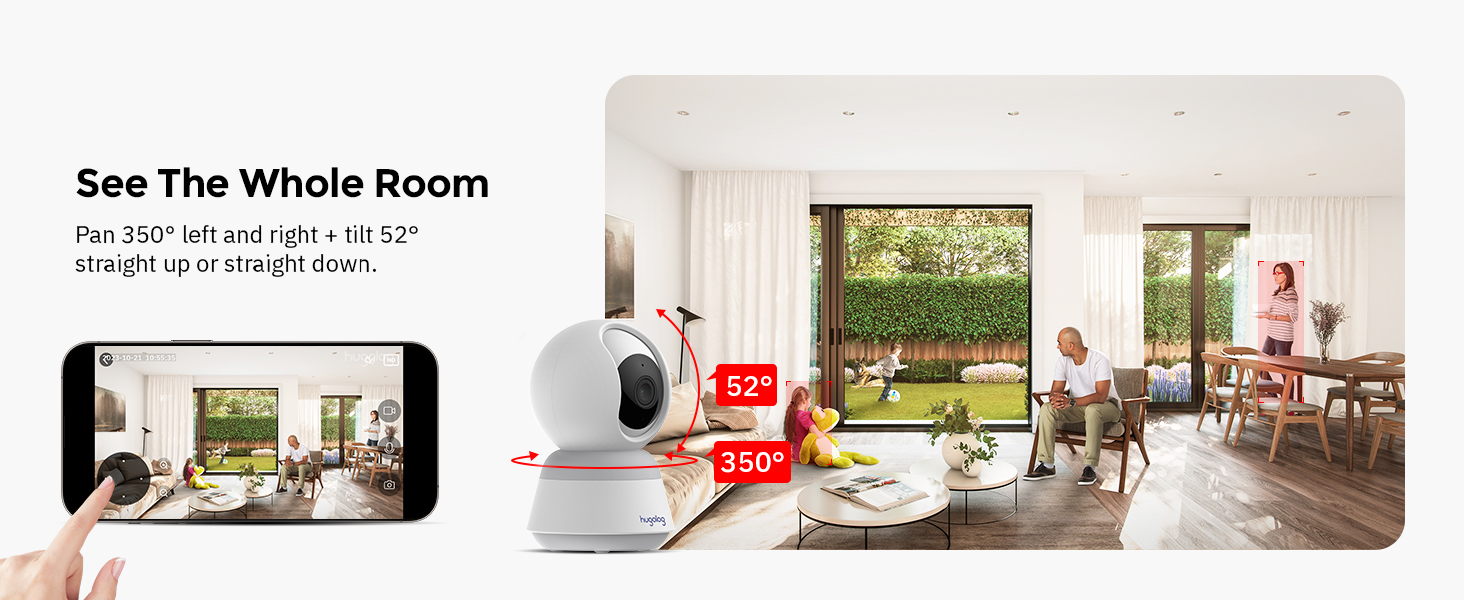
Image: A visual representation of the camera's 355-degree pan and 52-degree tilt capabilities, showing its wide coverage.
6.3 Two-Way Audio
Tap the microphone icon in the app to speak through the camera's speaker. This allows for real-time communication with individuals near the camera. The camera features noise cancellation for clear audio.

Image: A child and a dog at a table, with a speech bubble indicating two-way audio communication via the camera.
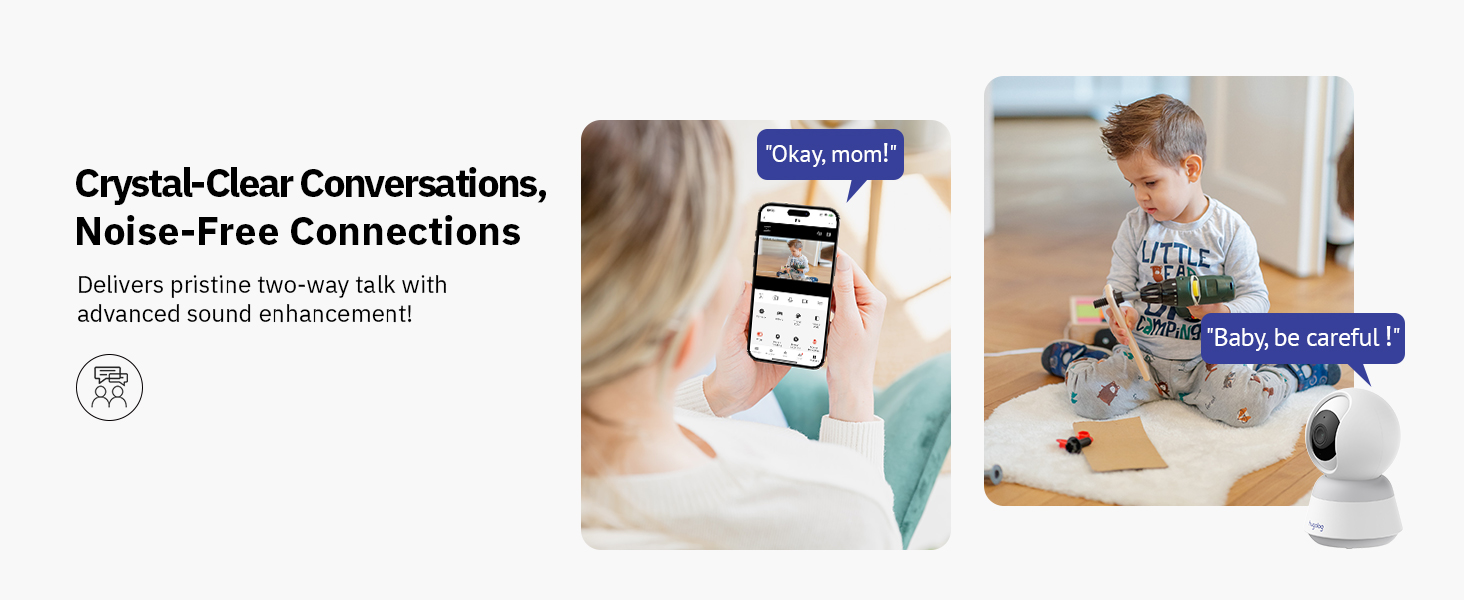
Image: A person interacting with a child and a camera via two-way audio, highlighting clear conversations and noise-free connections.
6.4 Motion Detection & Alerts
The camera utilizes advanced AI to detect human and pet movement, reducing false alarms. When motion is detected, the camera records the event and sends instant notifications to your smartphone.

Image: A child on a toy motorcycle and a dog, with overlays indicating the camera's ability to track persons and pets.

Image: A scene with a child and a cat, demonstrating the camera's AI detection capabilities for human and pet movement, with on-screen notifications.
6.5 Sound Detection
The camera is equipped with sound detection, alerting you to significant audio events such as a crying baby. Notifications are sent to your device when sound is detected.

Image: A crying baby in a crib, with a smartphone notification indicating that the smart camera has detected sound.

Image: A crying child sitting on the floor, with a smartphone notification showing that sound has been detected by the camera.
6.6 Night Vision
The camera features Starlight Color Night Vision, providing clear, full-color video even in low-light conditions, superior to traditional infrared night vision.

Image: A split image showing a baby sleeping, comparing the clear color view of Starlight Night Vision on one side with a standard black and white night vision on the other.

Image: A comparison demonstrating the clarity and color retention of Hugolog's Starlight Color Night Vision versus other IR night vision in low-light conditions.
6.7 Recording & Playback
The camera supports both local storage via a microSD card (up to 128GB, not included) and encrypted US cloud storage. You can review recorded footage through the app's playback feature, with smart event filters for easy navigation.

Image: A close-up of the camera's microSD card slot and illustrations representing 24/7 video recording and 30 days of free cloud storage trial.

Image: The Hugolog app's playback interface, showing a timeline and smart event filters for easily reviewing recorded moments.
6.8 Sharing Access
You can share live view access with up to 20 users, allowing multiple family members to monitor the camera simultaneously.

Image: A collage showing multiple camera feeds on a large monitor and various users accessing the camera feed on their smartphones, illustrating multi-user and multi-camera live view capabilities.

Image: A smartphone displaying a live camera feed, surrounded by circular images of various family members, indicating the ability to share camera access.
6.9 Works with Alexa
Integrate your Hugolog camera with Amazon Alexa for convenient voice control and live view on compatible smart displays.
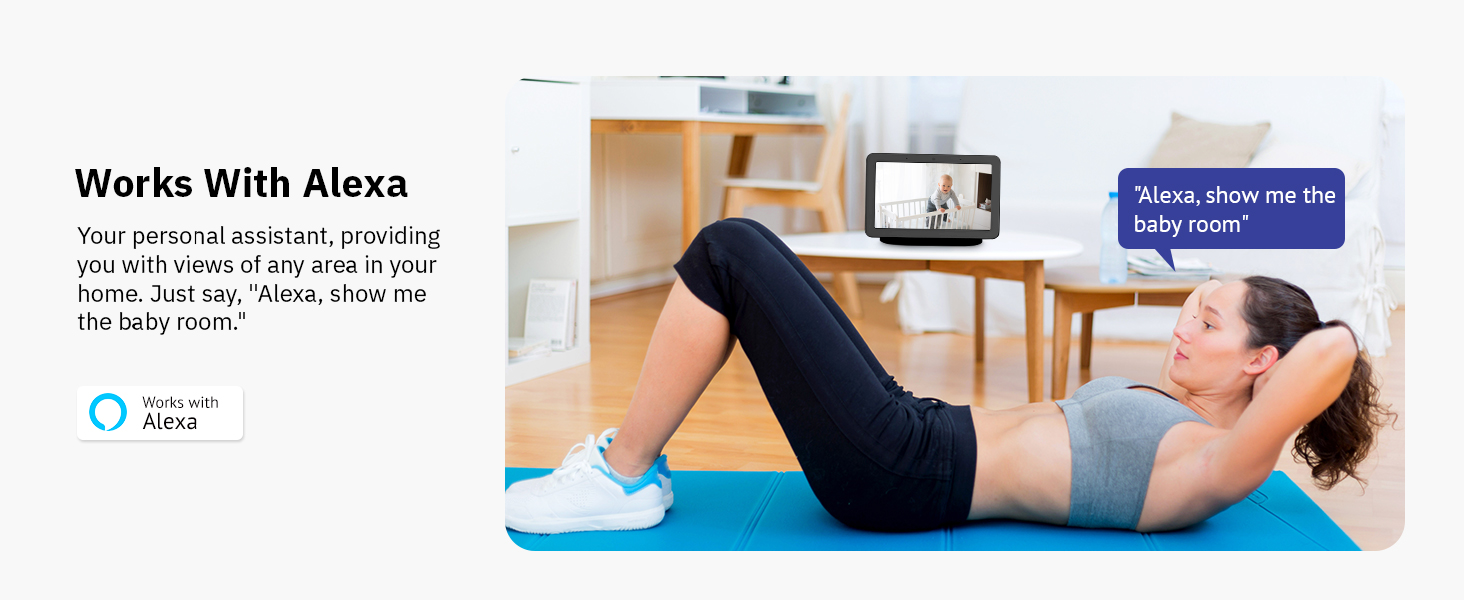
Image: A woman exercising, with an Amazon Echo Show displaying a live camera feed of a baby, demonstrating integration with Alexa for voice commands like "Alexa, show me the baby room."
6.10 Sleep Mode
Utilize the Sleep Mode feature in the Hugolog App to set specific periods when the camera is inactive, or manually rotate the camera lens down for privacy when monitoring is not needed.

Image: A woman sleeping in bed, with a smartphone displaying the Hugolog app in 'Sleep Mode', indicating the camera can be set to inactive periods for privacy.
7. Maintenance
7.1 Cleaning
Gently wipe the camera lens and body with a soft, dry cloth. Do not use liquid cleaners or abrasive materials.
7.2 Firmware Updates
Periodically check the Hugolog app for available firmware updates. Keeping your camera's firmware up-to-date ensures optimal performance and access to new features.
7.3 Storage Management
If using a microSD card, regularly back up important footage and format the card to maintain performance. For cloud storage, manage your subscription and review storage limits within the app.
8. Troubleshooting
| Problem | Possible Solution |
|---|---|
| Camera offline | Check power connection. Ensure Wi-Fi signal is strong. Restart camera and router. |
| Cannot connect to Wi-Fi | Ensure you are connecting to a 2.4GHz network. Verify Wi-Fi password. Move camera closer to router. Reset camera and try again. |
| No motion detection alerts | Check motion detection settings in the app. Ensure notifications are enabled on your phone. Adjust sensitivity. |
| Poor video quality | Ensure camera lens is clean. Check network speed. Adjust video resolution settings in the app. |
| Two-way audio issues | Check microphone and speaker permissions for the app. Ensure volume is up on your device. Reduce background noise. |
| MicroSD card not recording | Ensure card is inserted correctly. Format the card in the app. Check card capacity and health. |
9. Specifications
| Feature | Detail |
|---|---|
| Model Number | HU-PWR6P-W |
| Video Resolution | 3K (5MP Effective Still Resolution) |
| Pan/Tilt Range | 355° Pan, 90° Tilt |
| Night Vision | Starlight Color Night Vision (up to 50 feet) |
| Connectivity | Wi-Fi (2.4GHz only) |
| Storage Options | MicroSD Card (up to 128GB), Cloud Storage |
| Two-Way Audio | Yes, with Noise Cancellation |
| Motion Detection | AI Human/Pet Detection, Auto-Tracking |
| Sound Detection | Yes |
| Compatible Devices | Amazon Alexa |
| Power Source | Corded Electric (5 watts) |
| Dimensions (L x W x H) | 3.74 x 3.74 x 6.99 inches |
| Item Weight | 13.4 ounces |
| UPC | 192728013957 |
10. Warranty and Support
10.1 Warranty Information
Your Hugolog camera comes with a limited warranty. Please refer to the warranty card included in your package or visit the official Hugolog website for detailed warranty terms and conditions.
10.2 Customer Support
For technical assistance, troubleshooting, or any product-related inquiries, please contact Hugolog Customer Support:
- Visit the Hugolog Store on Amazon: Hugolog Store
- Refer to the official Hugolog website for contact details.


