1. Introduction
The RadioShack FT C10U Multimedia Bluetooth Speaker is the perfect combination of design, functionality, and sound quality. Designed to offer an immersive audio experience, this speaker features adjustable bass and a master volume that enhances every note, bringing your music to life.
Thanks to its versatile connectivity, you can play your favorite music from multiple sources, including Bluetooth, USB, SD, and auxiliary cable. This makes it an ideal choice for any occasion, from a family gathering to a karaoke night with friends.
The included remote control adds an unparalleled level of convenience, allowing you to manage all essential functions from a distance. Change tracks, adjust volume, or configure sound without having to approach the speakers. Manufactured with high-quality materials such as ABS, HIPS, PVC, and iron, this speaker not only ensures durability but also an elegant design that adapts to any space. Its solid construction ensures superior and reliable audio performance. Additionally, its compact and lightweight design makes it easy to transport, so you can enjoy your music wherever you go. With practical adjustment buttons and powerful sound, this speaker is the perfect companion for any music lover.
2. Product Features
- Exceptional and Immersive Sound: Enjoy a unique auditory experience with adjustable bass and master volume for personalized sound.
- Versatile Connectivity: Compatible with Bluetooth, USB, SD, and auxiliary cable for music playback from multiple devices.
- Convenient Remote Control: Adjust volume, change tracks, and configure sound from a distance.
- Durable and Elegant Construction: Made with high-quality ABS, HIPS, PVC, and iron for resistance and modern design.
- Portability and Ease of Use: Compact and lightweight design, perfect for transport, with physical volume adjustment keys for easy handling.
3. Package Contents
Please check the package carefully to ensure all items are present and in good condition.
- 1 x RadioShack Multimedia Bluetooth Speaker System (1 Subwoofer, 2 Satellite Speakers)
- 1 x Remote Control
- 1 x Power Cable
- 1 x AUX/USB Cable
- 1 x User Manual (this document)
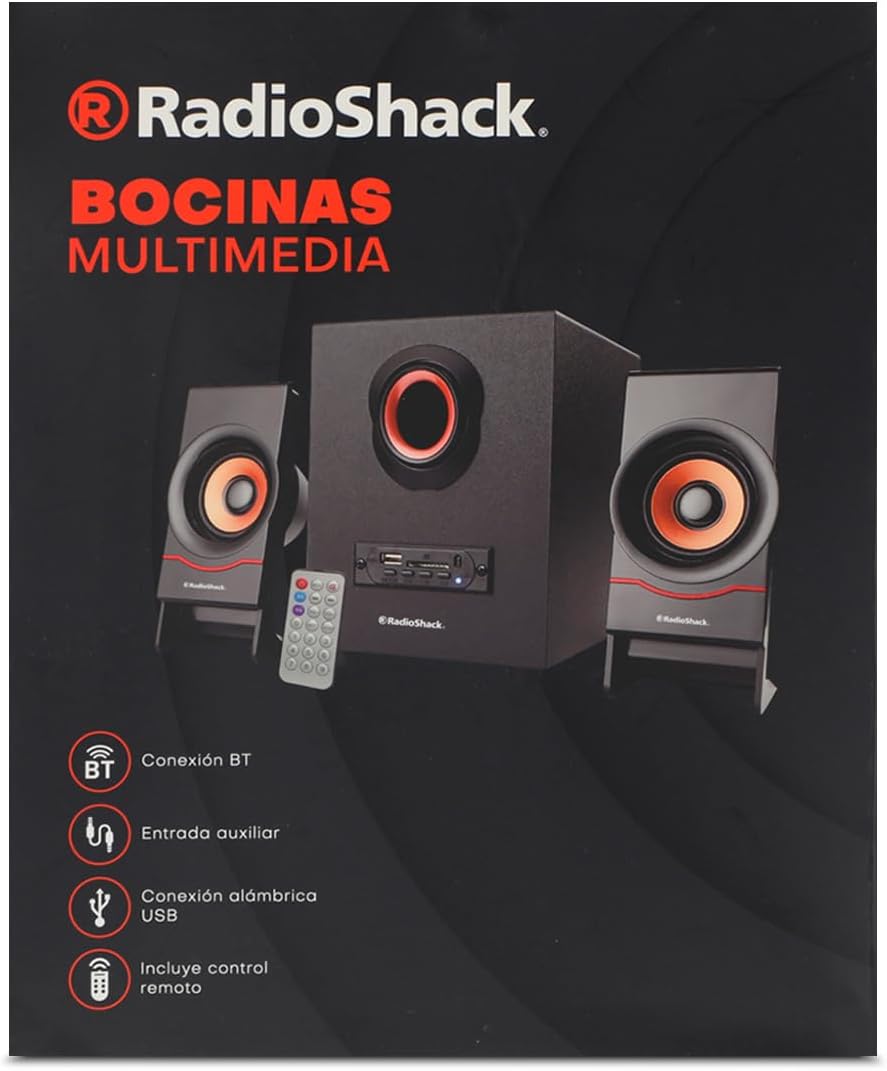
Image: The product packaging box, showing the speaker system, remote, and connectivity icons.
4. Product Overview

Image: The complete speaker system, including the central subwoofer, two satellite speakers, and the remote control.

Image: Front panel of the subwoofer, showing the USB port, SD card slot, and various control buttons.

Image: Side view of the subwoofer, highlighting the control panel with input ports.

Image: Front view of the two compact satellite speakers, each with a single driver.

Image: The included AUX and USB cable, used for wired audio input and potentially power or data transfer.
5. Setup Guide
- Unpack the System: Carefully remove all components from the packaging. Place the subwoofer on a stable, flat surface.
- Connect Satellite Speakers: Plug the audio cables from the two satellite speakers into the corresponding output jacks on the back of the subwoofer. Ensure a secure connection.
- Connect Power: Insert the power cable into the power input port on the subwoofer, then plug the other end into a standard electrical outlet (AC 100-240V, 50/60Hz).
- Power On: Press the power button on the front panel of the subwoofer or on the remote control to turn on the speaker system. The LED indicator will light up.
6. Operating Instructions
6.1. Power On/Off
Press the POWER button on the front panel of the subwoofer or the POWER button on the remote control to turn the unit on or off.
6.2. Mode Selection
Press the MODE button on the front panel or the remote control to cycle through available input modes: Bluetooth (BT), USB, SD, and AUX.
6.3. Bluetooth Connection
- Turn on the speaker and select Bluetooth mode using the MODE button. The speaker will emit a pairing tone, and the Bluetooth indicator will flash.
- Enable Bluetooth on your device (smartphone, tablet, laptop).
- Search for "RadioShack FT C10U" or similar in your device's Bluetooth list.
- Select the speaker to pair. Once connected, the speaker will emit a confirmation tone, and the Bluetooth indicator will stop flashing and remain solid.
- You can now play audio from your device through the speaker.
6.4. USB/SD Playback
- Insert a USB flash drive or SD card (with MP3/WMA audio files) into the corresponding slot on the subwoofer's front panel.
- The speaker will automatically switch to USB or SD mode and begin playing the first compatible audio file. If not, press the MODE button to select the correct input.
- Use the PLAY/PAUSE, PREVIOUS, and NEXT buttons on the speaker or remote to control playback.
6.5. AUX Connection
- Connect one end of the included AUX cable (3.5mm jack) to the AUX input port on the subwoofer.
- Connect the other end of the AUX cable to the headphone jack or audio output of your external device (e.g., MP3 player, computer).
- Press the MODE button to select AUX input.
- Control playback and volume from your external device.
6.6. Remote Control Functions
The remote control provides convenient access to all speaker functions:
- Power Button: Turns the speaker on/off.
- Mode Button: Switches between Bluetooth, USB, SD, and AUX modes.
- Play/Pause Button: Plays or pauses audio playback.
- Previous/Next Buttons: Skips to the previous or next track.
- Volume Up/Down Buttons: Adjusts the master volume.
- EQ Button: Cycles through equalizer presets (if available).
- Number Buttons (0-9): For direct track selection on USB/SD (if supported).
- RPT (Repeat) Button: Repeats current track or all tracks.
- DISC Button: (Function may vary, typically related to disc playback or specific mode).
7. Maintenance
- Cleaning: Use a soft, dry cloth to clean the speaker's surface. Do not use liquid cleaners or abrasive materials.
- Storage: When not in use for extended periods, store the speaker in a cool, dry place, away from direct sunlight and extreme temperatures.
- Handling: Avoid dropping the speaker or subjecting it to strong impacts. Do not expose it to water or high humidity.
- Ventilation: Ensure proper ventilation around the subwoofer to prevent overheating. Do not block any ventilation openings.
8. Troubleshooting
| Problem | Possible Cause | Solution |
|---|---|---|
| No power | Power cable not connected; Power outlet not working; Speaker is off. | Ensure power cable is securely plugged in. Test the outlet with another device. Press the power button on the speaker or remote. |
| No sound | Volume is too low; Incorrect input mode selected; Device not playing audio; Cables not connected properly. | Increase volume on speaker and connected device. Press MODE button to select correct input. Ensure audio is playing on your device. Check all cable connections. |
| Bluetooth not connecting | Speaker not in pairing mode; Device Bluetooth is off; Speaker is already connected to another device; Interference. | Ensure speaker is in Bluetooth mode and flashing. Turn on Bluetooth on your device. Disconnect from other devices. Move speaker closer to device, away from other electronics. |
| USB/SD not playing | Incorrect file format; USB/SD card corrupted; Incorrect mode selected. | Ensure files are MP3/WMA format. Try another USB/SD card. Press MODE button to select USB/SD mode. |
| Distorted sound | Volume too high; Audio source quality is poor; Speaker placed too close to interference. | Lower the volume. Try a different audio source. Move speaker away from other electronic devices. |
9. Specifications
| Feature | Detail |
|---|---|
| Speaker Type | Multimedia |
| Special Feature | Bluetooth |
| Compatible Devices | Laptop, Tablet, Smartphone |
| Controller Type | Remote Control |
| Included Components | Power cable |
| Product Dimensions (D x W x H) | 25 x 22 x 30 cm |
| Manufacturer | RadioShack |
| Model Number | 100124617 |
| Number of Products | 1 |
| Speaker Amplification Type | Passive |
| Wattage | 5 watts |
| Power Source | Electric cable |
| Batteries Required | No |
| Max Speaker Output Power | 5 Watts |
| Connectivity Technology | Bluetooth |
| Audio Output Mode | Stereo |
10. Warranty and Support
For warranty information and technical support, please refer to the warranty card included with your product or visit the official RadioShack website. Keep your purchase receipt as proof of purchase for any warranty claims.
If you encounter issues not covered in this manual, please contact RadioShack customer service for assistance.


