
Introduction
Thank you for choosing the TouchWo 65-inch 4K Smart Interactive Touchscreen Monitor. This device is designed to enhance productivity and collaboration in various environments, including offices and classrooms. This manual provides essential information for the safe and efficient use of your new monitor. Please read it thoroughly before operation and retain it for future reference.

The TouchWo 65-inch 4K Smart Interactive Touchscreen Monitor, showcasing its sleek design and large display.
Product Overview
The TouchWo 65-inch Smart Interactive Touchscreen Monitor combines a high-resolution display with advanced touch capabilities and an integrated Android operating system. Key features include:
- 20-Point Touchscreen: Supports multi-finger gestures for zooming and a stylus for precise annotations. Operates with gloves and offers a rapid 5ms response time without requiring additional drivers.
- Smart Interactive Whiteboard: Pre-installed with Android 11 OS and Google Play Store. Features 4GB RAM and 32GB ROM for smooth performance.
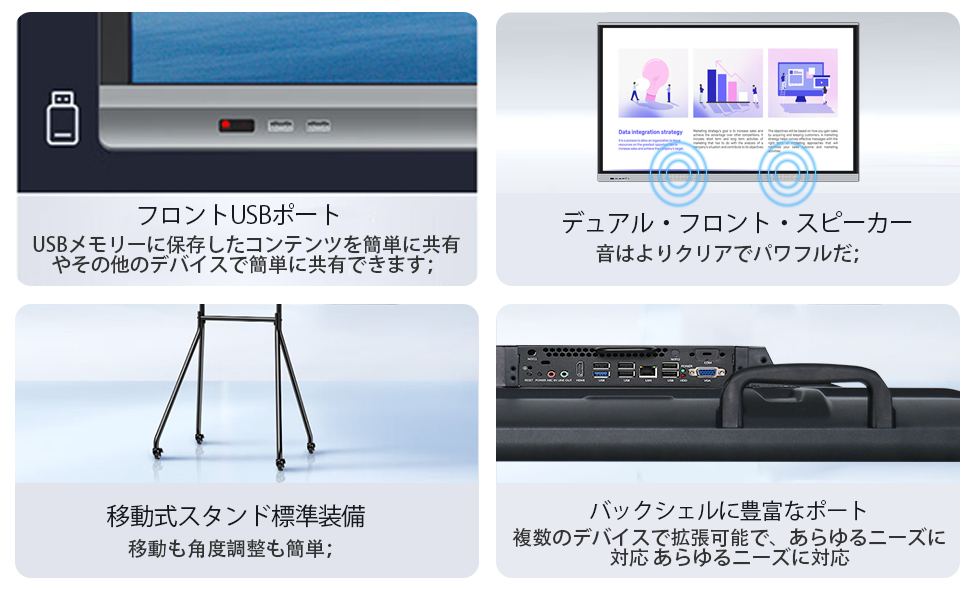
- Plug and Play & Multi-interface: Equipped with a 4K screen and integrated ports including HDMI, USB, VGA, RJ45, Wi-Fi, BT5.0, and built-in speakers. Supports screen casting from other devices via HDMI IN and USB OTG with touch functionality.
- Screen Mirroring & Digital Signage: Seamlessly mirror content from smartphones, laptops, and tablets. Utilize the stylus for freehand drawing and annotations on an infinite digital canvas.
- Versatile Applications: Suitable for various scenarios including business presentations, educational instruction, and interactive meetings.

The monitor features an industrial-grade 4K LED screen, providing high contrast, brightness, and dynamic colors for a superior visual experience.

This all-in-one unit integrates six functions: projector, computer, tablet, TV, whiteboard, and audio system, offering comprehensive multimedia capabilities.
Setup
Follow these steps to set up your TouchWo Interactive Touchscreen Monitor:
- Unpack the Monitor: Carefully remove the monitor and all accessories from the packaging. Inspect for any damage.
- Choose Installation Method: Decide between using the mobile stand or the wall mount bracket. Both options are included.
- Assemble Stand or Mount:
- Mobile Stand: Attach the wheels and vertical supports to the base, then secure the monitor to the stand's mounting plate. Ensure all screws are tightened.
- Wall Mount: Secure the wall bracket to a sturdy wall using appropriate hardware (not included). Attach the monitor to the wall bracket according to the bracket's instructions.
- Connect Power: Plug the power cable into the monitor's power input and then into a grounded electrical outlet.
- Initial Boot-up: Press the power button. The monitor will display the Android OS interface.

The monitor offers two installation options: a mobile stand for portability and a wall mount bracket for fixed installations. Essential accessories like power cable, WiFi antenna, stylus, presenter pen, and screen mirroring device are also shown.
Operating Instructions
This section details the basic operations of your interactive touchscreen monitor.
Basic Touch Operations
The monitor supports intuitive multi-touch gestures:
- Single Tap: Select items, open applications.
- Double Tap: Zoom in/out, open files.
- Press and Hold: Access context menus, drag and drop items.
- Two-Finger Tap: Specific application functions.
- Two-Finger Press: Specific application functions.

Illustration of various 20-point touch gestures supported by the monitor, including single tap, double tap, press and hold, two-finger tap, and two-finger press.
Android OS Navigation
The monitor runs on Android 11. Navigate using touch gestures similar to a tablet or smartphone. Access the app drawer, settings, and notifications from the home screen.
Interactive Whiteboard Functionality
Launch the pre-installed whiteboard application to utilize its features:
- Drawing and Writing: Use the included stylus or your finger to draw, write, and annotate.
- Infinite Canvas: Expand your workspace as needed without running out of space.
- Tools: Access various tools like pens, markers, erasers, shapes, and colors.
- Saving and Sharing: Save your whiteboard sessions and share them via email or cloud services.
Detailed view of the electronic whiteboard features, highlighting its interactive capabilities for drawing, writing, and collaboration.
Screen Mirroring
Mirror content from your mobile devices or computers to the monitor:
- Wireless Transmitter: Use the included screen mirroring device for a quick wireless connection.
- Screen Casting Software: Install compatible software on your device for wireless casting.
- HDMI Connection: Connect via an HDMI cable for a direct, high-quality display.

Various screen casting methods are supported, including wireless transmitters, screen casting software, and direct HDMI connection, compatible with Android, Windows, and Mac OS.
Connecting External Devices
The monitor features multiple ports for connectivity:
- HDMI: Connect laptops, media players, or other HDMI-enabled devices.
- USB: Use for external storage, keyboards, mice, or the included screen mirroring device.
- VGA: Connect older computers or projectors.
- RJ45 (Ethernet): For wired network connectivity.

The interactive board is suitable for various applications, including business meetings, educational settings, and collaborative work environments.

The monitor supports multiple usage scenarios, functioning as a meeting whiteboard, classroom whiteboard, video conferencing display, and for screen mirroring.

The large interactive touchscreen is ideal for dynamic presentations and collaborative work, allowing multiple users to interact simultaneously.

The TouchWo touchscreen monitor is available in various sizes from 55 to 98 inches, catering to different room sizes and requirements.
This image illustrates the various screen casting methods supported by the monitor, including wireless transmitters, screen casting software, and direct HDMI connection, compatible with Android, Windows, and Mac OS devices.
Maintenance
Proper maintenance ensures the longevity and optimal performance of your monitor.
- Cleaning the Screen: Use a soft, lint-free cloth slightly dampened with a screen-cleaning solution. Do not spray liquid directly onto the screen. Avoid abrasive cleaners.
- Cleaning the Casing: Wipe the monitor casing with a soft, dry cloth.
- Software Updates: Periodically check for and install system updates for the Android OS to ensure security and access to new features.
- Ventilation: Ensure the ventilation openings on the monitor are not blocked to prevent overheating.
- Storage: If storing the monitor for an extended period, disconnect it from power and store it in a cool, dry place.
Troubleshooting
If you encounter issues with your monitor, refer to the following common problems and solutions:
| Problem | Possible Cause | Solution |
|---|---|---|
| No Power | Power cable disconnected; Power outlet faulty; Monitor off. | Check power cable connection; Try a different outlet; Press the power button. |
| No Display | Input source incorrect; External device not connected properly. | Select correct input source (HDMI, VGA); Reconnect external device cables. |
| Touch Function Not Working | Screen dirty; Calibration needed; Software issue. | Clean the screen; Perform touch calibration (if available in settings); Restart the monitor. |
| Network Connectivity Issues | Wi-Fi signal weak; Ethernet cable disconnected; Router issue. | Check Wi-Fi signal strength; Reconnect Ethernet cable; Restart router/modem. |
| Image Quality Poor | Resolution settings incorrect; Cable quality. | Adjust display resolution in settings; Use a high-quality HDMI cable. |
Specifications
Detailed technical specifications for the TouchWo 65-inch Smart Interactive Touchscreen Monitor:
- Brand: TouchWo
- Model Number: JPRZB65A
- Screen Size: 65 inches
- Resolution: 4K UHD (3840 x 2160 pixels)
- Aspect Ratio: 16:9
- Screen Surface: Glossy
- Refresh Rate: 60 Hz
- Operating System: Android 11
- Memory: 4GB RAM + 32GB ROM
- Dimensions (D x W x H): 8.1 x 148.6 x 88.9 cm
- Connectivity (Hardware Interface): HDMI, USB, VGA, Bluetooth, Infrared
- Connectivity (Communication Interface): HDMI
- Additional Product Feature: Touchscreen
- Intended Use: Business
- Origin: China
- Manufacturer: Guangzhou TouchWo Electronics Co., Ltd
Warranty and Support
Your TouchWo 65-inch Smart Interactive Touchscreen Monitor comes with a 1-year warranty from the date of purchase, covering manufacturing defects.
For technical support, warranty claims, or any inquiries, please contact our customer service team:
- Email: support@touchwo.com
- Website: www.touchwo.com
Please have your model number and purchase date ready when contacting support.