
WEUASTE WEUASTE-Carplay-04

WEUASTE Portable Motorcycle Dash Cam
User Manual for Model WEUASTE-Carplay-04
1. Introduction
This manual provides detailed instructions for the installation, operation, and maintenance of your WEUASTE Portable Motorcycle Dash Cam (Model WEUASTE-Carplay-04). This device integrates a 5-inch IPS touchscreen with wireless Apple CarPlay and Android Auto functionality, a dual 1080P dash camera system, and a Tire Pressure Monitoring System (TPMS). Please read this manual thoroughly before using the product to ensure proper function and safety.
2. Package Contents
Verify that all items listed below are included in your package:
- 5-inch Monitor (Main Unit)
- Front / Rear Cameras (2 units)
- Tire Pressure Sensors (2 units)
- Waterproof Power Box
- Waterproof Power Cable
- Mounting Bracket + Spacers (6 pcs)
- USB Power Cable
- Sun Visor
- Stickers (2) + Screws (4)
- 2.5 Meter Camera Cables (2)
- Electrical Tape
- Binding Straps (10)
- 128GB TF Card (pre-inserted)

Image: All components included in the WEUASTE Portable Motorcycle Dash Cam package.
3. Product Overview
The WEUASTE Portable Motorcycle Dash Cam is designed to enhance your riding experience with integrated navigation, communication, and safety features. It features a robust, waterproof design suitable for various weather conditions.
Key Features:
- Wireless Apple CarPlay & Android Auto: Seamless smartphone integration for navigation, music, and calls.
- Dual 1080P Dash Cameras: Front and rear recording with IMX307 chip for clear video capture.
- Tire Pressure Monitoring System (TPMS): Real-time tire pressure and temperature monitoring for safety.
- 5-inch IPS Touchscreen: Clear display with anti-glare properties.
- IP65 Waterproof & Dustproof: Durable construction for outdoor use.
- Intelligent Voice Control: Hands-free operation via Siri or Google Voice.

Image: The WEUASTE Portable Motorcycle Dash Cam main unit, dual cameras, and TPMS sensors.

Image: Detailed view of the device dimensions, buttons, and ports.
4. Setup and Installation
4.1 Mounting the Device
- Attach the mounting bracket to your motorcycle's handlebar. Ensure the bracket is securely fastened and positioned for optimal viewing without obstructing your ride.
- Adjust the bracket angle as needed. The bracket supports a maximum hole diameter of 35mm and a minimum of 22mm.
- Secure the main unit to the mounting bracket using the provided screws.
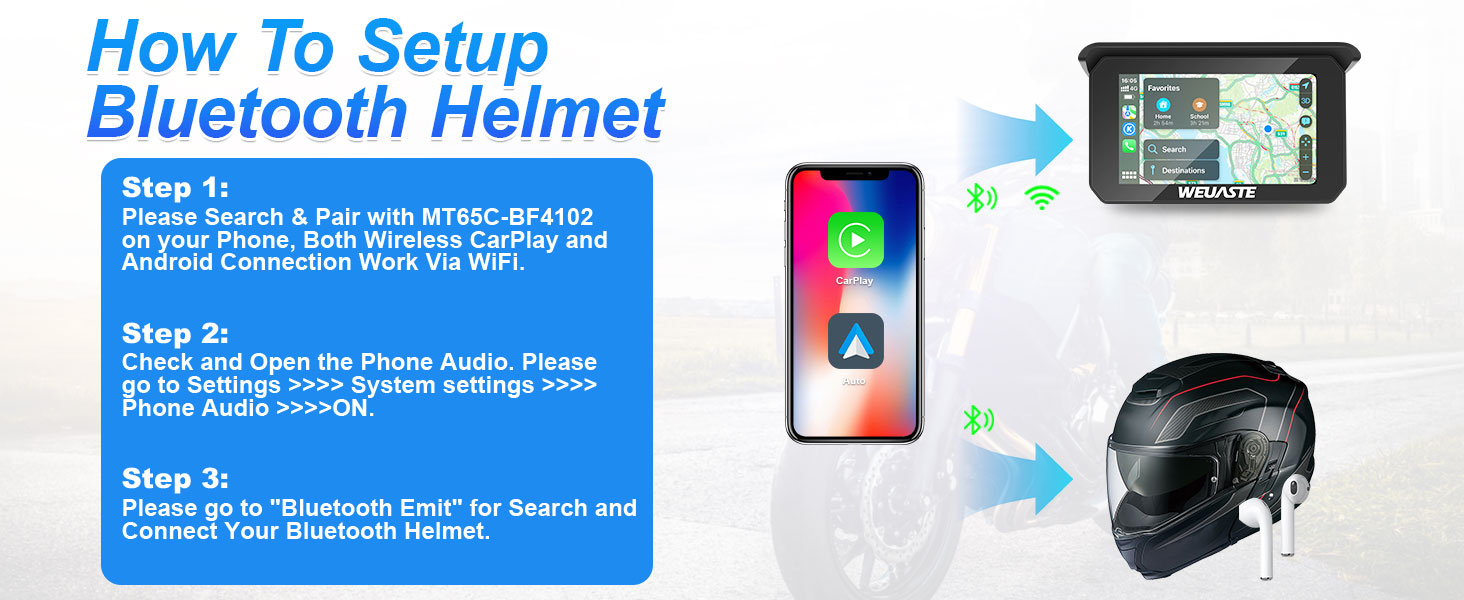
Image: Adjustable mounting bracket installation.
4.2 Power Connection
- Connect the waterproof power cable to the main unit.
- Route the power cable to your motorcycle's power source. It is recommended to connect to an accessory/ignition-switched power source to prevent battery drain when the motorcycle is off.
- Ensure all connections are secure and waterproof.
4.3 Camera Installation
- Mount the front and rear cameras in desired locations, ensuring a clear field of view. Use the provided stickers and screws for secure attachment.
- Connect the camera cables to the main unit. The cables are 2.5 meters long to accommodate various motorcycle sizes.
- Route the camera cables neatly and securely, using binding straps and electrical tape to prevent interference with moving parts or exposure to elements.

Image: Dual 1080P camera setup on a motorcycle.
4.4 TPMS Sensor Installation
- Identify the front (A.F.W) and rear (B.R.W) tire pressure sensors.
- Screw out the existing valve cap from your tire.
- Rotate the nut counter-clockwise onto the valve stem.
- Screw the corresponding TPMS sensor onto the valve stem until it is snug.
- Tighten the nut against the sensor to secure it.
- Check for air leakage by applying soapy water around the sensor and valve stem.

Image: TPMS sensor installation method.
5. Operation
5.1 Initial Power On
Once properly installed and connected to power, the device will automatically power on with your motorcycle's ignition. The main screen will display the user interface.
5.2 Connecting to Smartphone (CarPlay/Android Auto)
- On the device, navigate to the CarPlay or Android Auto icon and select it.
- On your smartphone, enable Bluetooth and Wi-Fi.
- Search for the device's Bluetooth name (e.g., "MT65C-BF4102") on your phone and pair.
- Once Bluetooth is paired, the device will establish a Wi-Fi connection for CarPlay or Android Auto functionality.

Image: Wireless CarPlay and Android Auto interface.
5.3 Connecting a Bluetooth Helmet
- Ensure your Bluetooth helmet is in pairing mode.
- On the WEUASTE device, go to Settings > System settings > Phone Audio and set it to ON.
- Then, go to Bluetooth Emit to search for and connect your Bluetooth helmet.
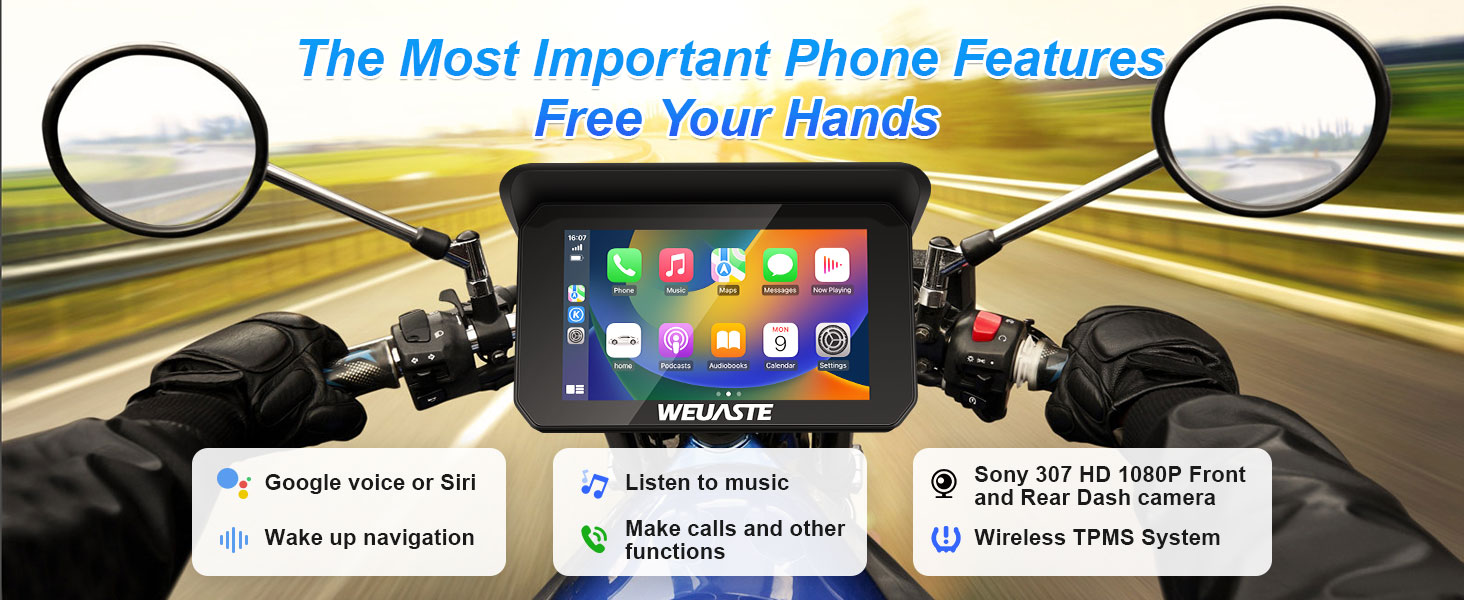
Image: Steps for Bluetooth helmet setup.
5.4 Dash Cam Recording
The dual cameras will automatically begin recording when the device powers on. Recordings are stored on the pre-inserted 128GB TF card. The device supports dual-channel recording simultaneously.
5.5 TPMS Monitoring
The TPMS system continuously monitors tire pressure and temperature. You can view real-time data on the display. The system allows you to set low and high alarm limits for pressure. If tire pressure falls outside the set range, an alert will be issued.

Image: TPMS interface displaying tire pressure settings and readings.
5.6 Voice Control
Utilize intelligent voice control (Siri or Google Voice) for hands-free operation of calls, music playback, and GPS navigation. Activate voice control through your connected smartphone.
6. Maintenance
- Cleaning: Wipe the screen and device body with a soft, damp cloth. Avoid using harsh chemicals or abrasive materials.
- SD Card Management: Periodically format the TF card to ensure optimal recording performance and prevent data corruption. Back up important video files before formatting.
- Storage: When not in use for extended periods, store the device in a cool, dry place away from direct sunlight.
- Firmware Updates: Check the manufacturer's website for any available firmware updates to ensure your device has the latest features and bug fixes.
7. Troubleshooting
| Issue | Possible Cause | Solution |
|---|---|---|
| Device does not power on. | No power connection or faulty cable. | Check power cable connections. Ensure the motorcycle's ignition is on if connected to an accessory power source. |
| CarPlay/Android Auto fails to connect. | Bluetooth/Wi-Fi issues, phone settings. | Ensure Bluetooth and Wi-Fi are enabled on your phone. Restart both the device and your phone. Check phone audio settings on the device. |
| Dash cam not recording. | TF card full or corrupted. | Format the TF card (back up data first). Replace the TF card if issues persist. |
| TPMS sensors not displaying data. | Sensors not installed correctly or battery low. | Re-install sensors, ensuring they are tight. Check sensor batteries if applicable (refer to sensor specific instructions). |
| Screen is dim or hard to read. | Brightness settings or direct sunlight. | Adjust screen brightness in settings. Utilize the sun visor for improved visibility in bright conditions. |
8. Technical Specifications
- Model: WEUASTE-Carplay-04
- Display Size: 5 Inches IPS Touchscreen
- Product Dimensions: 5.7 x 0.8 x 3.3 inches
- Item Weight: 11.2 ounces
- Camera Resolution: Dual 1080P (IMX307 chip)
- Waterproof Rating: IP65 (Main Unit & Cameras)
- Connectivity: Wireless Apple CarPlay, Wireless Android Auto, Bluetooth
- Storage: Supports 32-256GB TF Card (128GB included)
- Operating Temperature: -4°F to 158°F (-20°C to 70°C)
- Mounting Type: Handlebar Mount
- Included Components: User Manual, Main Unit, Cameras, TPMS Sensors, Cables, Mounting Hardware
9. Warranty and Support
WEUASTE offers a 12-month warranty for this product. For technical support, warranty claims, or any questions regarding your device, please contact WEUASTE customer service. We aim to provide a satisfactory solution within 24 hours.
Contact Information: Please refer to the contact details provided on the WEUASTE official website or your purchase documentation.
Related documentsWEUASTE-Carplay-04

Ask a question about this manual
Ask about setup, troubleshooting, compatibility, parts, safety, or missing instructions. Manuals+ will review the question and use this page’s manual context to help answer it.