
Redragon K673 PRO
Redragon K673 PRO 75% Wireless Gasket RGB Gaming Keyboard User Manual
Model: K673 PRO
Introduction
This manual provides comprehensive instructions for the setup, operation, maintenance, and troubleshooting of your Redragon K673 PRO 75% Wireless Gasket RGB Gaming Keyboard. Please read this manual thoroughly before using the product to ensure optimal performance and longevity.
Package Contents
- Redragon K673 PRO 75% Wireless Gasket RGB Gaming Keyboard
- USB Cable
- Keycap/Switch Puller
- Spare Switches
- User Manual (this document)
Product Overview
The Redragon K673 PRO is a compact 75% mechanical gaming keyboard featuring a gasket-mounted design for enhanced typing feel and sound. It supports three connection modes: USB-C wired, Bluetooth 3.0/5.0, and 2.4GHz wireless. Key features include hot-swappable sockets, a dedicated multi-function knob, and advanced noise dampening.

Image: Redragon K673 PRO 75% Wireless Gasket RGB Gaming Keyboard, showcasing its compact layout and RGB lighting.
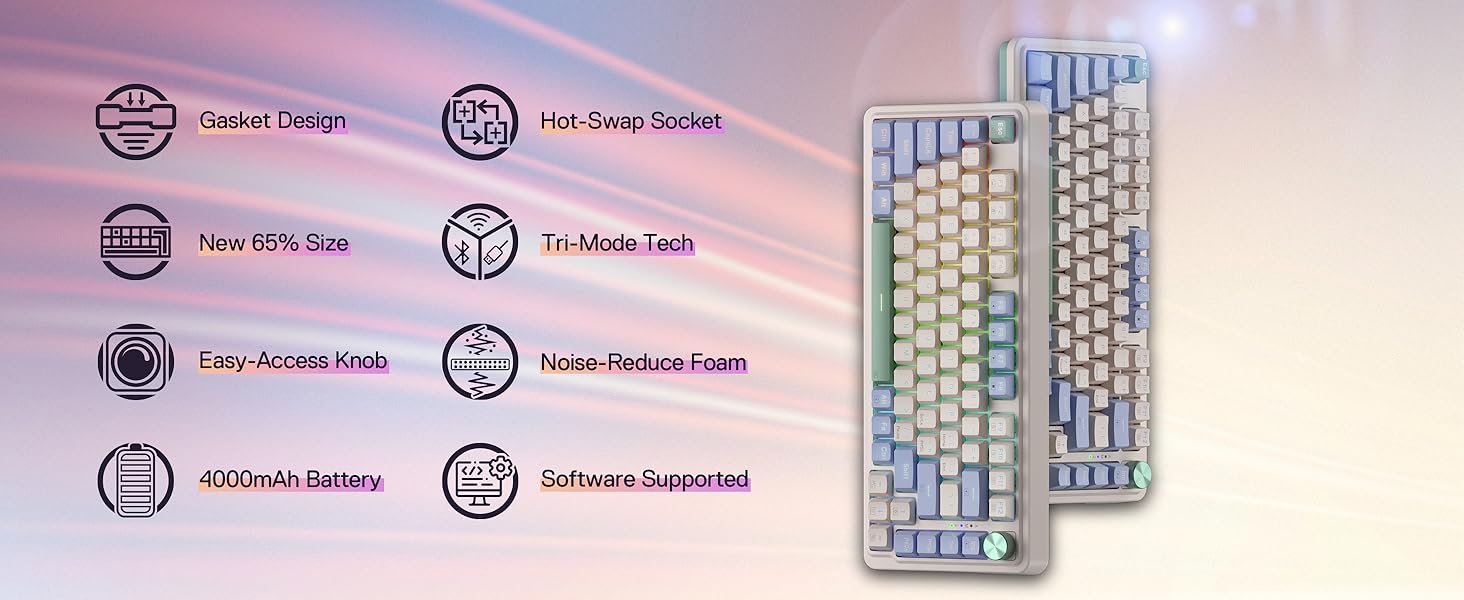
Image: An overview of the Redragon K673 PRO keyboard's key features, including gasket design, tri-mode tech, all-in-one knob, 81-key layout, 4000mAh battery, innovated PBT keycaps, noise-reduce pads, and software support.
Setup
Connection Modes
The Redragon K673 PRO supports three connection methods:
- USB-C Wired Connection:
Connect the provided USB-C cable to the keyboard and your computer's USB port. The keyboard will automatically be recognized and powered.
- 2.4GHz Wireless Connection:
Locate the 2.4GHz USB receiver, usually stored in a compartment on the keyboard. Plug the receiver into an available USB port on your computer. Turn the switch on the keyboard to the 2.4G mode. The keyboard should connect automatically.

Image: Indicator for 2.4GHz wireless connection mode.
- Bluetooth Connection (BT 3.0/5.0):
Turn the switch on the keyboard to the Bluetooth mode. On your device (PC, laptop, tablet), go to Bluetooth settings and search for new devices. Select "Redragon K673 PRO" from the list to pair. The keyboard supports multiple Bluetooth profiles, allowing connection to different devices.

Image: Indicator for Bluetooth connection mode.

Image: Visual representation of the keyboard's tri-mode smart connection capabilities, including wired, 2.4GHz, and Bluetooth 5.0.
Operating Instructions
Dedicated Knob Control
The multi-function knob located on the top right of the keyboard provides quick access to backlight brightness and media controls.
- Rotate Knob: Adjusts backlight brightness by default. In media mode, it controls volume.
- Press Knob: Switches between backlight brightness adjustment and media (volume, play/pause, switch) control.
- Press and Hold Knob: Mutes/unmutes audio.

Image: Close-up of the all-in-one control knob, illustrating its functions for backlight and volume adjustment, RGB mode switching, and mute/unmute.
RGB Lighting Customization
The keyboard features customizable RGB lighting. You can cycle through various lighting effects directly on the keyboard or use the dedicated software for more advanced customization.
- Fn + [Key]: Specific key combinations (refer to keyboard layout) can change lighting modes, brightness, and speed.
- Software Control: For detailed customization, including per-key lighting, macros, and custom effects, download and install the Redragon software from the official website.

Image: Screenshot of the Redragon software interface, demonstrating options to customize macros, shortcuts, and various RGB lighting effects for the K673 PRO keyboard.
Hot-Swappable Switches
The K673 PRO features hot-swappable sockets, allowing you to change mechanical switches without soldering. This supports most 3-pin and 5-pin mechanical switches.
- Use the provided keycap puller to remove the keycap.
- Use the switch puller to gently remove the switch from its socket.
- Align the pins of the new switch with the holes on the PCB and press firmly until it clicks into place. Ensure pins are straight to avoid bending.

Image: A close-up view of the keyboard's hot-swappable sockets, showing how switches can be easily removed and replaced.
Maintenance
Cleaning the Keyboard
- Disconnect the keyboard from your computer before cleaning.
- Use a can of compressed air to remove dust and debris from between the keycaps.
- For stubborn dirt, gently remove keycaps using the keycap puller and clean the surface with a soft, slightly damp cloth. Avoid excessive moisture.
- Do not use harsh chemicals or abrasive materials.
Battery Management
The keyboard is equipped with a 4000mAh battery. To check the battery level, press Fn + Alt. The indicator lights will show the current charge.
- Charge the keyboard using the provided USB-C cable when the battery is low.
- Avoid fully discharging the battery frequently to prolong its lifespan.
- Store the keyboard in a cool, dry place if not used for extended periods.

Image: Visual guide showing how to check the 4000mAh battery level using Fn + Alt keys, with indicators for 30% and 100% charge.
Troubleshooting
| Problem | Possible Cause | Solution |
|---|---|---|
| Keyboard not responding | Low battery; Incorrect connection mode; Loose cable/receiver; Driver issue. | Charge the keyboard. Ensure the mode switch is set correctly (wired, 2.4G, BT). Reconnect cable/receiver. Try a different USB port. Reinstall keyboard drivers on your computer. |
| Wireless connection unstable | Interference; Distance from receiver; Low battery. | Move closer to the receiver. Ensure no large metal objects are between keyboard and receiver. Charge the keyboard. Try a different USB port for the receiver. |
| RGB lighting not working | Lighting turned off; Software conflict; Low battery. | Press Fn + specific keys to cycle through lighting modes/brightness. Ensure software is not overriding settings. Charge the keyboard. |
| Keys not registering or double-typing | Dust/debris under keycap/switch; Faulty switch. | Remove keycap and clean. If problem persists, replace the switch using the hot-swap feature. |
Specifications
- Model: Redragon K673 PRO
- Layout: 75% (81 Keys)
- Connection: USB-C Wired, 2.4GHz Wireless, Bluetooth 3.0/5.0
- Switch Type: Linear Red Switch (Hot-Swappable)
- Keycaps: PBT
- Mounting Style: Gasket Mounted
- Backlight: RGB
- Battery Capacity: 4000mAh
- Dimensions: 13.2 x 5.51 x 1.45 inches
- Weight: 2.2 pounds
- Compatible OS: Windows, PC, Laptop, Tablet
Warranty and Support
Redragon products typically come with a manufacturer's warranty. Please refer to the warranty card included in your package or visit the official Redragon website for detailed warranty information and terms.
For technical support, troubleshooting assistance, or to inquire about replacement parts, please contact Redragon customer service through their official website or the contact information provided in your product packaging.
Official Website: www.redragonzone.com
Related documentsK673 PRO


Ask a question about this manual
Ask about setup, troubleshooting, compatibility, parts, safety, or missing instructions. Manuals+ will review the question and use this page’s manual context to help answer it.