
Roku 43R4A5R
Roku Smart TV – 43-Inch Select Series 4K HDR RokuTV User Manual
Model: 43R4A5R
Introduction
The Roku Select Series 4K TV is designed to provide a brilliant streaming experience with superior picture quality. This manual provides essential information for setting up, operating, and maintaining your new Roku Smart TV, ensuring you can fully enjoy its features such as 4K HDR picture, automatic brightness, and seamless access to thousands of streaming apps.

Image: The Roku 43-inch Select Series 4K HDR RokuTV, its remote, and product packaging, highlighting its key features.
What's in the Box
Verify that all components are present before beginning setup:
- Roku 43” Select Series 4K Smart TV
- Stands and screws
- Roku enhanced voice remote with batteries
- Quick Start Guide

Image: A visual representation of the Roku Select Series 4K TV, its stands, power cable (for 75" model only, though listed generally), stand screws, AA batteries, and the Roku Enhanced Voice Remote.
Setup
Follow these steps to set up your Roku Smart TV:
- Attach the Stands: Carefully place the TV screen-down on a soft, clean surface. Attach the included stands to the bottom of the TV using the provided screws. Ensure they are securely fastened.
- Connect Power: Plug the power cord into the TV and then into a wall outlet.
- Connect to Network: Upon first power-on, the TV will guide you through connecting to your home network. Select "Wireless" for Wi-Fi or "Wired" if using an Ethernet cable. Follow the on-screen prompts to enter your network password if required.
- Initial Setup: The TV will then guide you through the remaining setup steps, including channel scanning (if using an antenna) and linking to a Roku account.

Image: A detailed view of the TV's rear input panel, showing HDMI ports (HDMI 1 eARC, HDMI 2, HDMI 3), optical audio out, headphone jack, USB, LAN, and antenna/cable input.
Setup Video Guide
Video: An official Roku video demonstrating the setup process and key features of the Roku Select Series 4K Smart TV.
Operating Instructions
Your Roku Smart TV is designed for intuitive operation. The enhanced voice remote provides easy access to all features.
Remote Control Functions

Image: The Roku Enhanced Voice Remote, showing buttons for TV power, microphone, headphone jack, voice search, volume, mute, instant replay, personal shortcuts, and app shortcuts (Netflix, Disney+, Apple TV+, HBO Max).
- Power Button: Turns the TV on or off.
- Voice Button: Press and hold to use voice commands for searching content or controlling the TV.
- Directional Pad (OK button): Navigate menus and select items.
- Home Button: Returns to the Roku Home screen.
- Volume Buttons: Adjust the TV's volume.
- Mute Button: Mutes or unmutes the TV sound.
- Headphone Mode: Plug headphones into the remote's headphone jack for private listening.
- App Shortcut Buttons: Dedicated buttons for popular streaming services (e.g., Netflix, Disney+, Apple TV+, HBO Max) for quick access.
- Lost Remote Finder: Use the Roku mobile app to locate your remote if it's misplaced.
Navigating the Home Screen
The Roku Home screen provides centralized access to your streaming apps, inputs, and free live TV. Use the directional pad on your remote to browse and select options.

Image: The Roku TV home screen, showing a clean interface with large icons for streaming services like Netflix, Disney+, Apple TV, Peacock, Roku Channel, and Prime Video, along with inputs for Cable Box, Game Console, and Live TV.
Picture and Sound Settings
Optimize your viewing experience with adjustable picture and sound settings.
- Brilliant 4K Picture: Enjoy content in stunning 4K resolution with HDR10+ color, contrast, and brightness.
- Automatic Brightness: The TV automatically adjusts screen brightness based on your room's lighting conditions for optimal viewing.
- Built-in Sound Features: Utilize auto speech clarity and night mode for enhanced audio.
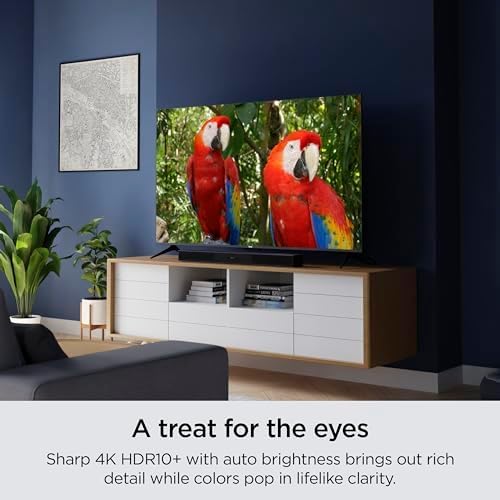
Image: A Roku TV screen showcasing sharp 4K HDR10+ picture quality with vivid colors, featuring two colorful parrots.
Connectivity
The Roku Smart TV offers multiple connectivity options for your devices:
- HDMI: Connect gaming consoles, Blu-ray players, soundbars, and other HDMI-enabled devices. The TV features HDMI eARC for enhanced audio return channel capabilities.
- USB: Play media files from a USB drive.
- Ethernet: For a stable wired internet connection.
- Wi-Fi: Built-in fast Wi-Fi for seamless streaming.
Smart Features
Experience a world of entertainment and smart home integration with your Roku TV.
- Endless Streaming: Access thousands of TV streaming apps, including news, sports, and family entertainment.
- Voice Control: Use the enhanced voice remote to search for content, control playback, and more.
- Smart Home Integration: Works with Apple AirPlay, Apple Home, Alexa, and Google Home for seamless integration into your smart home ecosystem.
- Digital Gallery: Turn your TV into a digital gallery with Backdrops, browsing famous artists or uploading personal photos.

Image: A Roku TV screen showcasing its "Backdrops" feature, displaying a vibrant abstract digital painting, allowing the TV to function as a digital art display.

Image: Icons indicating compatibility with Roku Smart Home, Apple AirPlay, Apple Home, Works with Alexa, and Works with Google Home, demonstrating the TV's smart home integration capabilities.
Maintenance
To ensure the longevity and optimal performance of your Roku Smart TV, follow these maintenance guidelines:
- Cleaning the Screen: Gently wipe the screen with a soft, dry microfiber cloth. For stubborn smudges, slightly dampen the cloth with water or a screen-cleaning solution specifically designed for electronics. Avoid harsh chemicals or abrasive materials.
- Cleaning the Body: Use a soft, dry cloth to wipe the TV's frame and stand.
- Ventilation: Ensure the TV's ventilation openings are not blocked to prevent overheating.
- Power Off When Not in Use: Turn off the TV when not in use to conserve energy and extend its lifespan.
Troubleshooting
If you encounter issues with your Roku Smart TV, try these common troubleshooting steps:
- No Power: Check if the power cord is securely plugged into both the TV and the wall outlet. Try a different outlet.
- No Picture/Sound: Ensure the correct input source is selected. Check all cable connections (HDMI, antenna).
- Remote Not Responding: Replace the batteries in the remote. Ensure there are no obstructions between the remote and the TV.
- Network Connection Issues: Go to Settings > Network > Set up connection to re-establish your Wi-Fi or wired connection. Restart your router.
- App Not Loading/Crashing: Try restarting the app. If the issue persists, remove the app and reinstall it from the Roku Channel Store.
- Poor Picture Quality: Check your internet speed for streaming content. Adjust picture settings (brightness, contrast, color) in the TV menu.
For more detailed troubleshooting, refer to the official Roku support website or the full user guide.
Specifications
| Feature | Specification |
|---|---|
| Brand | Roku |
| Model Number | 43R4A5R |
| Screen Size | 43 Inches |
| Display Technology | LED |
| Resolution | 4K |
| Refresh Rate | 60 Hz |
| Special Features | Bezel-Less Design, HDR10+, Voice Remote |
| Connectivity Technology | Wi-Fi, USB, Ethernet, HDMI |
| Item Weight | 19.96 pounds |
| Product Dimensions | 8.7"D x 37.9"W x 24.4"H |
| Color | Black |
Warranty and Support
For warranty information and further support, please refer to the official Roku website or the full User Guide provided with your product.
- User Guide (PDF): Download User Guide
- Roku Support: Visit the Roku Support Website for FAQs, troubleshooting, and contact options.
Related documents43R4A5R


Ask a question about this manual
Ask about setup, troubleshooting, compatibility, parts, safety, or missing instructions. Manuals+ will review the question and use this page’s manual context to help answer it.