
1. Overview
This manual provides instructions for the installation, operation, and maintenance of your CGOGC Android Car Radio Upgrade. This unit is designed for Jeep Renegade models from 2015 to 2020, offering advanced multimedia and navigation features.
Key Features
- Applicable Models: Suitable for Jeep Renegade 2015, 2016, 2017, 2018, 2019, 2020.
- Built-in Carplay and Android Auto: Compatible with Apple Wireless Carplay and Android Auto, enabling superior voice assist control and easy access to phone functions including music, GPS navigation, calls, notifications, and messages.
- Powerful Hardware Configuration: Features Android 12 operating system, a powerful Octa Core 2.0GHz processor, 2GB RAM, 32GB ROM, and a 9-inch Super Clear IPS Screen with 1280*720 resolution for a wonderful visual experience.
- Rich Functionality: Includes Carplay, Android Auto, GPS navigation, FM/AM radio, Bluetooth, Bluetooth music, USB, multi-format music player, 1080p video player, 5G WiFi, APP download, backup camera support, audio output, AUX audio and video input, external microphone support, and SWC (Steering Wheel Control).
- DSP Digital Processing Audio: Built-in DSP sound effect processing chip supports 6 sound settings (Smart Bass, Balance, Emperor, 30-EQ, Loudness, Filter) and is equipped with a TDA7388 power amplifier chip to customize sound according to your preferences.
2. Setup and Installation
This section outlines the general steps for installing your new car radio. For detailed visual instructions, please refer to the official installation video below.
Video: This video demonstrates the step-by-step installation process of the CGOGC Android Car Radio in a Jeep Renegade. It covers removing the original unit, connecting wiring harnesses, and securing the new head unit.
Step-by-Step Installation
- Remove Original Unit: Carefully remove the original car radio player from the dashboard. Use appropriate tools to avoid damage.

Image showing the original car radio unit being carefully removed from the dashboard using a prying tool.
- Connect Wiring Harnesses: Connect the provided wiring harnesses to the corresponding sockets on the back of the new head unit. Ensure all connections are secure.

Image illustrating the connection of various wiring harnesses to the rear ports of the new head unit.
- Connect Antennas and Cables: Attach the radio antenna, GPS antenna, and any other necessary cables (e.g., USB, external microphone, backup camera video input, reversing image detection cable).

Image detailing the connection of the radio antenna, GPS antenna, and other peripheral cables to the car radio.
- Install CANBUS Box: Connect the CANBUS box if applicable, ensuring it is properly integrated with the vehicle's wiring.

Image showing the CANBUS box being connected to the wiring harness, which facilitates communication with the vehicle's systems.
- Secure New Head Unit: Carefully install the new car radio into the center console, ensuring it fits snugly and is properly aligned.
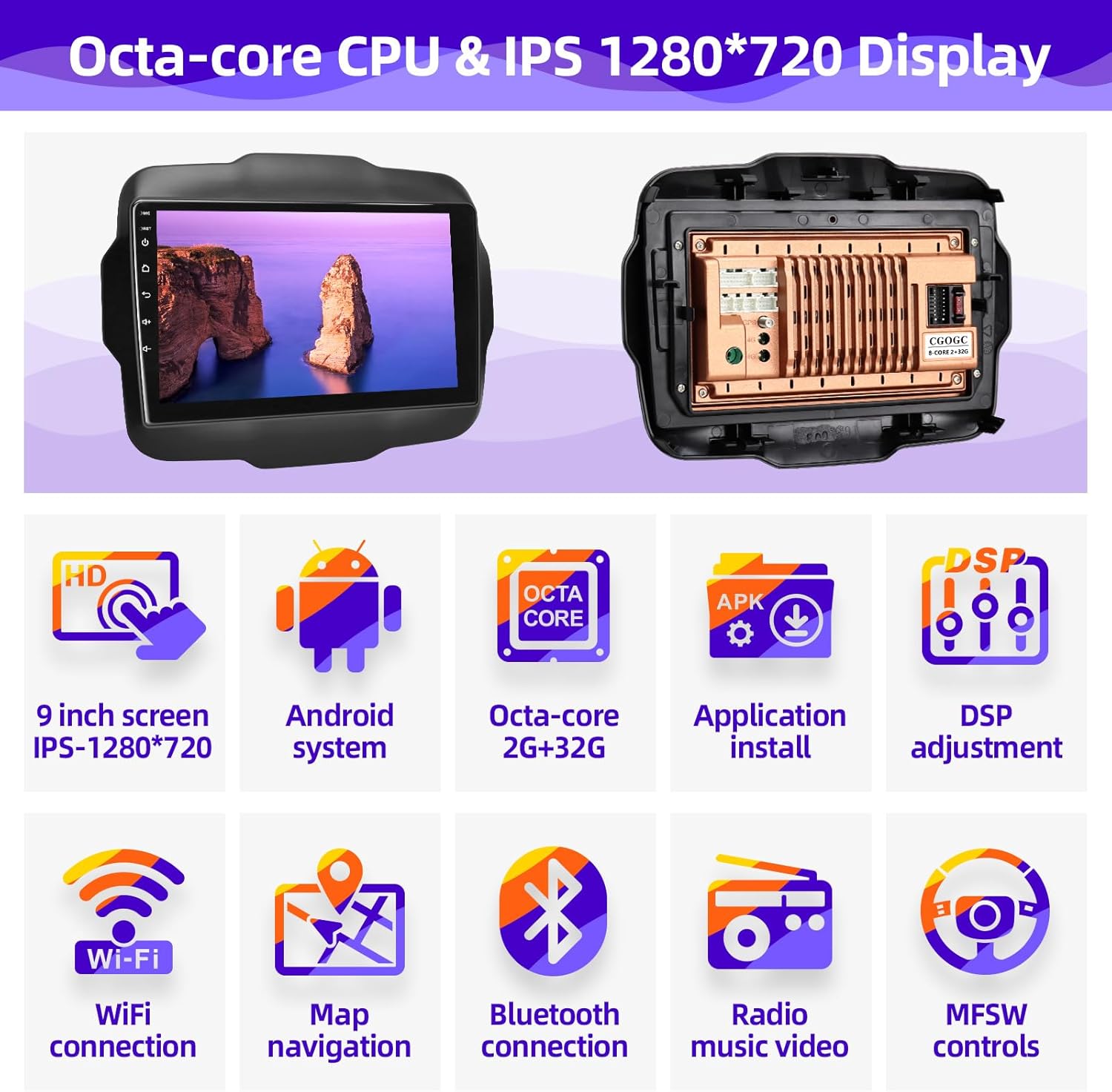
Image depicting the new car radio being carefully inserted into the dashboard opening.
3. Operating Instructions
User Interface Navigation
The system features an intuitive touch screen interface. Swipe left or right to navigate between application screens. Tap icons to launch applications.

Image displaying the main user interface of the car radio with various application icons.
CarPlay and Android Auto
The unit supports both wireless and wired Apple CarPlay and Android Auto.
Connecting to CarPlay (iPhone)
- Ensure Bluetooth is enabled on your iPhone.
- On the car radio, navigate to the Bluetooth menu.
- Select your iPhone from the list of available devices and pair them.
- Confirm the pairing request on both devices. CarPlay will then activate automatically.
Connecting to Android Auto (Android Phone)
- Ensure Bluetooth is enabled on your Android phone.
- On the car radio, navigate to the Bluetooth menu.
- Select your Android phone from the list of available devices and pair them.
- Confirm the pairing request on both devices. Android Auto will then activate automatically.

Image showing a smartphone connected to the car radio, displaying the Apple CarPlay and Android Auto interfaces on the head unit.
Music and Video Playback
The system supports various audio and video formats. Access the "Music" or "Video" applications to play media from connected USB devices or internal storage.

Image illustrating the music playback interface on the car radio, showing track information and controls.

Image displaying the video playback interface on the car radio, showing a video playing on the screen.
FM/AM Radio
Tune into your favorite FM or AM radio stations using the dedicated radio application. The system supports one-click search for available stations.

Image of the FM/AM radio interface on the car radio, displaying frequency tuning and station presets.
GPS Navigation
Utilize the built-in GPS navigation system or install other map applications from the Google Play Store.

Image showing the GPS navigation interface on the car radio, displaying a map with a route.
Bluetooth Connectivity
Connect your smartphone via Bluetooth for hands-free calling and audio streaming.

Image illustrating the Bluetooth calling interface on the car radio, showing a phone call in progress.
DSP Sound Settings
Customize your audio experience with the Digital Signal Processing (DSP) chip. Adjust equalizer settings, loudness, filters, and sound balance.

Image of the DSP equalizer settings screen on the car radio, showing adjustable frequency bands.

Image of the DSP loudness and smart bass adjustment screen.

Image of the DSP sound filter adjustment screen, showing high-pass and low-pass filter controls.

Image of the DSP sound field balance adjustment screen, allowing users to position the audio focus.

Image of the DSP sound delay adjustment screen, enabling precise timing for each speaker.
Split Screen Display
The unit supports split-screen functionality, allowing you to run two applications simultaneously, such as navigation and video playback.

Image demonstrating the split-screen feature, with a video playing on one side and a map on the other.
App Installation
Connect to Wi-Fi and use the Google Play Store to download and install additional applications.

Image showing various app icons, indicating the ability to download and install applications.
Steering Wheel Controls
The unit is compatible with your vehicle's original steering wheel controls, allowing for convenient operation without taking your hands off the wheel.

Image highlighting the steering wheel controls, indicating their compatibility with the car radio.
Backup Camera
The system supports a backup camera for enhanced safety when reversing. The display automatically switches to the camera view when the vehicle is in reverse.

Image showing the view from a backup camera displayed on the car radio screen, with parking guidelines.
4. Troubleshooting
This section addresses common issues you might encounter and provides potential solutions.
- No Audio During Phone Calls:
Issue: Users can hear you, but you cannot hear them during Bluetooth calls.
Solution: Ensure the correct audio output is selected in the Bluetooth settings. Try re-pairing the device or restarting the unit. Check for any software updates for your phone's operating system or the head unit.
- Steering Wheel Controls Not Working:
Issue: Steering wheel buttons do not function after installation.
Solution: Verify that the CANBUS box and all associated wiring are correctly connected. Some vehicles may require specific configuration in the unit's settings to recognize steering wheel controls. Refer to the installation video for proper CANBUS connection.
- Android Auto/CarPlay Connection Issues:
Issue: Difficulty connecting or maintaining connection with Android Auto or CarPlay.
Solution: Ensure your phone's operating system is up to date. Try forgetting the device on both the phone and the head unit, then re-pairing. For wired connections, try a different USB cable.
5. Product Specifications
| Feature | Detail |
|---|---|
| Brand | CGOGC |
| Vehicle Service Type | Car |
| Screen Size | 9 Inches |
| Special Feature | Touchscreen |
| Connectivity Technology | Bluetooth, USB, Wi-Fi |
| Map Type | North America |
| Included Components | Car radio |
| Audio Output Mode | AUX, Stereo |
| Mounting Type | Dashboard Mount |
| Resolution | 720 x 1280 |
| Compatible with Vehicle Type | Car |
| Additional Features | Touchscreen |
| Map Types | North America |
| Operating System | Android |
| Memory Storage Capacity | 32 GB |
| Touch Screen Type | Capacitive |
| Display Type | LCD |
| Human-Interface Input | Microphone, Touchscreen |
| Compatible Devices | iPhone, Android |
| Control Method | Touch |
| Are Batteries Included | No |
| Supported Satellite Navigation System | GPS |
| Built-In Media | Car radio |
| Manufacturer | CGOGC |
| Item Type Name | CAR RADIO |
| Item Weight | 2.31 Kilograms |
6. What's in the Box
The product package includes the following items:
- Car Radio Head Unit
- Power Cable
- Adapter Cable
- RCA Cable
- Dual USB Cables
- Camera (if included in specific package)
- Camera IN Cable
- GPS Antenna
- Microphone
- Installation Tool

Image displaying the complete list of accessories included with the CGOGC car radio, such as the head unit, various cables, antennas, and installation tools.
7. Warranty Information
This product comes with a 1-year warranty. For warranty claims or service, please contact customer support.
8. Customer Support
If you have any questions or require assistance with your CGOGC Android Car Radio, please contact our customer support team.
Email: CGOGCZCT@outlook.com

Image depicting a customer service representative, indicating available support for product inquiries.