
1. Introduction
This manual provides detailed instructions for the setup, operation, and maintenance of your HCSTVCON HC-HK618NA 4K NDI PTZ Camera. This camera features 20X optical zoom, AI auto-tracking, and versatile connectivity options including USB3.0, 3G-SDI, HDMI, and LAN, making it suitable for various professional video conferencing and live streaming applications.
2. What's in the Box
Carefully unpack the box and ensure all items are present:
- 20X PTZ Camera
- Power Adapter
- Mounting Bracket
- IR Remote Control
- User Manual
- Serial Control Cable (RS232 Cable)
- USB Cable

Figure 2.1: Contents of the HCSTVCON HC-HK618NA package.
3. Product Overview
3.1 Key Features
- 4K UHD Video: Equipped with a 1/1.8-inch, 8.29-megapixel UHD CMOS sensor, delivering 4K (3840x2160) resolution.
- 20X Optical Zoom: Features 20x optical zoom and 16x digital zoom for detailed capture from various distances.
- NDI|HX2 Support: Officially licensed by Newtek for low-latency video streaming and PTZ control.
- AI Auto-Tracking: Utilizes artificial intelligence for automatic recognition and monocular tracking of subjects.
- Multiple Outputs: Simultaneous video output via 3G-SDI, HDMI, and IP streaming (MJPEG/H.264/H.265).
- Wide Compatibility: Compatible with popular video conferencing software like Zoom, vMix, OBS, Skype, and GoToMeeting.
- Flexible Control: Can be controlled via IR remote, network, or serial port.
- Low Light Performance: High SNR CMOS sensor and 2D&3D Digital noise reduction support operation in 0.5 Lux low light conditions.
- PoE Support: Supports Power over Ethernet (802.3af) for simplified installation.
3.2 Camera Interfaces
The camera offers a range of interfaces for versatile connectivity:

Figure 3.1: Multi-interface design for video conferencing.
- DC 12V Power Input: For connecting the included power adapter.
- LAN (RJ45): For network connectivity, NDI|HX2 streaming, and PoE.
- USB3.0: For direct connection to a computer for video and control.
- 3G-SDI: Professional video output.
- HDMI: High-definition video output.
- RS232 In/Out: For serial control.
- RS485: For serial control.
- Line In/Line Out: Audio input and output.
- IR: Infrared receiver for remote control.

Figure 3.2: Detailed interface diagram.
4. Setup
4.1 Mounting the Camera
The camera can be mounted on a desktop, tripod, or ceiling using the included mounting bracket. Ensure the mounting surface is stable and can support the camera's weight.
4.2 Connecting the Camera
- Power Connection: Connect the DC 12V power adapter to the camera's power input. Alternatively, if using PoE, connect an Ethernet cable from a PoE-enabled switch to the LAN port.
- Video Output: Connect your preferred video output cable (HDMI, 3G-SDI, or USB3.0) to your display, capture card, or computer.
- Network Connection: For NDI|HX2 streaming and network control, connect an Ethernet cable to the LAN port.
- Control Connection: For serial control, connect the RS232 cable to a compatible controller.
5. Operating Instructions
5.1 Basic Controls
The camera can be controlled using the IR remote control, a network-based web interface, or a serial PTZ controller.

Figure 5.1: Various control methods for the PTZ camera.
5.2 Pan, Tilt, and Zoom (PTZ)
Use the directional buttons on the remote or the control interface to adjust the camera's pan (horizontal rotation), tilt (vertical rotation), and zoom (optical and digital). The camera supports a horizontal rotation range of -170° to 170° and a vertical rotation range of -30° to 90°.

Figure 5.2: 20X Optical Zoom in action.
5.3 AI Auto-Tracking
The camera features AI human detection and tracking technology. Once activated, the camera can automatically follow a designated subject, ensuring they remain in frame.

Figure 5.3: AI Human Auto-Tracking in operation.
Video: AI Human Detection and Tracking Demonstration
This video demonstrates the AI human detection and tracking capabilities of the HCSTVCON PTZ camera, showing how it automatically locks onto and follows a subject.
5.4 Software Compatibility
The camera is designed to work seamlessly with various video conferencing and live streaming platforms. For optimal performance, ensure your software is updated to the latest version.
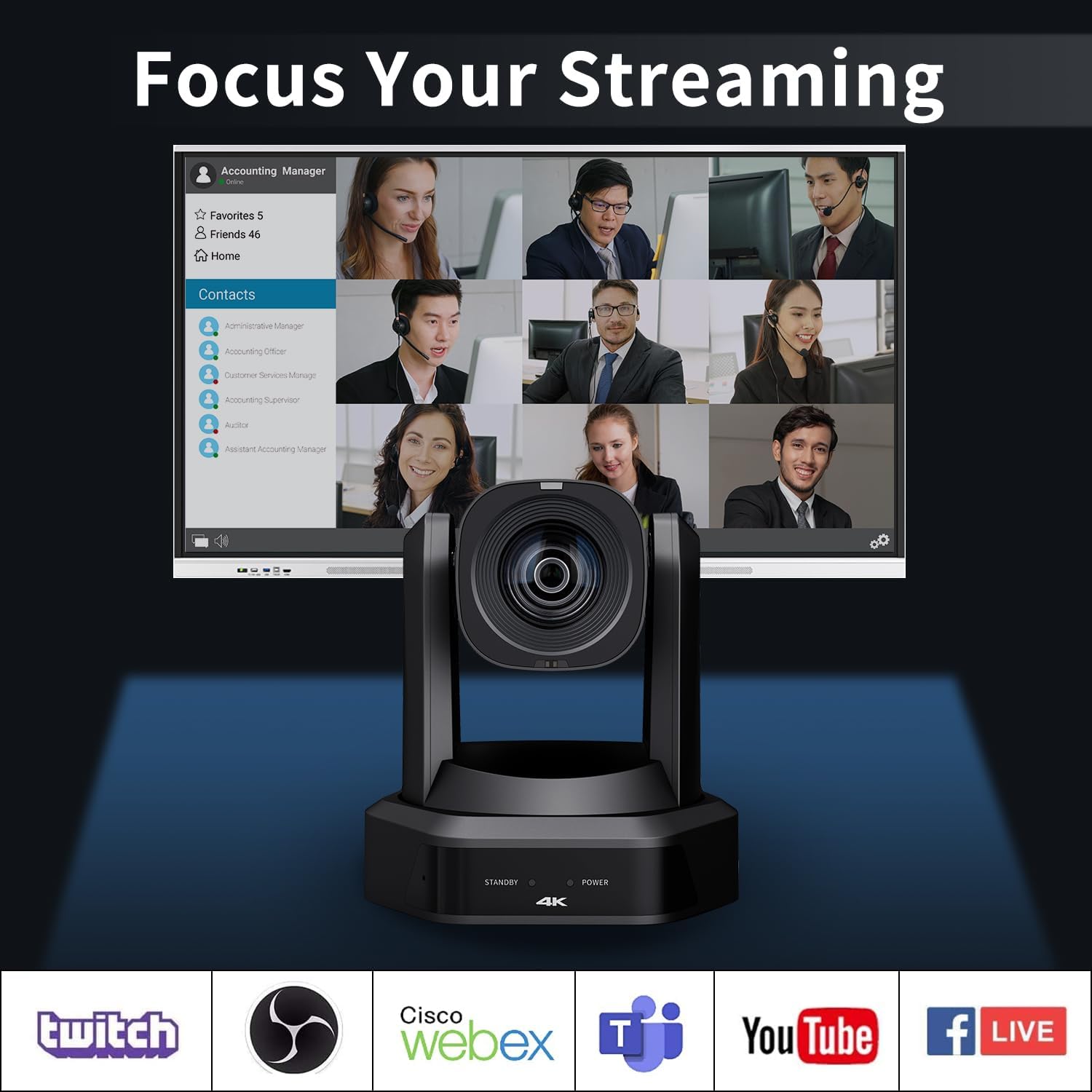
Figure 5.4: Camera compatibility with various streaming and conferencing platforms.
6. Maintenance
To ensure the longevity and optimal performance of your camera, follow these maintenance guidelines:
- Cleaning: Use a soft, dry cloth to clean the camera body. For the lens, use a specialized lens cleaning cloth and solution. Avoid abrasive cleaners or solvents.
- Environment: Operate and store the camera in a clean, dry environment, away from extreme temperatures, humidity, and direct sunlight.
- Handling: Handle the camera with care to prevent physical damage. Avoid sudden movements or impacts.
- Firmware Updates: Periodically check the manufacturer's website for firmware updates to ensure the camera has the latest features and performance enhancements.
7. Troubleshooting
If you encounter issues with your camera, refer to the following common problems and solutions:
| Problem | Possible Cause | Solution |
|---|---|---|
| No video output | Incorrect cable connection, power issue, incorrect input selection on display. | Check all cable connections (HDMI, SDI, USB). Ensure the camera is powered on. Verify the correct input source is selected on your display/capture device. |
| Camera not responding to remote control | Remote batteries low/dead, IR sensor blocked, incorrect remote mode. | Replace remote batteries. Ensure no obstructions between remote and camera's IR sensor. Check remote mode settings if applicable. |
| Poor image quality | Dirty lens, insufficient lighting, incorrect camera settings. | Clean the camera lens. Ensure adequate lighting in the environment. Adjust camera settings (exposure, white balance, focus) via the control interface. |
| AI tracking not working | Tracking feature not enabled, subject too far/obscured, complex background. | Ensure AI tracking is enabled in the camera settings. Position the subject clearly within the camera's view. Simplify the background if possible. |
| Network connectivity issues | Incorrect network settings, faulty Ethernet cable, network firewall. | Verify network cable connection. Check camera's IP address and network settings. Consult your network administrator for firewall configurations. |
If the problem persists, please contact customer support for further assistance.
8. Specifications
Detailed technical specifications for the HCSTVCON HC-HK618NA 4K NDI PTZ Camera:
| Feature | Specification |
|---|---|
| Model Name | HC-HK618NA |
| Video Capture Resolution | 4K (3840x2160) |
| Photo Sensor Technology | CMOS (1/1.8-inch, 8.29-megapixel) |
| Optical Zoom | 20x |
| Digital Zoom | 16x |
| Pan Rotation | -170° to 170° |
| Tilt Rotation | -30° to 90° |
| Connectivity Technology | USB3.0, 3G-SDI, HDMI, LAN (NDI|HX2, PoE) |
| Control Method | Remote, Network, Serial (RS232, RS485) |
| Special Features | AI Auto-Tracking, Low Light Performance |
| Indoor/Outdoor Usage | Indoor |
| Item Dimensions (L x W x H) | 6.3 x 6.2 x 7 inches |
| Item Weight | 7.09 pounds (3.22 Kilograms) |
| Color | Black |
9. Warranty and Support
Your HCSTVCON HC-HK618NA 4K NDI PTZ Camera comes with a 2-year warranty and lifetime technical support. We also offer a 30-day money-back guarantee for any reason.
For technical assistance, troubleshooting, or warranty claims, please contact HCSTVCON customer support. Our team is dedicated to providing satisfactory solutions for any questions you may have.
Contact Information: Please refer to the contact details provided on the HCSTVCON official website or the product packaging.