1. Introduction
The Garmin Dash Cam 47 is a compact, voice-controlled dash camera designed to record your drive in high definition. It features a 140-degree wide-angle lens, capturing clear 1080p video. Built-in GPS records location and time data, while the G-Sensor automatically saves footage upon detecting impacts or sudden movements. Connected features allow for Live View monitoring of your vehicle and automatic video uploads to a secure online vault via the Garmin Drive app.

Image: The Garmin Dash Cam 47 shown alongside a smartphone displaying the camera's live feed, illustrating its connectivity and recording capabilities.
2. What's in the Box
Verify that all the following items are included in your package:
- Garmin Dash Cam 47
- Magnetic Mount
- Vehicle Power Cable
- Memory Card
- USB Cable
- Documentation (Quick Start Manual)
3. Setup
3.1 Installing the Memory Card
- Locate the memory card slot on the side of the Dash Cam 47.
- Insert the included memory card into the slot until it clicks into place. Ensure the card is oriented correctly.
3.2 Mounting the Dash Cam

Image: The Garmin Dash Cam 47 shown with its magnetic mount and power cable, demonstrating how it attaches for installation.
- Clean the windshield thoroughly where you intend to mount the dash cam.
- Attach the magnetic mount to the windshield. Ensure it is placed in a location that does not obstruct your view of the road.
- Connect the Dash Cam 47 to the magnetic mount. The magnetic connection will secure the device.
3.3 Powering the Device
- Plug the small end of the vehicle power cable into the USB port on the dash cam.
- Plug the larger end of the vehicle power cable into your vehicle's power outlet (e.g., cigarette lighter socket).
- The device will automatically power on and begin recording when your vehicle starts.
3.4 Initial Setup and Pairing with Garmin Drive App

Image: The Garmin Dash Cam 47 screen next to a smartphone running the Garmin Drive app, illustrating the device's connectivity with the mobile application.
- On first use, follow the on-screen prompts to select your language and other initial settings.
- Download the Garmin Drive app from your smartphone's app store.
- Open the Garmin Drive app and follow the instructions to pair your smartphone with the Dash Cam 47 via Wi-Fi. This enables features like Live View and video vault uploads.
4. Operating the Dash Cam
4.1 Basic Operation and Saving Video
The Dash Cam 47 automatically begins recording when powered on. Video is continuously recorded in a loop, overwriting the oldest footage unless saved.

Image: The Garmin Dash Cam 47 display showing a live road view with an on-screen 'Save' button, indicating how to manually save video footage.
- Manual Save: Press the save button on the device (or use a voice command) to save the current video segment.
- Automatic Save (G-Sensor): The built-in G-Sensor detects impacts and automatically saves 15-second video segments (Event Markers) before, during, and after the event.
4.2 Voice Control

Image: A side view of the Garmin Dash Cam 47, highlighting its physical control buttons for manual operation.
The Dash Cam 47 supports voice commands for hands-free operation. Say "OK Garmin" followed by a command.
- "OK Garmin, Save Video" - Saves the current video clip.
- "OK Garmin, Take a Picture" - Captures a still image.
- "OK Garmin, Record Audio" - Toggles audio recording.
4.3 Live View Monitoring
When connected to the Garmin Drive app, you can use Live View to remotely monitor your vehicle. This feature requires an active Wi-Fi connection.
4.4 Driver Alerts
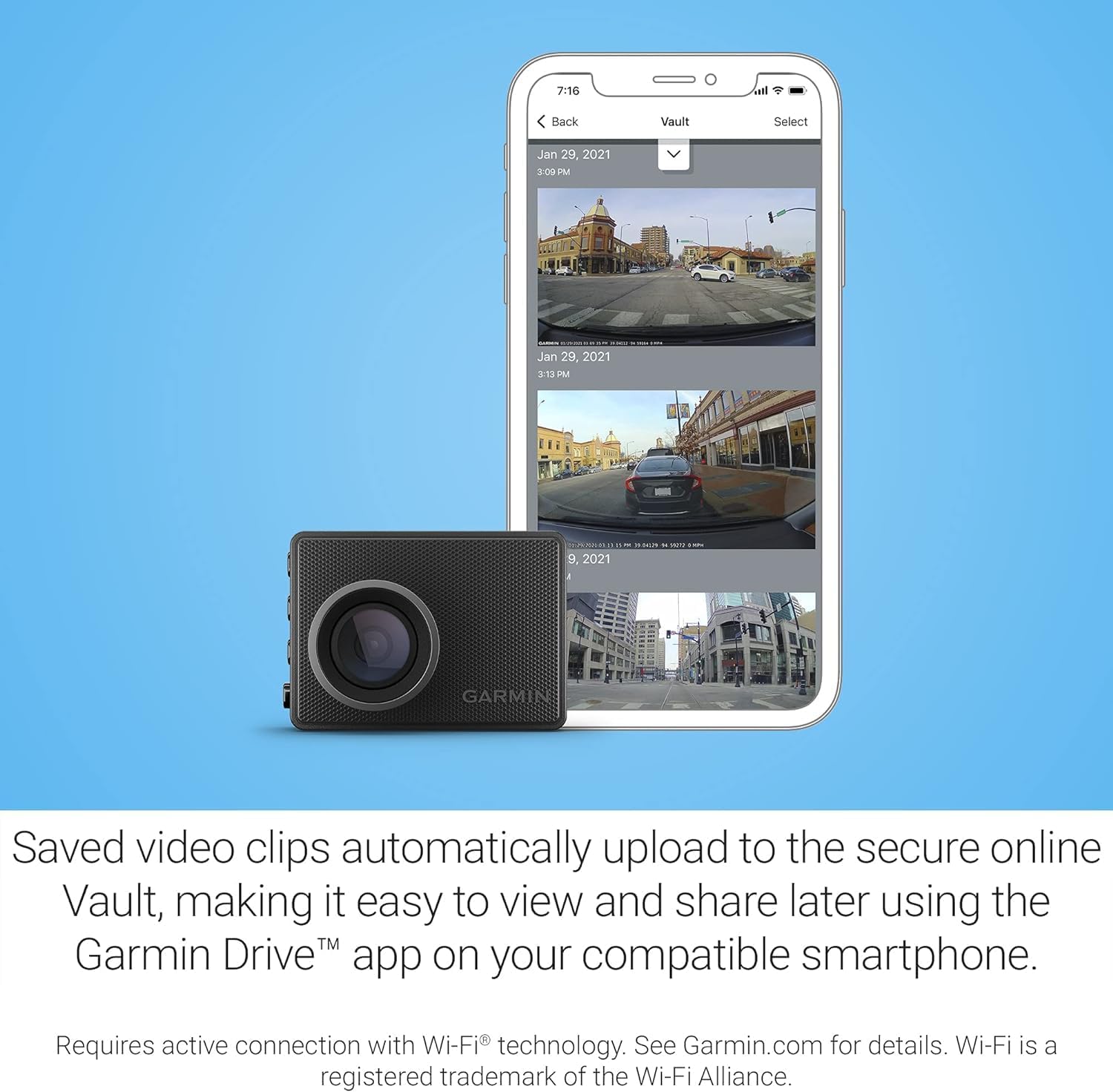
Image: The Garmin Dash Cam 47 screen showing a 'Lane Departure Warning' icon and text, indicating its driver assistance features.
The Dash Cam 47 provides driver alerts to enhance safety:
- Forward Collision Warning: Alerts you if you are driving too close to the vehicle ahead.
- Lane Departure Warning: Alerts you if you drift out of your lane.
Note: Certain conditions may impair the warning function. Refer to Garmin.com for detailed information.
5. Maintenance
5.1 Cleaning the Lens
Regularly clean the camera lens with a soft, lint-free cloth to ensure clear video recording. Avoid abrasive materials or harsh chemicals.
5.2 Formatting the Memory Card
It is recommended to format the memory card periodically (e.g., once a month) to maintain optimal performance and prevent data corruption. This can typically be done through the device settings or the Garmin Drive app. Formatting will erase all unsaved data on the card.
5.3 Software Updates
Keep your Dash Cam 47's software up to date to benefit from new features and performance improvements. Updates can usually be performed via the Garmin Drive app or by connecting the device to a computer with Garmin Express software.
6. Troubleshooting
| Issue | Solution |
|---|---|
| Device does not power on. | Ensure the vehicle power cable is securely connected to both the dash cam and the vehicle's power outlet. Check if the vehicle's power outlet is functioning. |
| Video recording is not working. | Verify that a memory card is inserted and properly formatted. Check the device settings to ensure recording is enabled. |
| Garmin Drive app cannot connect to the dash cam. | Ensure Wi-Fi is enabled on both the dash cam and your smartphone. Restart both devices and try pairing again. Check for app updates. |
| Voice commands are not recognized. | Speak clearly and directly towards the device. Ensure the vehicle interior is not excessively noisy. Check the device settings for voice control activation. |
7. Specifications
| Feature | Detail |
|---|---|
| Product Dimensions | 2.21 x 1.59 x 0.84 inches |
| Item Weight | 11.3 ounces |
| Item Model Number | Dash Cam 47 |
| Batteries | 1 Product Specific batteries required (included) |
| Connectivity Technologies | Wi-Fi |
| Color | Black |
| Manufacturer | Garmin |
| Model Name | Dash Cam 47 |
| Vehicle Service Type | Car |
| Video Capture Resolution | 1080p |
| Included Components | Memory Card |
| Mounting Type | Magnetic Mount |
| Field Of View | 140 Degrees |
| Screen Size | 2 Inches |
8. Warranty and Support
For information regarding your product's warranty, please refer to the documentation included with your purchase or visit the official Garmin website. Garmin provides comprehensive support resources, including FAQs, software updates, and contact information for customer service.
Garmin Support Website: www.garmin.com/support


