
Monoprice 144394
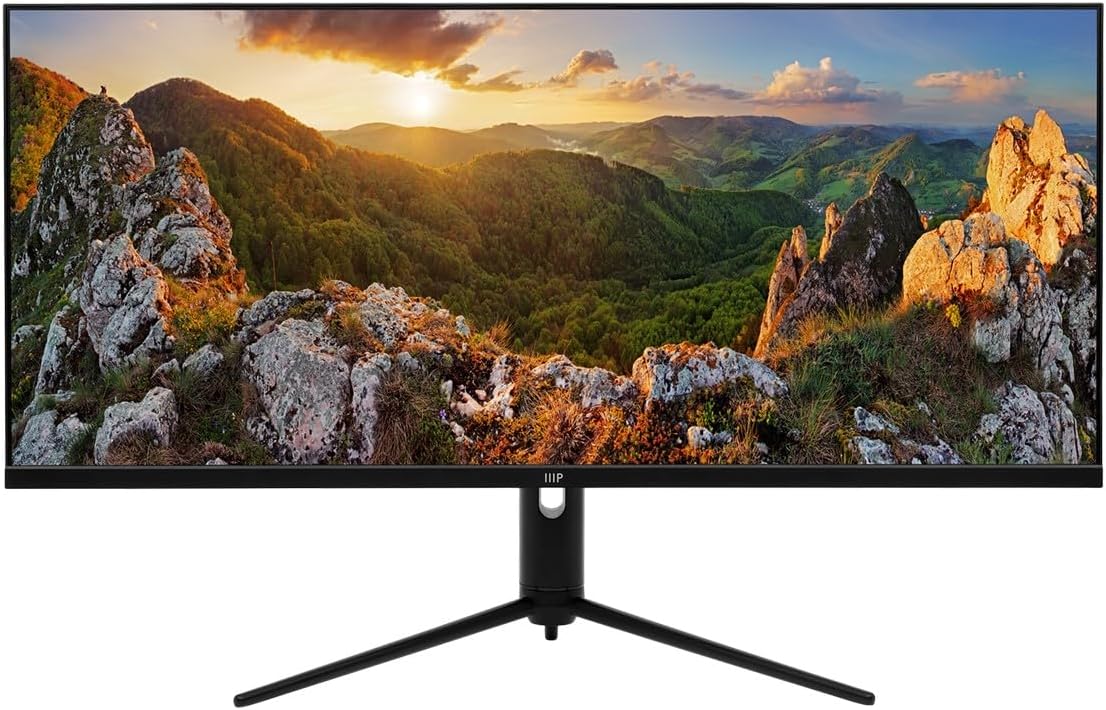
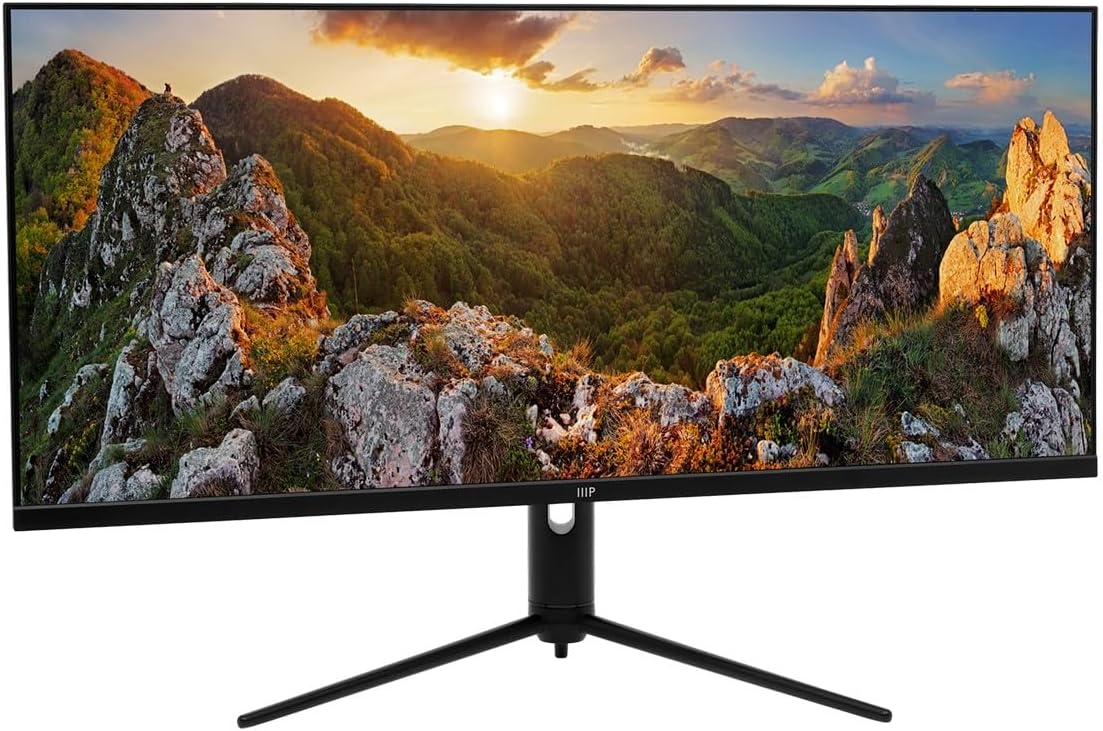
Monoprice 40-inch Ultrawide 1440P Productivity Monitor User Manual
Model: 144394 | Brand: Monoprice CrystalPro Series
1. Introduction
This manual provides comprehensive instructions for the setup, operation, maintenance, and troubleshooting of your Monoprice 40-inch Ultrawide 1440P Productivity Monitor (Model 144394). Please read this manual thoroughly before using the monitor to ensure proper functionality and to prevent damage.
The Monoprice CrystalPro 40-inch Ultrawide Monitor is designed to enhance productivity with its expansive 3440x1440P (UWQHD) resolution and 144Hz refresh rate. Featuring an IPS panel, it delivers accurate colors and wide viewing angles, making it suitable for various professional and personal applications.
2. Safety Information
Observe the following safety precautions to ensure safe operation and to extend the lifespan of your monitor:
- Do not expose the monitor to rain, moisture, or extreme temperatures.
- Avoid placing the monitor in direct sunlight or near heat sources.
- Ensure proper ventilation around the monitor. Do not block ventilation openings.
- Use only the power adapter supplied with the monitor.
- Disconnect the power cable from the outlet during lightning storms or when unused for long periods.
- Do not attempt to service the monitor yourself. Refer all servicing to qualified personnel.
- Keep the monitor away from strong magnetic fields.
- Handle the screen with care. Do not press or scratch the display surface.
3. Package Contents
Please verify that all items listed below are present in your package. If any items are missing or damaged, contact Monoprice customer support.
- Monoprice 40-inch Ultrawide Monitor
- Monitor Stand (Base and Neck)
- Power Adapter and Cable
- HDMI Cable
- DisplayPort (DP) Cable
- USB-A to USB-B Cable (for USB hub functionality)
- User Manual (this document)
- (Note: The product listing mentions "CD". Please check your package for any included software or drivers on a CD, though most modern systems download drivers online.)
4. Setup
4.1. Assembling the Stand
Follow these steps to attach the stand to your monitor:
- Carefully place the monitor face down on a soft, clean surface to prevent scratches.
- Attach the stand neck to the back of the monitor, aligning the mounting points. Secure with screws if provided.
- Attach the stand base to the bottom of the stand neck. Tighten the thumb screw or screws from the bottom of the base.
- Once assembled, carefully lift the monitor and place it upright on a stable, flat surface.
4.2. Connecting Cables
Before connecting any cables, ensure both the monitor and your computer are powered off.
- Power Connection: Connect the power adapter to the monitor's power input, then plug the power cable into a wall outlet.
- Video Connection:
- For optimal performance (3440x1440P at 144Hz), use the provided DisplayPort (DP) cable to connect the monitor to your computer's graphics card.
- Alternatively, use an HDMI cable. Note that HDMI may support up to 100Hz refresh rate at 3440x1440P, depending on the HDMI version and your graphics card.
- The monitor also supports USB-C video input. Connect a compatible USB-C cable from your device to the monitor's USB-C port.
- USB Hub Connection: To enable the monitor's USB-A ports, connect the provided USB-A to USB-B cable from your computer's USB port to the monitor's USB-B upstream port.
- Audio Output: If desired, connect external speakers or headphones to the monitor's 3.5mm audio output jack.


4.3. Initial Power-On
After connecting all necessary cables:
- Power on your computer.
- Press the power button on the monitor. The power indicator light should illuminate.
- The monitor should automatically detect the input signal. If not, you may need to manually select the input source using the On-Screen Display (OSD) menu.
5. Operating the Monitor
5.1. Power On/Off
Press the power button, typically located on the bottom or back of the monitor, to turn the monitor on or off. The power indicator light will show the monitor's status.
5.2. On-Screen Display (OSD) Menu
The OSD menu allows you to adjust various monitor settings. Navigation is typically done using a joystick or a series of buttons located on the back or bottom of the monitor. While the OSD interface may require some familiarity, it provides access to all display controls.
- Press the OSD button (or joystick center) to open the main menu.
- Use the navigation buttons (or joystick) to move through menu options.
- Press the select button (or joystick center) to enter a sub-menu or confirm a selection.
- Press the exit button (or move joystick left) to go back or exit the OSD.
5.3. Input Selection
To switch between connected devices (e.g., PC via DisplayPort, console via HDMI), access the OSD menu and navigate to the "Input" or "Source" section. Select the desired input.
5.4. Picture Settings
Adjust display characteristics through the OSD menu:
- Brightness/Contrast: Adjust the overall luminance and difference between light and dark areas.
- Color Temperature: Select predefined color modes (e.g., Warm, Cool, User) or adjust RGB values manually.
- Picture Mode: Choose from various presets optimized for different content (e.g., Standard, Game, Movie, Text).
- HDR: Enable or disable HDR (High Dynamic Range) functionality. Ensure your content and graphics card support HDR for optimal results.
5.5. Refresh Rate
The monitor supports a 144Hz refresh rate. To ensure your system is utilizing this, verify the refresh rate setting in your operating system's display settings:
- Windows: Right-click on the desktop > Display settings > Advanced display settings > Display adapter properties for Display [X] > Monitor tab > Screen refresh rate.
- macOS: System Settings > Displays > Refresh Rate.
Note: Achieving 144Hz at 3440x1440P typically requires a DisplayPort connection. HDMI may be limited to 100Hz or lower depending on the specific HDMI version and connected device.
5.6. Ergonomic Adjustments
The monitor stand allows for ergonomic adjustments to optimize your viewing experience:
- Tilt: Adjust the screen's vertical angle (forward/backward).
- Height Adjustment: Raise or lower the monitor to eye level.
- Swivel: Rotate the monitor horizontally on its base.


6. Maintenance
Proper maintenance ensures the longevity and optimal performance of your monitor:
- Cleaning the Screen: Gently wipe the screen with a soft, lint-free cloth. For stubborn marks, lightly dampen the cloth with water or a specialized screen cleaner. Never spray cleaner directly onto the screen.
- Cleaning the Casing: Use a soft, dry cloth to wipe the monitor casing. Avoid abrasive cleaners or solvents.
- Ventilation: Ensure the ventilation openings on the back of the monitor are clear of dust and obstructions.
- Power Off: Always power off and unplug the monitor before cleaning or when not in use for extended periods.
7. Troubleshooting
If you encounter issues with your monitor, refer to the following common problems and solutions:
| Problem | Possible Cause / Solution |
|---|---|
| No image on screen |
|
| Image is blurry or distorted |
|
| No sound from monitor speakers (if applicable) or audio jack |
|
| USB ports on monitor not working |
|
| Monitor flickers or shows artifacts |
|
8. Specifications
The following table outlines the technical specifications of the Monoprice 40-inch Ultrawide 1440P Productivity Monitor:
| Feature | Detail |
|---|---|
| Model Number | 144394 |
| Screen Size | 40 Inches |
| Panel Type | IPS |
| Max Resolution | 3440 x 1440 (UWQHD) |
| Refresh Rate | 144Hz |
| Aspect Ratio | 21:9 |
| HDR Support | HDR600 |
| Color Gamut | NTSC 105%, DCI-P3 95%, sRGB 99%, Adobe RGB 89% |
| Connectivity | 2x HDMI, 1x DisplayPort, 1x USB-C, 1x Audio Out, 1x USB-B (Upstream) |
| USB Ports | 1x USB 2.0 (Downstream, requires USB-B upstream connection to PC) |
| Screen Surface | Glossy |
| Weight | 31.9 pounds (with stand) |
| Color | Black |
9. Warranty and Support
For warranty information, technical support, or service inquiries, please refer to the warranty card included with your product or visit the official Monoprice website. Keep your purchase receipt as proof of purchase for warranty claims.
Monoprice Customer Support: www.monoprice.com/support
Ask a question about this manual
Ask about setup, troubleshooting, compatibility, parts, safety, or missing instructions. Manuals+ will review the question and use this page’s manual context to help answer it.