
1. Introduction
This manual provides detailed instructions for the setup, operation, and maintenance of your KOHO FRAMEO 10.1 Inch WiFi Digital Picture Frame. Please read this manual thoroughly before using the device to ensure proper functionality and longevity.
2. Package Contents
Before proceeding with the setup, please verify that all items listed below are present in your package:
- KOHO FRAMEO 10.1 Inch WiFi Digital Picture Frame
- Power Adapter
- Detachable Stand
- User Manual
- Stylus Pen (for touch screen interaction)

Image: Contents of the KOHO FRAMEO Digital Picture Frame package, including the frame, power adapter, stand, user manual, and stylus pen.
3. Setup Instructions
3.1 Powering On
- Connect the power adapter to the frame's power port.
- Plug the adapter into a power outlet. The frame will automatically power on.
- Follow the on-screen prompts to select your preferred language and connect to a Wi-Fi network.
3.2 Installing the Frameo App
To share photos and videos with your digital picture frame, you need to download the Frameo application on your smartphone or tablet.
- For iOS devices, download from the Apple App Store.
- For Android devices, download from the Google Play Store.

Image: The Frameo digital picture frame displaying a photo, with a smartphone showing the Frameo app interface and icons for downloading the app from the Apple App Store and Google Play Store.
3.3 Pairing the Frame with the App
Follow these steps to connect your Frameo app to your digital picture frame:

Image: A visual guide showing six steps to easily share photos and videos using the Frameo app, from downloading the app to sharing the frame ID with friends and family.
- Download the "Frameo" free app.
- Set up your Frameo account.
- Enter the Frameo ID code displayed on your digital frame to connect.
- Select photos/videos from your device to send to Frameo.
- Edit the title or add captions to your media.
- Share your Frameo ID with family and friends to invite them to send photos.
4. Operating Instructions
4.1 Uploading and Managing Photos/Videos
Once your frame is paired with the Frameo app, you can instantly share photos and videos from anywhere.
- Instant Wireless Sharing: Use the Frameo app to send photos and videos directly from your phone to the frame. There are no fees or quantity limits for uploads.
- Captions and Reactions: Add funny captions to your photos before sending them. Frame owners can also send reactions (like, laughing, surprise, sad) back to the sender via the frame, which will notify them in their Frameo app.

Image: A smartphone displaying the Frameo app, with an arrow indicating instant wireless sharing of photos to the digital picture frame.
4.2 Display Settings
Customize your viewing experience through the frame's touch screen interface:
- Sleep Mode: Set specific startup and shutdown times to automatically turn the frame on/off, conserving energy and extending screen life.
- Auto-Rotate Function: The frame automatically adjusts photo orientation whether placed in portrait or landscape mode.
- Adjustable Brightness: Modify screen brightness to suit your environment.
- Slideshow Mode: Configure play order (sequential/shuffle), interval time between photos, and hide/show specific images.
- Weather Forecast: The frame can display local weather information.


Image: Illustrations of the digital frame's Sleep Mode, Weather Forecast display, and Brightness Adjustment features.
4.3 Storage and Expansion
The frame comes with a built-in 32GB memory, capable of storing approximately 80,000 photos (at 300KB/pic). For additional storage or direct media playback, the frame includes a USB port and an SD card slot.

Image: The digital frame showcasing its built-in 32GB memory capacity, capable of holding over 80,000 photos, with various images displayed around it.
4.4 Placement Options
The digital picture frame offers versatile placement options:
- Tabletop: Use the detachable stand for stable placement on any flat surface, in either portrait or landscape orientation.
- Wall Mountable: The frame can also be mounted on a wall, providing a clean and integrated display.
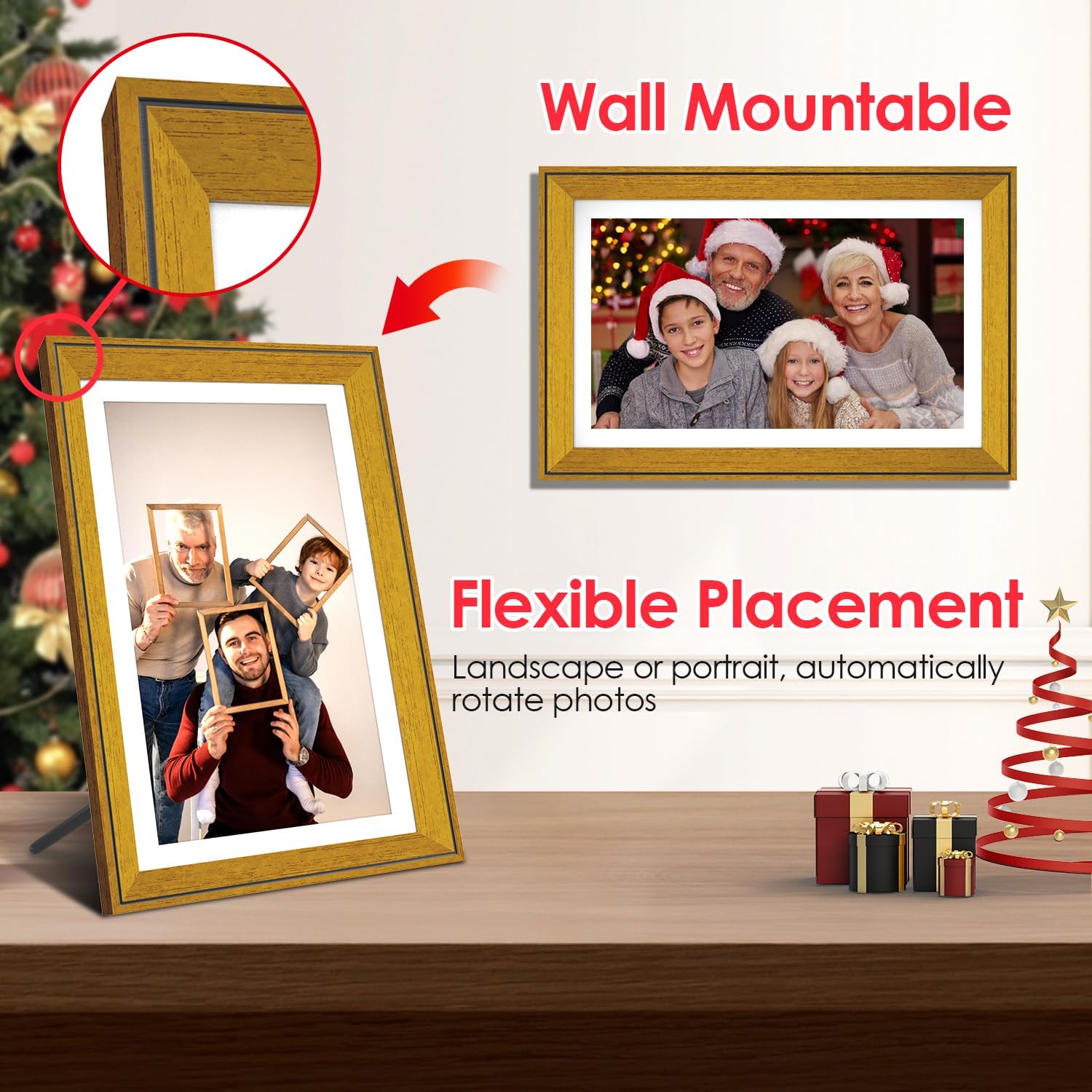
Image: The digital frame displayed in both tabletop (portrait) and wall-mounted (landscape) configurations, highlighting its flexible placement options and automatic photo rotation.
5. Maintenance
5.1 Cleaning the Frame
- Gently wipe the screen with a soft, lint-free cloth. For stubborn smudges, slightly dampen the cloth with water or a screen-safe cleaner.
- Clean the frame's exterior with a dry, soft cloth. Avoid abrasive cleaners or solvents.
- Ensure the frame is powered off and unplugged before cleaning.
5.2 Software Updates
Periodically check for software updates through the frame's settings menu to ensure optimal performance and access to new features. Follow the on-screen instructions for any available updates.
6. Troubleshooting
If you encounter issues with your digital picture frame, refer to the following common solutions:
- Frame Freezing or "Please Wait" Message: If the frame becomes unresponsive or displays a persistent "please wait a moment" message, try restarting the device. Disconnect the power adapter, wait 10 seconds, then reconnect it.
- Photos Not Displaying / Hidden: Ensure that photos sent via the Frameo app are not marked as 'hidden'. Check the settings within the Frameo app and on the frame itself to verify display preferences. You may need to manually unhide photos if they were inadvertently marked.
- Wi-Fi Connectivity Issues: Verify that your Wi-Fi network is active and the password entered is correct. Try restarting your router and the digital frame. Ensure the frame is within range of your Wi-Fi signal.
- Frame Not Powering On: Check that the power adapter is securely connected to both the frame and a working power outlet. Try a different outlet if necessary.
- Touch Screen Unresponsive: Ensure the screen is clean and free of debris. If using the stylus, ensure it is making proper contact. A restart may resolve temporary unresponsiveness.
7. Specifications
| Feature | Specification |
|---|---|
| Brand | KOHO |
| Model Number | WF101A |
| Screen Size | 10.1 Inches |
| Resolution | 1080p (1280x800 HD IPS Touch Screen) |
| Internal Memory | 32GB |
| Compatible Devices | Smartphone (via Frameo App) |
| Connectivity | WiFi |
| Additional Ports | USB, SD Card Slot |
| Product Dimensions | 7.17 x 10.31 x 0.99 inches |
| Item Weight | 2.67 pounds |
| Date First Available | October 20, 2023 |

Image: The digital frame displaying a vibrant image, emphasizing its 10.1-inch IPS HD touchscreen with 1280x800 resolution and 16:10 aspect ratio for superior color fidelity and detailed image quality.
8. Warranty and Support
Your KOHO FRAMEO Digital Picture Frame is covered by a manufacturer's warranty. For specific warranty details, please refer to the warranty card included in your package or contact KOHO customer support directly. If you require technical assistance or have questions not covered in this manual, please reach out to KOHO customer service.
