
1. Introduction
Thank you for choosing the NETUM SD-1300 Document Camera & Webcam. This versatile 2-in-1 device is designed to enhance your remote teaching, live demonstrations, online meetings, and presentations with its high-quality imaging and flexible design. Featuring 4K resolution, a built-in microphone, 3-level adjustable LED light, and autofocus, the SD-1300 provides clear visuals and audio for various applications. This manual provides detailed instructions for setup, operation, maintenance, and troubleshooting to ensure optimal performance of your device.

Figure 1.1: NETUM SD-1300 Document Camera & Webcam
2. Product Overview & Components
The NETUM SD-1300 is engineered for ease of use and portability. Familiarize yourself with its key components:

Figure 2.1: Key Components of the SD-1300
- Ultra HD 11MP Camera: High-resolution COMS sensor for sharp images and video.
- 3-Level Adjustable LED Light: Provides illumination for various lighting conditions.
- Built-in Dual Microphones: Captures clear audio and reduces noise.
- Manual Quick Focus Button (AF): Allows for precise manual focus adjustment.
- Flip Button (180°): Instantly inverts the image for correct orientation.
- Brightness Adjustment Button: Controls the intensity of the LED light.
- USB-A Port: For connecting to your computer.
3. Setup Guide
Setting up your NETUM SD-1300 is quick and straightforward. Follow these steps:
3.1 Unfolding and Positioning
- Carefully unfold the device from its compact, phone-sized form. The multi-joint design allows for flexible positioning.
- Adjust the camera arm to the desired height and angle for your document or subject. The device supports a maximum A3 size visible area.
- Ensure the base is stable on a flat surface. The device is lightweight (approx. 0.6 lbs) and designed for portability.

Figure 3.1: Multi-Joint Folding Design

Figure 3.2: Portable and Flexible Design
3.2 Connecting to Your Computer (Plug and Play)
The NETUM SD-1300 is designed for plug-and-play convenience. No additional drivers are typically required for basic functionality.
- Connect the USB cable from the document camera to an available USB port on your Windows computer.
- The device should be automatically recognized by your operating system.
3.3 Software Installation (Optional, Recommended)
For advanced features and optimal performance, it is recommended to download and install the exclusive NETUM App.
- Visit the official NETUM website to download the latest version of the visualization software.
- Follow the on-screen instructions to complete the installation.
- The NETUM App offers powerful annotation tools, snapshot, recorder, and interactive whiteboard features.
4. Operating Instructions
Once set up, the NETUM SD-1300 is ready for use as a document camera or webcam.
4.1 Basic Usage
- As a Document Camera: Place documents, objects, or textbooks under the camera lens. Open your preferred software (e.g., NETUM App, Windows Camera app, or video conferencing software) and select the NETUM SD-1300 as your camera source.
- As a Webcam: Position the camera to face you or your audience. Select the NETUM SD-1300 as your camera source in your video conferencing application (Zoom, Microsoft Teams, Google Meet, Skype, etc.).
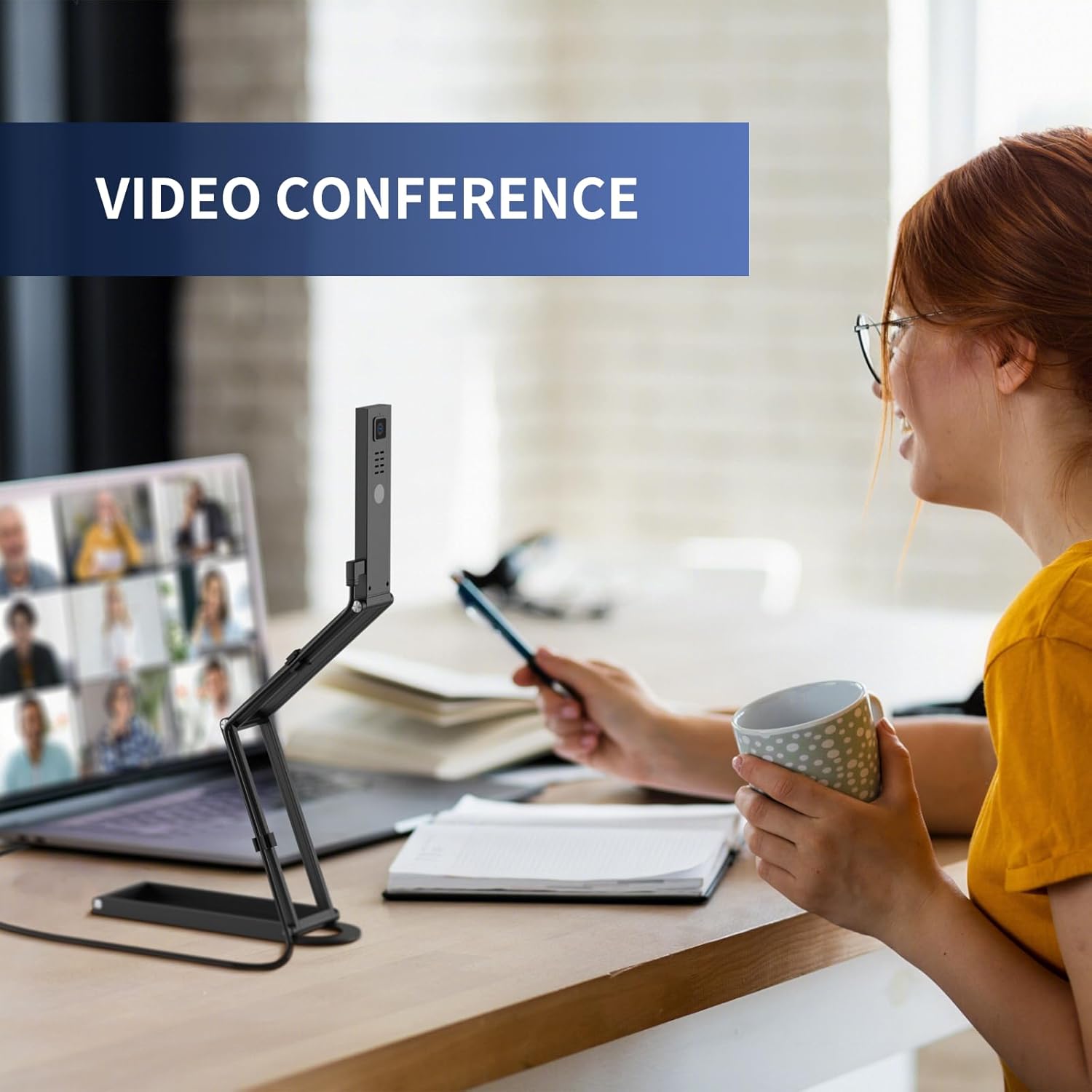
Figure 4.1: Using the SD-1300 for Video Conferencing
4.2 Autofocus and Manual Focus
- The camera features autofocus for sharp, clear images.
- For specific focus needs, press the Manual Quick Focus (AF) button on the camera head to adjust the focus manually.
4.3 LED Light Adjustment
- The integrated LED light has 3 adjustable levels to adapt to different lighting environments.
- Press the Brightness Adjustment button on the camera head to cycle through the light levels (Off, Level 1, Level 2, Level 3).
4.4 Image Invert/Flip
- If your image appears upside down or mirrored, use the Flip Button (180°) on the camera head to correct the orientation.

Figure 4.2: Image Flip Functionality
5. Maintenance
To ensure the longevity and optimal performance of your NETUM SD-1300, follow these maintenance guidelines:
- Cleaning: Use a soft, dry cloth to clean the exterior of the device. For the camera lens, use a lens cleaning cloth and solution specifically designed for optical surfaces. Avoid abrasive cleaners or solvents.
- Storage: When not in use, fold the device into its compact form and store it in a dry, dust-free environment. Avoid extreme temperatures and direct sunlight.
- Handling: Handle the device with care. Avoid dropping it or subjecting it to strong impacts, which can damage internal components or the delicate lens.
6. Troubleshooting
If you encounter issues with your NETUM SD-1300, refer to the following common problems and solutions:
| Problem | Possible Cause | Solution |
|---|---|---|
| Device not recognized by computer | Loose USB connection, faulty USB port, driver issue (rare) | Ensure USB cable is securely connected. Try a different USB port. Restart your computer. If issues persist, check device manager for driver status. |
| Image is blurry or out of focus | Incorrect focus, dirty lens | Press the Manual Quick Focus (AF) button. Ensure the object is within the camera's focal range. Clean the camera lens with a soft cloth. |
| Image is upside down or mirrored | Incorrect image orientation setting | Press the Flip Button (180°) on the camera head to correct the image orientation. |
| LED light is not working or too dim/bright | Light setting, power issue | Press the Brightness Adjustment button to cycle through the 3 light levels. Ensure the device is properly powered via USB. |
| No audio or poor audio quality | Microphone not selected, software settings, environmental noise | Ensure the NETUM SD-1300 microphone is selected as the input device in your software settings. Reduce background noise. |
| NETUM App not installing or functioning correctly | Corrupted download, antivirus interference, compatibility issue | Re-download the app from the official NETUM website. Temporarily disable antivirus during installation if necessary. Ensure your Windows OS is up to date. |
7. Specifications
Detailed technical specifications for the NETUM SD-1300 Document Camera & Webcam:
| Feature | Detail |
|---|---|
| Model Number | SD-1300 |
| Max Resolution | Up to 3840x2880@10fps, 2592x1944@30fps, 1920x1080@60fps |
| Sensor Type | HD COMS Sensor |
| Focus Type | Autofocus |
| Lighting | 3-Level Adjustable LED Light |
| Microphone | Built-in Dual Microphones |
| Connectivity | USB (Plug and Play) |
| Compatibility | Windows OS (compatible with Zoom, Microsoft Teams, Google Meet, Skype, etc.) |
| Weight | 0.6 pounds (approx. 10.1 ounces) |
| Dimensions (Folded) | Approx. 8.66 x 3.62 x 1.1 inches |
| Color | Black |
8. Warranty and Support
The NETUM SD-1300 comes with a one-year warranty, ensuring peace of mind regarding your purchase. For any technical assistance, product inquiries, or warranty claims, please contact NETUM professional technical support through the official website or the contact information provided with your product packaging.
For the latest software updates and additional resources, please visit the official NETUM website.


