
Phomemo M832
Phomemo M832 Portable Thermal Printer User Manual
Model: M832
Introduction
The Phomemo M832 Portable Thermal Printer is a compact, inkless printing solution designed for convenience and mobility. This manual provides comprehensive instructions for setting up, operating, and maintaining your printer, ensuring optimal performance and longevity.
What's in the Box
- 1 x Phomemo M832 Portable Printer
- 1 x Thermal paper roll (pre-installed in the printer paper bin)
- 1 x Flannel Storage Bag
- 1 x USB-C Charging Cable
- 1 x Quick Start Guide
Product Overview
Familiarize yourself with the key components of your Phomemo M832 printer:
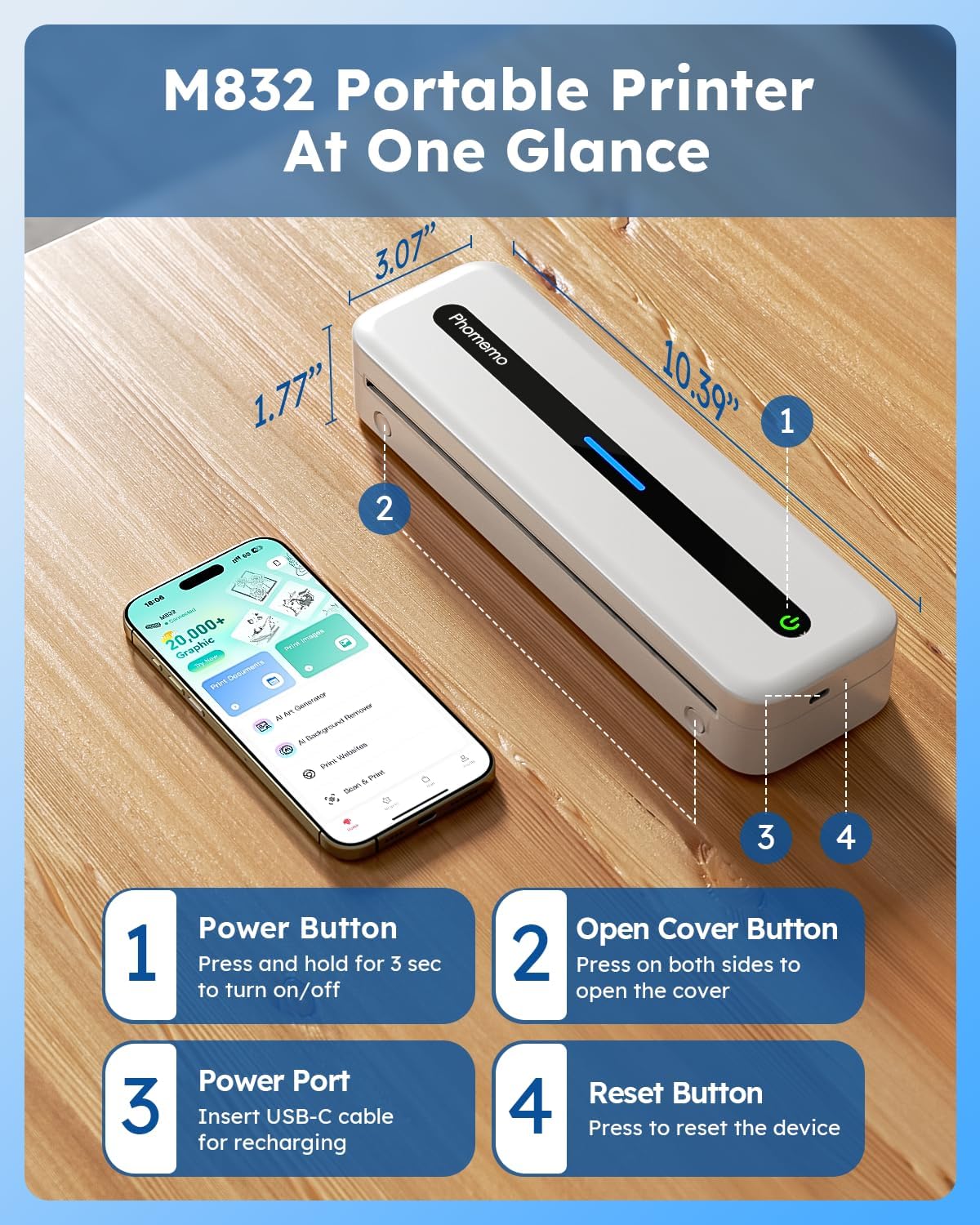
Image: Phomemo M832 Portable Printer showing its dimensions and button locations.
- Power Button: Press and hold for 3 seconds to turn the printer on or off.
- Open Cover Button: Press on both sides simultaneously to open the printer cover for paper loading.
- Power Port: Insert the USB-C cable here for charging the printer.
- Reset Button: Press to reset the device if needed.
Setup
1. Charging the Printer
Before first use, fully charge the printer. Connect the provided USB-C cable to the printer's power port and the other end to a 5V 2A power adapter (not included). Avoid using chargers with output above 5V.

Image: The Phomemo M832 printer being charged, illustrating its 2600mAh battery and capacity for 150 continuous prints.
The built-in 2600mAh rechargeable battery allows for printing up to 150 sheets on a full charge.
2. Loading Thermal Paper
The Phomemo M832 supports various thermal paper types and sizes, including 8.5" x 11" US Letter, A4, 2.08''(53mm), 3.15''(80mm), and 4.33''(110mm). It can use thermal roll paper, folded thermal paper, and single sheet thermal paper.
- Press the open cover buttons on both sides of the printer to open the top cover.
- Insert the thermal paper into the paper bin, ensuring the printable side is facing up. For roll paper, remove any plastic wrapping and ensure the leading edge is straight.
- Adjust the paper guides to fit the width of your paper.
- Close the top cover firmly until it clicks into place.

Image: The Phomemo M832 printer demonstrating compatibility with various thermal paper sizes and types, including single sheet, continuous, and roll paper.
3. Connecting to Your Device
Bluetooth Connection (for Mobile Phones/Tablets)
The Phomemo M832 is compatible with iOS 13 and above, and Android 7 and above.
- Download the "Phomemo" app from the App Store (iOS) or Google Play Store (Android).
- Ensure Bluetooth is enabled on your mobile device.
- Open the Phomemo app and follow the in-app instructions to connect to your printer. The app will guide you through the pairing process.

Image: Visual guide for connecting the Phomemo M832 printer to a mobile device via Bluetooth using the Phomemo app.
USB-C Cable Connection (for Laptops/Computers)
The printer is compatible with macOS 10.14 and above, Windows 7/8/10/11 (both 32-bit and 64-bit), Chrome OS, and Linux.
- Connect your M832 printer to your laptop or computer using the provided USB-C cable.
- Download and install the necessary drivers from m832.phomemo.com.
- Once drivers are installed, select the M832 printer from your computer's print options to begin printing.

Image: Instructions for connecting the Phomemo M832 printer to a laptop or computer using a USB-C cable and installing drivers.
Operating Instructions
Basic Printing Steps
- Ensure the printer is powered on and connected to your device (via Bluetooth or USB-C).
- Open the document, image, or web page you wish to print on your device.
- Select the print option from your application or device settings.
- Choose "Phomemo M832" as your printer.
- Adjust print settings (e.g., paper size, orientation) as needed.
- Initiate the print job. The printer will feed the thermal paper and produce the printout.

Image: The Phomemo M832 printer in action, demonstrating its ability to print documents, invoices, and other materials from a connected smartphone.
Print Quality
The Phomemo M832 features a 300 DPI (dots per inch) print resolution, providing clear and crisp black and white prints. This high resolution ensures that text and graphics are sharp and legible.

Image: A visual comparison highlighting the enhanced print quality of the Phomemo M832 (300 DPI) compared to a 200 DPI printer.
Inkless Printing Technology
This printer utilizes advanced thermal technology, eliminating the need for ink cartridges, toner, or ribbons. This design prevents common issues like clogging and reduces ongoing costs, making printing more efficient and economical. Only thermal paper is required for operation.

Image: Illustration of the Phomemo M832's inkless thermal printing technology, showing no need for ink, toner, or ribbons.
Versatile Usage
The compact and portable design of the Phomemo M832 makes it suitable for various environments and uses, including:
- Travel: Ideal for business trips, vehicle use (cars, trucks), and mobile notary services.
- Office & Home: Perfect for small offices, home use, and printing documents, contracts, invoices, and receipts.
- Education: Useful for students and teachers for printing study notes, worksheets, and customized cards.
- Personal Use: Great for printing recipes, letters, shopping lists, and DIY projects.

Image: The Phomemo M832 printer being used in various settings: on a flight, outdoors, in an office, and on a campus, highlighting its portability.
Maintenance
Cleaning the Printer
To ensure consistent print quality and prolong the life of your printer, regular cleaning is recommended:
- Turn off the printer and disconnect it from the power source.
- Gently wipe the exterior of the printer with a soft, dry, lint-free cloth.
- To clean the thermal print head, use a cotton swab lightly dampened with isopropyl alcohol. Wipe the print head gently and allow it to dry completely before closing the cover or using the printer.
- Remove any paper dust or debris from the paper path using a soft brush or compressed air.
Thermal Paper Storage
Store thermal paper in a cool, dry place away from direct sunlight, heat, and humidity. Exposure to these elements can degrade the paper's thermal coating, leading to faded or unreadable prints over time.
Troubleshooting
This section addresses common issues you might encounter with your Phomemo M832 printer.
| Problem | Possible Cause | Solution |
|---|---|---|
| Printer does not turn on. | Low battery or power issue. | Ensure the printer is charged. Connect to a 5V 2A power source using the USB-C cable. |
| Cannot connect via Bluetooth. | Bluetooth not enabled, app issue, or interference. |
|
| Poor print quality (faded, inconsistent). | Print head dirty, incorrect paper, or low battery. |
|
| Paper jam or misfeed. | Improper paper loading or damaged paper. |
|
| Printer not recognized by computer (USB). | Missing or incorrect drivers. |
|
Specifications
| Feature | Detail |
|---|---|
| Model Name | M832 Portable Printer |
| Product Dimensions | 10.39"D x 1.77"W x 3.07"H |
| Item Weight | 1.52 pounds |
| Printing Technology | Thermal |
| Connectivity Technology | Bluetooth, USB Type C |
| Maximum Black and White Print Resolution | 300 DPI |
| Maximum Media Size | 8.5 x 11 inch (US Letter) |
| Supported Sheet Sizes | 8.5" X 11" (US Letter), A4, 4.33" (110mm), 3.15"(80mm), 2.08"(53mm) Inches |
| Compatible Devices | Smartphones, PC, Tablets, Laptops (iOS, Android, macOS, Windows, Chrome OS, Linux) |
| Battery Capacity | 2600mAh (Lithium Ion) |
| Prints per Full Charge | Up to 150 sheets |
| Inkless Printing | Yes |
| Control Method | App |
| Included Components | Printer, Thermal paper roll, Flannel Storage Bag, USB-C Cable, Quick Start Guide |
Warranty and Support
For warranty information and technical support, please refer to the official Phomemo website or contact Phomemo customer service. Details can typically be found in the Quick Start Guide included with your product or on the manufacturer's website.
You can also visit the Phomemo Store on Amazon for additional product information and support resources: Phomemo Store
Related documentsM832


Ask a question about this manual
Ask about setup, troubleshooting, compatibility, parts, safety, or missing instructions. Manuals+ will review the question and use this page’s manual context to help answer it.