
1. Setup Guide
This section guides you through the initial setup and installation of your BIWIBON BCA-02 Smart Fingerprint Door Lock.
1.1 Package Contents
Verify that all components are present in your package:
- User Manual
- Front Handle
- Back Handle
- Single Latch
- Strike Plate
- 2 Mechanical Keys
- 2 IC Cards
- Square Cotter
- 2 Spiral Tubes
- Screws (Spare Package)
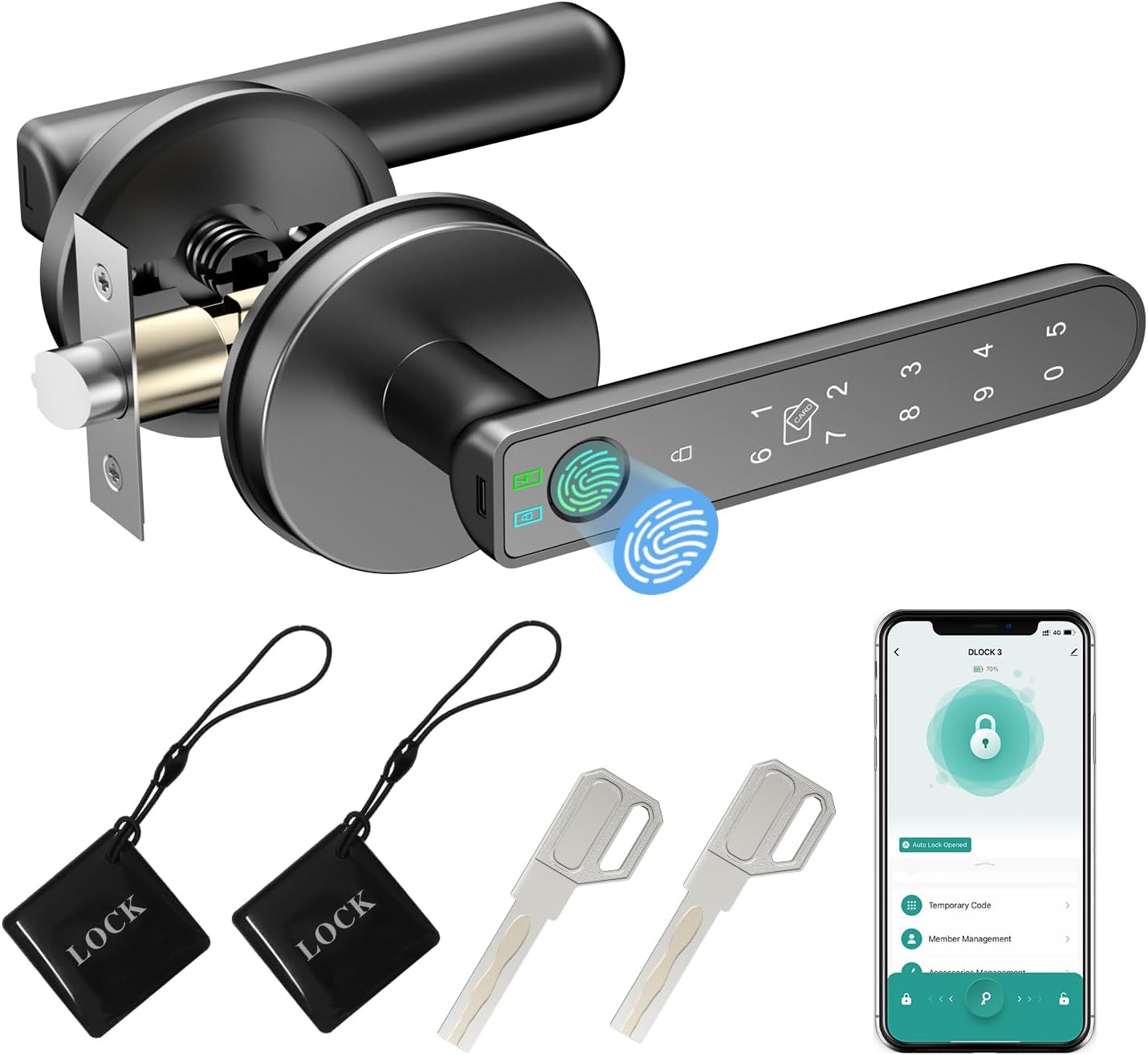
Image: All components included with the BIWIBON BCA-02 Smart Fingerprint Door Lock, including the front and back handles, latch, keys, and IC cards.
1.2 Tools Required
A basic screwdriver is typically sufficient for installation. No extra drilling or specialized tools are usually required.
1.3 Door Preparation
Ensure your door meets the following specifications for proper installation:
- Door Thickness: 35mm-55mm (1.38-2.17 inches)
- Backset: Adjustable between 60mm (2-3/8 inches) and 70mm (2-3/4 inches)
- Door Hole Diameter: 54mm (2-1/8 inches)

Image: Diagram illustrating standard US door dimensions and how the lock components fit, including backset and hole diameter measurements.
1.4 Installation Steps
Follow these steps to install your smart door lock. For a visual guide, please refer to the installation video below.
- Adjust Latch Backset: The latch is initially set for 60mm (2-3/8 inches). Adjust it to 70mm (2-3/4 inches) if required by your door size. Ensure the latch is horizontal, not inclined.
- Install Latch: Insert the latch into the door edge and secure it with screw A. Ensure the slotted hole is centered in the door hole.
- Install Front Handle: Fix and tighten the spiral tubes onto the front handle. Route the wire through the square cotter and insert it into the latch hole, then fix the front panel. This lock is suitable for both left and right-handed doors without special adjustment for handle direction.
- Install Back Handle: Remove the battery cover from the back handle. Route the wire through the back panel. Connect the wire on the battery box and ensure a tight wire connection. Secure the back handle with screw B. When fixing screw B, press the handle down to insert the screw and tighten it through the hole in the back handle.
- Insert Batteries: Install 4 AAA alkaline batteries (not included) into the battery box.
- Test Operation: After installation, test all unlocking methods to ensure proper functionality.
Video: Official BIWIBON BCA-02 Fingerprint Door Lock Installation Guide. This video demonstrates the step-by-step process of installing the smart door lock, including latch adjustment, handle assembly, and wiring connections.
2. Operating Instructions
Your BIWIBON BCA-02 Smart Fingerprint Door Lock offers multiple convenient ways to access your space.
2.1 Unlocking Methods
The lock supports the following unlocking methods:
- Fingerprint Recognition: Place your registered finger on the sensor for quick access. The enhanced 508 DPI fingerprint sensor module provides a recognition rate of over 99% in 0.2 seconds.
- Smart APP Control: Use the dedicated mobile application (Tuya Smart App) to unlock the door remotely via Bluetooth. With the optional BIWIBON Gateway (sold separately), you can control the lock from anywhere.
- IC Cards: Tap a registered IC card on the designated area of the handle to unlock.
- Password Entry: Enter your programmed passcode on the touchscreen keypad. The anti-peeping feature allows you to input random digits before and after your actual code to protect your PIN.
- Mechanical Keys: For traditional backup, use the provided mechanical keys to unlock the door.

Image: Visual representation of the various unlocking methods available for the BIWIBON BCA-02 lock, including app, fingerprint, IC card, password, and backup key.

Image: Illustration of the smart app control features, such as keyless entry, share access, auto-lock, remote passcode generation, and access history viewing.
2.2 Locking Methods
The lock can be secured in the following ways:
- Automatic Locking: The lock can be configured to automatically lock after a set period once the door is closed.
- Manual Locking: Press the lock button on the handle or use the mobile app to manually lock the door.
2.3 Special Features
- Passage Mode: Activate Passage Mode to keep the door unlocked for extended periods, useful during gatherings or when frequent access is needed.
- Voice Control (Optional): When paired with the BIWIBON Gateway (sold separately), the lock can be integrated with Alexa or Google Home for voice-activated unlocking.

Image: Highlights advanced features such as storage capacity for 100 fingerprints, 100 passwords, and 100 IC cards, along with optional voice control compatibility with Alexa and Google Assistant via the BIWIBON Gateway.
3. Maintenance
Proper maintenance ensures the longevity and optimal performance of your smart door lock.
3.1 Battery Management
- Battery Type: The lock requires 4 AAA alkaline batteries (not included).
- Low Battery Alert: The lock will provide a low battery warning signal when the batteries need replacement.
- Emergency Power: In case of a completely dead battery, you can use an external power bank connected via the emergency charge port (USB) to temporarily power the lock for unlocking. This port is for power only, not for charging the internal batteries.
- Backup Keys: Always keep your spare mechanical keys within reach for emergency access.

Image: Details on how to manage battery life, including low battery alerts, emergency power bank usage, and the importance of keeping mechanical backup keys accessible.
3.2 Cleaning
Wipe the lock's surface with a soft, dry cloth. Avoid using abrasive cleaners or solvents that could damage the finish or electronic components.
4. Troubleshooting
If you encounter issues with your BIWIBON BCA-02 Smart Fingerprint Door Lock, refer to the following common problems and solutions:
- Fingerprint Not Recognized: Ensure your finger is clean and dry. Try repositioning your finger on the sensor. Re-register your fingerprint if the issue persists.
- Lock Not Responding: Check the battery level. If batteries are low or dead, replace them or use an emergency power bank. Ensure the wire connections are secure.
- App Connectivity Issues: Ensure Bluetooth is enabled on your phone and you are within range of the lock. If using the BIWIBON Gateway, ensure it is properly connected to Wi-Fi and within range of both the lock and your router. Try restarting the app or your phone.
- Incorrect Password Entry: Ensure you are entering the correct password. Utilize the anti-peeping feature by entering random digits before and after your actual code.
- IC Card Not Working: Ensure the IC card is properly registered. Try tapping the card firmly on the sensor.
- Mechanical Key Not Working: Ensure the key is fully inserted and turned correctly. Do not force the key.
5. Product Specifications
| Feature | Specification |
|---|---|
| Brand | BIWIBON |
| Model Name | BCA-02 |
| Lock Type | Biometric, App Control, Touchscreen Keypad |
| Material | Metal |
| Color | Black |
| Item Dimensions (L x W x H) | 5.7 x 2.75 x 2.35 inches |
| Item Weight | 2.15 pounds |
| Power Source | 4 AAA batteries (required, not included) |
| Connectivity Protocol | Wi-Fi (with optional Gateway) |
| Special Features | Smart Door Knob, Up to 100 Fingerprints, 100 IC Cards, 100 Passwords, Bluetooth Unlock, One Touch Unlock, Smart Control with app, Auto Lock, Passage Mode, Silent Mode, Easy Install, Emergency Charge |
6. Warranty and Support
For warranty information, product support, or technical assistance, please refer to the warranty card included in your product packaging or contact BIWIBON customer service directly. Keep your purchase receipt as proof of purchase.
For further assistance, please visit the official BIWIBON store or contact their support channels.