
1. Product Overview
The McDodo Lightning Male to USB3.0 Female Adapter OTG Cable is designed to expand the connectivity and storage capabilities of your compatible Apple devices. This compact adapter allows you to connect various USB-A peripherals such as USB flash drives, card readers, keyboards, mice, and gamepads directly to your iPhone or iPad, facilitating efficient data transfer and enhanced functionality.

Image: Two McDodo Lightning to USB 3.0 OTG adapters, showcasing their compact design and metallic finish.
2. Setup & Compatibility
This adapter offers broad compatibility with a range of Apple devices running iOS 9.2 or later. No additional drivers or apps are required for basic plug-and-play functionality.
2.1. Connecting the Adapter
- Locate the Lightning port on your iPhone or iPad.
- Insert the Lightning male connector of the McDodo adapter firmly into your device's Lightning port.
- Connect your desired USB-A peripheral (e.g., USB flash drive, keyboard) into the USB3.0 female port of the adapter.

Image: The McDodo OTG adapter seamlessly connected to an iPhone, ready for peripheral attachment.
2.2. Compatible Devices
- iPhones: iPhone 14 Pro Max/14 Pro/14 Plus/13/13 Pro/13 Pro Max/12/12 Pro/iPhone 12 Pro Max/iPhone 11/iPhone 11 Pro Max/iPhone Xs/Xs Max/X/iPhone 8/8 Plus/iPhone 7/7Plus/iPhone 6/6 Plus/iPhone 5/5S/SE and earlier versions.
- iPads: iPad Air/Mini/Pro models.
- iOS Version: Stable compatibility with iOS 9.2-iOS 17 and earlier versions.
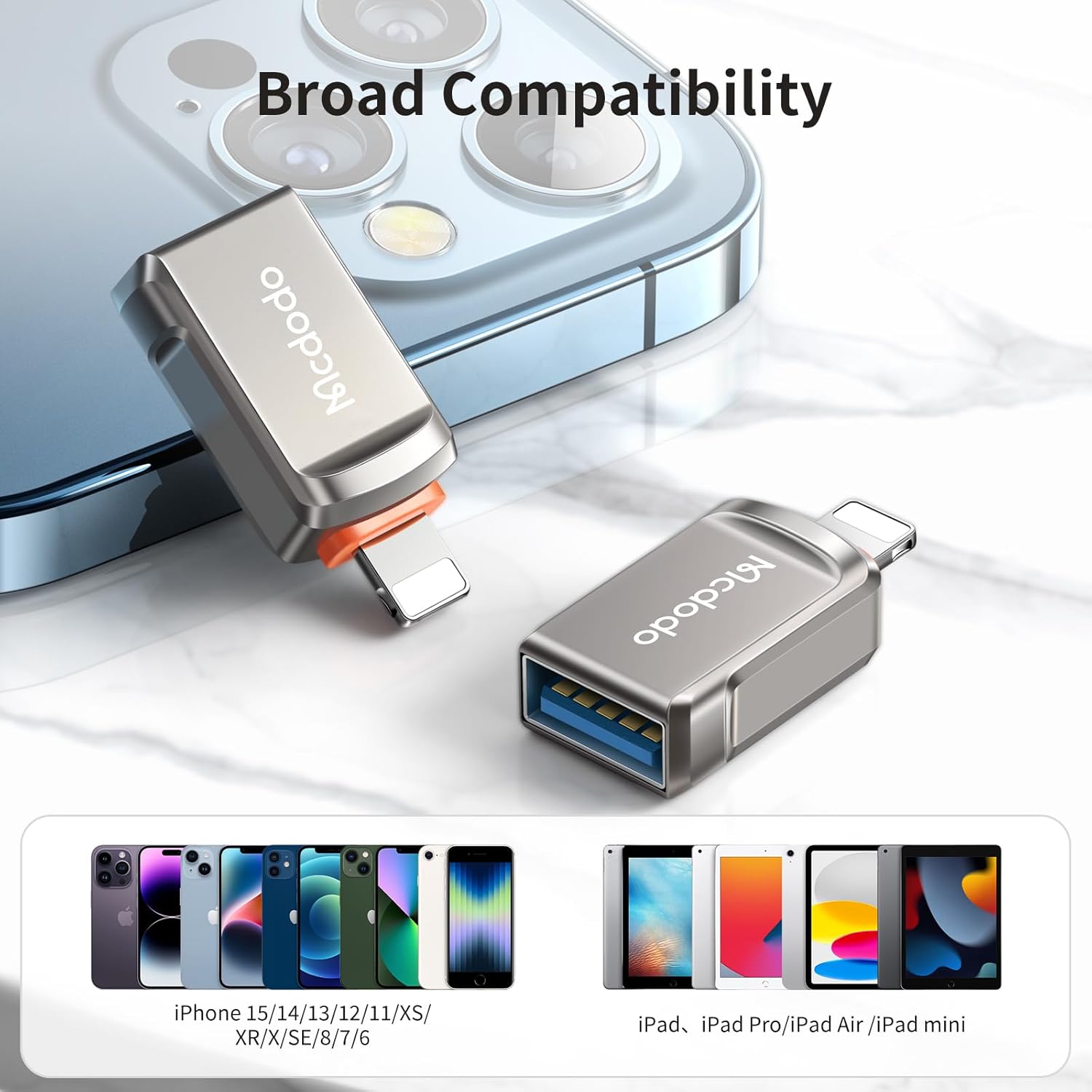
Image: The adapter positioned with a visual representation of its broad compatibility across different generations of iPhones and iPads.
3. Operating Instructions
3.1. Connecting Peripherals
The adapter supports On-The-Go (OTG) functionality, allowing direct connection of various USB-A devices to your Apple product.
Mouse and Keyboard
Transform your iPad into a more efficient workstation by connecting a USB mouse and keyboard. This enables faster typing and more precise navigation, enhancing productivity for work, study, or entertainment.
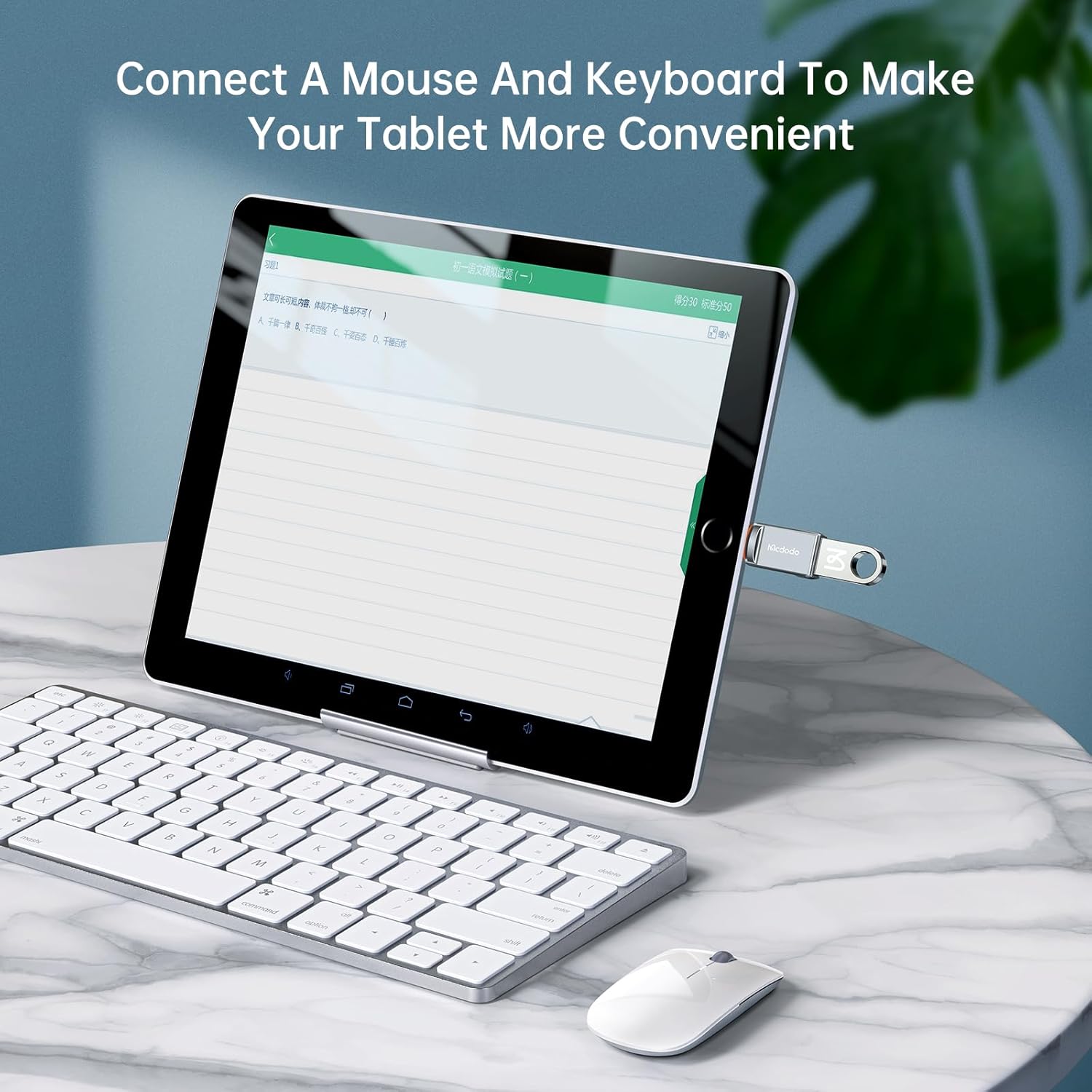
Image: An iPad connected to an external keyboard and mouse using the McDodo OTG adapter, illustrating enhanced usability.
Gamepads
Connect a USB gamepad to your iPhone or iPad for a more immersive gaming experience, reducing the need for on-screen controls and improving comfort during extended play sessions.
Image: An iPhone connected to a game controller through the McDodo OTG adapter, demonstrating gaming enhancement.
3.2. Data Transfer & Storage
The adapter enables quick and stable data transfer, allowing you to manage files directly from external storage devices.
USB Flash Drives & Card Readers
Directly access and transfer photos, videos, and documents (Word, PPT, Excel, PDF) from a USB flash drive or card reader to your iPhone or iPad. This function is ideal for backing up files, expanding memory, and viewing content without needing to download it to your device.

Image: An iPhone displaying its file management interface, with a USB drive connected via the McDodo OTG adapter, indicating easy file access.
Fast Transmission
Equipped with USB3.0 interface specifications, the adapter boasts a high transmission speed, capable of transferring a 1GB file in approximately 3 seconds, with measured speeds up to 400MB/s. The internal circuit design ensures stable operation without lag or delays.

Image: The McDodo OTG adapter connected to an iPhone, with an on-screen graphic indicating rapid data transfer, highlighting its USB 3.0 capability.
Stable Internal Circuitry
The adapter features an internal circuit with a 10nF capacitor and a 5.1k pull-down resistor, ensuring stable and reliable data transmission without delays, even during prolonged use.

Image: A transparent view of the McDodo OTG adapter, revealing its internal circuitry designed for stable transmission.
4. Maintenance & Care
- Keep the adapter dry and away from moisture.
- Avoid exposing the adapter to extreme temperatures.
- Clean the adapter gently with a soft, dry cloth. Do not use harsh chemicals or abrasive materials.
- Ensure the connectors are free from dust and debris before use.
- Store in a cool, dry place when not in use.
5. Troubleshooting
Adapter Not Recognized
- Ensure the adapter is fully inserted into your device's Lightning port.
- Verify that your iPhone or iPad is running a compatible iOS version (iOS 9.2 or higher).
- Try disconnecting and reconnecting both the adapter and the peripheral device.
- Restart your iPhone or iPad.
- Test the adapter with a different compatible device or peripheral to isolate the issue.
Slow Data Transfer
- Ensure the connected USB device supports USB 3.0 for optimal speeds.
- Large file transfers may naturally take longer.
- Avoid running multiple demanding applications on your iPhone/iPad during large transfers.
6. Specifications
| Feature | Detail |
|---|---|
| Brand | McDodo |
| Model Number | OT-8600 |
| Connector Type | Lightning Male to USB3.0 Female |
| Color | Gun Black |
| Item Weight | 0.88 ounces |
| Package Dimensions | 6.69 x 4.57 x 0.43 inches |
| Data Transfer Speed | Up to 400MB/s (USB 3.0 standard) |
| Compatibility | iPhone (5/5S/SE to 14 Pro Max), iPad (Air/Mini/Pro) with iOS 9.2-17 |

Image: A detailed diagram highlighting the HUB2.0 Advanced Chip, emphasizing wider compatibility and stable data transfer.
7. Warranty & Support
For information regarding warranty coverage and customer support, please refer to the product packaging or contact McDodo customer service directly. Details on product registration, warranty claims, and technical assistance can typically be found on the manufacturer's official website or through the retailer where the product was purchased.
Manufacturer: McDodo
Date First Available: October 16, 2023
