
ZdalaMit 82a02b5a-8e12-43d0-a692-38f2c644c8c4
ZdalaMit Voice Replacement Remote Control User Manual
For Mecool KM2 and KM2 Plus Android Smart TV Box
1. Introduction
This user manual provides comprehensive instructions for the ZdalaMit Voice Replacement Remote Control, designed for seamless compatibility with Mecool KM2 and KM2 Plus Android Smart TV Boxes. Please read this manual thoroughly before using the remote control to ensure proper operation and to maximize your user experience.
2. Safety Information
- Do not expose the remote control to direct sunlight, heat sources, or extreme temperatures.
- Avoid dropping or subjecting the remote control to strong impacts.
- Do not attempt to disassemble or modify the remote control. This will void the warranty.
- Keep batteries out of reach of children. If swallowed, seek immediate medical attention.
- Dispose of used batteries according to local regulations.
3. Package Contents
Verify that all items are present in the package:
- 1X ZdalaMit Voice Replacement Remote Control
Note: 2X 1.5V AAA Alkaline Batteries are NOT included and must be purchased separately.
4. Product Overview
The ZdalaMit Voice Replacement Remote Control features an ergonomic design and intuitive button layout for easy navigation and control of your Mecool Android TV Box.

Figure 4.1: Front view of the remote control, showing all buttons including power, navigation, volume, voice assistant, and dedicated app buttons.

Figure 4.2: Back view of the remote control, illustrating the battery compartment cover.
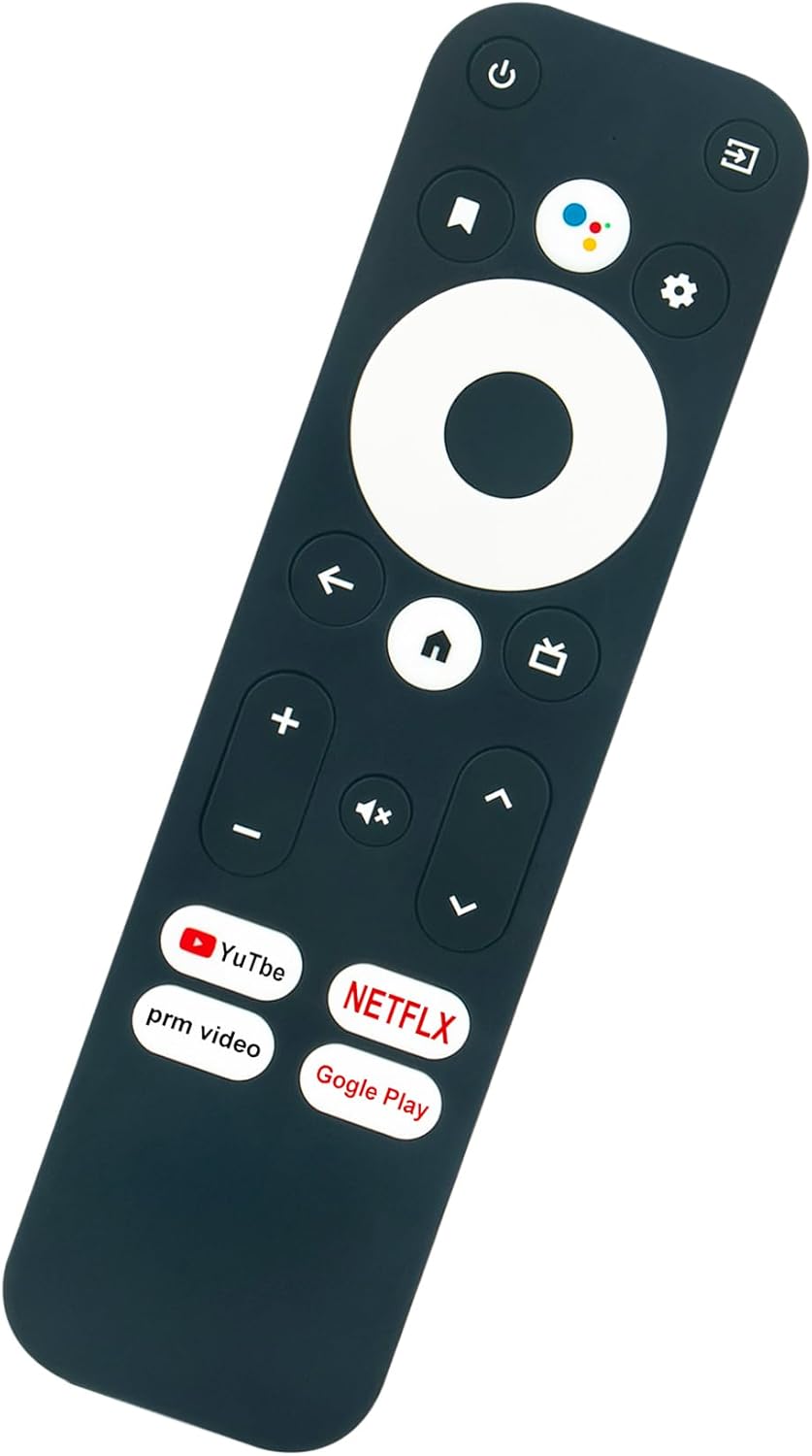
Figure 4.3: The remote control with a prominent microphone icon, indicating its voice control capability.
5. Setup
5.1 Battery Installation
- Locate the battery compartment on the back of the remote control.
- Slide down the battery compartment cover to open it.
- Insert two (2) 1.5V AAA alkaline batteries, ensuring the correct polarity (+ and -) as indicated inside the compartment.
- Close the battery compartment cover by sliding it back into place until it clicks.
5.2 Pairing the Remote Control
Before using the remote control, it must be paired with your Mecool KM2 or KM2 Plus Android Smart TV Box. The pairing process typically involves the following steps:
- Ensure your Mecool TV Box is powered on and connected to your TV.
- Navigate to the Bluetooth settings on your Mecool TV Box. This is usually found under 'Settings' > 'Connected devices' or 'Bluetooth'.
- On the remote control, press and hold the 'OK' button (center of the navigation circle) and the 'Volume Down' button simultaneously for a few seconds until an indicator light on the remote (if present) starts blinking, or a pairing prompt appears on your TV screen.
- On your TV Box, select the detected 'ZdalaMit Remote' or similar device name from the list of available Bluetooth devices.
- Confirm the pairing on your TV Box. Once successfully paired, the indicator light on the remote will stop blinking, and a confirmation message may appear on your TV.
Note: Specific pairing steps may vary slightly depending on the firmware version of your Mecool TV Box. Refer to your TV Box's user manual for detailed pairing instructions if needed.
6. Operating the Remote Control
6.1 Basic Functions
- Power Button (⏻): Turns the TV Box on or off.
- Navigation Pad (Up, Down, Left, Right, OK): Used to navigate menus and select items on the screen.
- Back Button (←): Returns to the previous screen or menu.
- Home Button (⌂): Returns to the main home screen of the TV Box.
- Volume Buttons (+ / -): Adjusts the volume level.
- Mute Button (🔇): Mutes or un-mutes the audio.
6.2 Voice Control
The remote control features a built-in microphone for voice commands. To use voice control:
- Press the Voice Assistant button (usually represented by a microphone icon or Google Assistant logo).
- Speak clearly into the microphone located on the remote control.
- Release the button when you have finished speaking.
Example commands: "Open Netflix," "Search for action movies," "What's the weather like?"
6.3 Dedicated App Buttons
The remote control includes dedicated buttons for quick access to popular streaming services:
- YouTube Button: Launches the YouTube application.
- Netflix Button: Launches the Netflix application.
- Prime Video Button: Launches the Amazon Prime Video application.
- Google Play Button: Launches the Google Play Store.
7. Maintenance
- Clean the remote control with a soft, dry cloth. Do not use liquid cleaners or abrasive materials.
- If the remote control will not be used for an extended period, remove the batteries to prevent leakage.
- Store the remote control in a cool, dry place away from direct sunlight.
8. Troubleshooting
| Problem | Possible Cause | Solution |
|---|---|---|
| Remote not responding | Low or dead batteries | Replace batteries with new 1.5V AAA alkaline batteries. |
| Remote not responding | Not paired with TV Box | Follow the pairing instructions in Section 5.2. |
| Voice control not working | Microphone blocked or too far | Ensure nothing is obstructing the microphone. Speak clearly and closer to the remote. |
| Voice control not working | TV Box voice settings disabled | Check the voice input settings on your Mecool TV Box. |
| App buttons not launching apps | App not installed or updated | Ensure the respective app is installed and updated on your Mecool TV Box. |
9. Specifications
- Product Dimensions: 5.9 x 1.57 x 0.55 inches
- Item Weight: 1.41 ounces
- Power Supply: 2 x 1.5V AAA Alkaline Batteries (Not Included)
- Compatible Devices: Mecool KM2, Mecool KM2 Plus Android Smart TV Box
- Special Feature: Voice Search
- Color: Black
10. Warranty and Support
For any queries or support regarding your ZdalaMit Voice Replacement Remote Control, please contact the seller or manufacturer directly. Information regarding warranty coverage, if applicable, will be provided at the point of purchase or by contacting customer support.
Please retain your proof of purchase for warranty claims.
Related documents82a02b5a-8e12-43d0-a692-38f2c644c8c4

Ask a question about this manual
Ask about setup, troubleshooting, compatibility, parts, safety, or missing instructions. Manuals+ will review the question and use this page’s manual context to help answer it.