
Morecam J9X
Morecam Wireless Video Doorbell Camera with Chime User Manual
Model: J9X
1. Introduction
This manual provides detailed instructions for the installation, operation, and maintenance of your Morecam Wireless Video Doorbell Camera with Wireless Chime. Please read this manual thoroughly before use to ensure proper functionality and safety.

Image 1.1: Morecam Wireless Video Doorbell Camera and Wireless Chime. The image displays the black doorbell unit on the left, a compact black wireless chime on the top right, and a smartphone screen on the bottom right showing a delivery person.
2. Package Contents
Ensure all items are present in the package:
- Morecam Wireless Video Doorbell Camera
- Wireless Chime
- Mounting Bracket
- Mounting Screws and Anchors
- USB Charging Cable
- User Manual (this document)
3. Product Overview
The Morecam Wireless Video Doorbell Camera features a 1080P HD camera, PIR human detection, two-way audio, and night vision. The wireless chime provides audible alerts indoors.

Image 3.1: Morecam WiFi Video Doorbell Camera Features. This image highlights key features such as 100% wire-free operation, super night vision, PIR motion detection, two-way audio, 1080P FHD, IP66 waterproof rating, anti-theft siren, and multi-device sharing.
Doorbell Camera Components:
- Camera Lens: Captures video.
- PIR Sensor: Detects motion.
- Microphone: Captures audio for two-way communication.
- Speaker: Outputs audio for two-way communication.
- Doorbell Button: Activates the doorbell and initiates video call.
- Status Indicator Light: Shows device status.
- USB Charging Port: For recharging the internal battery.
- Reset Button: For factory reset or pairing.
- Micro SD Card Slot: For local video storage (card not included).
Wireless Chime Components:
- Speaker: Emits doorbell sound.
- Status Indicator Light: Shows chime status.
- Pairing Button: For connecting with the doorbell.
- Volume Control: Adjusts chime volume.
- Melody Selection: Changes chime tune.
4. Setup and Installation
Follow these steps to set up your Morecam Wireless Video Doorbell Camera and Chime.
4.1 Charging the Doorbell
Before installation, fully charge the doorbell camera using the provided USB cable. Connect the cable to the doorbell's charging port and a 5V USB power adapter (not included). The indicator light will show charging status.
4.2 App Installation and Device Pairing
- Download the "CloudEdge" app from the Google Play Store or Apple App Store.
- Register an account and log in.
- Tap the "+" icon in the app to add a new device. Select "Video Doorbell".
- Follow the on-screen instructions to connect the doorbell to your 2.4GHz Wi-Fi network. Ensure your phone is connected to a 2.4GHz network during setup.
- Pair the wireless chime: Insert batteries into the chime. Press and hold the pairing button on the chime until its indicator light flashes. Then, press the doorbell button on the camera. The chime will ring, indicating successful pairing.
4.3 Physical Installation
The doorbell is 100% wireless and designed for easy installation without drilling, suitable for apartments or homes.
- Choose a suitable location for your doorbell, typically near your front door, ensuring a clear view.
- Attach the mounting bracket to the wall using the provided screws and anchors. Alternatively, use strong adhesive tape (not included) for drill-free installation on smooth surfaces.
- Slide the doorbell camera onto the mounting bracket until it clicks securely into place.
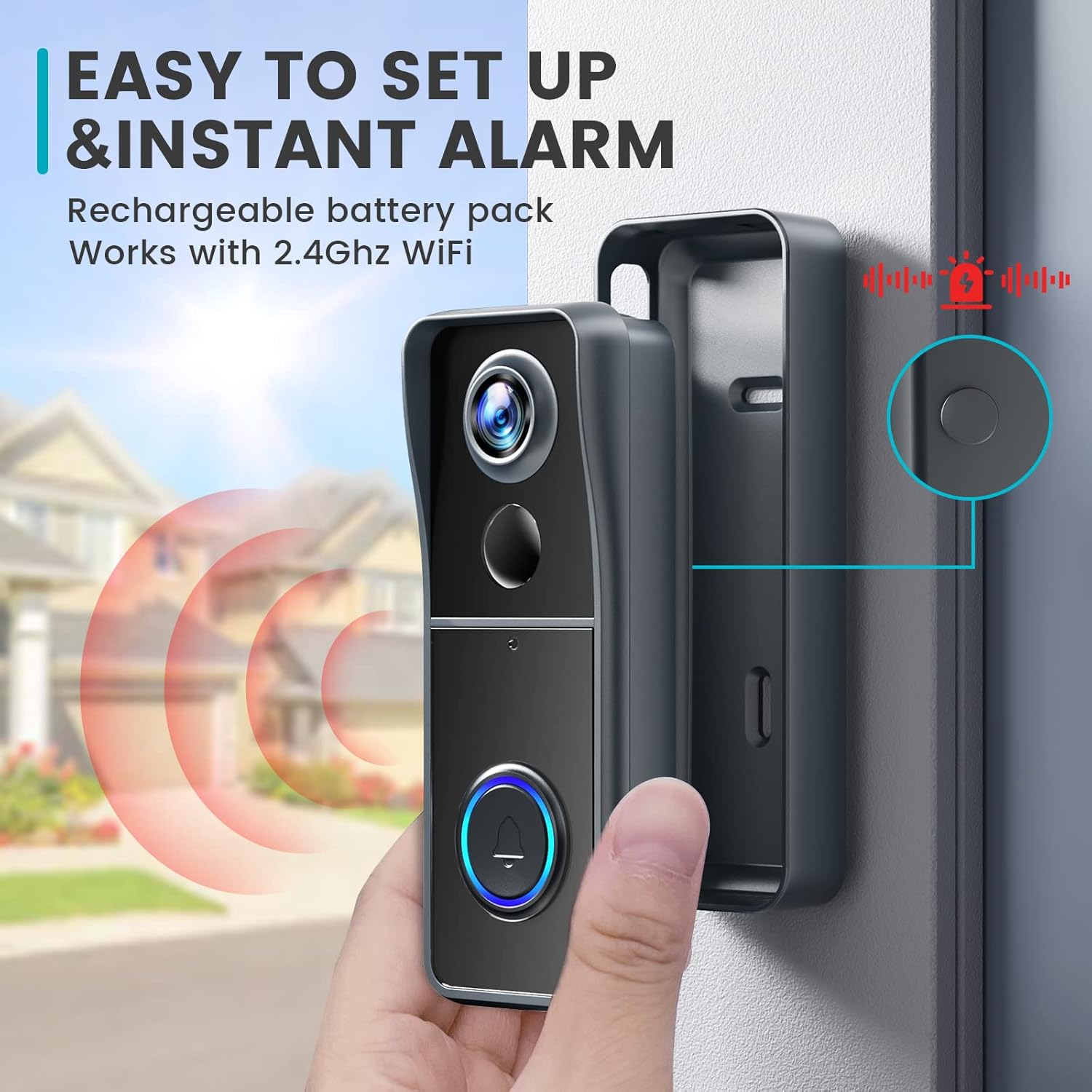
Image 4.1: Easy Setup and Instant Alarm. This image illustrates the simple installation process of the doorbell camera onto its mounting bracket, highlighting its wireless nature and instant alarm capabilities.
5. Operating Instructions
Understand the various functions of your Morecam Video Doorbell Camera.
5.1 Live View and Two-Way Audio
Open the CloudEdge app to access the live video feed from your doorbell. When a visitor presses the doorbell or motion is detected, you will receive a notification on your smartphone. Tap the notification to view the live feed and engage in two-way communication.

Image 5.1: Instant Messages from App. A smartphone displays an alert message from the CloudEdge app, indicating motion detection at the front door, allowing users to see who is approaching.

Image 5.2: Two-Way Audio and Voice Changer. This image illustrates the two-way audio function, allowing real-time interaction, and the voice changer feature for privacy, showing options like "Original," "Clown," and "Uncle" voices.
5.2 Voice Changer Function
The doorbell includes a voice changer feature to modify your voice during two-way communication, enhancing privacy. Select from available voice options within the CloudEdge app during a call.
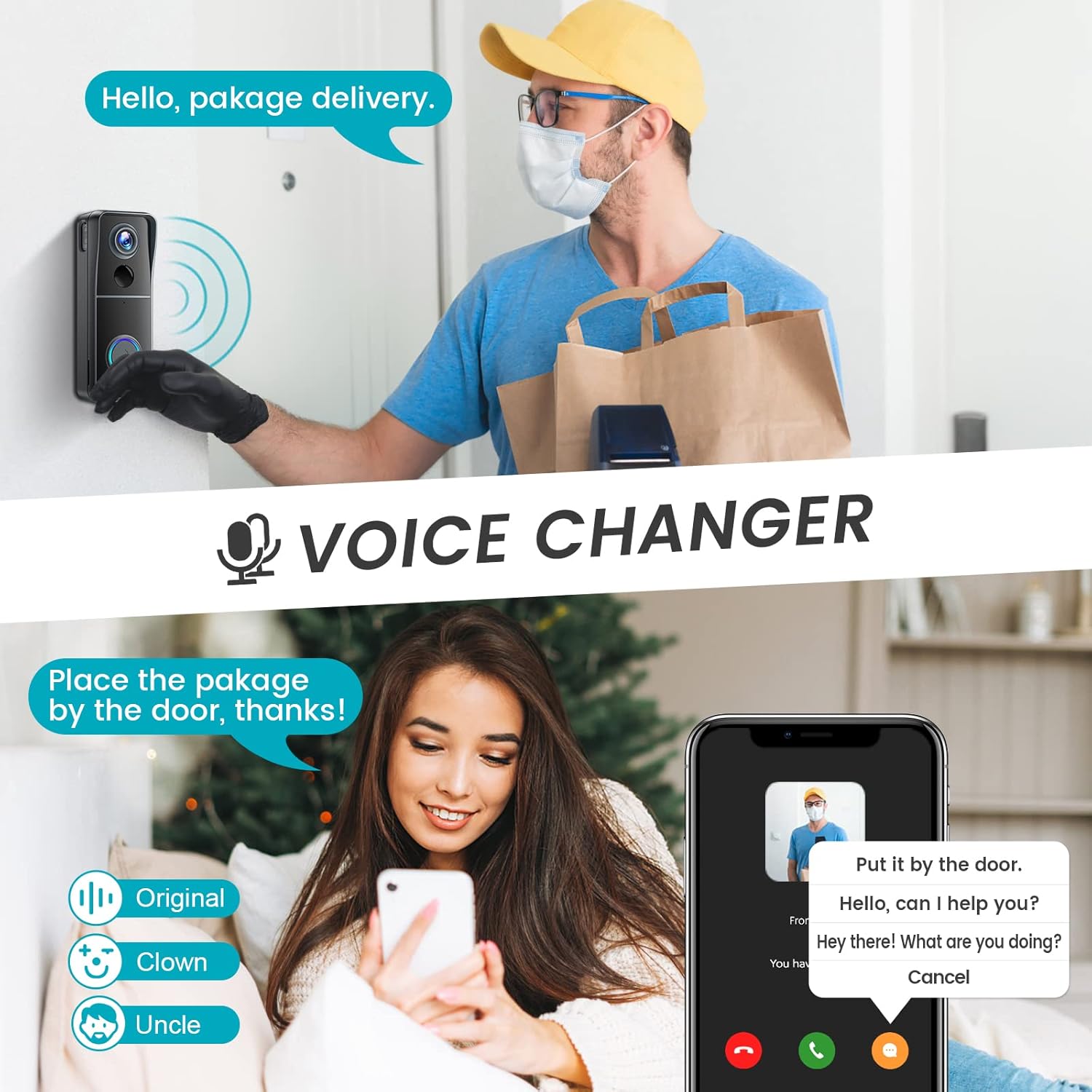
Image 5.3: Voice Changer. This image demonstrates the voice changer feature, showing a user interacting with a delivery person while using a modified voice.
5.3 PIR Human Detection and Motion Zones
The built-in PIR sensor detects human motion and sends instant notifications to your phone. You can customize motion detection zones within the app to reduce unnecessary alerts and focus on specific areas.

Image 5.4: PIR Human Detection. A smartphone displays an alert message from the CloudEdge app, indicating a detected person (e.g., a child on roller skates) within the camera's view.

Image 5.5: Customizable Motion Zones. This image shows a smartphone screen overlaying a house and yard, with a green dashed line indicating a user-defined motion detection zone to reduce false alarms.
5.4 Night Vision
The doorbell camera is equipped with IR lights that automatically activate in low-light conditions, providing clear video footage even in complete darkness.
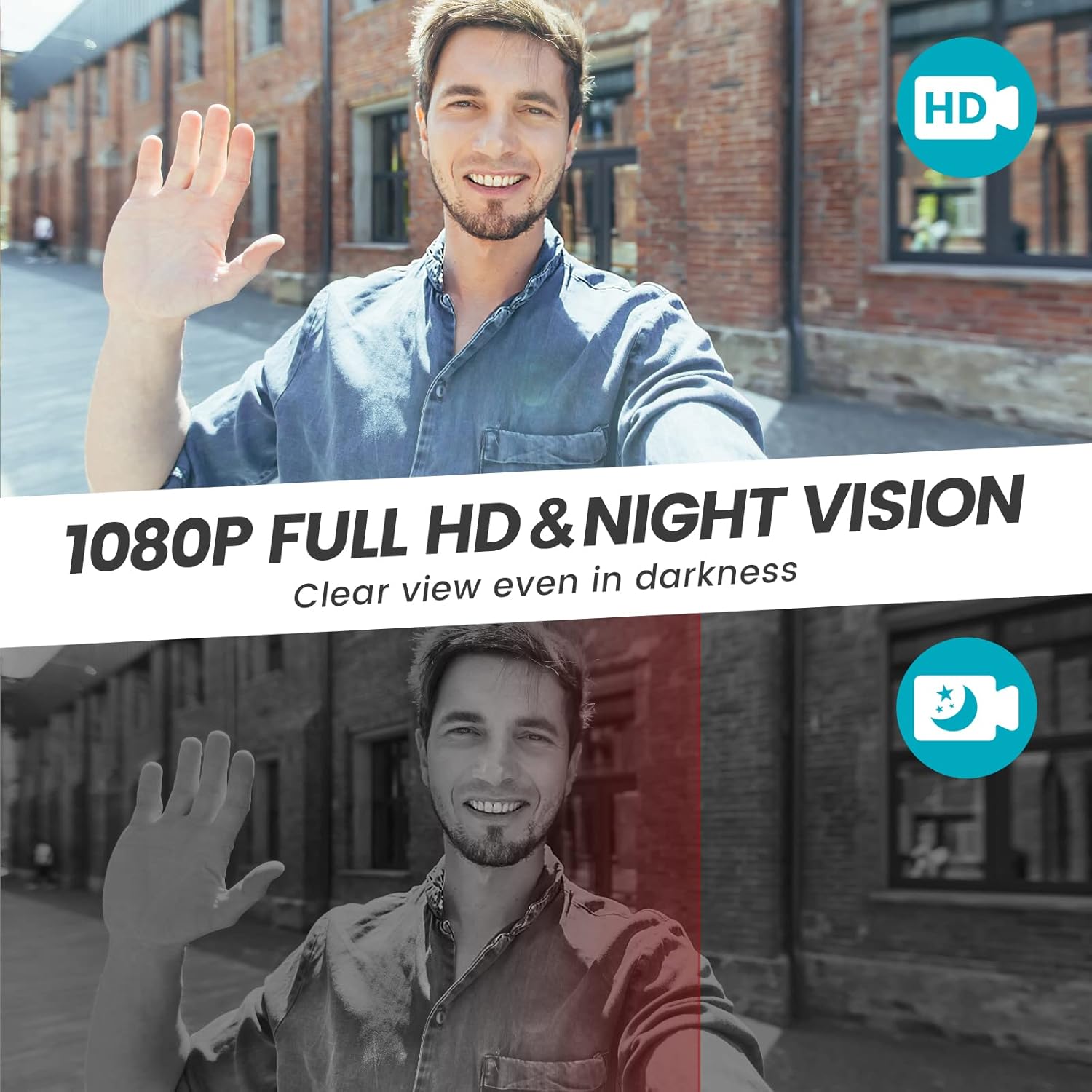
Image 5.6: 1080P Full HD and Night Vision. This image compares daytime 1080P HD video with nighttime IR night vision, demonstrating clear visibility in both conditions.

Image 5.7: 1080P Live Video and IR Night Vision. This image shows a wide-angle view (120 degrees) of a hallway with a delivery person, demonstrating both 1080P HD video and IR night vision capabilities.
5.5 Video Storage and Family Sharing
The doorbell supports local storage via a Micro SD card (up to 16GB, not included) and offers 7-day free cloud storage. Video recordings will loop, overwriting older files when the storage is full. You can share access to the doorbell feed with up to 5 family members through the CloudEdge app.

Image 5.8: No Monthly Fees. A smartphone screen displays the CloudEdge app interface with icons for screenshot, intercom, record, and motion detection, emphasizing the availability of SD card storage (not included) and 7-day free cloud storage.
6. Maintenance
- Cleaning: Use a soft, damp cloth to clean the camera lens and doorbell surface. Avoid abrasive cleaners.
- Battery Life: The doorbell is powered by a rechargeable battery. Recharge it when the app indicates low battery. Battery life varies based on usage and environmental factors.
- Weather Resistance: The doorbell has an IP66 weather resistance rating, protecting it from rain, snow, and dust. However, avoid submerging it in water.

Image 6.1: IP66 Weather Resistance. This image shows the doorbell camera installed outdoors during various weather conditions (rain, snow, sun) and temperature extremes, illustrating its IP66 rating for protection against elements like rain, snow, shine, temperature, and dust.
7. Troubleshooting
If you encounter issues with your Morecam Video Doorbell, refer to the following common problems and solutions:
| Problem | Possible Cause / Solution |
|---|---|
| Doorbell does not power on or hold charge. |
|
| Cannot connect to Wi-Fi or app. |
|
| Chime does not ring. |
|
| Frequent false motion alerts. |
|
| Poor video quality or night vision. |
|
8. Specifications
| Feature | Detail |
|---|---|
| Brand | Morecam |
| Model | J9X |
| Connectivity Technology | Wireless (Wi-Fi 2.4GHz) |
| Video Capture Resolution | 1080p Full HD |
| Special Features | Night Vision, PIR Human Detection, Two-Way Audio, Voice Changer |
| Indoor/Outdoor Usage | Indoor, Outdoor (IP66 Weather Resistance) |
| Compatible Devices | Smartphone, Tablet (CloudEdge App) |
| Power Source | Rechargeable Battery (Corded Electric for charging) |
| Local Storage | Micro SD Card (up to 16GB, not included) |
| Cloud Storage | 7-day free cloud storage |
| Material | Metal |
| Item Weight | 430 g |
| Parcel Dimensions | 18 x 9.9 x 7.7 cm |
9. Warranty and Support
For warranty information and technical support, please refer to the contact details provided with your purchase or visit the official Morecam website. Keep your purchase receipt as proof of purchase.
Related documentsJ9X


Ask a question about this manual
Ask about setup, troubleshooting, compatibility, parts, safety, or missing instructions. Manuals+ will review the question and use this page’s manual context to help answer it.