
1. Introduction
The GuliTech FeelTech FY6300 60M is a dual-channel Direct Digital Synthesis (DDS) function and arbitrary waveform signal generator. It is designed for generating various waveforms, including sine, square, ramp, pulse, and arbitrary waveforms, with a maximum sine wave output frequency of 60MHz and a square wave output frequency of 25MHz. This device features a 250MSa/s sampling rate and 14-bit vertical resolution, ensuring high signal fidelity. It also includes advanced modulation functions such as AM, FM, PM, FSK, PSK, and VCO.
This manual provides detailed instructions for the safe and efficient operation, setup, and maintenance of your FY6300 60M signal generator. Please read this manual thoroughly before using the device.
2. Safety Information
- Always connect the device to a grounded power source to prevent electric shock.
- Do not operate the device in wet or damp conditions.
- Ensure proper ventilation to prevent overheating.
- Do not open the device casing; refer all servicing to qualified personnel.
- Use only the power adapter supplied with the unit.
- Avoid placing heavy objects on the device.
3. Product Overview
3.1 Key Features
- Maximum sine wave output frequency up to 60MHz (FY6300-60M).
- Maximum square wave output frequency up to 25MHz.
- Real-time sampling rate of 250MSa/s.
- 14-bit high-speed Digital-to-Analog (DA) conversion.
- Waveform storage depth of 8192 * 14 bits.
- Phase resolution of 0.01°.
- Duty cycle adjustment accuracy of 0.01%.
- Adjustable rising and falling edge times for square waves.
- Includes AM, FM, PM, FSK, PSK, and VCO modulation functions.
- Improved power supply design for reduced noise in small-amplitude signals.
3.2 Front Panel Controls
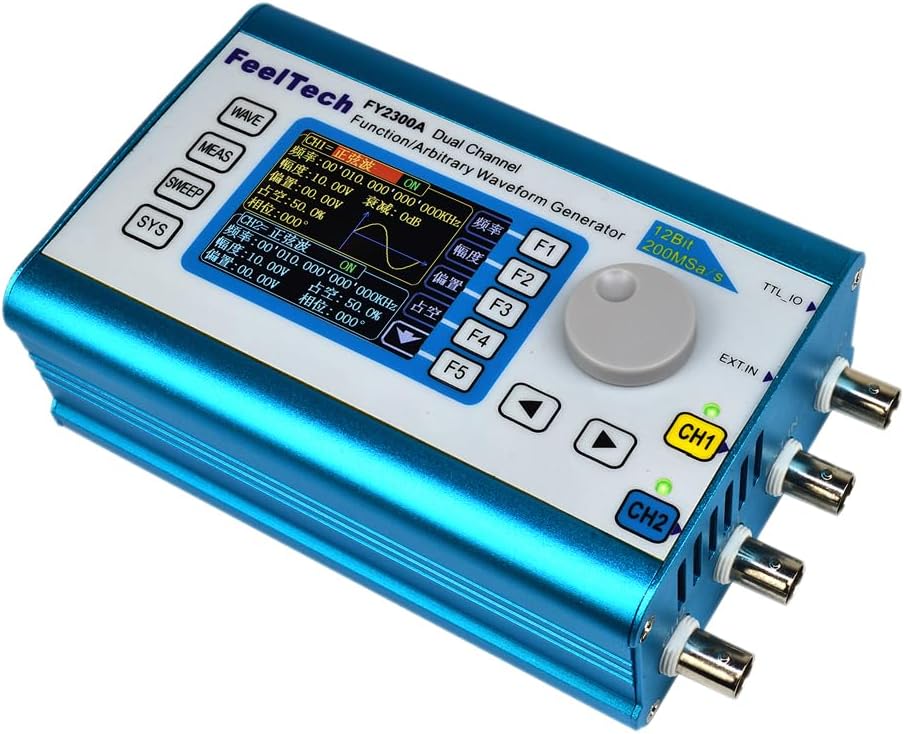
Figure 3.2.1: Front panel of the FeelTech FY6300 signal generator. The display shows waveform settings, frequency, amplitude, offset, duty cycle, and phase for two channels. Control buttons for WAVE, MEAS, SWEEP, SYS are on the left, while function buttons F1-F5 and a rotary encoder are on the right. Output channels CH1 and CH2 are indicated by LEDs.
The front panel features a display screen that shows current waveform parameters and settings. Buttons on the left (WAVE, MEAS, SWEEP, SYS) navigate main menus. Buttons on the right (F1-F5) provide context-sensitive functions. A rotary encoder allows for parameter adjustment, and directional buttons facilitate menu navigation.
3.3 Side and Rear Panel Connections

Figure 3.3.1: Side view of the FeelTech FY6300 signal generator. This view highlights the DC5V power input, a USB port for connectivity, and an ON/OFF power switch. Dimensions are indicated as 140mm/5.51" length, 54.2mm/2.95" width, and 95mm/3.74" height.

Figure 3.3.2: Rear panel of the FeelTech FY6300 signal generator. This view shows the BNC connectors for Channel 2 (CH2), Channel 1 (CH1), External Input (EXT.IN), and TTL Input/Output (TTL_IO).
The side panel includes the DC 5V power input, a USB port for PC connectivity, and the main power switch. The rear panel provides BNC connectors for Channel 1 (CH1) and Channel 2 (CH2) outputs, an external input (EXT.IN), and a TTL input/output (TTL_IO) port.
4. Setup
4.1 Unpacking and Inspection
- Carefully remove the signal generator and all accessories from the packaging.
- Inspect the device for any signs of physical damage. If damage is found, contact your supplier immediately.
- Verify that all components listed in the packing list are present.
4.2 Power Connection
- Connect the provided DC 5V power adapter to the 'DC5V' input port on the side of the device.
- Plug the power adapter into a suitable electrical outlet.
- Ensure the power switch on the side panel is in the 'OFF' position before connecting power.
4.3 Connecting to External Equipment
Use BNC cables to connect the CH1 or CH2 output ports to your oscilloscope, frequency counter, or other test equipment. The EXT.IN and TTL_IO ports can be used for external synchronization or control signals.

Figure 4.3.1: Example of the FeelTech FY6300 signal generator connected to an oscilloscope. This setup allows for visualization and analysis of the generated waveforms.
5. Operating Instructions
5.1 Power On/Off
- To power on, flip the power switch on the side panel to the 'ON' position. The display will illuminate.
- To power off, flip the power switch to the 'OFF' position.
5.2 Basic Waveform Generation
- Press the 'WAVE' button to enter the waveform selection menu.
- Use the directional buttons or rotary encoder to select the desired waveform (e.g., Sine, Square, Ramp).
- Press the corresponding function button (F1-F5) or the rotary encoder to confirm your selection.
- Adjust parameters such as frequency, amplitude, offset, and duty cycle using the rotary encoder and function buttons. The display will show the active parameter for adjustment.
5.3 Modulation Functions
The FY6300 60M supports various modulation types. To access these functions:
- Select a base waveform (carrier wave) using the 'WAVE' button.
- Navigate to the modulation settings via the menu system (refer to the on-screen prompts).
- Choose the desired modulation type (AM, FM, PM, FSK, PSK, VCO) and configure its parameters (e.g., modulation depth, frequency).
5.4 Arbitrary Waveform Generation
The device allows users to define and generate custom arbitrary waveforms. This typically involves:
- Creating a waveform using PC software (if available) and transferring it via the USB port.
- Selecting the 'Arbitrary' waveform type from the 'WAVE' menu.
- Loading the desired arbitrary waveform from the device's memory.
6. Maintenance
6.1 Cleaning
- Ensure the device is powered off and disconnected from the power source before cleaning.
- Use a soft, dry cloth to wipe the exterior of the device.
- For stubborn dirt, a slightly damp cloth with mild detergent can be used, followed by a dry cloth.
- Do not use abrasive cleaners, solvents, or harsh chemicals.
6.2 Storage
- Store the device in a cool, dry place away from direct sunlight and extreme temperatures.
- Keep the device covered to prevent dust accumulation.
- If storing for extended periods, disconnect all cables.
7. Troubleshooting
- No Power: Check if the power adapter is securely connected and the power switch is 'ON'. Verify the power outlet is functional.
- No Output Signal: Ensure the output channel (CH1/CH2) is enabled on the device. Check cable connections to external equipment. Verify frequency and amplitude settings are not set to zero.
- Incorrect Waveform: Confirm the correct waveform type is selected. Check all relevant parameters (frequency, amplitude, offset, duty cycle) for proper configuration.
- Display Issues: If the display is blank or flickering, power cycle the device. If the issue persists, contact support.
- Device Not Responding: Try power cycling the device. If unresponsive, disconnect power for a few minutes and reconnect.
8. Specifications

Figure 8.1.1: Detailed technical specifications for the FY6300 series, including frequency ranges for various waveforms, resolution, accuracy, stability, impedance, phase range, and waveform characteristics.
8.1 General Specifications (FY6300-60M Model)
| Parameter | Value |
|---|---|
| Manufacturer | FeelTech(FeelElec) |
| Brand | GuliTech |
| Model Number | GL-FY6300 60M |
| Number of Items | 1 |
| Sine Wave Frequency Range | 0 ~ 60MHz |
| Square Wave Frequency Range | 0 ~ 25MHz |
| Ramp, Triangle Wave Frequency Range | 0 ~ 10MHz |
| Pulse Wave Frequency Range | 0 ~ 20MHz |
| TTL/CMOS Wave Frequency Range | 0 ~ 60MHz |
| Arbitrary Waveform Frequency Range | 0 ~ 20MHz |
| Frequency Resolution | 1μHz (0.000001Hz) |
| Frequency Accuracy | ± 5x10⁻⁶ |
| Frequency Stability | ± 1x10⁻⁶ / 3 Hours |
| Output Impedance | 50Ω ±10% (Typical) |
| Phase Range | 0 ~ 359.9° |
| Phase Resolution | 0.1° |
| Waveform Length | 8192 points |
| Sampling Rate | 250MSa/s |
| Vertical Resolution | 14 bits |
| Sine Harmonic Suppression | ≥45dBc (<1MHz); ≥40dBc (1MHz~60MHz) |
| Total Harmonic Distortion | <0.8% (20Hz~20kHz, 0dBm) |
| Square Rise/Fall Time | ≤10ns (Vpp<5V) |
| Square Overshoot | ≤7.5% |
| Duty Cycle | 0.1%~99.9% |
| Sawtooth Wave Linearity | >98% (0.01Hz~10kHz) |
9. Warranty and Support
This product comes with a standard manufacturer's warranty. For specific warranty terms and conditions, please refer to the documentation provided with your purchase or contact your retailer. For technical support, troubleshooting assistance beyond this manual, or service inquiries, please contact GuliTech customer support through their official channels.