
1. Introduction
Thank you for choosing the ONIKUMA GAMING G52 75% Mechanical Gaming Keyboard. This compact, 82-key keyboard is designed for an optimal gaming and typing experience, featuring mechanical blue switches, vibrant RGB backlighting, and an ergonomic design. This manual provides detailed instructions for setup, operation, maintenance, and troubleshooting to ensure you get the most out of your new keyboard.
2. What's in the Box
- 1x ONIKUMA GAMING G52 75% Mechanical Gaming Keyboard
- 1x USB-C Cable
- 1x User Manual
3. Setup
- Connect the Keyboard: Plug the USB-C end of the provided cable into the keyboard's USB-C port. Connect the standard USB-A end of the cable to an available USB port on your computer (PC, Mac, desktop, or laptop).
- Automatic Driver Installation: The keyboard is plug-and-play. Your operating system (Windows XP/Vista/7/8/10, Android, Mac systems) will automatically detect and install the necessary drivers. No additional software is typically required for basic functionality.
- Cable Management: The back of the keyboard features a three-way cable routing design for tidy cable management, helping to keep your desktop organized.

Image: The ONIKUMA G52 keyboard integrated into a typical computer setup.
4. Operating Instructions
4.1 Multimedia Keys (FN Functions)
The keyboard features 12 multimedia keys accessible by pressing the Fn key in combination with the F1-F12 keys. Refer to the diagram below for specific functions:

Image: A visual guide to the Fn key combinations for multimedia and lighting controls.
- Fn + F1: Music Player
- Fn + F2: Volume Down
- Fn + F3: Volume Up
- Fn + F4: Mute
- Fn + F5: Stop
- Fn + F6: Previous Track
- Fn + F7: Next Track
- Fn + F8: Play/Pause
- Fn + F9: Browser
- Fn + F10: Calculator
- Fn + F11: Desktop Display
- Fn + F12: Full Key Lock
4.2 RGB Lighting Control
The keyboard features dynamic rainbow RGB backlighting with adjustable effects.
- Fn + Home: Cycle through different lighting modes (e.g., static rainbow, breathing, wave effects).
- Fn + End: Adjust lighting speed effect.
- Fn + Page Up (↑): Increase brightness level.
- Fn + Page Down (↓): Decrease brightness level.
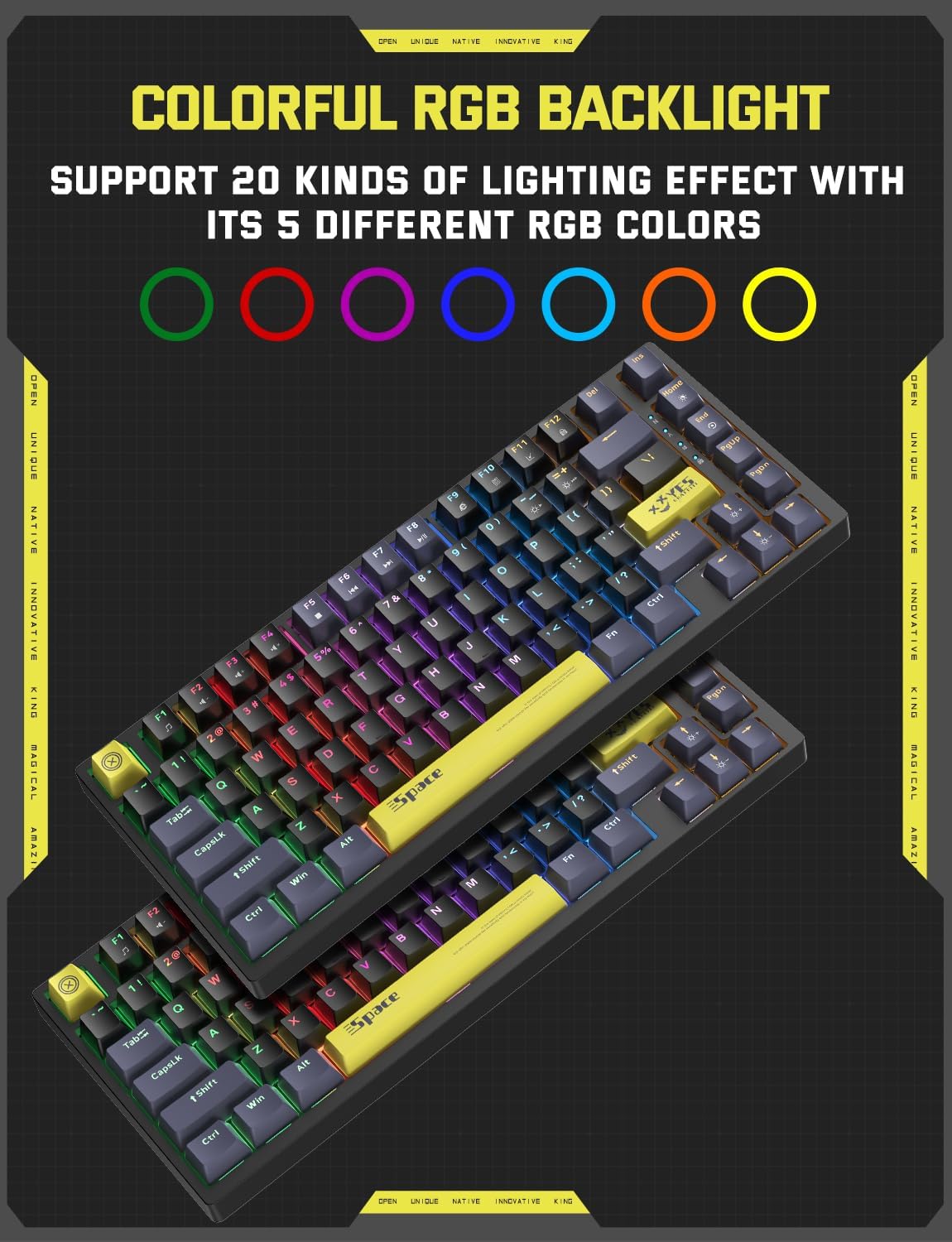
Image: The ONIKUMA G52 keyboard showcasing its vibrant RGB backlighting.
4.3 Macro Keys
The keyboard supports customizable macro keys. A standalone driver is available to configure these macros according to your usage habits. Please refer to the manufacturer's website for driver download and detailed macro programming instructions.
5. Features
- 75% Compact Layout & Multi-media Keys: This 82-key mechanical gaming keyboard provides all essential keys while occupying less desktop space. It includes 12 dedicated multimedia keys (Fn+ F1~F12) for quick operations.
- Mechanical Blue Switches: Equipped with paragraph-sensing blue switches, this wired gaming keyboard offers fast response, no delay, sensitive triggering, and a crisp clicking sound, ideal for both gaming and typing.
- Cool RGB Light: Enjoy rainbow backlight colors with adjustable brightness levels and speeds, providing various amazing lighting effects. Dynamic RGB lights enhance the aesthetic of your desktop and create a comfortable gaming atmosphere.
- Ergonomic Design: The keycaps are made of ABS material for a smooth feel. The USB gaming keyboard features a sturdy bracket on the back, allowing adjustment to 4°, 6°, or 9° angles to reduce wrist pressure during gaming or typing.
- Full Keys Anti-ghosting: All 82 keys are anti-conflict, allowing you to press multiple keys simultaneously without issues. The concave and convex keys are designed to fit your fingers precisely, reducing errors and providing a smooth experience.
- Powerful Compatibility: No drivers or software are needed. Simply plug and play to connect to PC, Mac, desktop, laptops, etc. The 75% compact keyboard supports Win XP, Vista, Win7, Win8, Win10, Android, and Mac systems.

Image: The compact 75% layout of the ONIKUMA G52 keyboard, highlighting its 82-key design.

Image: A detailed view of the mechanical blue switches and durable ABS keycaps.

Image: The adjustable feet of the ONIKUMA G52 keyboard, showing ergonomic angle options.
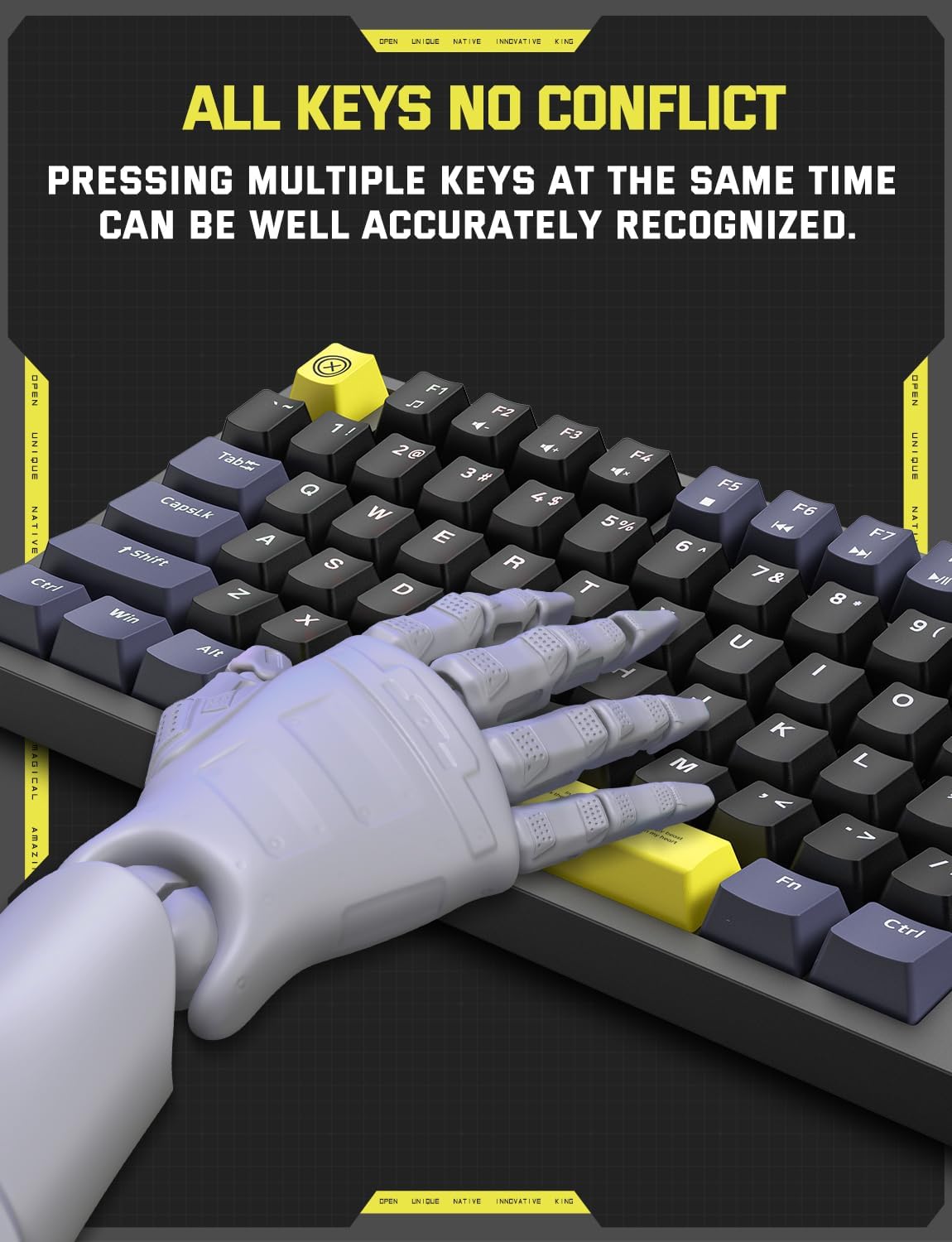
Image: A visual representation of the keyboard's anti-ghosting capability.
6. Specifications
| Feature | Detail |
|---|---|
| Product Dimensions | 14.17 x 7.08 x 1.96 inches (14.17"L x 7.08"W x 1.96"H) |
| Item Weight | 1.63 pounds |
| Manufacturer | ONIKUMA GAMING |
| ASIN | B0CL28SX67 |
| Item Model Number | G52 |
| Connectivity Technology | USB-C (Wired) |
| Keyboard Description | Wired Gaming Keyboard, RGB Backlit, 75% Compact Layout, Mechanical Blue Switch, USB-C Plug, Ergonomic Design |
| Recommended Uses | Everyday Use, Gaming, Personal, Photo Editing, Programming, Video Editing |
| Special Features | 75% Compact Layout, Backlit, Blue Switch, Ergonomic, Portable |
| Keyboard Backlighting Color | RGB (Rainbow) |
| Compatible Devices | Desktop, Laptop, Macbook, PC |
7. Maintenance
- Cleaning: Use a soft, dry cloth to wipe the keyboard surface. For deeper cleaning, use compressed air to remove dust and debris from between the keycaps. Avoid using harsh chemicals or abrasive materials.
- Keycap Removal: If necessary, keycaps can be carefully removed for cleaning or switch replacement using a keycap puller (not included). Exercise caution to avoid damaging the switches.
- Cable Care: Avoid bending or twisting the USB-C cable excessively to prevent internal damage.
8. Troubleshooting
- Keyboard Not Responding:
- Ensure the USB-C cable is securely connected to both the keyboard and your computer.
- Try plugging the keyboard into a different USB port on your computer.
- Test the keyboard on another computer to rule out a computer-specific issue.
- Backlighting Not Working/Incorrect:
- Check if the brightness is set to maximum using Fn + Page Up (↑).
- Cycle through different lighting modes using Fn + Home.
- Ensure no software is overriding the keyboard's lighting settings.
- Keys Not Registering/Double Typing:
- Clean the affected key(s) to remove any debris that might be interfering with the switch.
- If the issue persists, it may indicate a faulty switch. Contact customer support for assistance.
9. Warranty and Support
ONIKUMA GAMING products are designed for quality and reliability. For warranty information, technical support, or any product-related inquiries, please refer to the official ONIKUMA GAMING website or contact their customer service directly. Keep your purchase receipt as proof of purchase for warranty claims.
ONIKUMA GAMING Store: Visit Store