1. Introduction
Thank you for choosing the KAWA D8 True 4K Dash Cam. This manual provides detailed instructions for the installation, operation, and maintenance of your dash cam. Please read this manual thoroughly before use to ensure proper functionality and to maximize your driving safety and recording experience.
The KAWA D8 Dash Cam features true 4K front recording and 1080P rear recording, equipped with a Sony Starvis IMX415 sensor for superior night vision, built-in GPS for route tracking, and hands-free voice control. It also includes Wi-Fi connectivity for app control and continuous loop recording with G-sensor emergency recording.

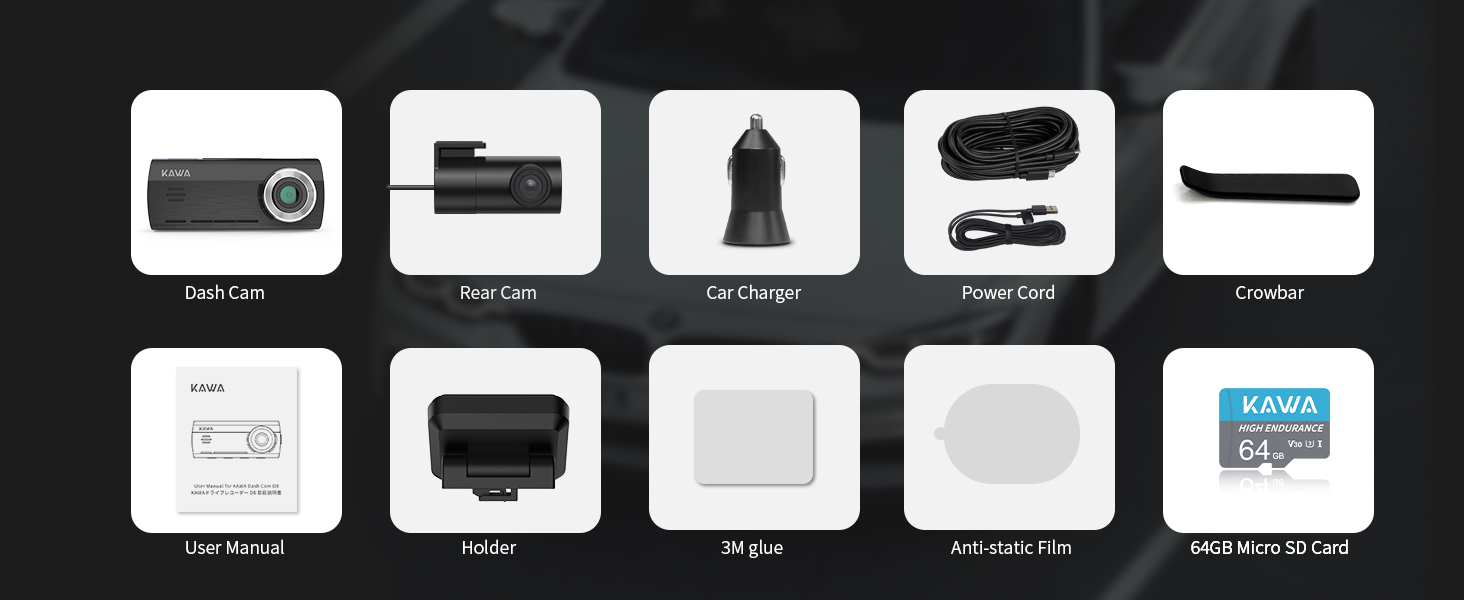
2. Package Contents
Verify that all items are present in your package:
- Dash Cam Front and Rear
- 64GB Micro SD Card
- Dash Cam Holder
- Car Charger
- Power Cord
- Crowbar
- User Manual (this document)
- 3M glue
- Anti-static Film (Front + Rear)
3. Setup and Installation
3.1 Micro SD Card Installation
The KAWA D8 Dash Cam supports Micro SD cards up to 256GB. A U3 High-Speed Card is required for optimal performance. It is recommended to use a genuine U3 high-speed card from a reputable brand to avoid system crashes or video frame drops. For best stability, use the official KAWA Micro SD card.

3.2 Mounting the Dash Cam
The dash cam is designed for windshield mounting using the provided 3M adhesive and anti-static film. Ensure the windshield is clean and dry before application.
- Clean the desired area on your windshield thoroughly.
- Apply the anti-static film to the cleaned area.
- Press the 3M adhesive firmly onto the dotted line in the center of the electrostatic sticker. This ensures stable and secure mounting.
- Attach the dash cam holder to the adhesive.
- Slide the dash cam onto the holder.

3.3 Rear Camera Installation
Before permanently installing the rear camera, it is suggested to connect it to the main dash cam unit and use the KAWA AUTO App to determine the optimal camera direction and position based on the live app screen.

3.4 Power Connection
Connect the dash cam to your car's power outlet using the provided car charger and power cord. The dash cam will automatically power on and begin recording when the vehicle starts.
Video 1: This video demonstrates the general installation process of the KAWA D8 Dash Cam, including mounting and connecting the power supply. It provides a visual guide for users to follow during setup.
Video 2: This video specifically details how to install the dash cam with a parking monitoring cable. Note that the parking monitoring cable is not included and must be purchased separately for 24-hour parking surveillance functionality.
4. Operating Instructions
4.1 Basic Operation
Once powered on, the dash cam will automatically begin recording. The 3.16-inch IPS screen provides a live view of the front and rear cameras.

4.2 Voice Control
The KAWA D8 supports hands-free voice commands for various functions, enhancing safety by allowing you to keep your hands on the wheel.
- "Take Photo": Captures a still image.
- "Lock the Video": Locks the current recording to prevent it from being overwritten.
- "Turn on/off WiFi": Toggles Wi-Fi connectivity.
- "Turn on/off Audio": Mutes or unmutes audio recording.
- "Turn on/off Hotspot": Activates or deactivates the Wi-Fi hotspot.

4.3 Wi-Fi and App Control
Connect your dash cam to the KAWA AUTO App (available on iOS and Android) via built-in Wi-Fi for real-time viewing, playback, and video downloads. The app also supports Over-The-Air (OTA) updates for software optimization.

4.4 Built-in GPS and Route Tracking
The integrated GPS module accurately records driving routes, time, and speed (switchable between km/h and mph). This data can be viewed via the app, providing crucial information for incident recording and location tracking.

4.5 Loop Recording and G-Sensor
The dash cam features continuous loop recording, overwriting the oldest footage when the Micro SD card is full. Emergency-recorded videos (triggered by the G-sensor during collisions) are securely stored separately and are not overwritten.

4.6 24-Hour Parking Monitoring
For 24-hour parking monitoring, a hardwire kit (not included) is required. This feature enables time-lapse recording, emergency recording, and parking monitoring recording to capture incidents while parked.

5. Maintenance
- Cleaning: Use a soft, dry cloth to clean the dash cam lens and screen. Avoid abrasive cleaners or solvents.
- SD Card Management: Regularly format the Micro SD card (at least once a month) to ensure optimal performance and prevent data corruption. Back up important videos before formatting.
- Firmware Updates: Keep your dash cam's firmware updated via the KAWA AUTO App's OTA update feature to ensure the latest features and bug fixes.
- Temperature Considerations: The dash cam is designed with heat dissipation vents. While normal operation may generate heat, avoid exposing the device to extreme temperatures for prolonged periods. The supercapacitor ensures stable operation in a wide temperature range (-4°F to 149°F / -20°C to 65°C).

6. Troubleshooting
| Problem | Possible Cause | Solution |
|---|---|---|
| Dash cam does not power on. | No power supply; faulty car charger; loose connection. | Check car charger and power cord connection. Ensure car's power outlet is functional. |
| Video quality is poor/blurry. | Dirty lens; protective film still on lens; incorrect resolution settings. | Clean the lens. Remove any protective film. Check video resolution settings in the app. |
| SD card error/cannot record. | SD card not formatted; incompatible SD card; faulty SD card. | Format the SD card in the dash cam settings or via the app. Ensure it's a U3 high-speed card. Try a different SD card. |
| Wi-Fi connection issues. | Incorrect Wi-Fi password; too far from dash cam; app issues. | Ensure correct Wi-Fi password. Stay within 1.5 meters of the dash cam for stable connection. Restart app/dash cam. |
| Voice control not responding. | Microphone muted; background noise too high. | Ensure audio recording is enabled. Speak clearly and reduce background noise. |
7. Specifications
- Model Name: D8
- Product Dimensions: 6.3 x 5.31 x 2.95 inches
- Item Weight: 1.32 pounds
- Video Capture Resolution: Front 4K (3840*2160P), Rear 1080P
- Image Sensor: Sony Starvis IMX415
- Lens: F1.8 aperture, 7-Glass Lens, 150° Wide Angle
- Display: 3.16-inch IPS Screen
- Connectivity: Wi-Fi, Built-in GPS
- Special Features: Voice Control, WDR (Wide Dynamic Range), LDC (Lens Distortion Correction), 3D DNR (Digital Noise Reduction), Starlight Night Vision, 24h Parking Monitoring (requires hardwire kit), Loop Recording, G-Sensor, Built-In Supercapacitor, H.265 Video Format, One-Click Switching Front and Rear
- Storage: Supports Micro SD Card up to 256GB (U3 High-Speed recommended)
- Power Source: Supercapacitor (no lithium battery)
- Operating Temperature: -4°F (-20°C) to 149°F (65°C)
- Storage Temperature: -22°F (-30°C) to 176°F (80°C)

8. Warranty and Support
KAWA provides a lifetime warranty for the D8 Dash Cam. Free replacements are available within the first 18 months from the date of purchase. For any inquiries or support, please contact KAWA customer service. Expect prompt responses to all emails and messages within 24 hours.
- 24 Hours: Respond quickly and answer in time with professional attitude 24 hours a day.
- 30 Days: 30 days no reason to return or exchange.
- 365 Days: Replacement and accessories available within 365 days.
- Lifetime: Lifetime after-sales service for every customer.


