
Introduction
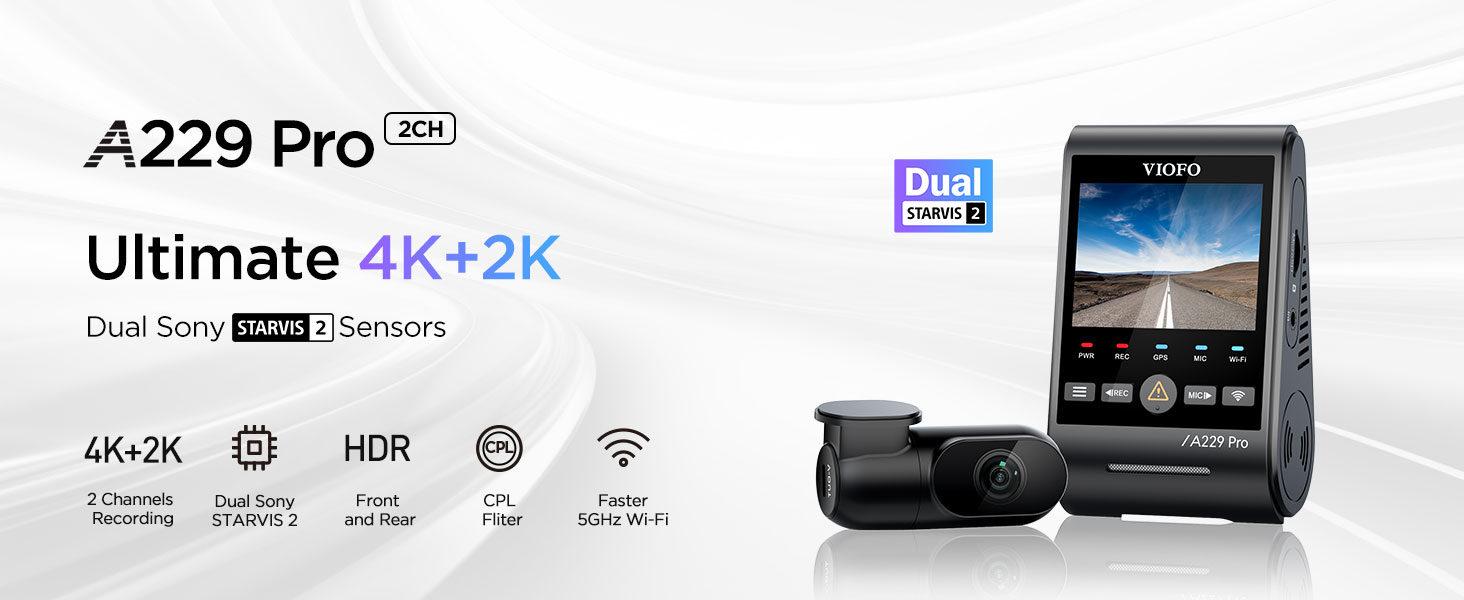
The VIOFO A229 Pro is a state-of-the-art 4K HDR dash cam designed to provide comprehensive vehicle security and high-quality video recording. Featuring dual Sony STARVIS 2 image sensors (IMX678 for front and IMX675 for rear), it captures clear 4K front and 2K rear footage, ensuring critical details like license plates are visible day and night. This manual provides essential information for setup, operation, and maintenance of your dash cam. VIOFO has been a leader in dashcam imaging technology since 2010, committed to developing products known for their high-definition clarity, stability, and reliability.
What's in the Box
Your VIOFO A229 Pro package includes the following components:
- 1x Front Camera
- 1x Rear Camera
- 1x Rear Cable (6m)
- 2x Spare Stickers
- 1x CPL (Circular Polarizing Lens)
- 1x Car Charger (4m)
- 2x Static (Windshield) Stickers
- 1x Trim Removal Tool
- 1x GPS Module with sticker
- 1x User Manual
- Spare Mount Sticky Pads

This image displays the VIOFO A229 Pro dash cam, along with its various components such as the front and rear cameras, cables, car charger, CPL filter, mounting stickers, and user manual, as they appear when unboxed.
Setup Guide
1. Prepare the Dash Cam
Before installation, ensure the dash cam is powered off. Insert a high endurance microSD card (not included) into the designated slot on the side of the main unit. VIOFO industrial high endurance microSD cards (64GB, 128GB, 256GB, or 512GB) are recommended for optimal performance. Attach the static windshield sticker to your windshield first, then apply the 3M adhesive mount of the dash cam onto the static sticker. This prevents adhesive residue on your windshield if you need to remove the dash cam later.
This diagram illustrates the initial preparation steps for the dash cam. It shows how to insert the microSD card into the main unit, attach the Circular Polarizing Lens (CPL) filter to the front camera lens, and apply the static sticker to the windshield before mounting the dash cam.
2. Install the Front Camera
Select a location on your windshield next to the rear-view mirror that does not obstruct your view. Ensure it is within the area covered by your wipers. Clean the surface thoroughly before applying the static sticker and then the dash cam mount.
This video demonstrates the physical installation of the VIOFO A229 Pro front dash cam on the windshield. It shows the process of selecting an optimal mounting location, cleaning the glass, applying the static sticker, and securely attaching the dash cam unit.
3. Install the Rear Camera
Mount the rear camera on your rear windshield. The 6-meter rear cable is typically sufficient for most vehicles. Route the cable discreetly along the vehicle's headliner and A-pillars using the provided trim removal tool to tuck the cable under the trim.
This video illustrates the installation of the VIOFO A229 Pro rear camera. It shows the camera being mounted on the rear windshield and the process of routing the connecting cable discreetly along the vehicle's interior trim.
4. Power Connection
Connect the car charger to your vehicle's 12V power outlet (cigarette lighter socket) and then connect the Type-C end to the main dash cam unit. The dash cam will automatically power on and begin recording when the vehicle starts.

This image illustrates how to connect the dash cam to your vehicle's power supply. It shows the car charger plugged into the cigarette lighter socket and the USB-C cable connecting the charger to the main dash cam unit.
Operating Instructions
1. Basic Operation
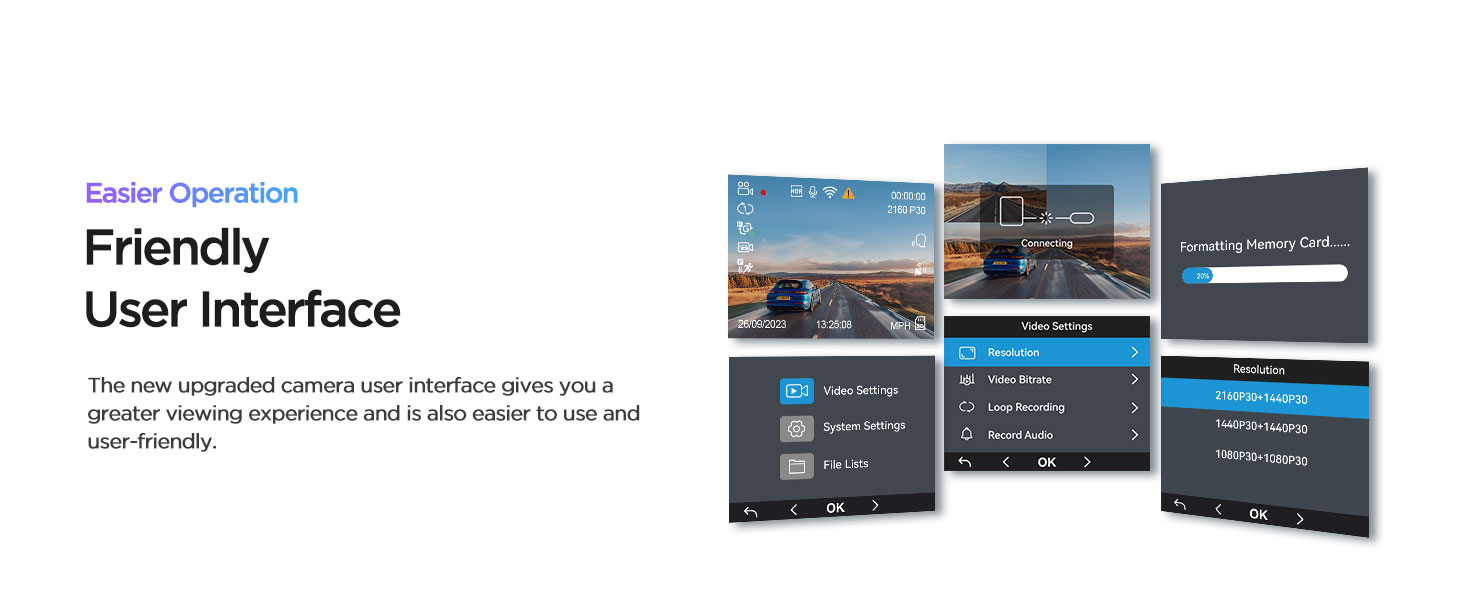
The dash cam automatically starts recording when powered on. The screen displays the live view from the front camera. Use the buttons below the screen to navigate menus and control functions.

This image displays the user-friendly interface of the VIOFO A229 Pro dash cam, showing various settings and options accessible directly on the device's screen.
2. Voice Control
The A229 Pro supports hands-free voice control for common commands. This allows you to manage the dash cam without taking your hands off the steering wheel, enhancing driving safety.
Available voice commands include: "Take photo", "Lock the video", "Turn on/off Wi-Fi", "Turn on/off audio", "Show front camera", "Show rear camera", etc.
This image demonstrates the voice control feature of the dash cam, showing a driver issuing commands such as 'Lock the video' and 'Turn on Wi-Fi' without physical interaction with the device.
3. Wi-Fi & App Control
Connect your smartphone to the dash cam via 5GHz Wi-Fi for faster data transfer. Use the VIOFO app to preview videos, download recordings, and adjust settings remotely.

This image illustrates the dash cam's 5GHz Wi-Fi connectivity and app control. A smartphone is shown connected to the dash cam, displaying the VIOFO app interface for live preview and video downloads.
4. Parking Modes
The A229 Pro offers three parking modes for 24/7 vehicle protection. An optional HK4 ACC hardwire kit (ASIN: B09MRVP2PX) is required for these features.
- Auto Event Detection: Records 15 seconds before and 30 seconds after a detected event (motion or impact).
- Low Bitrate Recording: Continuous recording at a lower bitrate to save SD card space.
- Time Lapse: Records continuously at a low frame rate (e.g., 1, 2, 3, 5, or 10 frames per second).

This image illustrates the three distinct parking modes of the dash cam: Auto Event Detection, which captures events before and after they occur; Low Bitrate Recording for extended continuous surveillance; and Time Lapse Recording for condensed video summaries of long periods.
5. Loop Recording & Emergency Lock
The dash cam features loop recording, automatically overwriting the oldest files when the memory card is full. The built-in G-sensor detects impacts or sudden braking, automatically locking the current video file to prevent it from being overwritten.

This illustration demonstrates the continuous loop recording function, where the dash cam automatically replaces older footage with new. It also highlights the auto emergency lock feature, which protects critical video segments from being overwritten during incidents.
6. Circular Polarizing Lens (CPL)
A CPL filter is included to reduce reflections and glare from the windshield and road surfaces, improving image clarity and contrast, especially in bright conditions.

This image illustrates the benefit of the included CPL filter. It shows a side-by-side comparison of dash cam footage, highlighting how the CPL effectively reduces glare and reflections from the windshield, resulting in clearer video.
Specifications
| Feature | Detail |
|---|---|
| Product Dimensions | 1.7 x 2.3 x 3.9 inches |
| Item Weight | 1.89 pounds |
| Model Name | A229 Pro 2CH |
| Connectivity Technologies | Type-C, Built-In WiFi (5GHz) |
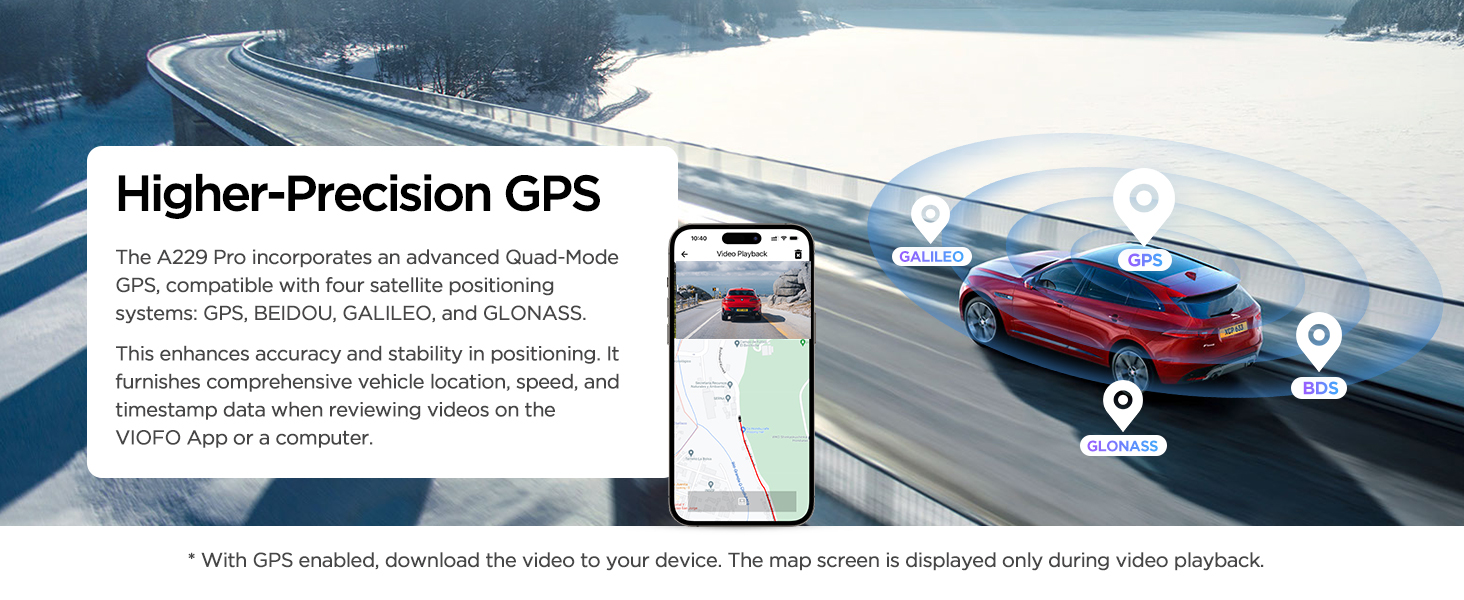
| Special Features | Night Vision 2.0 (HDR), Voice Control, Built-In GPS (Quad-Mode) |
| Video Capture Resolution | Front: 4K 2160P, Rear: 2K 1440P |
| Image Sensors | SONY STARVIS 2 (IMX678 & IMX675) |
| Storage Support | Up to 512GB microSD (Class 10, U3 recommended) |
| Power Source | Supercapacitor (no internal battery) |
Maintenance
Memory Card Recommendation
For reliable performance and long-life durability, it is highly recommended to use VIOFO industrial high endurance microSD cards. These cards are optimized for continuous dash cam recording and are available in 64GB, 128GB, 256GB, and 512GB capacities. Regular formatting of the memory card (e.g., once a month) can help maintain optimal performance and prevent data corruption.
This image highlights the recommended VIOFO Industrial Grade microSD cards, emphasizing their high endurance for dash cam use. It shows various capacities available, from 128GB to 512GB.
Supercapacitor
The dash cam is equipped with a high-quality supercapacitor, which provides a more stable power source and longer lifespan compared to traditional batteries. This allows the dash cam to operate reliably in extreme temperatures (5℉ to 149℉).
Troubleshooting
Common Issues & Solutions
- Dash cam not powering on: Ensure the car charger is properly connected and the vehicle's 12V outlet is functioning. Check the USB-C cable for damage. The dash cam does not include an internal battery and requires continuous power from the vehicle.
- Video quality issues (blurry, glare): Ensure the CPL filter is clean and properly installed. Adjust its rotation to minimize glare. Clean the windshield and camera lens. Check video resolution settings in the app.
- Memory card errors: Use a high endurance microSD card. Format the card regularly (e.g., monthly) within the dash cam's settings. Replace the card if errors persist.
- Wi-Fi connection problems: Ensure 5GHz Wi-Fi is enabled on the dash cam and your phone. Try restarting both devices. Ensure you are within range of the dash cam's Wi-Fi signal.
- Parking mode not working: Verify that the optional HK4 ACC hardwire kit is correctly installed and providing continuous power to the dash cam. Check parking mode settings in the app.
Warranty & Support
VIOFO offers a 24-month warranty coverage for the A229 Pro dash cam. For any product-related inquiries, technical support, or warranty claims, please contact VIOFO LTD directly.
You can find additional support and FAQs on the official VIOFO website.
A PDF version of the User Manual is also available for download: User Manual (PDF)
Optional protection plans are available for purchase to extend coverage beyond the standard warranty.


